

- Open the class and click Settings in the class sidebar. You'll only see Settings for classes you can edit.
- Find Access permissions — "Controls who can discover and access this class."
- Pick one of the three options.
- To let students open the class, also set Status to Published. An Unpublished class is accessible only to people who can edit it, regardless of its access permissions.
- Click Save at the top of the page.
Watch: Check a class audience before copying its link
Read the description under your dropdown option to check the audience for your class.
Your three options are:
- Open to the named group — adds discoverable access for that group, usually your school. The description may also include people with the link.
- Anyone with the link — the sharing link lets in the audience described under the option. People who are not class members or inherited editors cannot discover the class through search.
- Private — limits access to people granted access. School admins and other inherited editors retain access; eligible term moderators may also have review access through a direct link.
The audience depends on the more restrictive access settings above the class, including its school and term. Anyone with the link is not always school-only: in a school that allows link access, the class's link may also let in people outside your school.
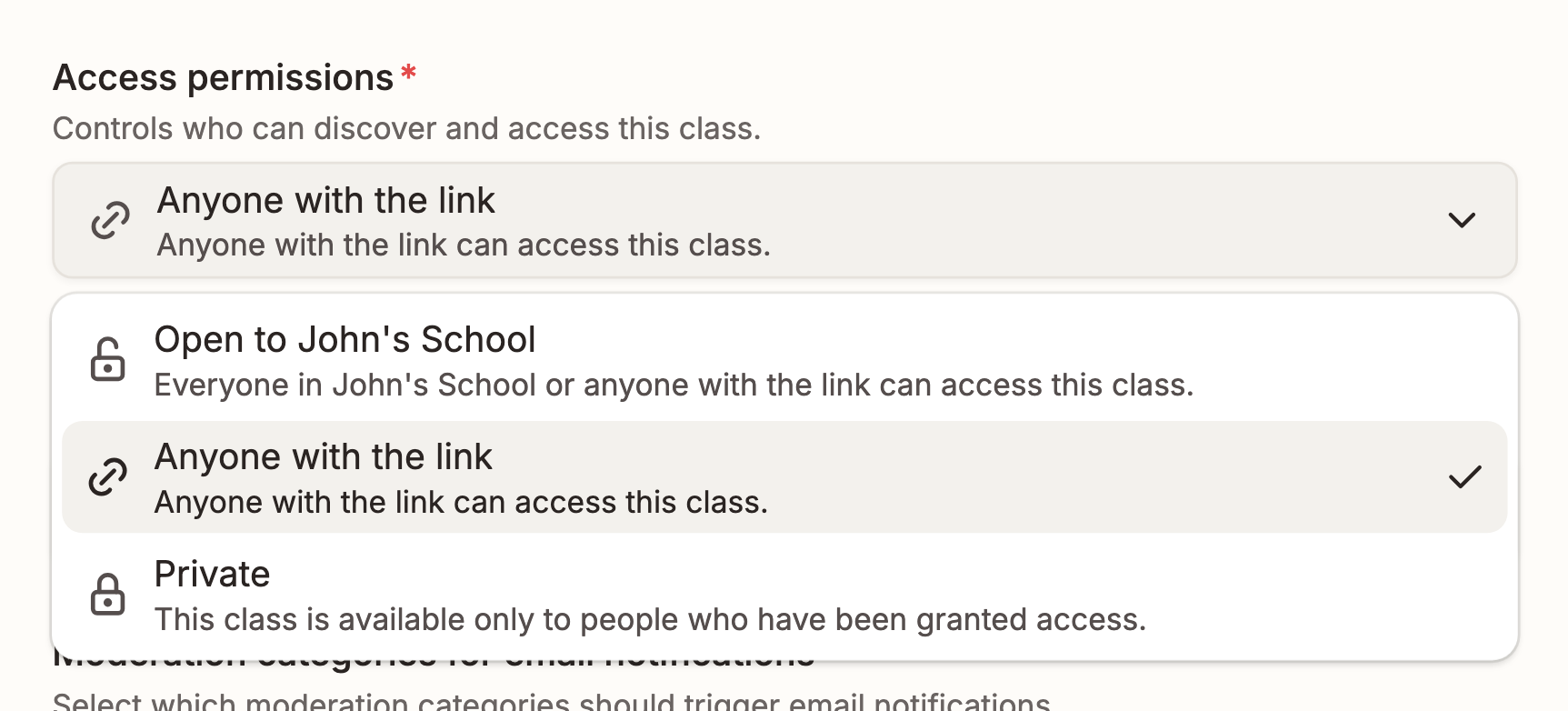
In this example, Anyone with the link is selected without a school-only restriction; Open to John's School also includes anyone with the link.
On the class's People page, review the people you added by name and the displayed inherited access groups. In a populated people list, those groups appear above the named people. The list is not an exhaustive inventory of every authorized moderator.