

Class context is where you tell Sparky about one particular class. Everything you write there applies to every activity and session in that class, so you only have to say it once.
Add or edit class context
- Open the class and click Curriculum in the class sidebar.
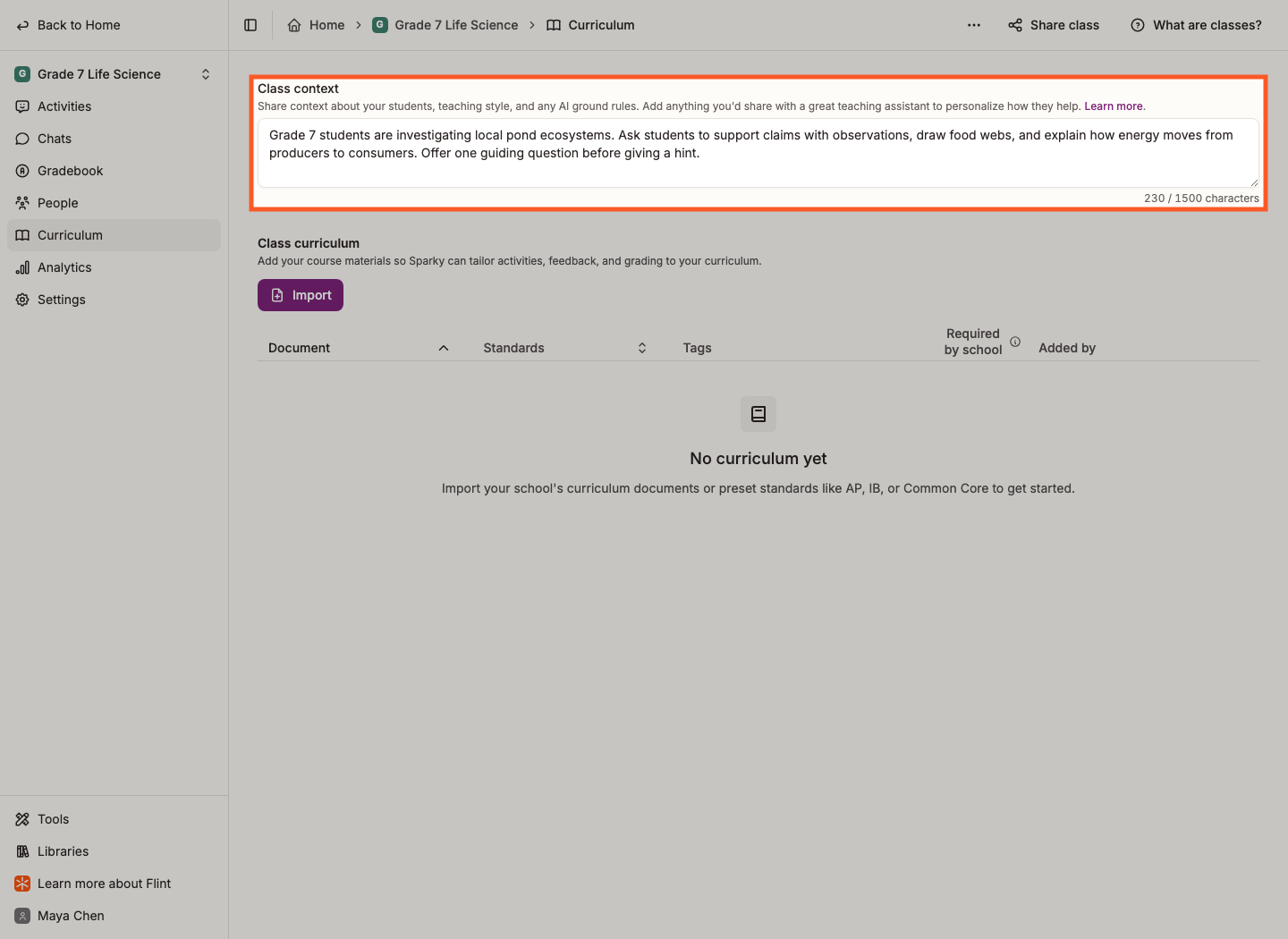
- Type into the Class context box at the top of the page.
- Click anywhere outside the box. Your text saves on its own — there's no button to press.
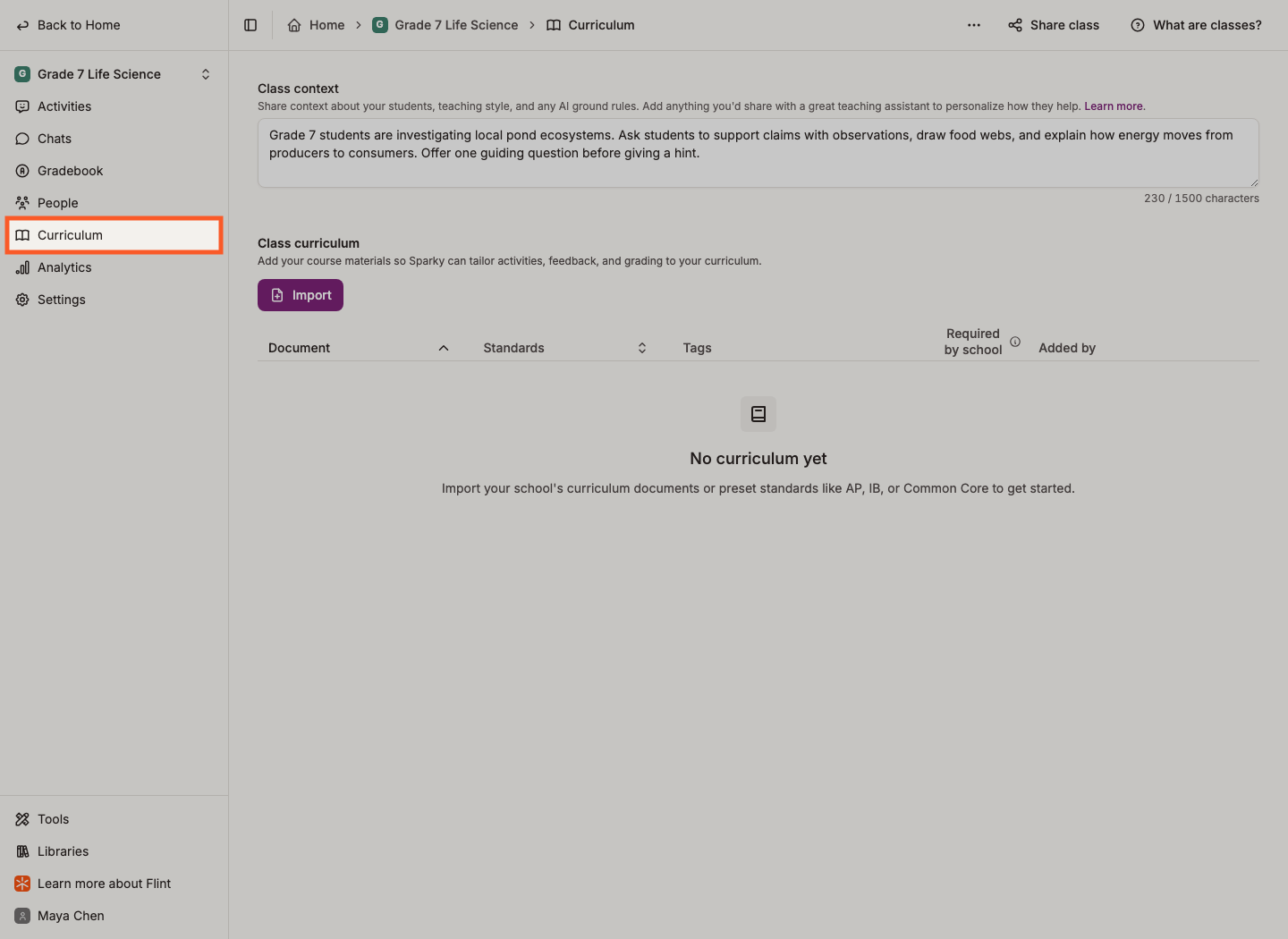
You get up to 5,000 characters, and the counter under the box shows how many you've used. Anyone with Can edit access to the class can change it.
What to write
Share what you'd tell a great teaching assistant on their first day:
- Who's in the class — grade level, subject, how many students
- Accommodations, reading levels, and anything else that changes how you'd explain something
- How you teach, and how you want Sparky to help
- Your ground rules for AI use in this class
For example: "This is a 10th grade U.S. History class with 25 students. Five students read below level and need extra support, so keep explanations short. I'd like Sparky to ask guiding questions rather than hand over answers."
Not sure where to start? The Learning Goals & Background Generator in the public library can help you draft one. Read it over and edit it before you paste it in — it's a starting point, not a finished answer.