

An activity rarely comes out right first time. If sessions are not going the way you hoped, you do not have to work out the fix on your own: describe the problem to Sparky in an ordinary chat and it will propose the change, then pass it to the activity builder for you to review.
For a Lesson with Sparky, Guidelines for Sparky controls the conversation in plain language. Treat the guidelines the way you would treat a rubric you hand a student: say what you expect, in what order, and what to do when the work falls short. You can also ask for changes to assessment questions or a file-upload assignment; review those changes in their own builder fields rather than looking for a Guidelines field.
Ask in a chat, apply in the builder
- Start a chat and name the activity you want to change, then say what is going wrong. Be concrete: "In my Water Cycle activity, Sparky hands over the answer as soon as a student says they're stuck. Make it ask a guiding question first."
- Sparky finds the activity, proposes the change in its reply, and shows an Edit “activity name” button underneath.
- Click that Edit button. The activity builder opens in the conversation and starts applying the change, listing which fields it touched.
- Review the current draft in Settings, beside the conversation, and test it: select Preview for a lesson, or review Questions and Preview for a structured assessment. Ask for more adjustments if it is not right yet.
- Click Update activity for a lesson or file upload, or Update assessment for a test or quiz. Nothing reaches students until you save — the chat itself changes nothing.
You need to be able to edit the activity for the button to appear, and it appears in your own chats, not inside an activity session.
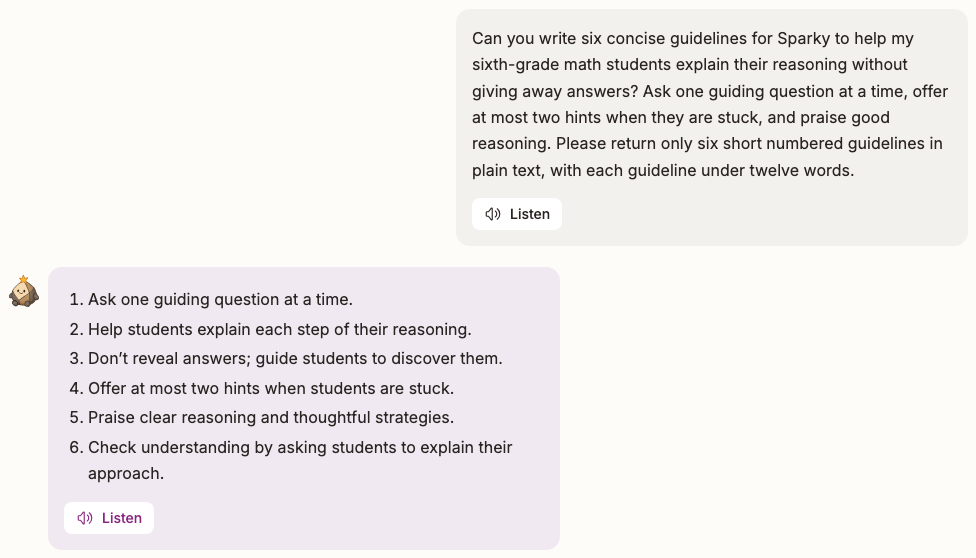
This example asks for standalone guidelines, not a change to a named activity. You can copy the suggested text into Guidelines for Sparky. For the Edit button workflow, name an existing activity and ask Sparky to change it.
What to ask for
Sparky answers better when you describe the outcome you want rather than the wording you think you need:
- "Students finish in four minutes. Make it push for evidence before it accepts an answer."
- "Half the class ignored the reading. Make Sparky open by asking about it."
- "This is too hard for 6th grade — simplify the language but keep the same task."
- "What are three things about this activity that would confuse a student who has not done a debate before?"
That last kind is worth doing on its own: asking Sparky to critique the activity before you change anything often turns up the real problem.
Or work inside the builder
If you already have the activity open, you do not need a separate chat at all. Edit activity opens the builder conversation with the activity already in front of it. For a Lesson with Sparky, Settings → Activity behavior, beside the conversation, lets you edit Guidelines for Sparky by hand.
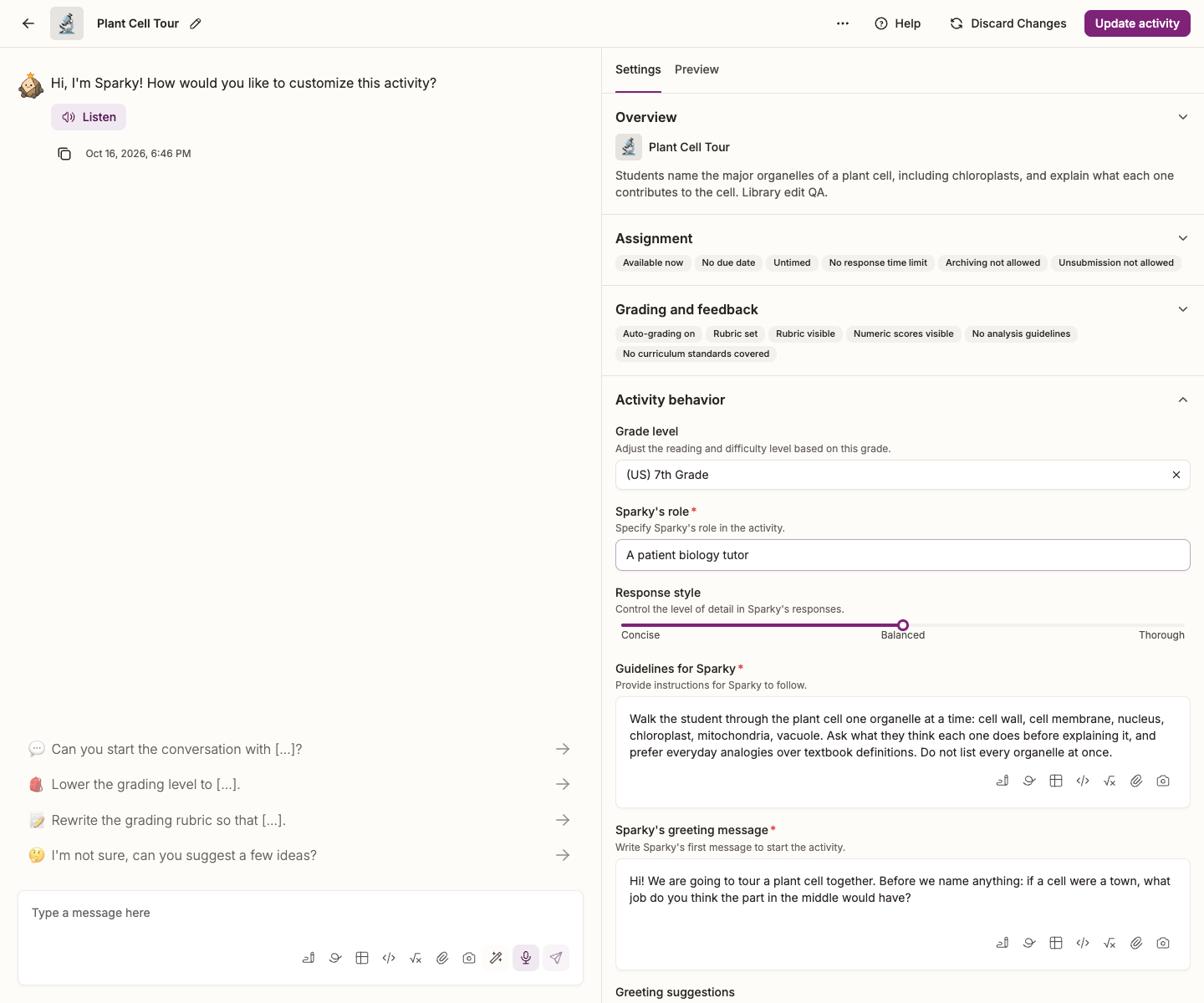
Expand Activity behavior to edit the guidelines. Use the Preview tab to check how Sparky follows them.
- Changing the behavior of an existing activity — the full tour of the builder.
- Changing helpfulness of an activity in Flint — how much Sparky gives away, and the guideline wording that controls it.