

You can reopen an activity to change how Sparky behaves, and students see the changes only after you save. Assessments use a different question editor, and questions answered in submitted work have editing restrictions.
You need Can edit access to the activity or its parent class. If Edit activity is missing, ask an editor to grant access.
Open the builder
- Open the activity.
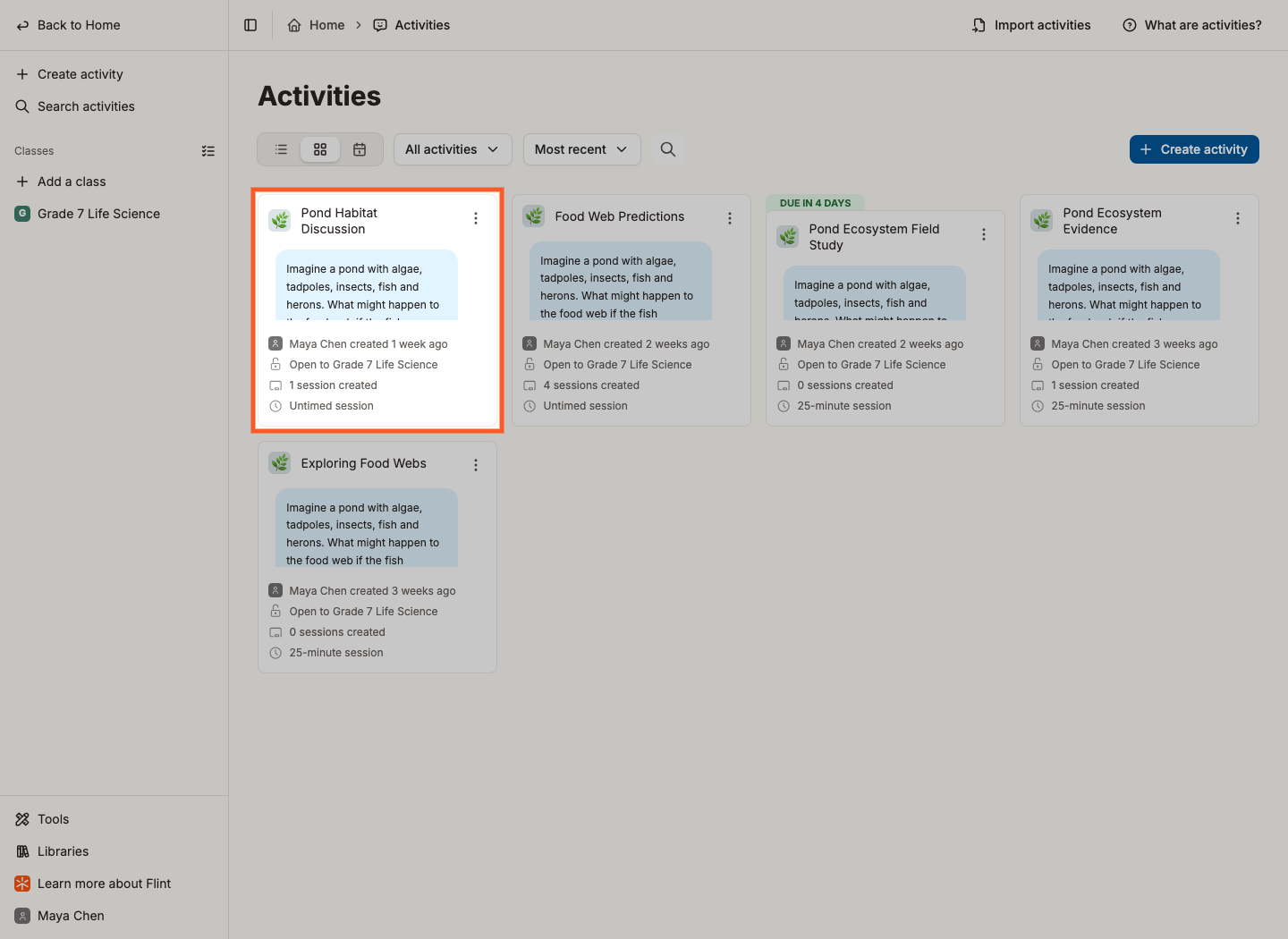
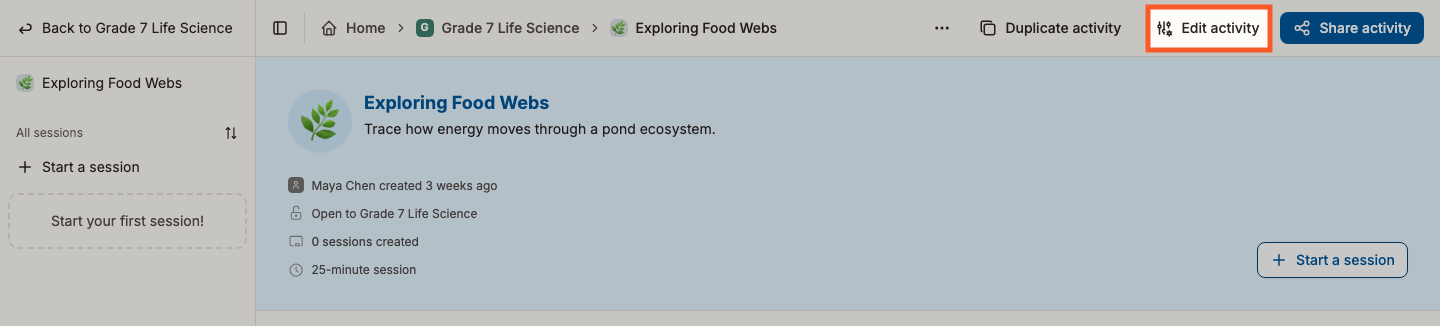
- Click Edit activity at the top of the page. (The ⋯ menu on the activity's card has the same option.)
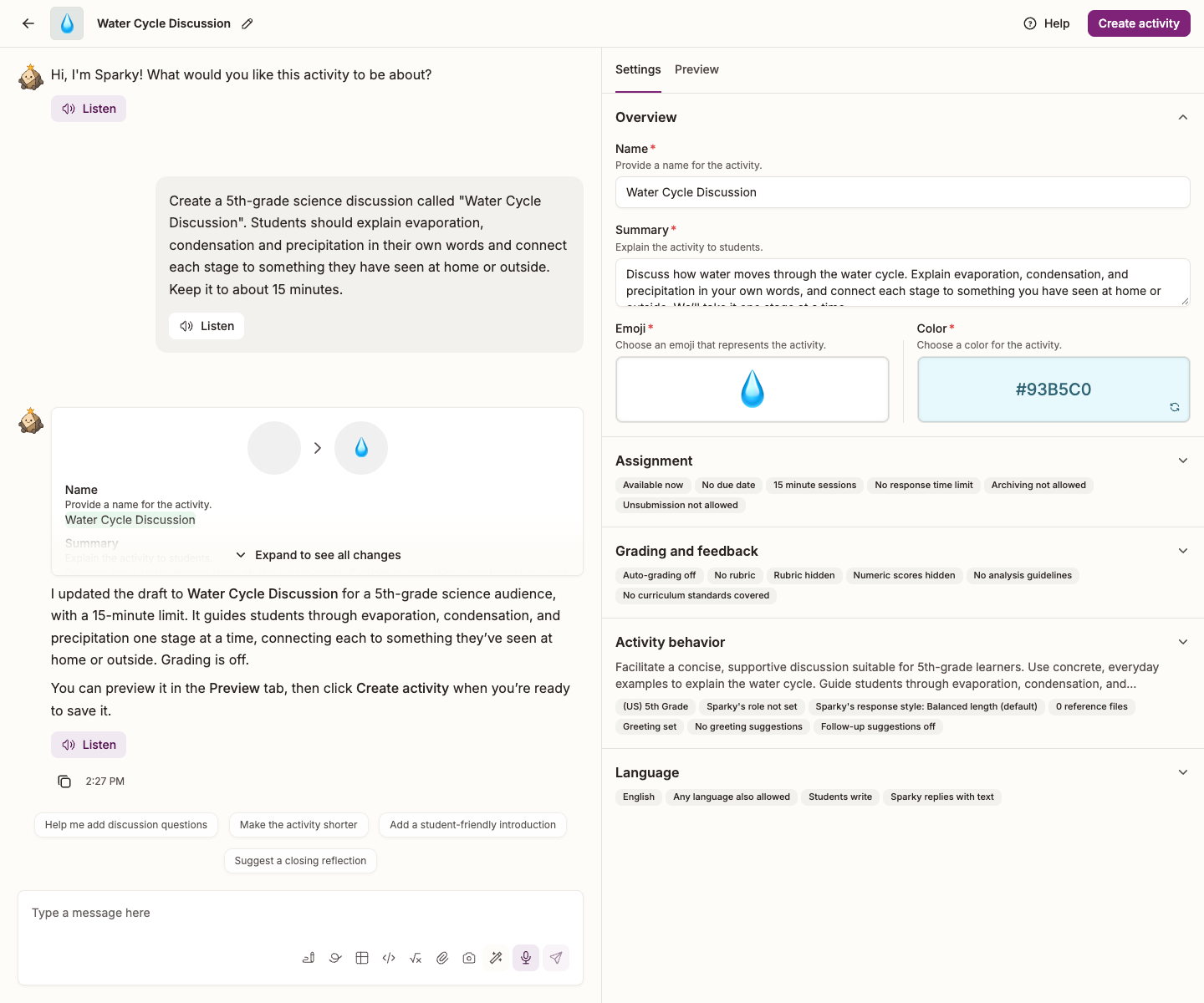
The builder opens with the conversation on the left and the current draft on the right, under Settings. Describe a change to Sparky, or expand a section and edit the fields yourself. After Sparky updates the draft, its message lists the changes and the settings show the new values.
On a phone, the conversation and the settings are tabs in one strip: tap Settings or Preview to switch, and Chat to return.
Ask Sparky for the change
Describe the change in the builder conversation. Sparky updates the draft and lists the fields it changed. Click Expand to see all changes if the list is long, then review the settings beside the conversation.
Changes that work well as a sentence:
- Reading level — "make the language simpler, these are 6th graders"
- Scope — "stick to international affairs and foreign policy"
- Persona — "talk like a pirate"
- Language — "run this activity in French"
- Role reversal — "let the student play the person being interviewed"
- Topic — "let's do World War II instead of the US Civil War"
You can also ask questions instead of giving instructions, and Sparky answers with your activity in mind: "What are three ways to make this more engaging?" or "How will you help a student who gets stuck?"
Expect to go round more than once. Ask for a change, watch it in the preview, then ask for the next one.
Or edit the fields yourself
In Settings, beside the conversation, expand a section to edit it; collapse it to see a summary of the current draft. Lessons have Overview, Assignment, Grading and feedback, Activity behavior and Language. File uploads have the first three; assessments have Overview and Assignment.
An attachment opened from a field, such as a reference file, opens over the conversation with its own close button; the settings column stays where it is.
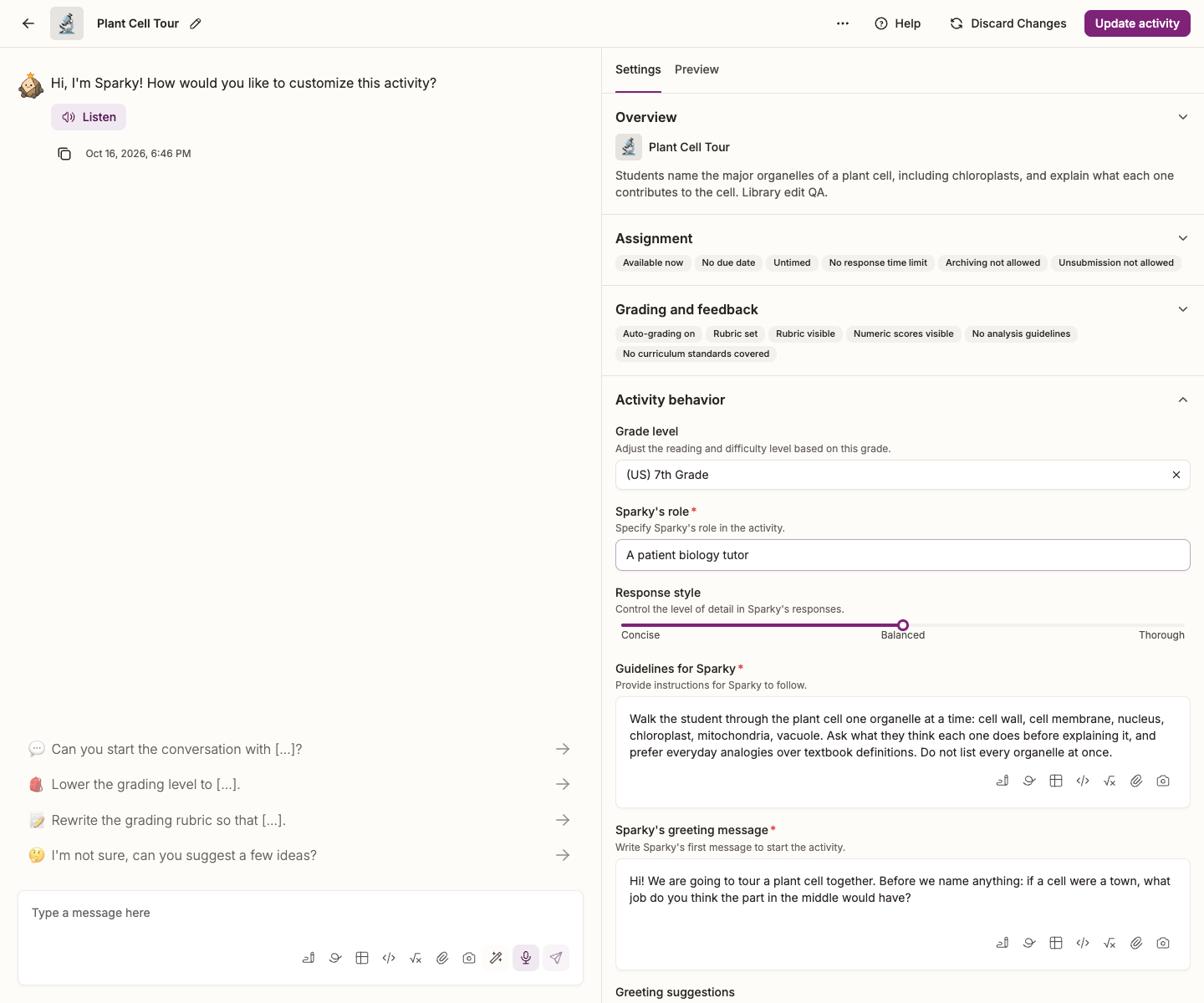
Activity behavior is where Sparky's character lives:
| Field | What it does |
|---|---|
| Grade level | Adjusts the reading and difficulty level to the grade you pick |
| Sparky's role | One line saying who Sparky is playing in this activity |
| Response style | How much detail Sparky gives — Concise, Balanced or Thorough |
| Guidelines for Sparky | The instructions Sparky follows, including how much help to give |
| Sparky's greeting message | The first message students see when they start a session |
| Greeting suggestions | Ready-made replies students can tap to answer that greeting |
| Follow-up suggestions | Whether Sparky offers suggested replies after every message |
Two of these have articles of their own: changing how helpful Sparky is and changing Sparky's response style.
Test it before you save
Select the Preview tab beside Settings to test a chat activity. Switching tabs preserves the preview; editing the draft resets it.
- Click the round play button (Preview session) to watch Sparky play both parts and run the activity on its own. If the activity has a grading rubric, the button reads Preview grade session. Choose a grade to start a simulated student aiming for that rubric performance level, not a school year. The target is not a guaranteed final grade.
- Click Try session myself to take the session as a student would.
- Reset preview, beneath the tabs after a preview starts, returns to the preview chooser.
There's more on this in Live previews when creating a Flint activity.
Watch: Revise a lesson, test the draft and save
The walkthrough edits guidelines directly, tests the draft and saves it, rather than asking the builder chat to revise it.
Edit an assessment
Ask Sparky for changes in the conversation, or use the Settings, Questions and Preview tabs beside it.
In Questions, edit a question's wording, points and answer key, or select Add question. Once a student has answered a question in a submitted assessment, that question cannot be deleted or moved, and its type and points are locked. You also cannot add, remove or reorder its answer choices, change single- versus multiple-selection, or change which choices are correct.
You can still edit the question's wording, existing-choice wording and grading-guide text. The lock icon identifies locked questions. Duplicate the assessment if you need to restructure questions that are already locked.
Use Preview to check the assessment before saving. In Assignment, set availability, the due date and Allow multiple attempts; multiple attempts are off by default.
Save the change
Click Update activity in the top right of the page, or Update assessment for an assessment. Until you do, every change — including the ones Sparky made for you — is unsaved and students still see the old version. Discard Changes throws them away and puts the activity back the way it was.
If you change the rubric's score values or replace its grades, Flint asks you to confirm Update rubric scores because existing sessions' grades and scores can change. See Using rubrics in Flint.