

Use the activity builder to change Sparky's role, instructions and responses in a chat activity. You don't need to know anything about prompt engineering.
You need Can edit access. Open the activity, click Edit activity, and pick either way of working. If the activity was shared with you only for participation, ask an editor for edit access.
- Ask Sparky: describe the change in the builder conversation ("be stricter about showing working", "open with a question instead of a summary"). Sparky updates the draft and shows which fields changed.
- Edit the fields: in Settings, beside the conversation, expand Activity behavior for the role, guidelines, grade level, response style and greeting. Expand Language for languages, voice and communication.
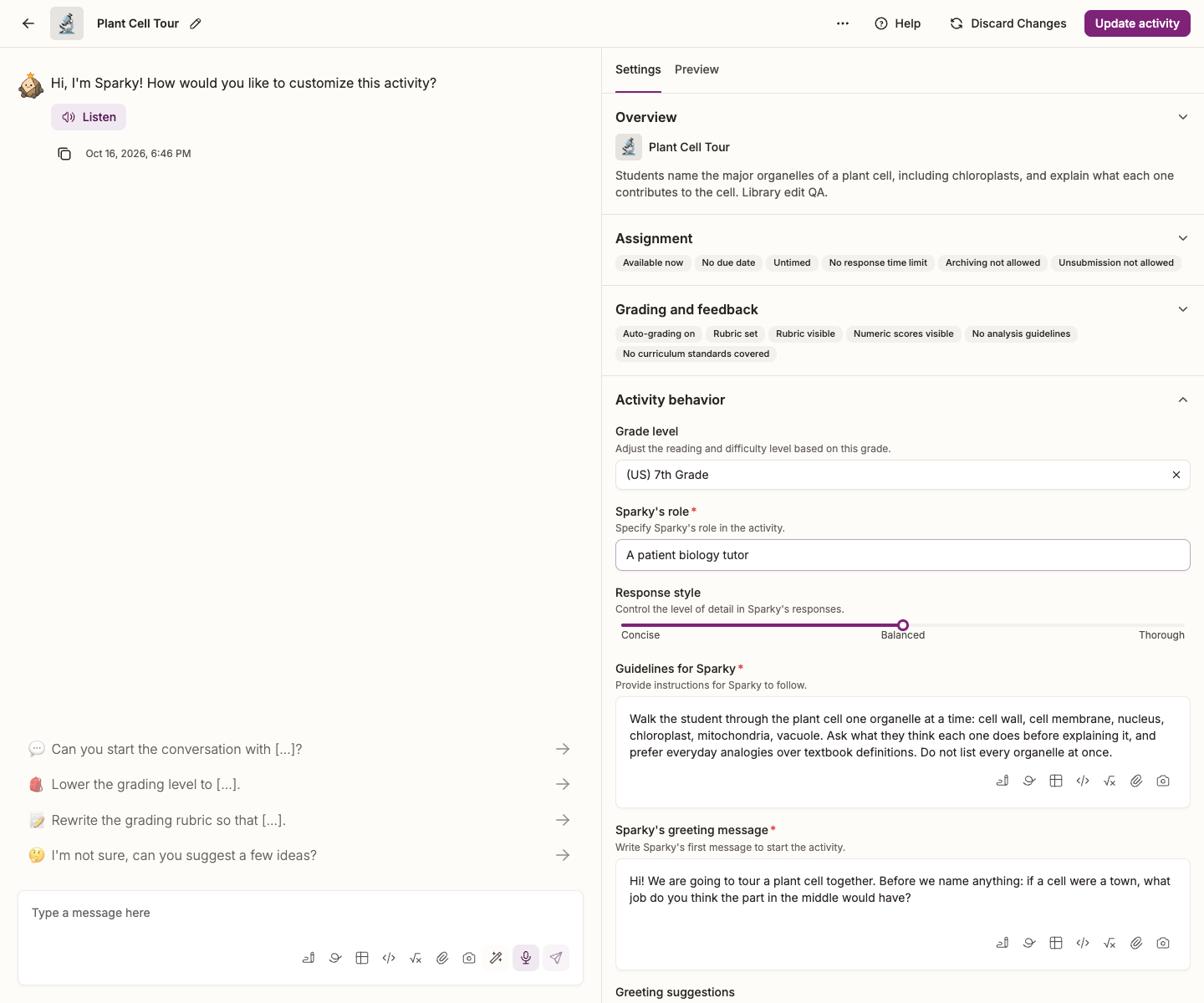
Either way, select the Preview tab to test it, then click Update activity to save. Nothing reaches your students until you do.
There's no separate "Revise" button any more — asking in the builder conversation does that job. For the full walkthrough, see Changing the behavior of an existing activity.
Watch a lesson revision
The walkthrough edits guidelines directly, tests the draft and saves it, rather than asking the builder chat to revise it.