

- Open your activity and select Edit activity, or start building a new one.
- The current draft is open beside the builder conversation, with Settings selected.
- Select Preview beside Settings. For a Lesson with Sparky, use the play button to simulate a session or Try session myself to answer as a student. For a Test or Quiz, review Questions, then select Preview and Start assessment. File Upload activities have no preview.
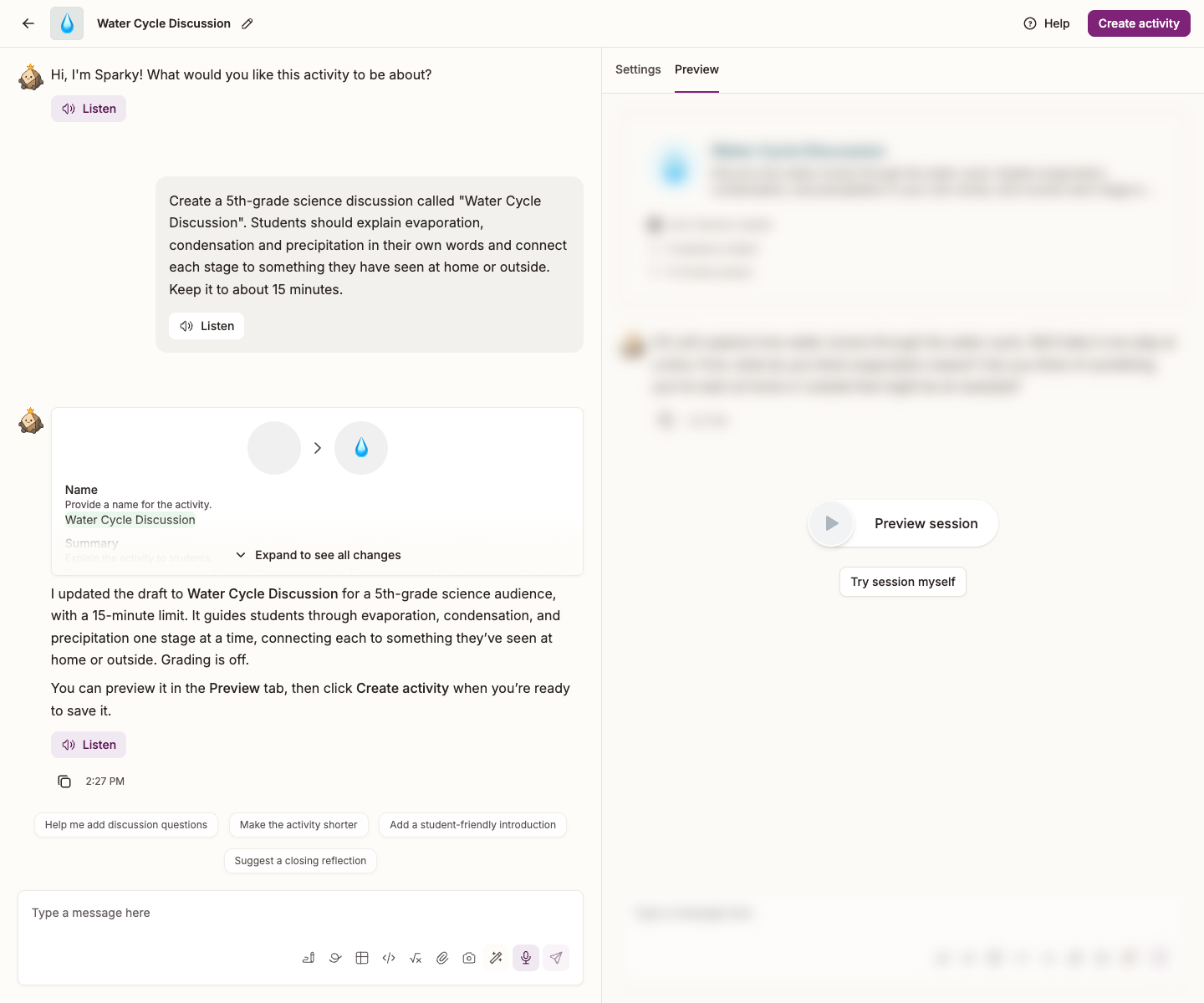
Switching tabs keeps your preview progress. Editing the draft resets the preview so you can test the changed version. Reset preview also lets you start over; it appears beneath the tabs after starting a preview.
When you are ready, use Create activity or Update activity in the top right of the page. Tests and quizzes use Create assessment or Update assessment.
See Live previews when creating a Flint activity for simulated sessions, rubric performance levels and assessment previews.