

A Lesson with Sparky has a Preview tab beside Settings. A Test or Quiz also has Questions in the same column. File Upload activities have no conversation preview.
Open a preview
- Open an activity and select Edit activity, or start building a new one.
- The current draft is open beside the conversation, with Settings selected.
- Select the Preview tab at the top of the settings column. Complete any missing required activity fields before starting. On a phone, the conversation and the settings are tabs in one strip: tap Preview to switch, and Chat to return.
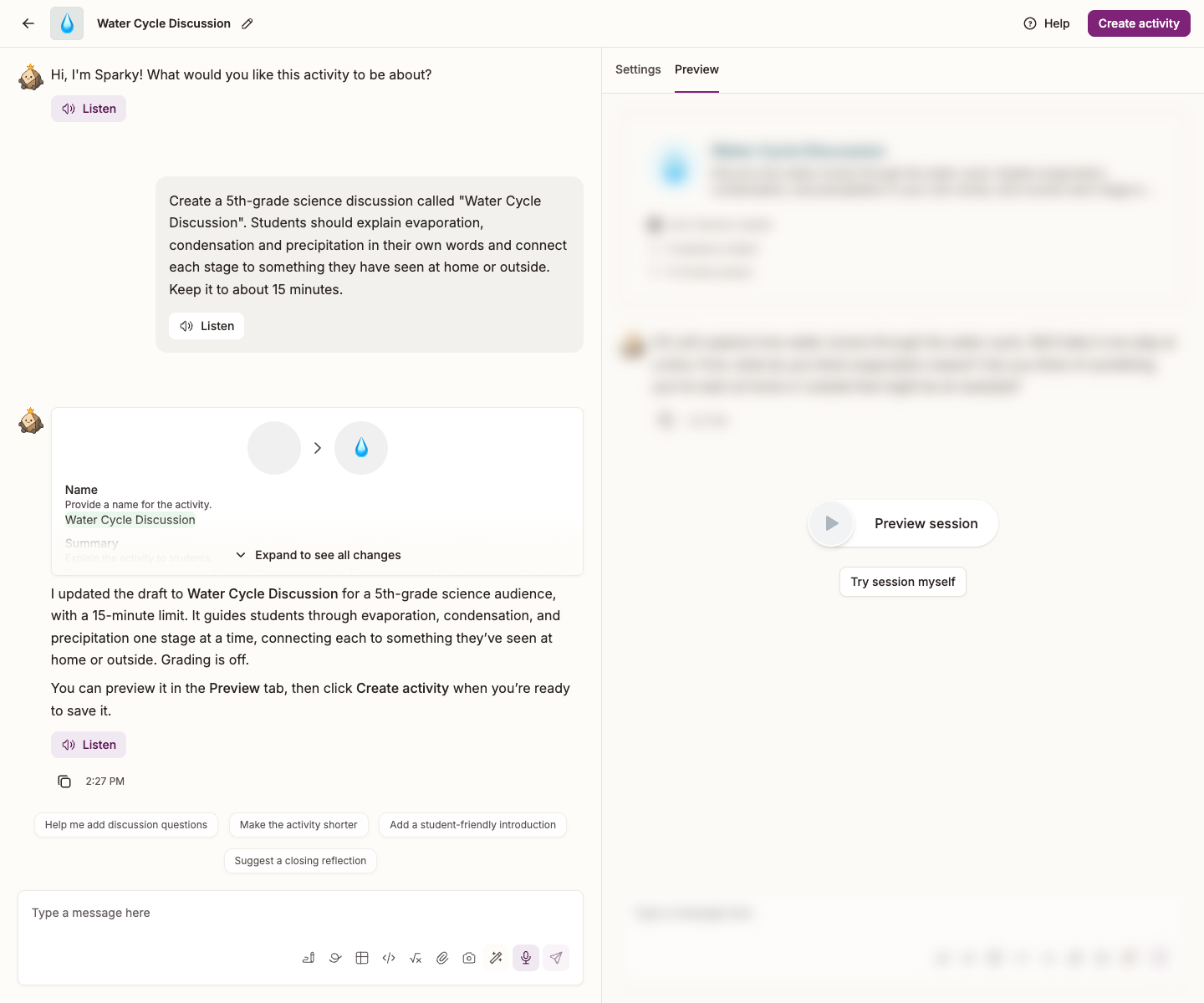
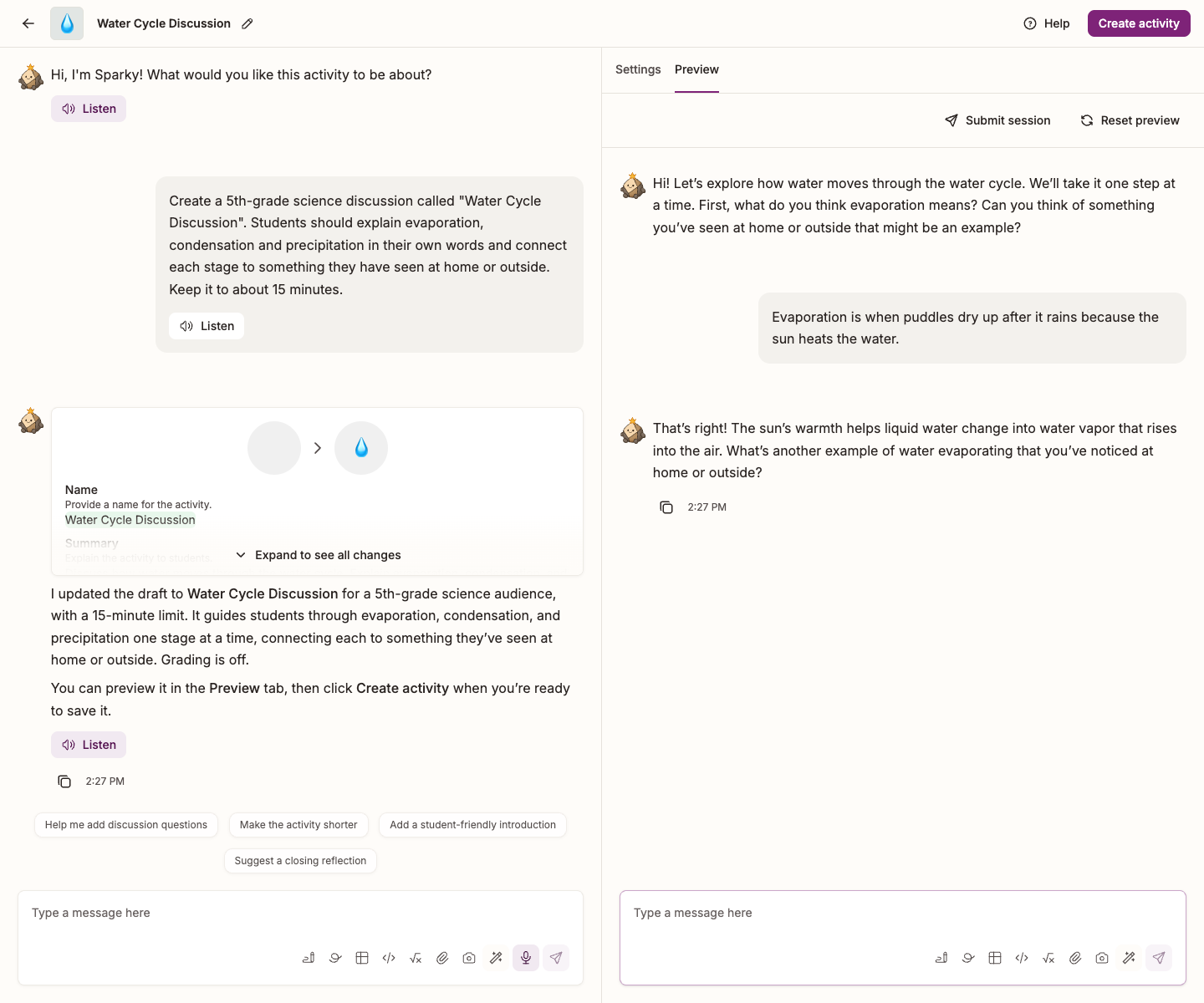
Two ways to preview a chat
| Preview a session | Try session myself | |
|---|---|---|
| What happens | Sparky holds the session with a simulated student | You are the student, typing your own replies |
| Good for | Seeing how the activity lands at a given standard of work | Checking Sparky's tone, questions, and where it holds firm |
| Start it | The round play button | The Try session myself button |
Watch a simulated session
- Select the round play button in the middle of the preview pane. It reads Preview grade session, starting with the first grade on your activity's grading rubric.
- To see a different standard of work, select the grade itself and pick another from the list. The session starts as soon as you choose.
The conversation then plays out on screen, message by message, as if a student at that grade were working through it.
The grades describe rubric performance, not a student's school year. The choices come from your own rubric, so your list may differ from the screenshot.
If the activity has no grading rubric there is no grade to pick, and the button simply reads Preview session.
Take it yourself
Select Try session myself and reply in the preview exactly as a student would. This is the quickest way to check Sparky's greeting, whether it gives too much away, and how it handles a student who is stuck.
Change something and preview again
Starting a preview saves your work in progress first, so the preview always runs the version you are looking at.
Switching between Settings and Preview preserves your progress. Editing the draft resets the preview. Start another preview to test the changes.
- Reset preview, beneath the tabs after a preview starts, clears the conversation and brings back the play button so you can run it again.
- In Try session myself, select Submit session to hand in the preview and see its analysis.
- A simulated preview submits automatically when the conversation finishes; its analysis then appears above the conversation.
Builder previews cannot be shared with Share session. Share the saved activity so another person can start their own session instead.
Preview an assessment
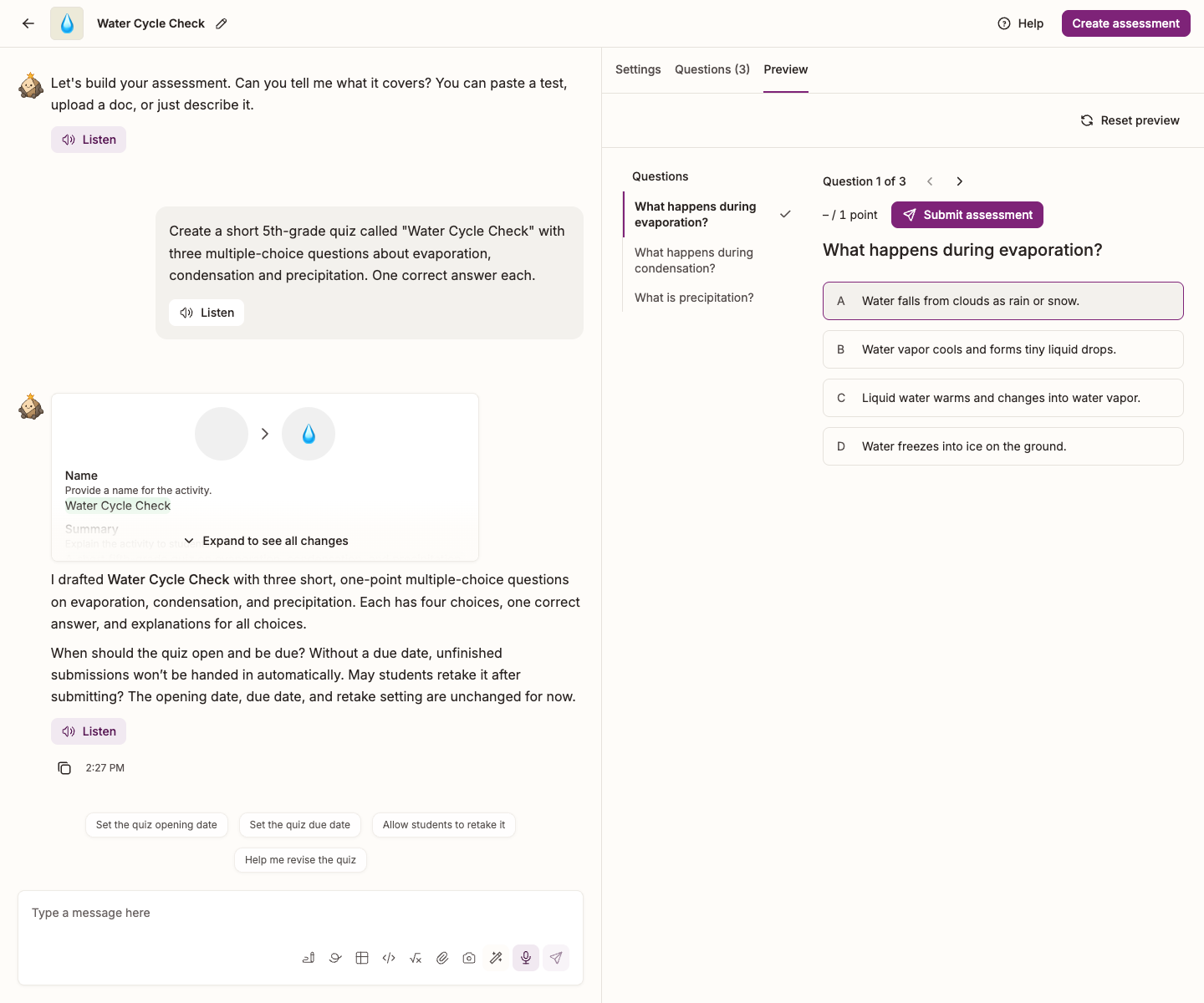
Select the Questions tab beside Settings to review questions, answers and points. Once you have added a question, select Preview, then Start assessment to try the questions yourself. Switching tabs preserves your answers; editing the draft resets the preview.
Answer the questions and select Submit assessment to test the student submission flow. Reset preview clears the preview answers and lets you start again. This preview is temporary and does not create a saved student submission; it is not a simulated chat or a shareable session.
Save the activity
When the activity is ready, select Update activity (or Create activity for a new one) in the top right of the page to save it. For assessments, the buttons read Update assessment or Create assessment.
Try a published activity as a student
The builder preview tests your draft. To use the saved activity the way a student does, open its activity page and select View as student at the top. The button appears on published activities you own that are not in a class. Library activities don't have it.
A banner across the top says you are viewing the activity as a student and that chats you start there aren't saved. Start the activity as a student would. Select Switch to editor view in the banner to return to the activity page.
An activity in a class has no View as student button on its own page. Open the class, choose View as student from the More actions (three dots) menu in the class top bar, then open the activity.
Related
- Using rubrics in Flint — the grades the preview offers come from here.
- Changing the behavior of an existing activity — what to adjust when the preview is not what you wanted.