

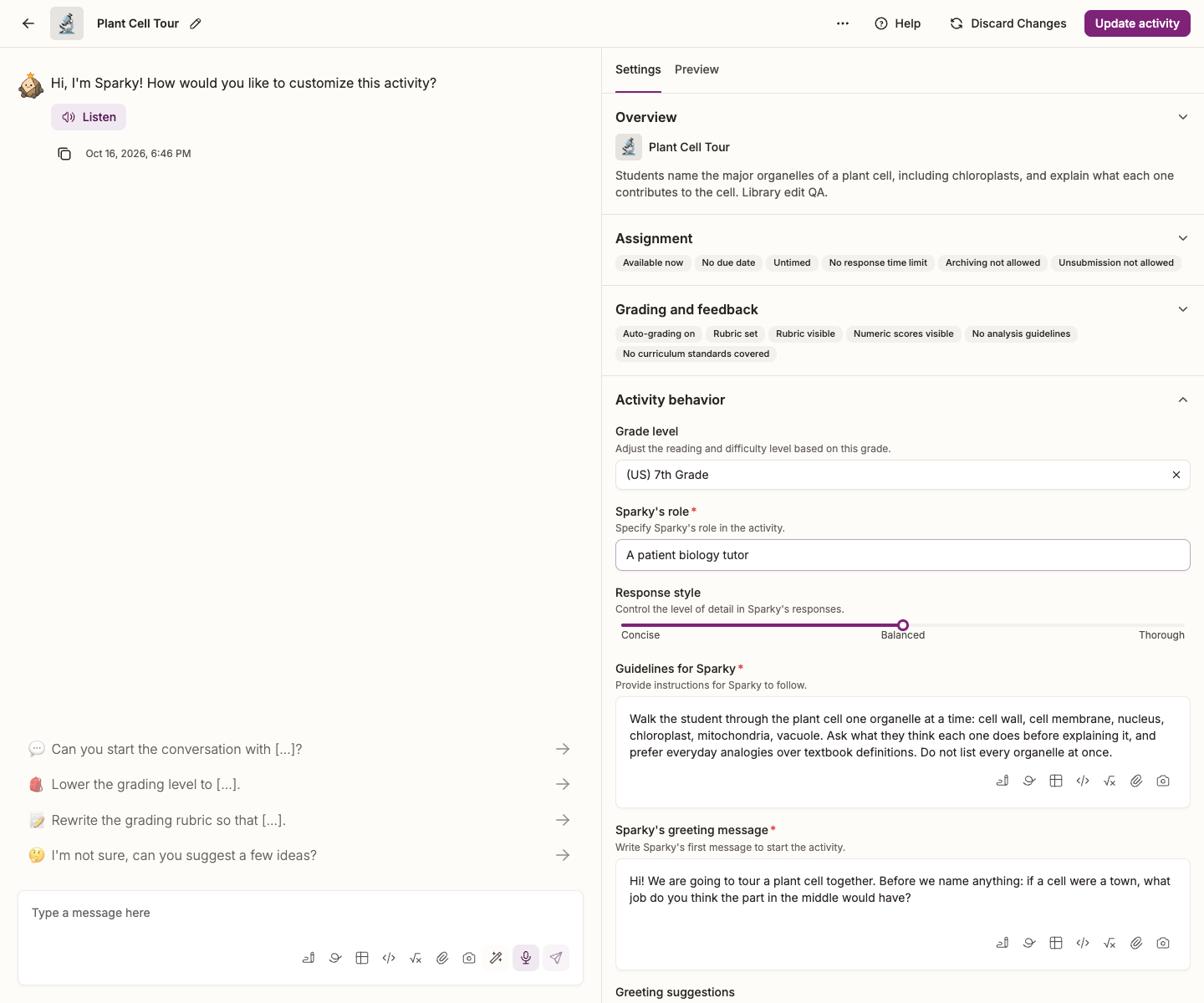
Response style controls the level of detail in Sparky's replies — how much it says, not how much it gives away. Every new activity starts on Balanced.
| Setting | What students get |
|---|---|
| Concise | Short replies: the essential point, with little elaboration |
| Balanced | The default — clear but not long-winded |
| Thorough | Fuller replies with extra context and detail |
Change it
You need Can edit access to a Lesson with Sparky. File Upload and Test or Quiz activities do not have this setting.
- Open the activity and click Edit activity at the top of the page.
- In Settings, beside the conversation, expand Activity behavior.
- Drag the Response style slider to Concise, Balanced or Thorough.
- Click Update activity.
Try a session in Preview on the right before you save, so you can see the difference in practice.
Watch: Review a saved response style
The walkthrough inspects a saved response style; it does not compare generated replies at every slider setting.
When to change it
Say your class is comparing two battles of World War II and Sparky answers with five paragraphs on Midway. Most students skim it and miss the part that mattered. Moving the slider to Concise brings the replies down to the essentials.
For a more specific length instruction, add it to Guidelines for Sparky in the same panel — "Keep every reply to five sentences at most". This asks Sparky to follow a limit; it is not a hard cap. Check the replies in Preview.
Whatever the style, Sparky is instructed to use school-appropriate language and avoid slang and acronyms containing profanity.
For the other settings in the same panel, see Changing the behavior of an existing activity.