

If you sign in to Flint with an email address and password, you can change that password from your profile settings. Here's how:
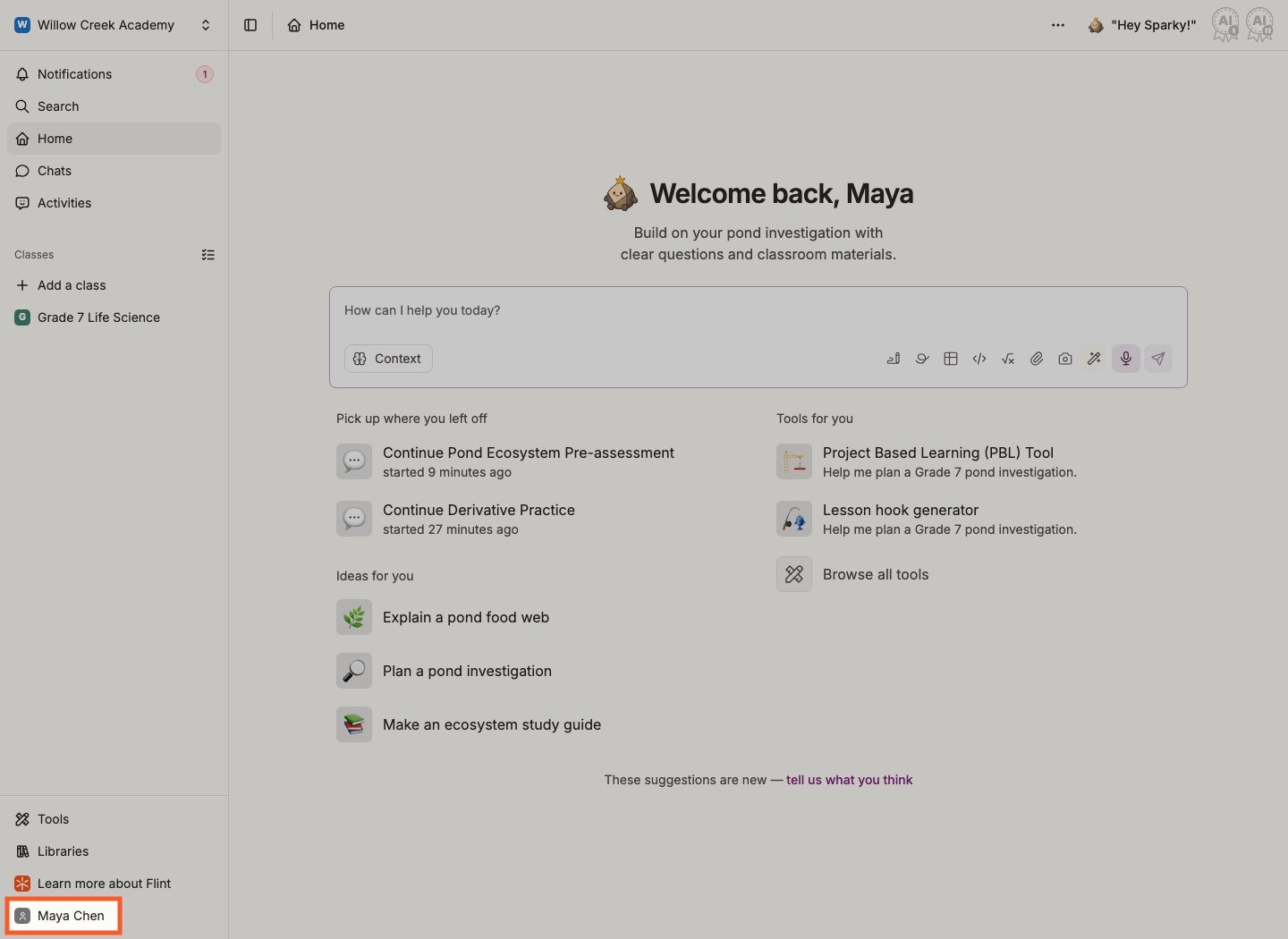
- Click your name at the bottom of the left sidebar.
- Click My profile.
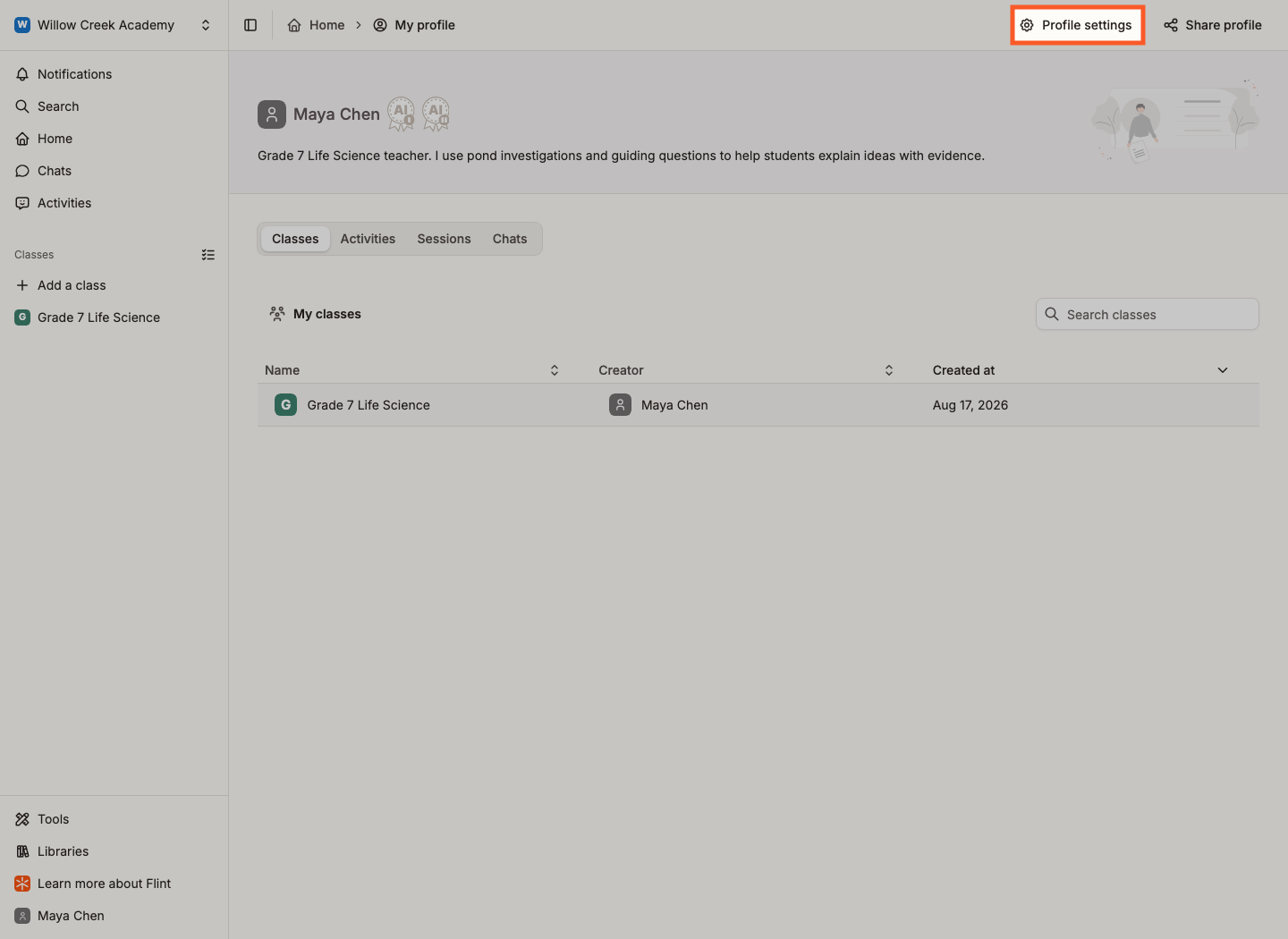
- Click Profile settings.
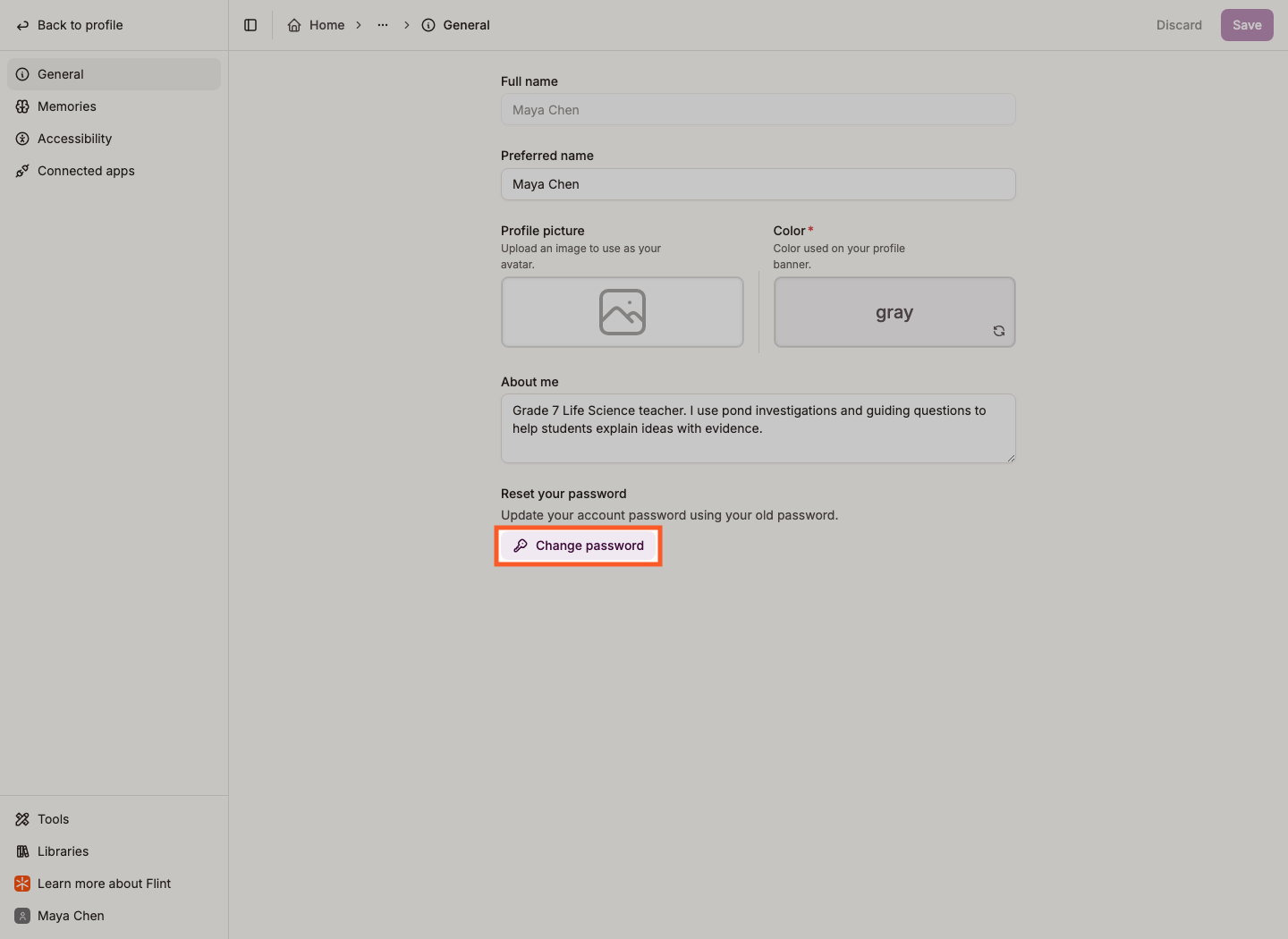
- On the General tab, scroll to Reset your password and click Change password.
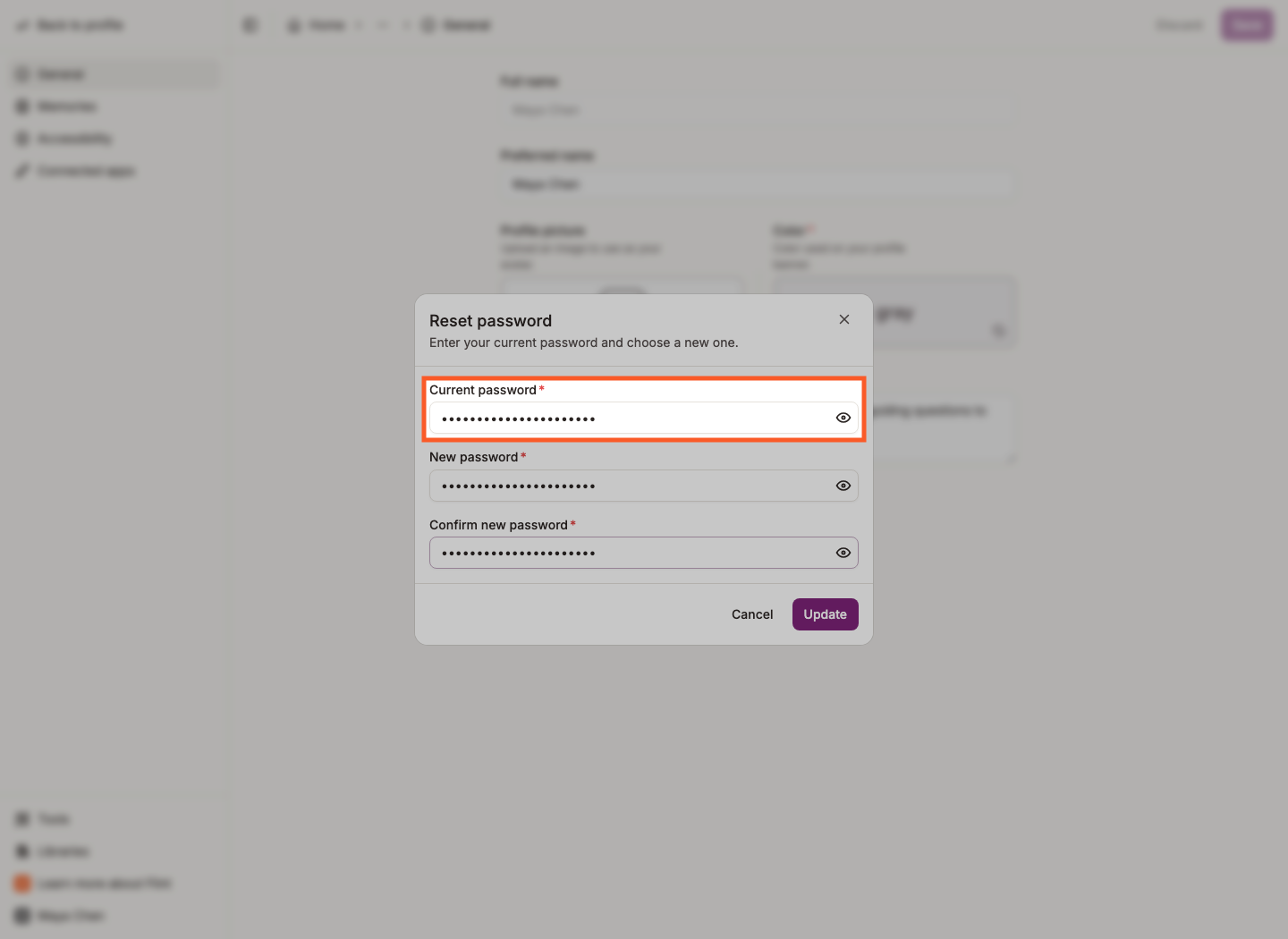
- Enter your current password.
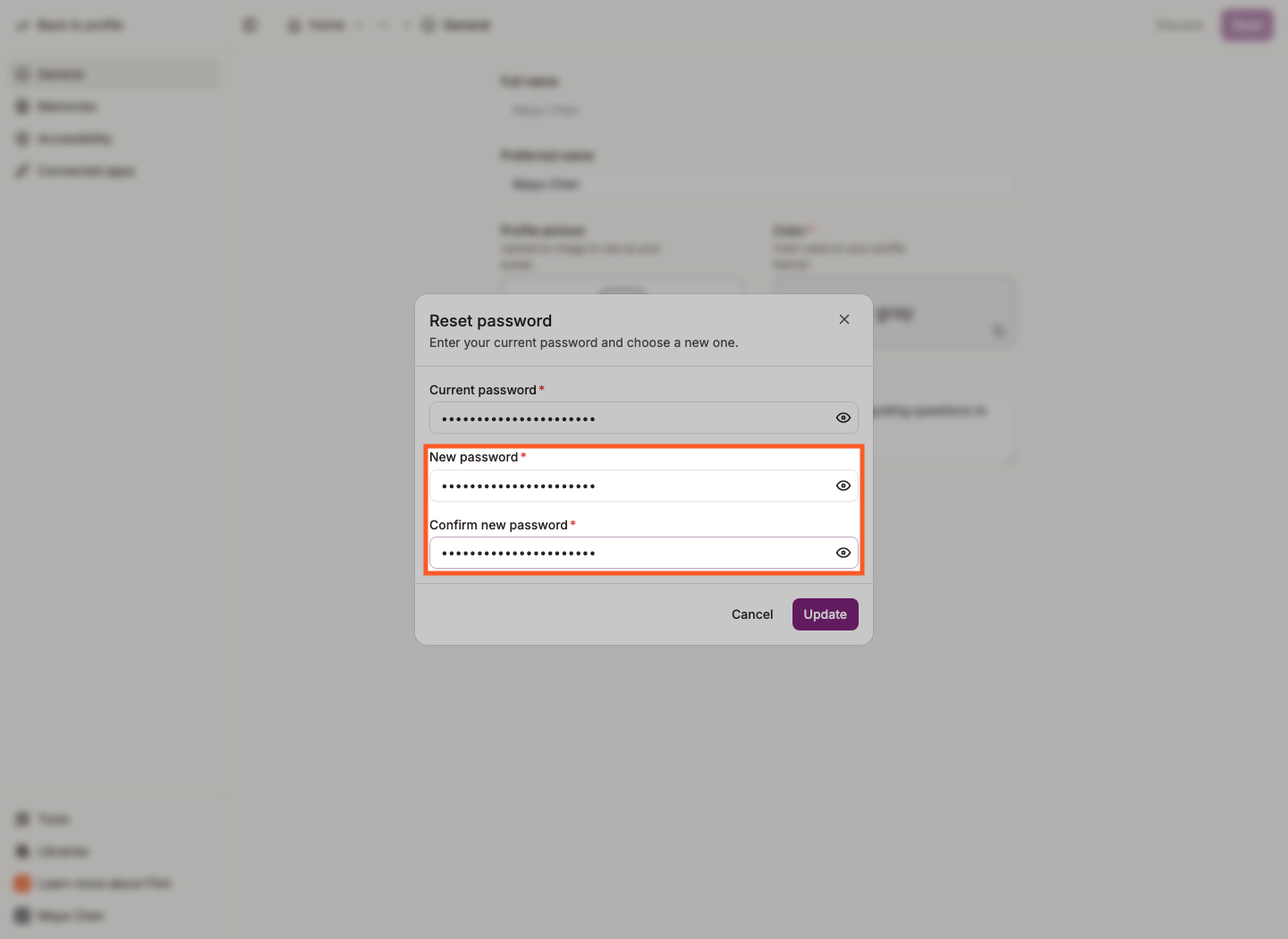
- Enter your new password twice.
- Click Update.
📌 Note: Reset your password only appears if your account has an email-and-password sign-in. If your account only uses your school's Google or Microsoft sign-in, you don't have a separate Flint password — change it wherever your school manages that account.
Click your name
Your name and profile picture sit at the very bottom of the left sidebar.
Click "My profile"
The menu that opens starts with My profile, under Account. That takes you to your profile page.
Click "Profile settings"
Profile settings is in the top right of your profile page. It opens your settings, which have their own left-hand menu: General, Memories, Accessibility and Connected apps.
Click "Change password"
Stay on the General tab and scroll to the bottom. Under Reset your password, click Change password.
Enter your current password
A Reset password window opens. Type your existing password into Current password.
Create your new password
Type your new password twice: once under New password and once under Confirm new password. They have to match.
Click "Update"
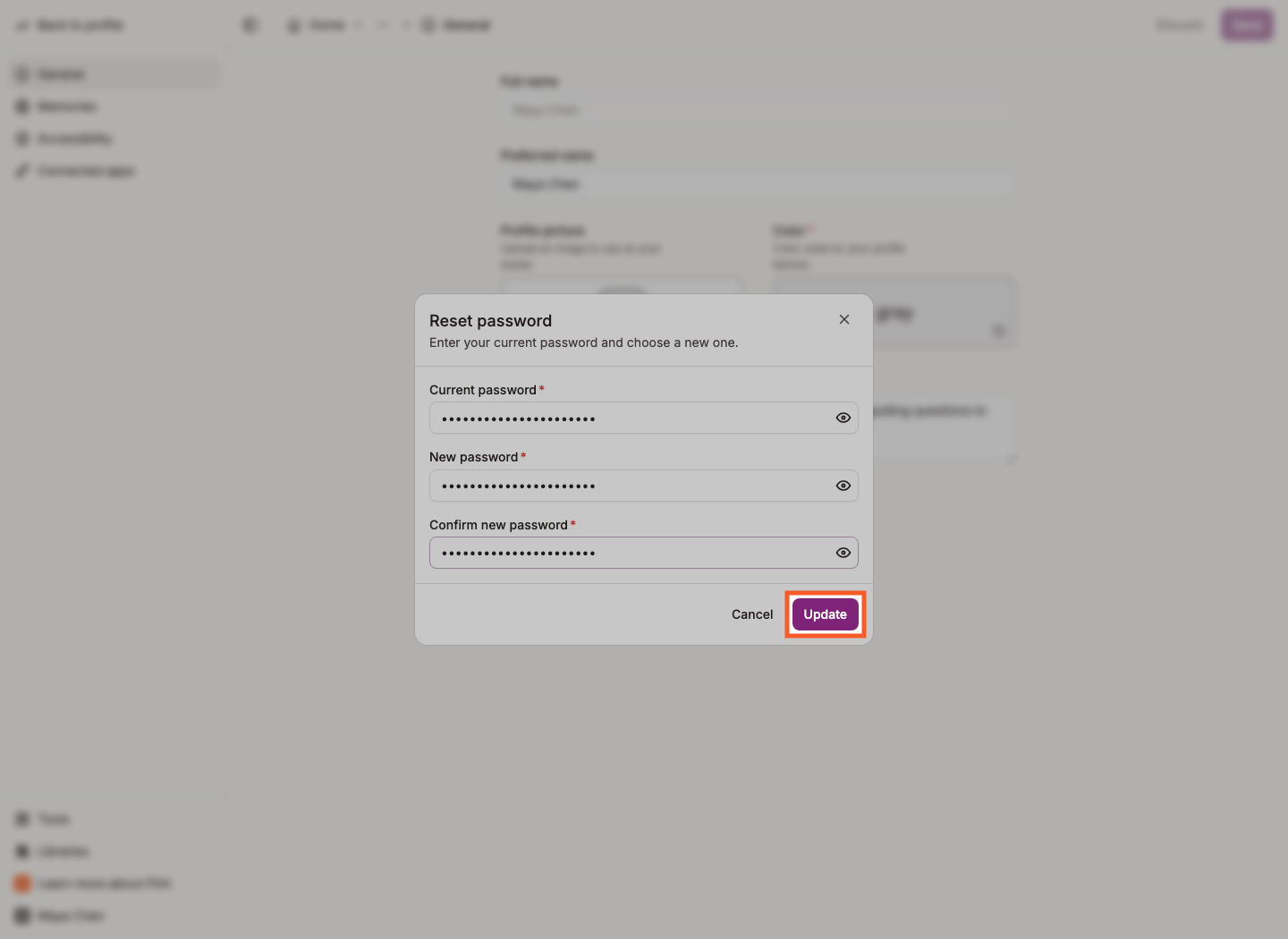
Your password changes right away, and you stay signed in.
If you can't remember your current password
You need your old password to set a new one here. If you've forgotten it, sign out, type your email address on the sign-in page and click Next, then click Forgot password? on the password screen. We'll email you a six-digit code and a link to the reset page. Enter the code and click Verify, then enter and confirm your new password. If that doesn't work, see Trouble signing in to Flint.