

A student's grade level is what Flint uses to pitch Sparky at the right level for them, so it's worth getting right. Admins set grade levels on the People page: Admin › Settings › People, under your term's name.
This article covers:
- Assigning grade levels while you add people
- Assigning grade levels to people already in your school
- Editing and removing grade levels
Assign grade levels while you add people
An SIS or LMS import can bring in the grade levels your source supplies along with student accounts. Connecting the system alone does not import them, and some students may have no grade level in the source data.
- Click Admin in the left sidebar.
- Click Settings, then SIS and LMS.
- Connect your integration if needed, then click Import or Re-import.
- Review the imported grade levels, correct any missing or wrong values, and finish the import.
Check the grades on People after the import. A normal re-import preserves existing nonempty grades unless an explicit import correction changes them. See importing users and classes from an LMS or SIS in Flint for saved corrections, and check which integrations are supported.
- Click Admin › Settings › People.
- Click Add people.
- Paste the email addresses into Email addresses, separated by commas.
- Click Next.
- On Review people, click Add grade(s) in the Grade Level column next to a person.
- Choose their grade level or levels, then close the picker.
- Set each person's Role, then click Add. If some rows still have no role, the button reads Add (N unassigned) as — use it to give them all the same role at once.
- Click Save in the top right and confirm.
-
Check your CSV first.
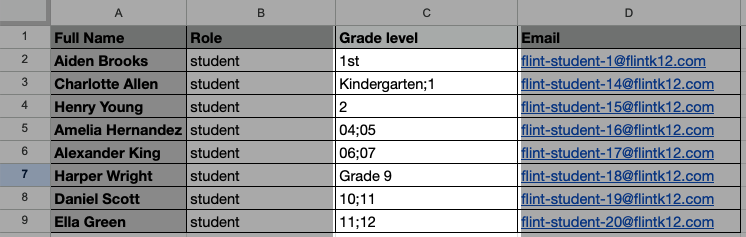
- It must be a .csv file. Flint can't read PDFs or Excel workbooks.
- It needs an email column. Role and grade level columns are optional.
- The grade column can be called
grade_level,grade,gradesorgrade_levels. - Grade values are flexible. All of these work:
- Full names:
Kindergarten,1st Grade,Pre-K, and the UK equivalentsReception,Year 7,Nursery - Codes:
KG,PK,01,02 - Plain numbers:
1,5,12 - Ordinals:
1st,2nd,3rd,11th - "Grade N":
Grade 1,Grade 5,Grade 12
- Full names:
- For more than one grade, separate them with a semicolon (
;) or a pipe (|) — for exampleK;01;02orK|1|2.
-
Click Admin › Settings › People.
-
Click Add people, then Upload CSV and choose your file. Re-upload swaps it for another file and Discard clears it.
-
Click Next.
-
On Review people, check the grade levels Flint read from your file and correct any that look wrong.
-
Set each person's Role. Click Add, or use Add (N unassigned) as to assign the remaining rows a role and add them.
-
Click Save in the top right and confirm.
Watch: Review email and CSV roles without adding people
The walkthrough reviews email and CSV drafts, then cancels without adding people or sending invitations.
Assign grade levels to people already in your school
- Click Admin › Settings › People.
- Find the person. You can search by name or email, filter by role with the tabs along the top, or narrow the list with the Grade levels filter.
- Click Add grade(s) in their Grade Level column.
- Choose their grade level.
- Click Save in the top right and confirm.
Watch: Add, correct and replace grade lists
- Click Admin › Settings › People.
- Tick the checkbox next to everyone you want to change.
- Click Set grade levels in the bar that appears.
- Pick the grade levels in Change grade levels, then click Next.
- Check the list on Review grade level change and click Apply to N people.
- Click Save in the top right and confirm.
This replaces each selected person's entire grade list. To clear every grade, remove the chips one person at a time; the bulk picker requires at least one grade.
Edit or remove a grade level
Wrong grade from an import, or a student who moved up a year? Fix it the same way you set it.
- Click Admin › Settings › People.
- Find the person and click their grade level chip in the Grade Level column.
- To remove a grade, click the X next to it. To add one, click it in the list.
- Click Save in the top right and confirm.
Frequently asked questions
How do I find people with more than one grade level?
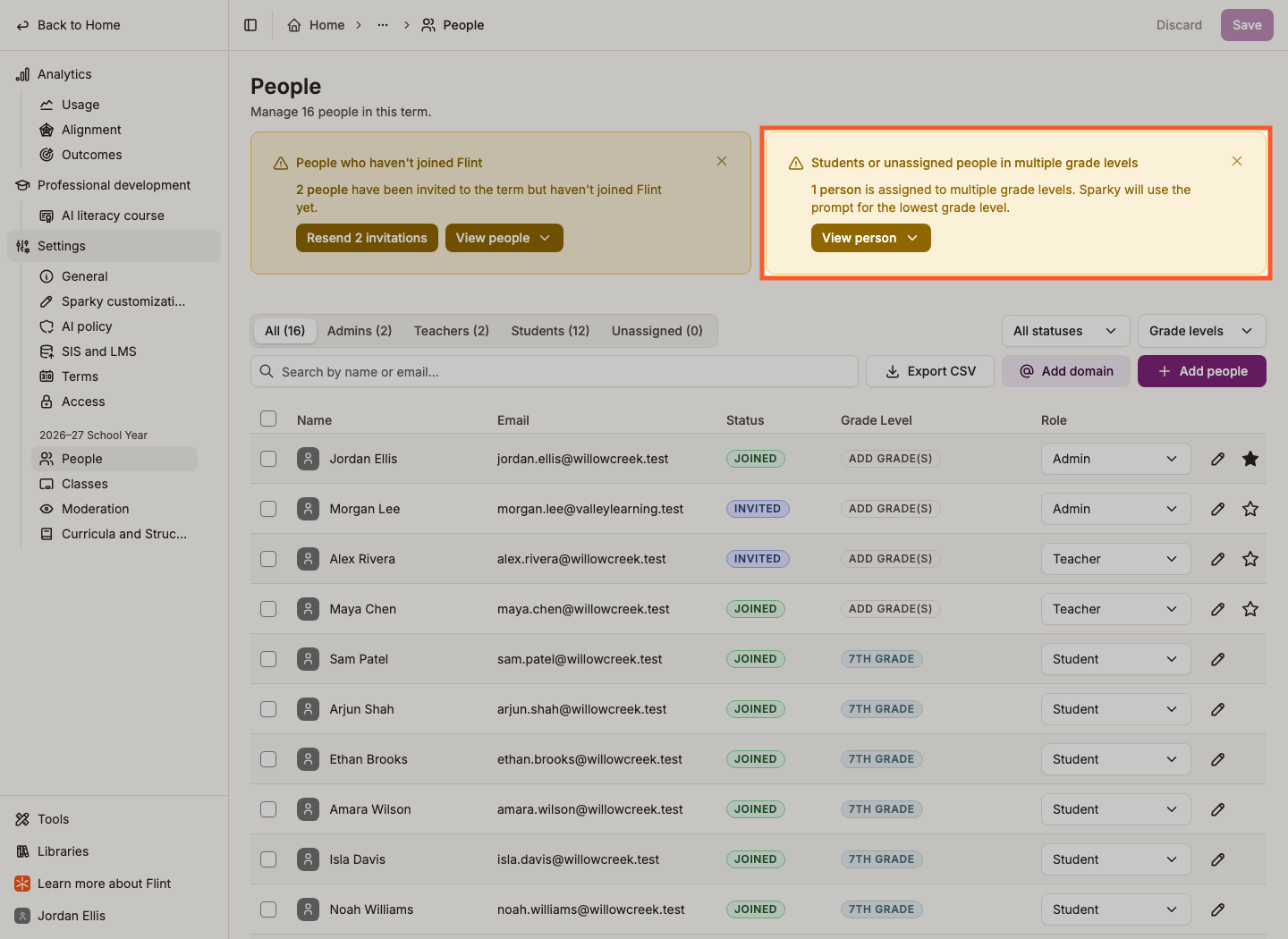
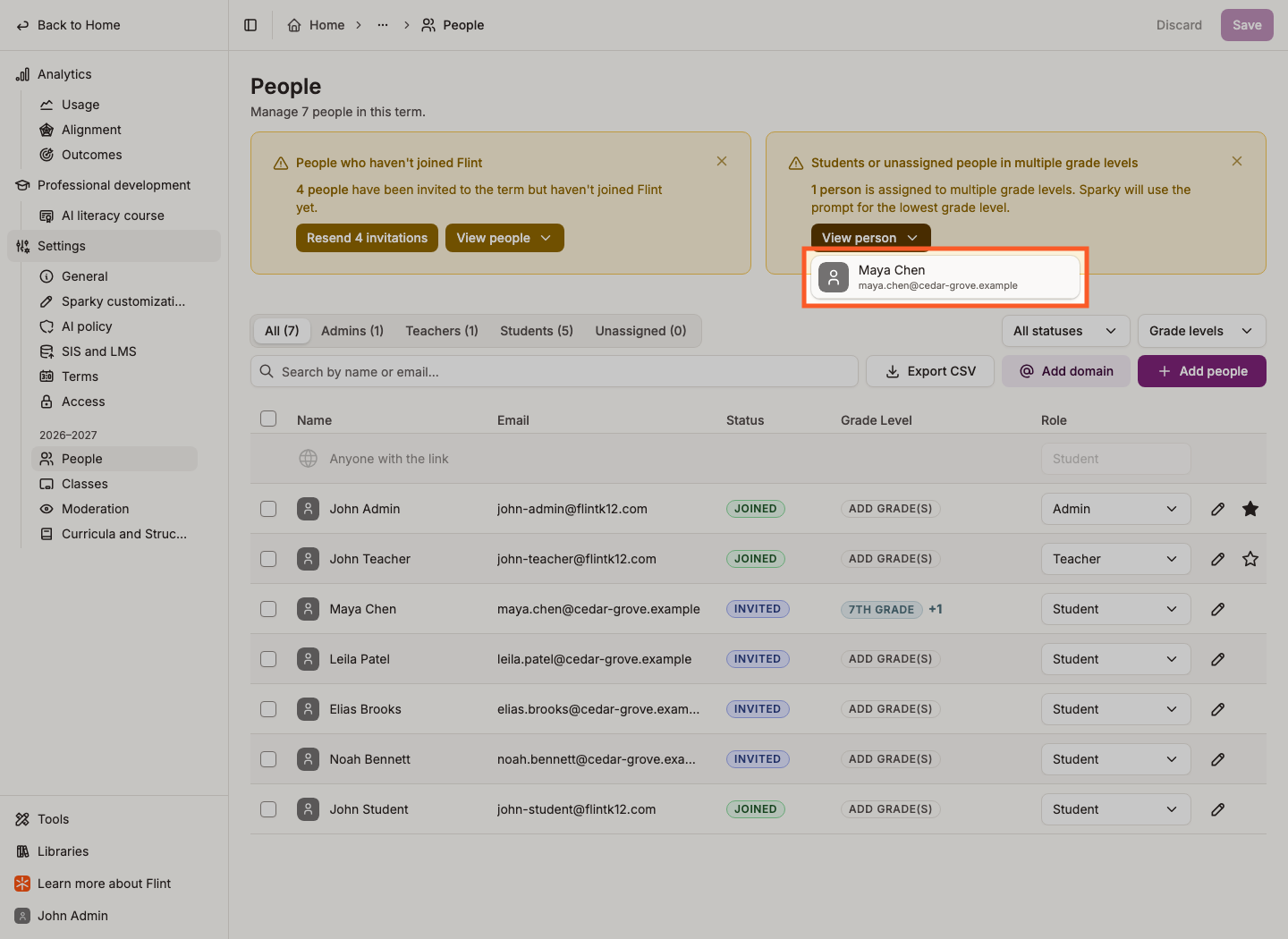
The People page shows a warning card titled Students or unassigned people in multiple grade levels when it finds any. Click View person or View people, depending on how many people are listed, then edit each one down to a single grade.
What do grade levels actually change?
They decide which of your school's grade-level prompts a student gets, so Sparky can match its tone and vocabulary to their age. See how to customize grade-level prompts in Flint.
Can I get the list out of Flint?
Yes. Click Export CSV on the People page and Flint exports everyone matching the filters you have set, grade levels included. Save or discard your changes first — the button is disabled while you have unsaved edits.