

A Lesson with Sparky activity can carry two independent timers. Both live in the activity builder's Assignment panel. You need Can edit access to change them. These timer controls are not available for File Upload or Test or Quiz activities.
| Session time limit (minutes) | Response time limit (minutes) | |
|---|---|---|
| What it limits | The whole session, counted from the moment the student starts it | How long the student has to answer when Sparky starts a timed practice question |
| Good for | Timed practice, warm-ups, anything students should spend a set time on | Practicing question pacing in a lesson |
| Leave it empty to | Run untimed sessions (the box reads Untimed) | Remove the configured response limit (Untimed responses) |
Enter a positive whole number of minutes. If both limits are set, the response limit cannot be longer than the session limit.
The response limit applies when Sparky starts a timed practice question; the setting does not automatically start a timer after every message. Sparky is instructed to give guidance, rather than start a new timed question, when a student asks for help or clarification. Even with the field empty, a student can ask Sparky for timed practice.
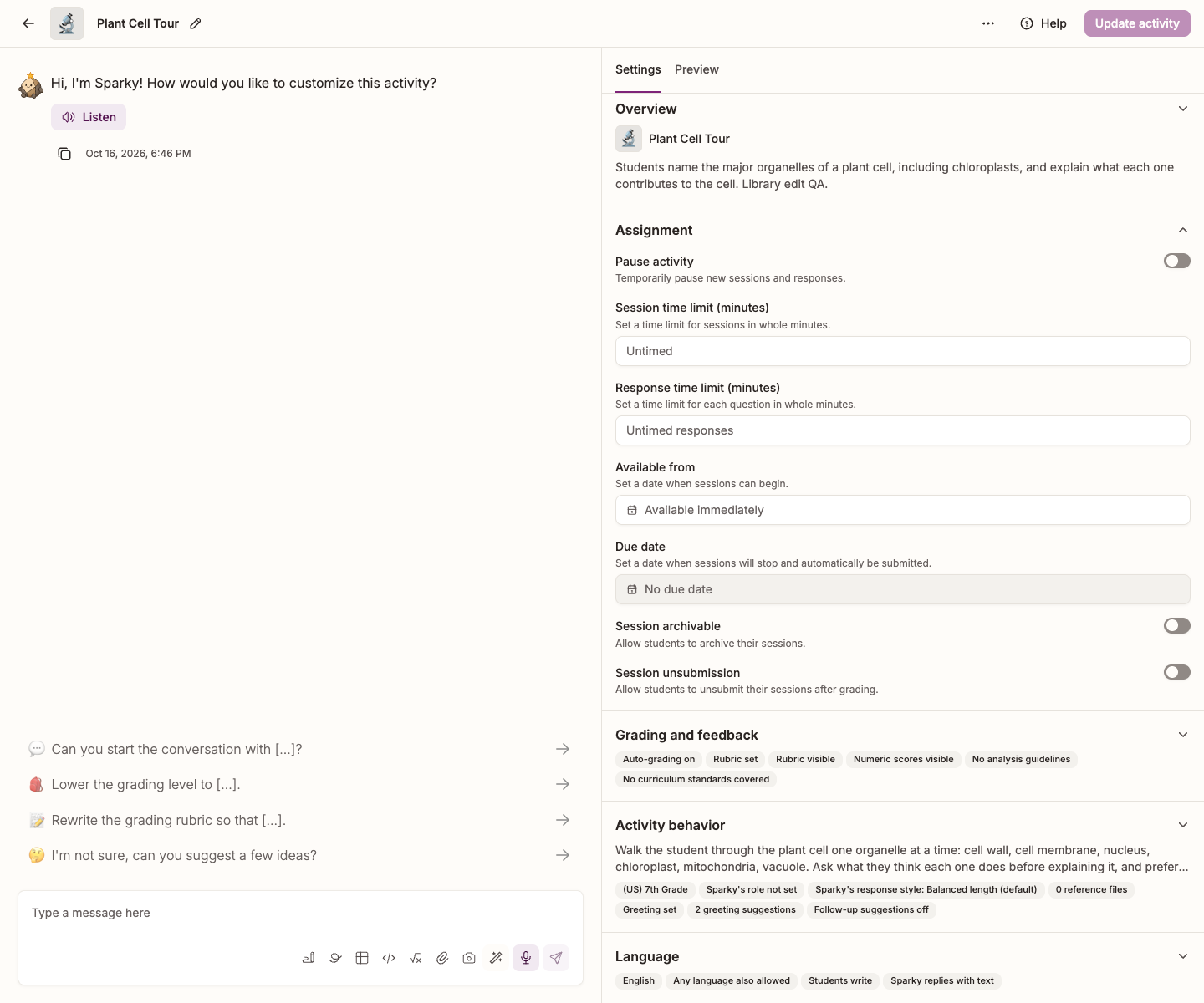
Set a timer
- Open the activity and click Edit activity at the top of the page.
- In Settings, beside the conversation, expand Assignment.
- Type a number into Session time limit (minutes), Response time limit (minutes), or both. The arrows beside each box step the session limit by 5 minutes and the response limit by 1.
- Click Update activity to save.
To remove a configured timer, clear the number and save.
Or ask Sparky to do it
In the builder conversation, say what you want — "give each session 10 minutes", or "make the sessions untimed". Sparky changes the setting and shows you what it changed. It stays a draft until you click Update activity.
What students see
A clock at the top of the session counts down. Under an hour it shows minutes and seconds, and it turns red in the final minute. When it reaches zero the session is submitted automatically — if the student is part-way through a message, that message is sent first.
The response timer shows as a small stopwatch in the message box. When it runs out, whatever the student has written is sent as it stands, and Sparky is told the time ran out.
A due date ends a session too: without an applied accommodation, a session stops at its own time limit or at the activity's Due date, whichever comes first. If a student uses extra time, those minutes are added after that calculation, so the session can continue past the original due date. See How to add start dates and due dates to activities.
Giving a student extra time
A class owner can open the class, click Settings, and allot a student extra minutes under Accessibility accommodations for students.
The minutes are not added automatically. During each timed Lesson with Sparky session in that class, the student sees Under 5 minutes left when fewer than five minutes remain. The student must select Use N minutes (with their allotted number of minutes) before the session is submitted. The student can use the allotment once per session; the accommodation extends the session, not individual response timers.