

Two settings in the activity builder's Assignment panel control when students can work:
- Available from — when students can begin. Before this moment students can see the activity but not start it.
- Due date — sets the automatic end for chat sessions and assessment attempts, or closes new file submissions. Applied extra time can extend a chat session beyond this date.
Set one, the other, or both. Both dates are optional. For a Lesson with Sparky or File Upload, the empty fields read Available immediately and No due date. For a Test or Quiz (an assessment), they read Set availability and Set due date. An empty field means no date limit at that end.
The screenshots show a Lesson with Sparky. Test or Quiz activities use the assessment date fields described below.
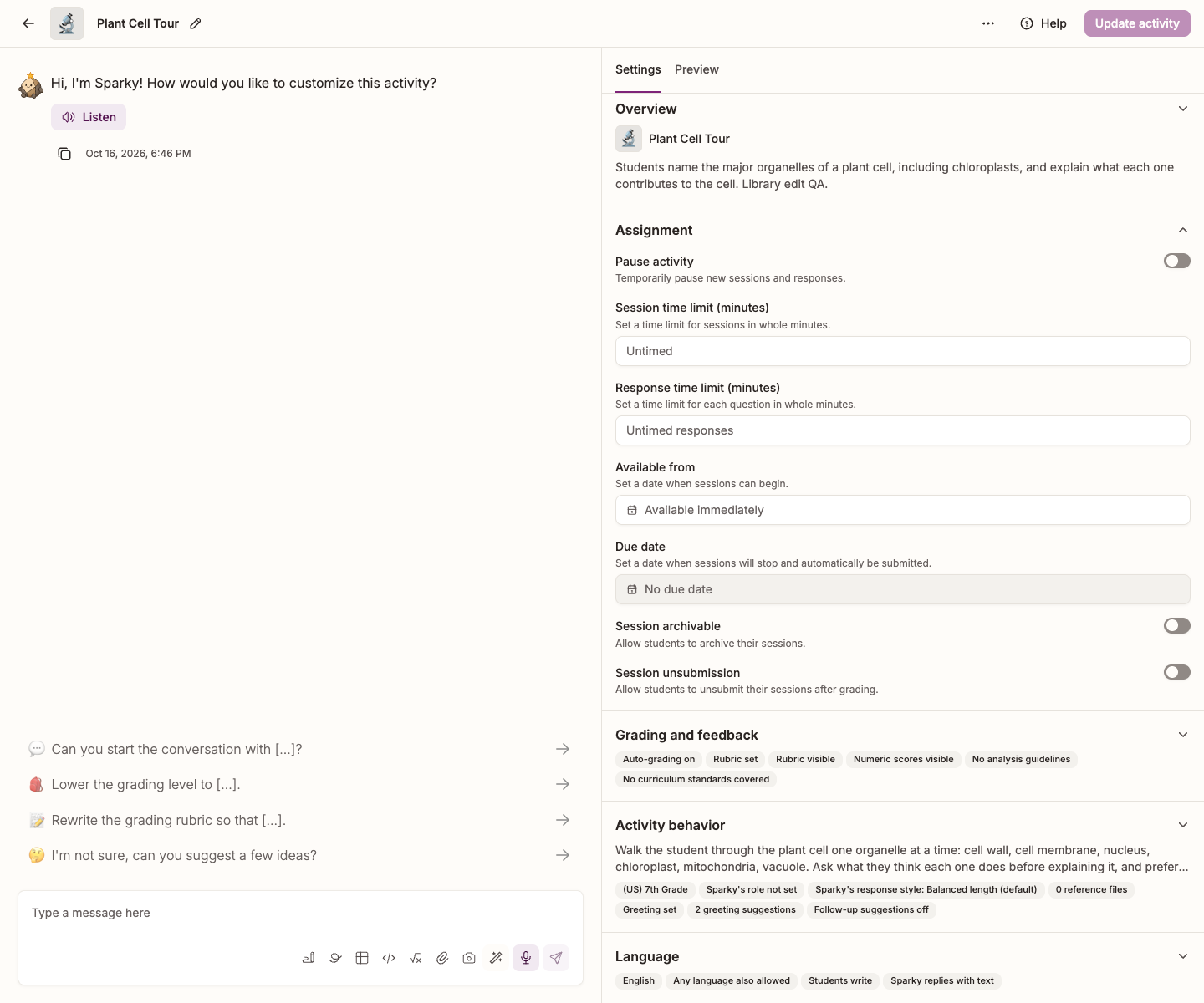
Set the dates
You need Can edit access to change an activity's dates.
- Open the activity and click Edit activity at the top of the page.
- In Settings, beside the conversation, expand Assignment.
- Click Available from or Due date and pick a date and a time.
- Click Update activity to save a lesson or file-upload activity, or Update assessment for a test or quiz.
To remove a date, clear the box and save again.
Dates and times use your browser or device's timezone, shown beside Time in the picker. Check the displayed date, time and timezone before saving.
Teachers and admins can also open an assigned activity card's ⋯ Activity actions menu, choose Manage availability, set the dates, and click Update on an activity they can edit.
You can also ask Sparky to set the dates in the builder conversation. Review the resulting date, time and timezone, especially if you asked for midnight at the end of a day. Save with Update activity or Update assessment, depending on the activity type.
Lesson with Sparky: what students see
A badge on the activity page shows where the activity is in its schedule: Starts with the date while it is still to open, then the number of days left alongside Due and the date, and finally just the due date once it has passed.
Outside the activity's open window, the banner's Start a session button is hidden and the sidebar entry is disabled. This restriction applies to teachers too; use Preview in the builder if you want to try the activity yourself.
A session's automatic end is its own time limit or the due date, whichever comes first. Any applied extra-time accommodation is added to that end time, including when the due date is the earlier limit. The session is submitted automatically when that extended time runs out.
Test or Quiz
Students use Start assessment while the assessment is open. To try the questions in the builder, select the Preview tab beside Settings. See How do I see a live preview of my assignment?.
When creating an assessment, select Create assessment, check the optional dates in Review assignment settings, then select Finish creating activity. An empty Available from lets students start immediately unless the assessment is paused. Without a Due date, abandoned attempts are not automatically submitted by the deadline check. Set a due date if you want unfinished attempts handed in when the assessment closes.
File-upload activities
On an activity where students upload files instead of chatting, the two settings keep their names but describe submissions instead of sessions — "Set when students can start a submission" and "Set when new submissions close". An empty Available from reads Available immediately, and the button students use is Submit work.