

A chat activity (Chat with Sparky when you create it) can carry two independent timers. An assessment (Take a test or quiz) can carry one time limit for each student's attempt; see Set a time limit on a test or quiz. All of these live in the activity builder's Assignment panel. You need Can edit access to change them. File-upload activities (Hand in a file) have no timers.
| Session time limit (minutes) | Response time limit (minutes) | |
|---|---|---|
| What it limits | The whole session, counted from the moment the student starts it | How long the student has to answer when Sparky starts a timed practice question |
| Good for | Timed practice, warm-ups, anything students should spend a set time on | Practicing question pacing in a lesson |
| Leave it empty to | Run untimed sessions (the box reads Untimed) | Remove the configured response limit (Untimed responses) |
Enter a positive whole number of minutes. If both limits are set, the response limit cannot be longer than the session limit.
The response limit applies when Sparky starts a timed practice question; the setting does not automatically start a timer after every message. Sparky is instructed to give guidance, rather than start a new timed question, when a student asks for help or clarification. Even with the field empty, a student can ask Sparky for timed practice.
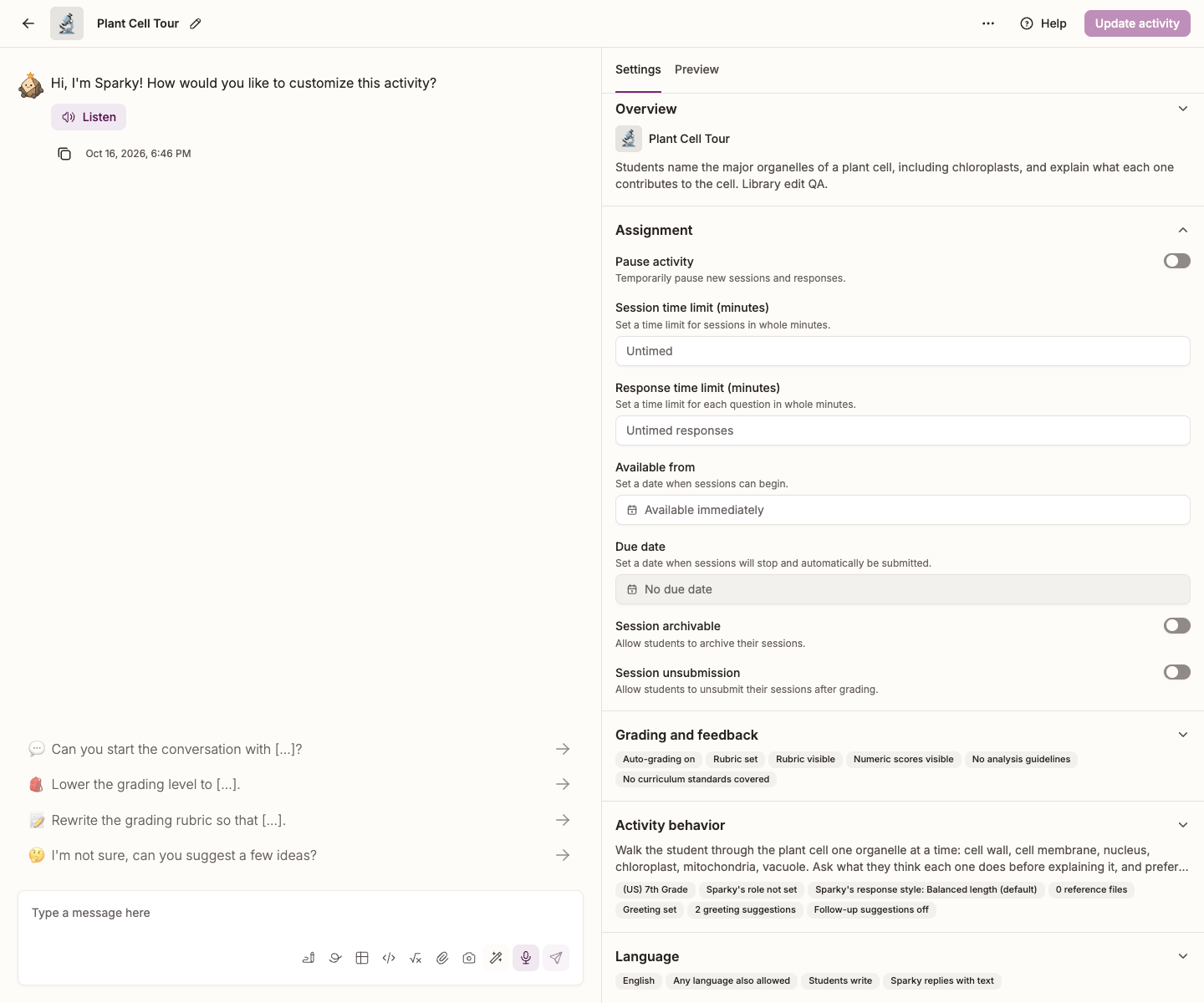
Set a timer
- Open the activity and click Edit activity at the top of the page.
- In Settings, beside the conversation, expand Assignment.
- Type a number into Session time limit (minutes), Response time limit (minutes), or both. The arrows beside each box step the session limit by 5 minutes and the response limit by 1.
- Click Update activity to save.
To remove a configured timer, clear the number and save.
Or ask Sparky to do it
In the builder conversation, say what you want — "give each session 10 minutes", or "make the sessions untimed". Sparky changes the setting and shows you what it changed. It stays a draft until you click Update activity.
What students see
A clock at the top of the session counts down. Under an hour it shows minutes and seconds, and it turns red in the final minute. When it reaches zero the session is submitted automatically — if the student is part-way through a message, that message is sent first. If the student has closed the page, Flint still turns the session in about 30 seconds after the time runs out, including while the activity is paused.
The response timer shows as a small stopwatch in the message box. When it runs out, whatever the student has written is sent as it stands, and Sparky is told the time ran out.
A due date ends a session too: without an applied accommodation, a session stops at its own time limit or at the activity's Due date, whichever comes first. If a student uses extra time, those minutes are added after that calculation, so the session can continue past the original due date. See How to add start dates and due dates to activities.
Giving a student extra time
A class owner can open the class, click Settings, and allot a student extra minutes under Accessibility accommodations for students.
The minutes are not added automatically. During each timed chat session in that class, the student sees Under 5 minutes left when fewer than five minutes remain. The student must select Use N minutes (with their allotted number of minutes) before the session is submitted. The student can use the allotment once per session; the accommodation extends the session, not individual response timers.
Extra time applies only to chat sessions. It does not extend a test or quiz time limit.
Set a time limit on a test or quiz
An assessment's Time limit (minutes) gives each student the same number of minutes, counted from the moment that student presses Start assessment. Leave the box empty (it reads Untimed) for no time limit. Assessments have no response time limit.
- Open the assessment and click Edit activity at the top of the page.
- In Settings, beside the conversation, expand Assignment.
- Type a whole number of minutes, greater than 0, into Time limit (minutes) under the dates.
- Click Update assessment to save.
To remove the time limit, clear the number and save. When Assignment is collapsed, its summary shows N minute time limit or Untimed.
You can also set the time limit from an assigned assessment card: open its ⋯ Activity actions menu, choose Manage availability, enter the minutes and click Update. Or ask Sparky in the builder conversation, for example "give students 20 minutes for this quiz", then click Update assessment.
What students see in a timed test or quiz
Before starting, students see an N-minute time limit row in the assessment's banner and on its activity card. After they press Start assessment, a countdown runs at the top of the page beside Turn it in, and it turns red in the final minute. Students get one warning when 5 minutes are left.
The clock keeps running if the student closes the quiz. When it reaches zero, Flint turns in the answers the student has saved so far, without asking about unanswered questions. If the student has the quiz open, it is turned in right away and the student sees Time ran out, so your attempt was submitted automatically. If the student has closed it, Flint checks every minute and turns in any attempt whose time ran out more than about 30 seconds ago.
The Due date still applies. An attempt ends at the student's time limit or at the due date, whichever comes first, so a student who starts close to the due date gets less than the full time limit. See How to add start dates and due dates to activities.