

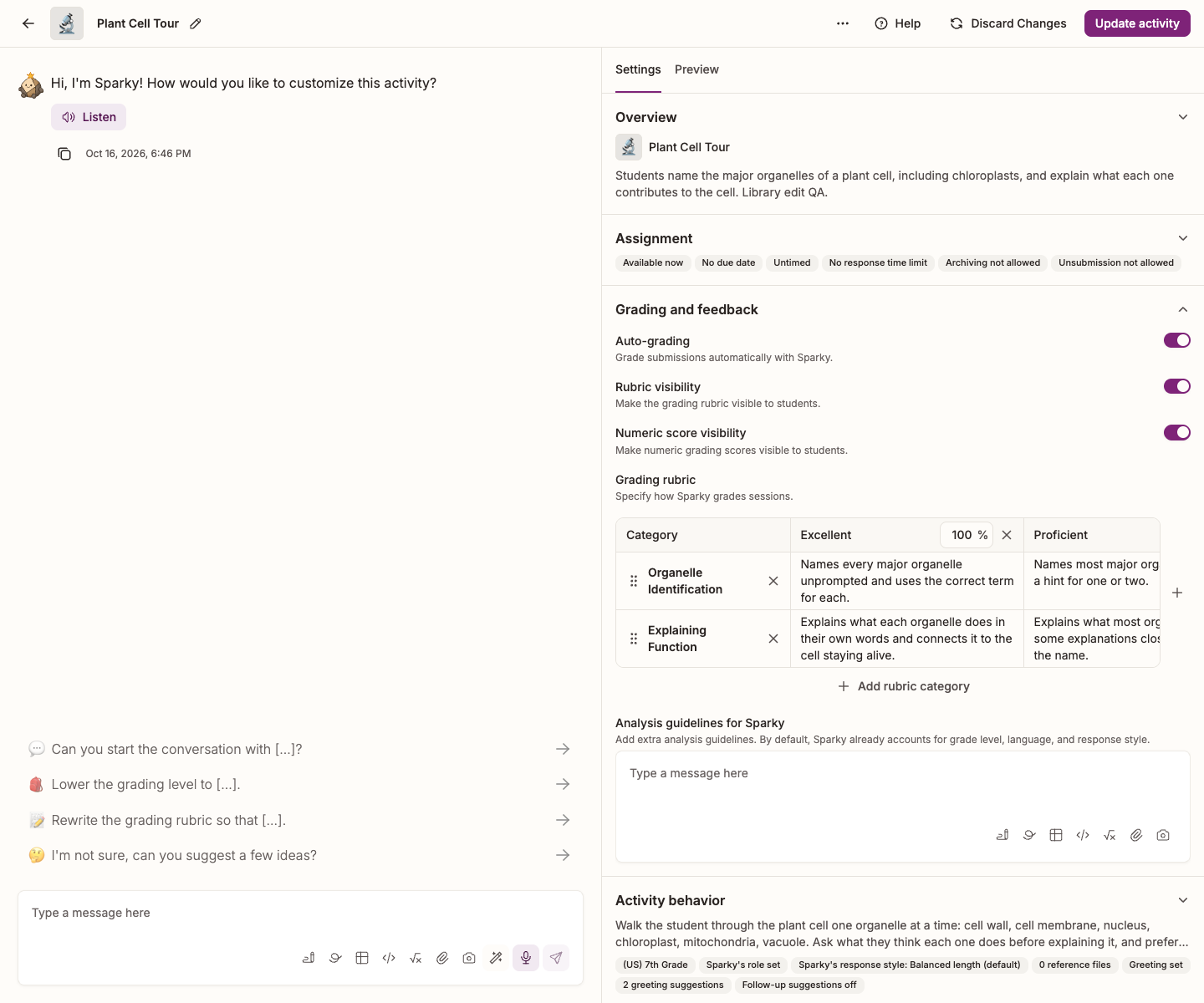
In Lesson with Sparky and File Upload activities, Auto-grading — "Grade submissions automatically with Sparky." — makes Sparky grade submitted conversations or files against the activity's rubric. Switching it off stops new automatic rubric grades without disabling the rest of the analysis.
The steps below are for those two activity types. Test or Quiz uses question-level scoring and does not have this Grading and feedback panel. See Using rubrics in Flint.
Turn it off
You need Can edit access to the activity.
- Open the activity and click Edit activity at the top of the page.
- In Settings, beside the conversation, expand Grading and feedback.
- Switch Auto-grading off.
- Click Update activity to save.
What changes
Sparky does not assign rubric grades in new analyses while Auto-grading is off. Previously saved grades are not removed, and grades you assign manually can still be visible.
Analysis still includes Strengths, Areas of improvement and Follow-up. If the submitted work does not contain enough engagement to support feedback, those sections can show an insufficient-engagement message instead.
You can still grade submitted work yourself if the activity has a rubric and you can edit the activity or class. Once analysis finishes, open the unarchived submitted session or file, select Edit feedback, choose a grade for every category in the Edit feedback panel, then select Save feedback. See Using rubrics in Flint.
Hide the rubric or numeric scores from students
If you want Sparky to grade but want to hide the rubric or percentages, leave Auto-grading on and use the two switches below it:
- Rubric visibility — "Make the grading rubric visible to students." With this off, students cannot open the rubric; you still can.
- Numeric score visibility — "Make numeric grading scores visible to students."
These switches do not hide a submitted lesson session's overall grade label. Students can still see that label even when the rubric and numeric score are hidden.
For how grades from graded activities roll up across a class, see Everything you need to know about Flint's gradebook.