

If the readings, rubrics and slides you want Sparky to work from already live in Google Drive, you can attach them without downloading anything first. Connect your Google account through Flint's attachment dialog to import them.
Import a file from Drive
-
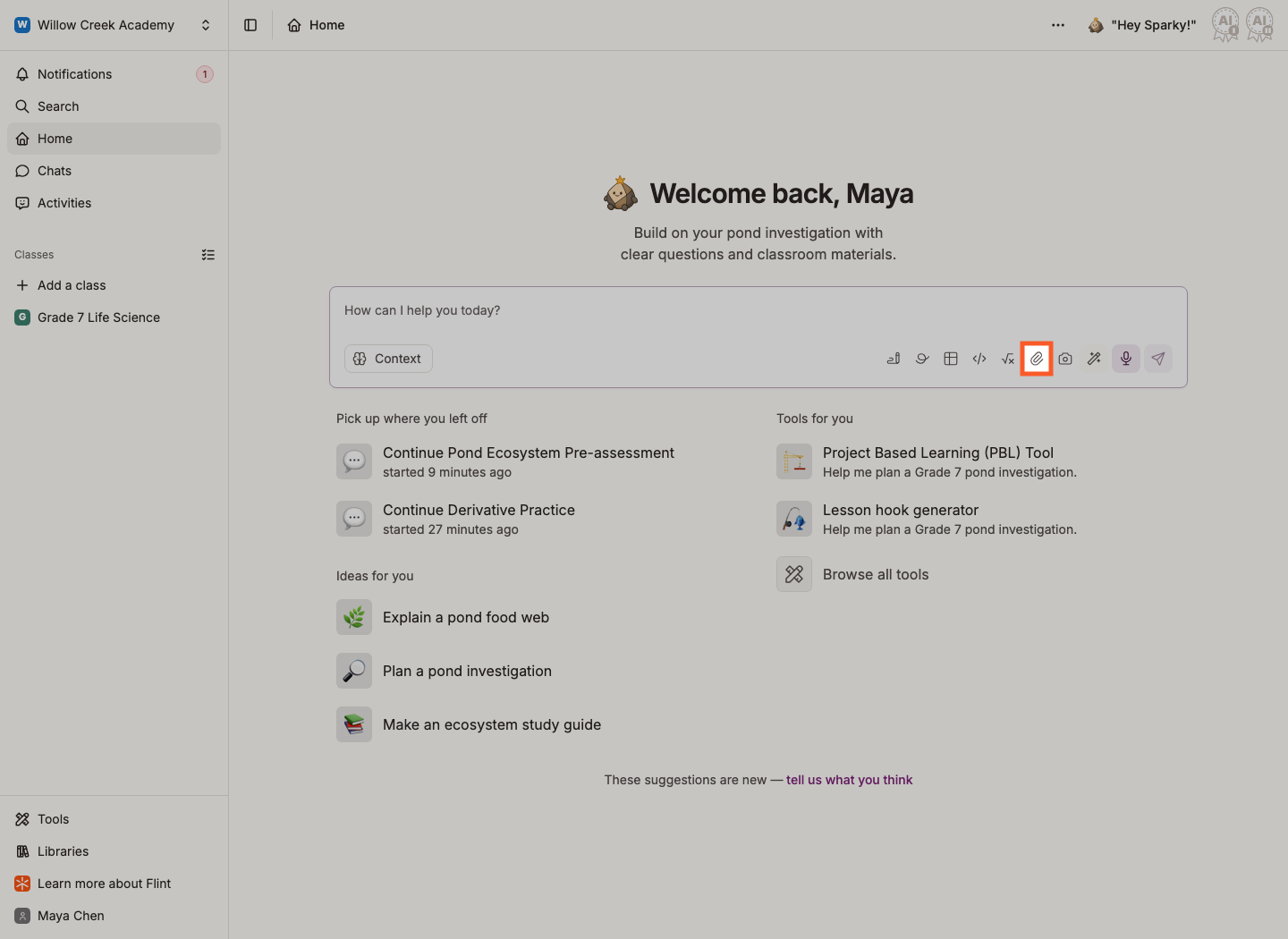
Click the paper clip (Add attachment(s)) in any message box to open Add attachments.
-
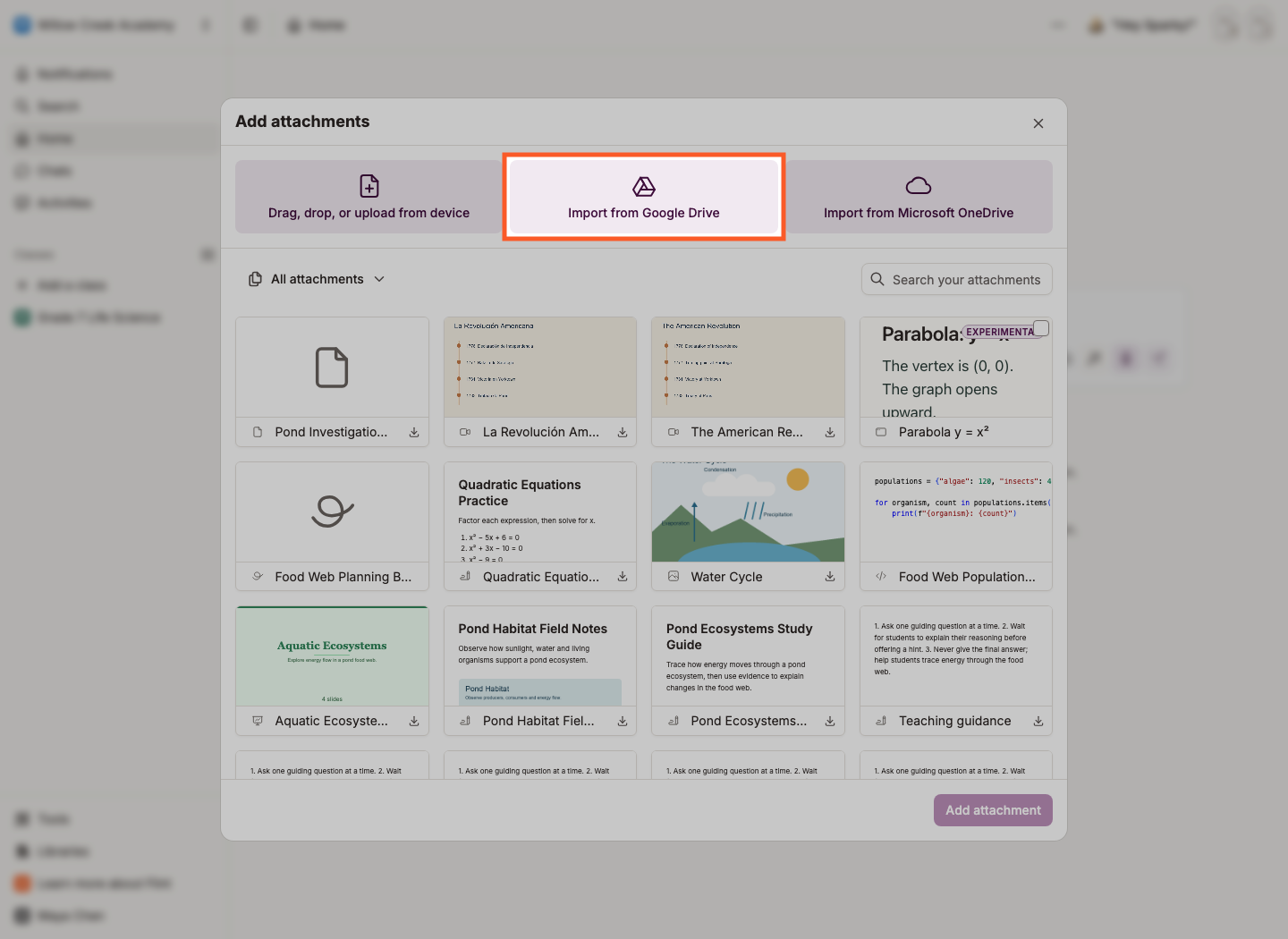
Click Import from Google Drive.
-
If Google Drive is not connected or the saved connection stops working, Google asks you to sign in. Choose the account whose Drive you want to use.
-
Google then asks what Flint may do. Flint asks only for the specific Drive files you open with it or that it creates for you, not for your whole Drive. Click Continue.
-
Flint returns you to where you were and opens Google's file picker. Search or browse, pick one file or several, and choose them.
-
Send your message once the attachment finishes reading.
Later imports usually go straight to the picker. If the saved connection stops working, Flint asks you to sign in and authorize Google Drive again.
What you can pick from Drive
The picker shows Google Docs, Google Sheets, Google Slides, PDFs, Excel (.xlsx) and CSV files, and images (JPEG, PNG and HEIC/HEIF). Anything else in your Drive is hidden, so if a file will not appear, save it as one of those formats first.
In a message, a Google Sheet is attached as an Excel (.xlsx) file, so Sparky reads the cells on every tab instead of a PDF copy. Google Docs and Slides are attached as PDFs. None of these stay editable Google files. Google limits these exports to 10 MB, separate from Flint's length limit. If Flint says Google Drive could not export the file, download it from Google, as an Excel file for a Sheet or a PDF for a Doc or Slides, and use Drag, drop, or upload from device to attach that file.
Once a file is in Flint, everything in Uploading content to Flint applies to it — including the per-file length limit.
Connect or disconnect Google Drive yourself
You do not have to wait until you need a file:
- Open the menu with your name at the bottom of the sidebar and choose My profile.
- Click Profile settings, then Connected apps.
- Next to Google Drive, click Connect.
The same screen is how you undo it: Disconnect next to Google Drive ends Flint's access, and you will no longer be able to import files or export documents to Drive until you connect again.