

Attach your own readings, worksheets, rubrics, syllabi or student work to give Sparky relevant source material. Ask Sparky to use those sources, and check important facts and citations against the originals; supplying a file does not guarantee every answer is correct.
Where the controls are
These shared content buttons appear in chats, conversational activity sessions, the builder conversation, and manual builder fields such as a lesson's Guidelines for Sparky and Sparky's greeting message:
| Button | What it does |
|---|---|
| Create a document | Opens a document you write inside Flint |
| Create a spreadsheet | Opens an editable spreadsheet with cells, sheets and formulas |
| Create a whiteboard | Opens a whiteboard to draw or diagram on |
| Write code | Opens a code editor — see How do I add code to Flint? |
| Insert an equation | Builds a math equation |
| Add attachment(s) | The paper clip. Opens the Add attachments dialog |
| Take a photo | Takes a picture with your device's camera |
Chats, conversational sessions and the builder conversation also have these controls:
| Button | What it does |
|---|---|
| Generate content | The wand. Selects a format for Sparky to make; describe your topic, then send your message |
| Speak message | The microphone. Records a spoken message when speaking is allowed; in writing-or-speaking mode, it appears while the text box is empty and disappears after you type |
For voice input, allow microphone access when your browser asks. When you finish, select Done speaking — review the transcript, edit the transcript if needed, then send it. A speaking-only session uses Send recording instead. A writing-only session has no microphone, and a speaking-only session disables the wand. See speech-to-text and text-to-speech settings.
Manual builder fields do not have the wand, microphone, Context or a Send button. Save those fields with Update activity or Update assessment.
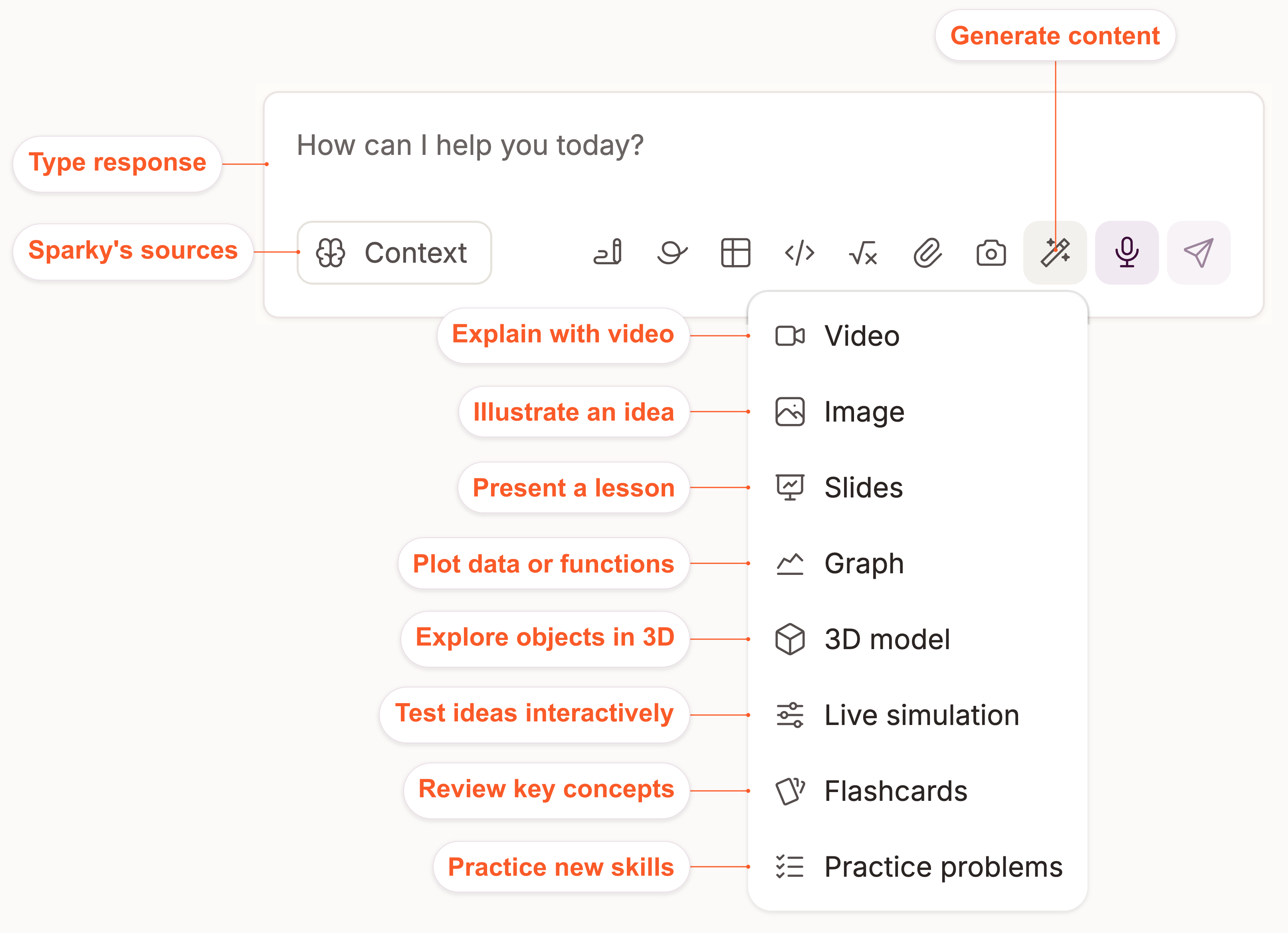
The diagram shows a current chat message box, not a manual builder field, with Generate content open and the microphone beside the wand. The wand offers Video, Image, Slides, Graph, 3D model, Live simulation, Flashcards and Practice problems. Selecting a format changes the placeholder without replacing your text; choose Clear selection in the same menu to return to a regular message. Context opens Sparky's sources in normal chats and sessions; the sources you can view depend on your permissions. The builder conversation does not show Context.
The tools sit inline next to the paper clip. Paste a web address to attach a link.
You can also drag a file straight onto the message box, or paste a web address into it — Flint attaches the page as a link.
Attach a file
- Click the paper clip (Add attachment(s)) to open Add attachments.
- Pick where the file comes from:
- Drag, drop, or upload from device — choose files from this computer, or drop them anywhere on the dialog.
- Import from Google Drive — see How to upload content from Google Drive.
- Import from Microsoft OneDrive — see How To: Upload Content from OneDrive.
- My attachments — everything you have attached before, so you never upload the same file twice. Narrow it with the type filter (Documents, Spreadsheets, Images, Links, Whiteboards, Code Snippets, Interactive Artifacts, Audios, Videos, Others) or with Search your attachments.
- For files from your device or My attachments, click the button at the bottom. It counts what you picked, so with three files it reads Add 3 attachments. For Google Drive or OneDrive, select files in the provider's picker and wait for them to attach; you do not return to this dialog to click the bottom button.
- Send the message. Sparky only sees an attachment once the message it is attached to has been sent.
For an editable workbook, ask Sparky to open an uploaded .xlsx or .csv as a spreadsheet. The original file stays unchanged. Native spreadsheets can be edited in Flint and downloaded as Excel (.xlsx) or CSV (.csv). When you ask Sparky for an Excel or CSV file on a trial or paid plan, Sparky usually makes a Flint spreadsheet, and you download that format from it. On the Free plan, Sparky often still gives you a downloadable file instead.
What Sparky can read
Flint turns what you attach into text Sparky can read:
- Documents — PDF, Word, PowerPoint, Excel, Pages, Keynote, Numbers, ePub, rich text and plain text.
- Images — JPG, PNG, GIF, WebP and HEIC. Sparky describes what is in the picture as well as reading any text in it.
- Audio and video — MP3, M4A, WAV, MP4 and WebM files are transcribed.
- Code and data files — CSV, SVG and source files in the languages Flint's code editor knows.
- Web links — publicly reachable pages Flint can read without signing in. Some sites block automated access, and YouTube video links are currently unsupported.
PDFs, Word files and PowerPoints go through character recognition, so printed text, scanned pages and handwriting can be read. A picture inside one of those files comes through only as the words printed on it — if a chart, diagram or photograph is the point, attach it as its own image too.
Links have to be reachable without an account: an article behind a paywall or a login will not open. If you are unsure Flint got something, ask it to summarize the attachment and see whether the summary is right.
How much fits in one file
Each attachment has a length limit, and it depends on your school's plan:
| Plan | Limit per attachment |
|---|---|
| Free | Approximately 24,000 words (~100 pages) |
| Trial or paid | Approximately 72,000 words (~300 pages) |
Flint measures these limits in tokens: 32,000 on Free and 96,000 on trial or paid plans. The word and page estimates vary with the language and content, especially code and maths.
You can attach several files to the same message or activity — the limit applies to each one on its own. If a file is over it, split the file up or attach only the chapters you need.
While Flint reads a file, and if it can't
A new attachment shows Reading attachment... while Flint works through it, and after a few seconds on a long file the card says Still reading... Large attachments can take longer to process. You can keep typing while it works.
If Flint cannot read a file — it is over the limit, or it is a format Flint cannot open — the card shows the reason instead. There is no retry button: remove the attachment with the trash icon on the card, then try a smaller file or a more common format such as PDF.
Attachments in an activity
-
Open the activity and click Edit activity.
-
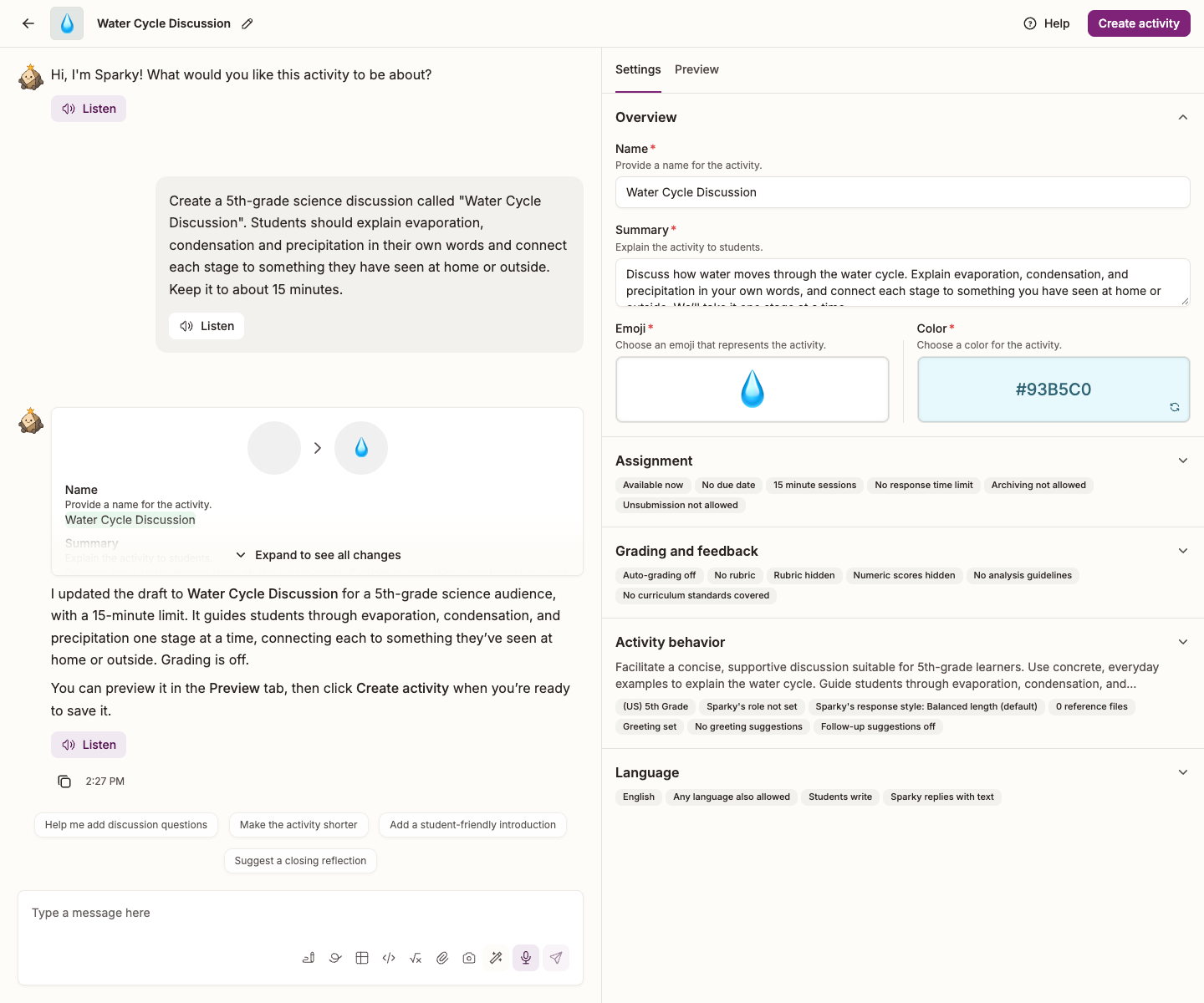
In the builder conversation, attach the file to your message and say what it is for — "use this rubric to grade" or "start students from this reading". Sparky puts it in the right place for the activity type.
-
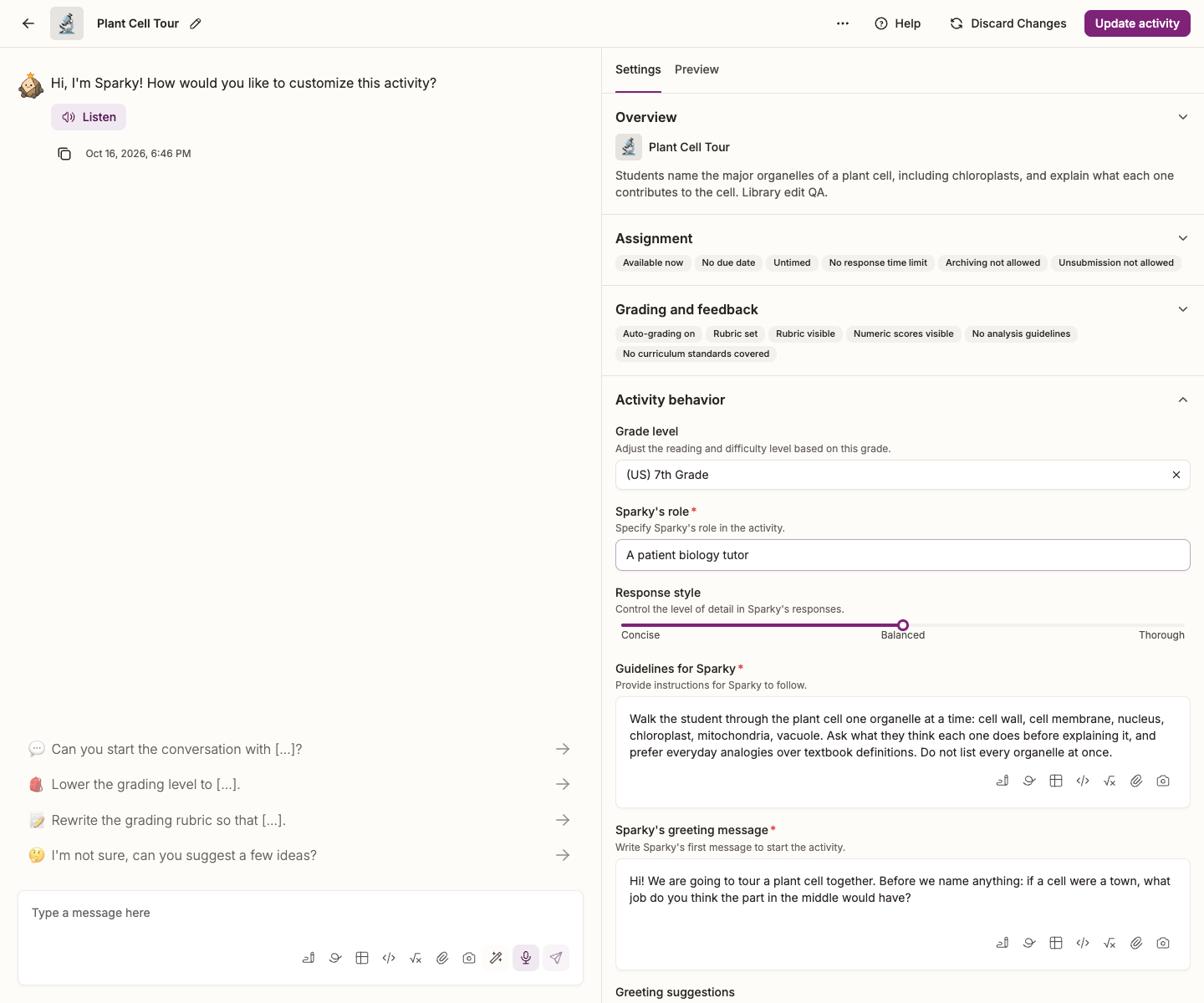
For a Lesson with Sparky, attach it in Settings, beside the conversation, to the field that matches what it is for:
- Guidelines for Sparky, in the Activity behavior section — material that steers Sparky, rather than appearing as the student's greeting. Participants without edit access cannot open the activity's builder settings.
- Sparky's greeting message, in the Activity behavior section — material students see at the start of the session.
- Analysis guidelines for Sparky, in the Grading and feedback section — material Sparky uses when it reviews finished sessions.
-
Click Update activity for a lesson or file upload, or Update assessment for a test or quiz. Until you save, students still see the old version.
File-upload and assessment activities do not have an Activity behavior section; use their own instructions or questions, or attach source material in the builder conversation.
An attachment opened from a field shows over the conversation while the settings stay beside it. Close the attachment to return to the conversation.
Watch: Attach a reading and inspect its saved placement
What you attach stays in the chat or activity you attached it to. Start a new chat and Sparky does not automatically receive those attachments — but the file itself is still in My attachments, so you can attach it again without re-uploading it.