Sparky is your AI assistant in Flint. So it doesn't need to be told the same thing every week, it saves a small number of memories about you as you chat, and uses them to tailor its answers.
In this guide:
- What Sparky remembers
- How memories get created
- How to remove a memory
What Sparky remembers
Memories fall into two rough groups.
Profile — facts about who you are:
- The grade levels you teach or support
- The subjects you teach
- Your school
Preferences — how you like to work:
- Your teaching or learning goals
- How you like Sparky to communicate
- Learning preferences and study methods
- Interests and hobbies Sparky can use for examples
Sparky is instructed to save useful teaching and learning information rather than passing trivia (the score of last night's game), and to keep each memory to a few paragraphs. A student telling Sparky "I'm an administrator" in a chat doesn't change their school role.
Memories are saved per school. If you belong to more than one school in Flint, what Sparky remembers in one doesn't carry over to the other.
Where to see your memories
-
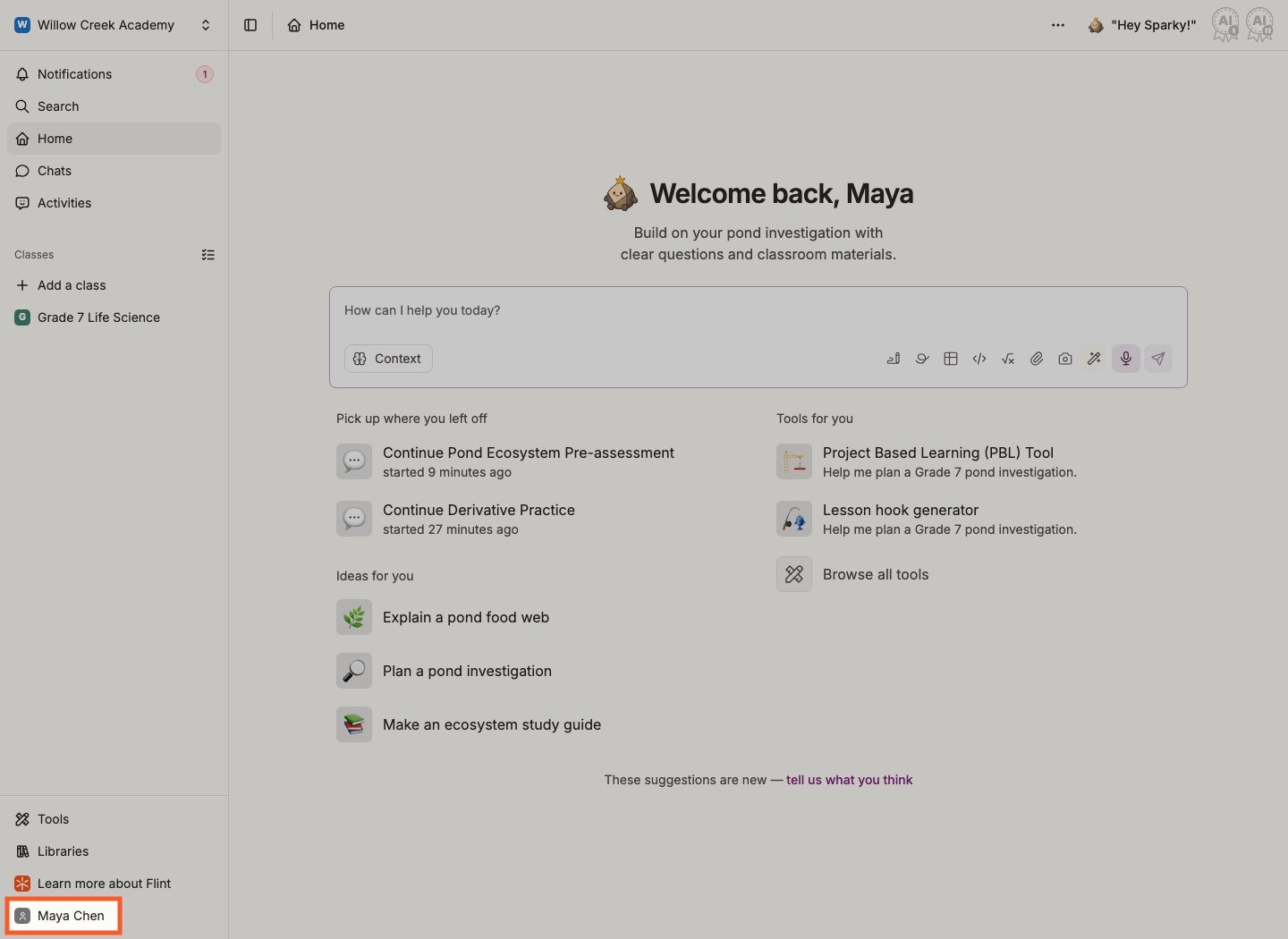
Click your name at the bottom of the left sidebar.
-
Click My profile.
-
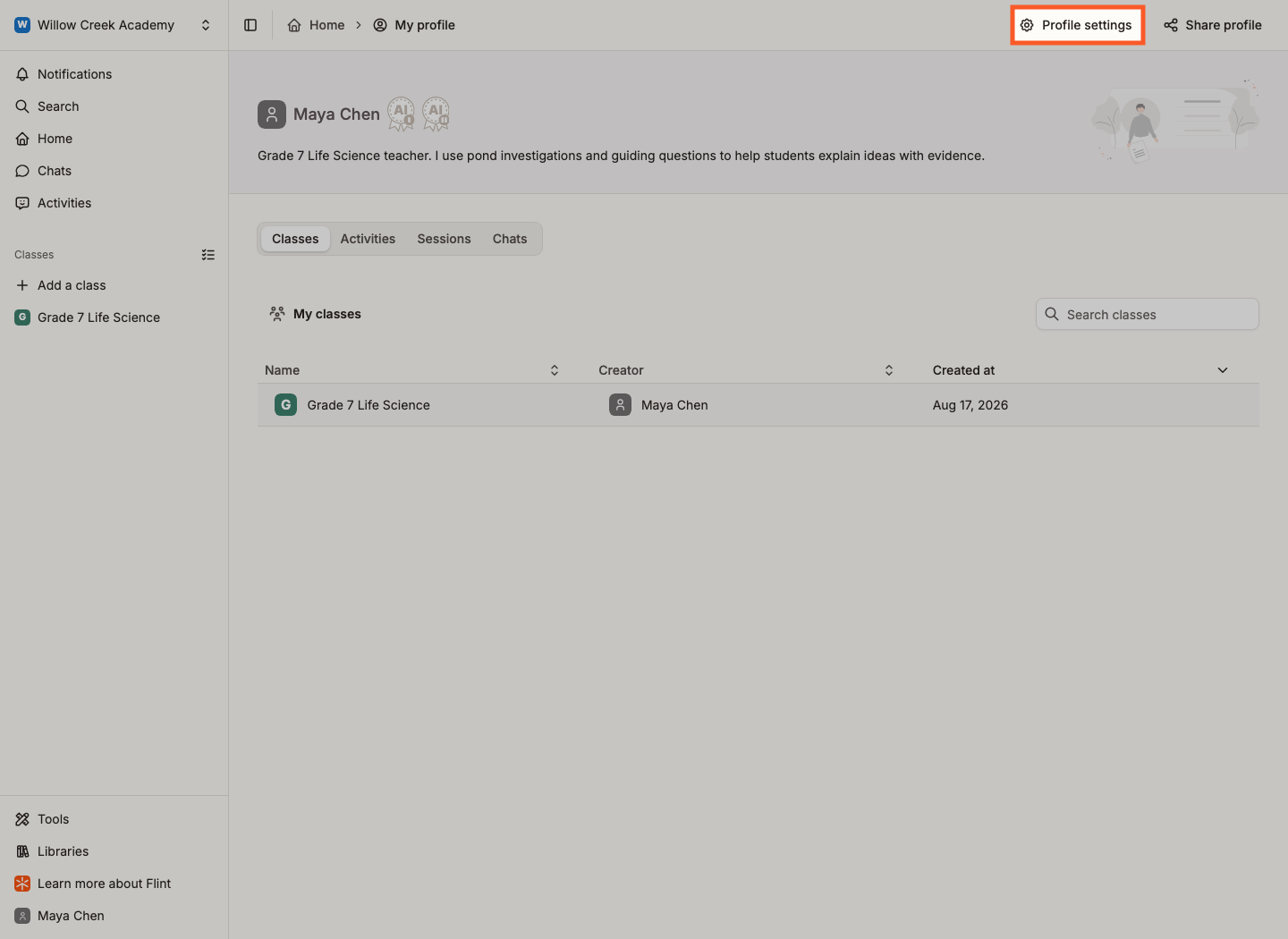
Click Profile settings in the top right of your profile page.
-
Open the Memories tab in the settings menu on the left.
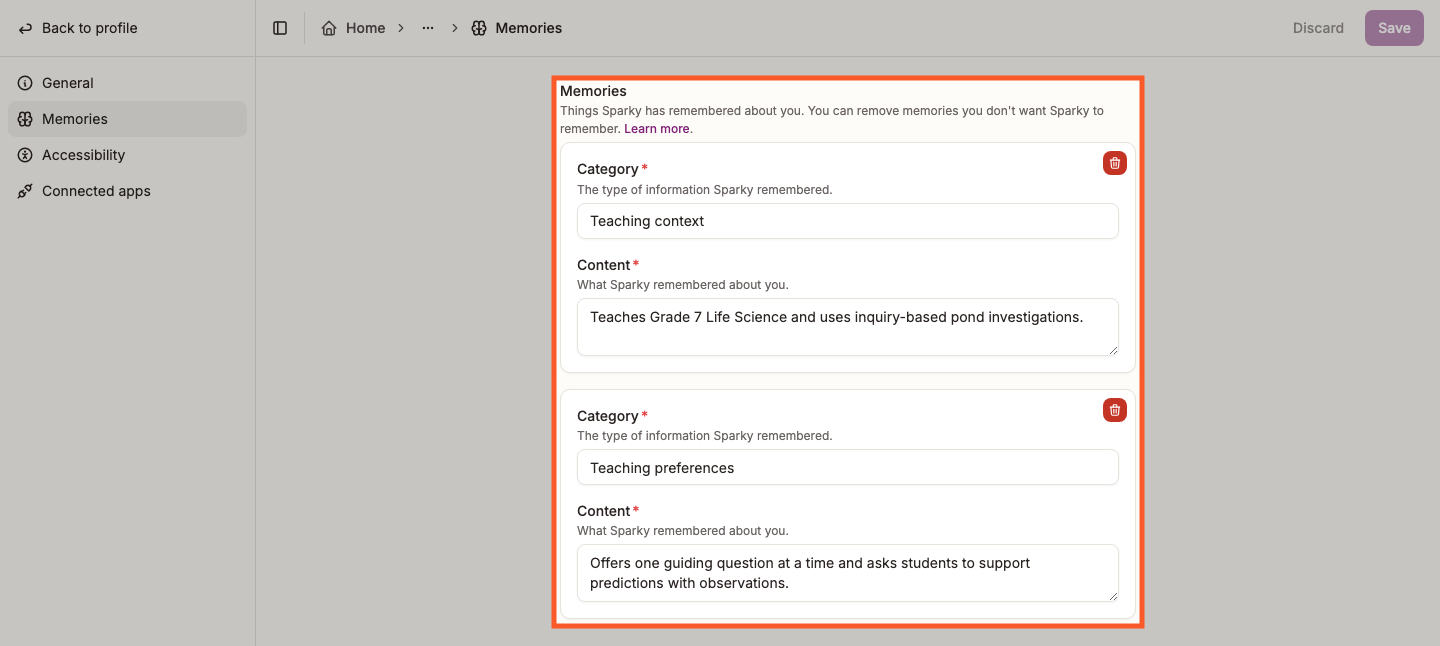
Each memory shows a Category — usually Profile or Preferences — and the Content Sparky saved. The most recently updated memories are at the top.
How memories get created
From role and intent onboarding
When the signup flow creates a school for you, Flint saves a Profile memory there summarising your role and what you came to do. Completing the role questions shown to an existing free-school creator also creates a Profile memory if that school still exists. These are school-specific records, not the old grade-level, subject and goals questionnaire.
A student who chooses I have a join code from my teacher joins through the code instead of creating a personal school; that signup branch does not create an onboarding memory.
In conversation
Sparky can save a memory when you share something worth keeping. You can also ask directly in a chat:
- "Remember that I prefer visual examples over text explanations."
- "Please remember I teach AP Chemistry and Physics."
- "Remember that I learn best through practice problems."
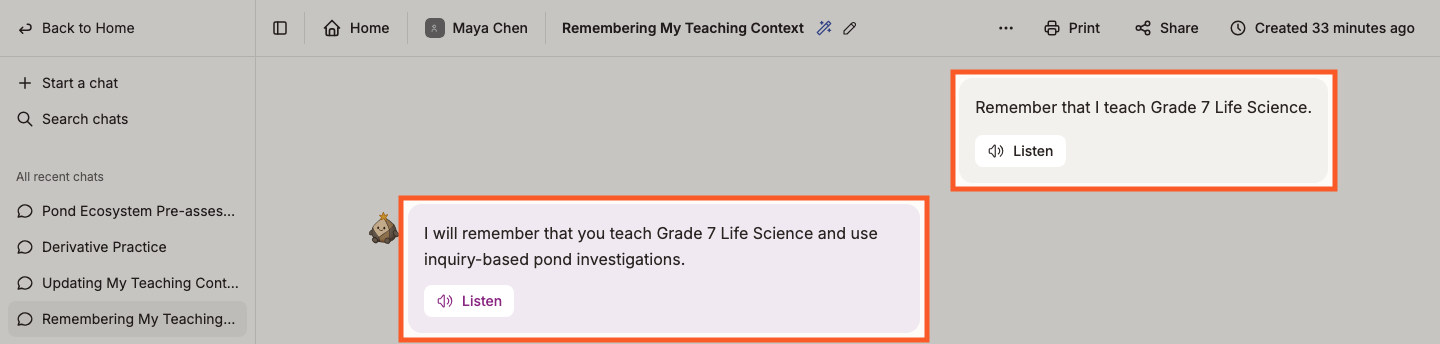
Check the Memories tab to confirm what Sparky saved; a conversational confirmation alone is not the saved record.
How to change a memory
Ask Sparky
The quickest way. Tell Sparky what changed, in any chat:
- "I no longer teach 5th grade — I moved to 8th grade this year."
- "Update my memory to say I teach Biology instead of Chemistry."
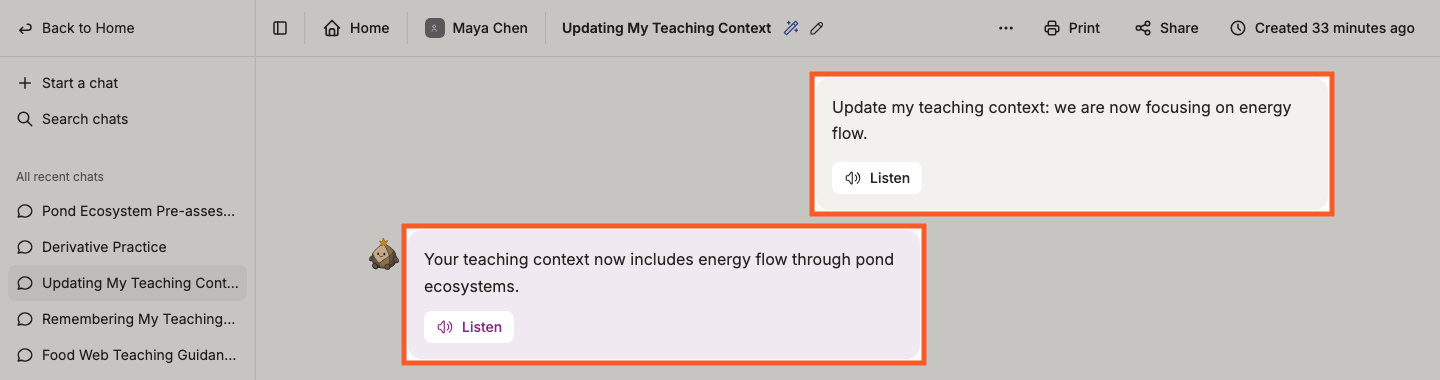
Sparky can update a matching saved memory. Check the Memories tab afterward to confirm the change.
Remove one in your settings
The Memories tab is where you clear things out. You can't edit or add a memory there — for that, ask Sparky.
-
Open the Memories tab, as above.
-
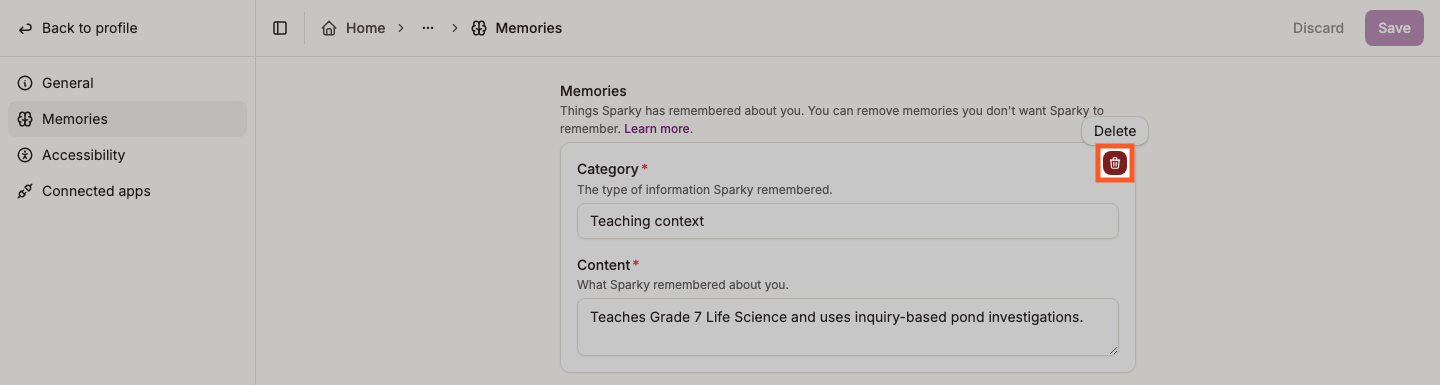
Click the delete button in the corner of any memory you want gone.
-
Click Save in the top right. Nothing is deleted until you do.
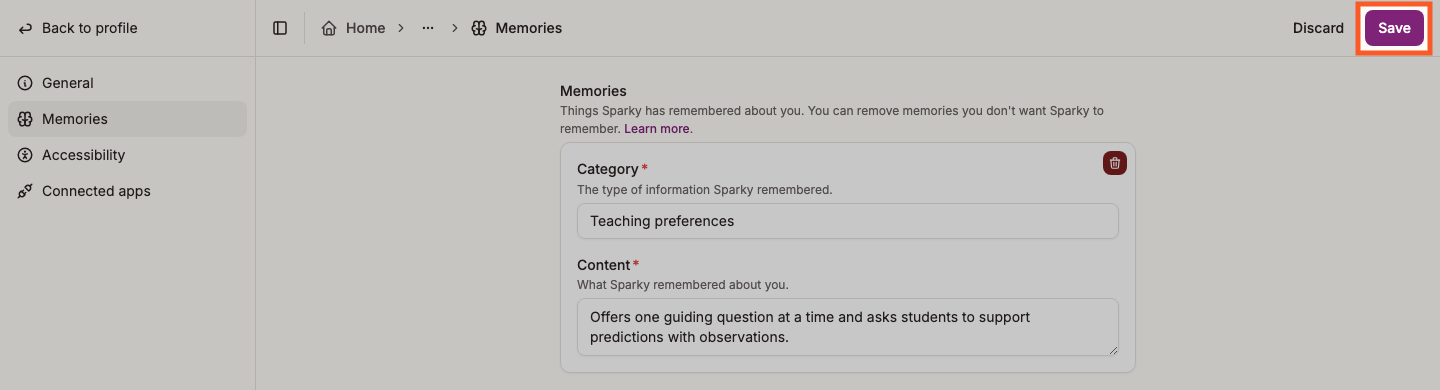
Changed your mind before saving? Click Discard to put everything back.
What happened to the onboarding questions?
Flint used to ask a short questionnaire when you created your account — your role, grade levels, subjects and goals. That questionnaire has been replaced by memories. Supported teaching and learning answers were converted into memories automatically; role answers and student grade-level answers from non-free schools were not copied. You'll find the converted memories on the Memories tab, where you can remove any that are out of date.
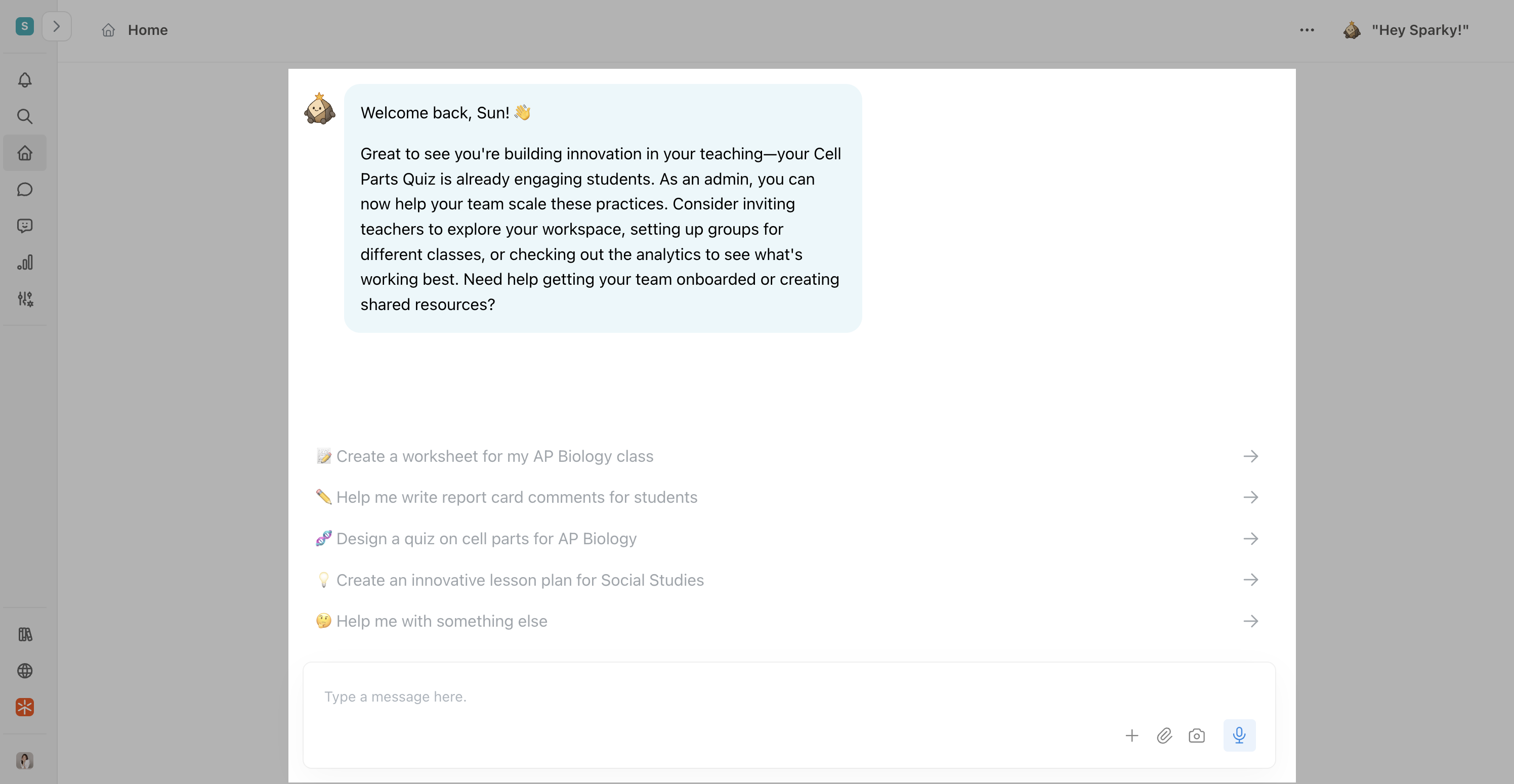
The new role and intent questions are separate. See Profile onboarding: what replaced it. The older screenshot below shows a personalised home greeting, not either questionnaire or the current home layout.