

If you have Can edit on a chat activity, its page updates live while students work: Sparky can flag signs that someone needs human help, and the sessions table fills in as responses come in. You do not have to wait for anything to be submitted.
These instructions are for chat activities. File-upload activities and assessments list Submissions instead of conversations and do not have Needs attention cards. See Introduction to AI activity sessions for the differences.
Where to find it
Open the activity. Two sections carry a pulsing LIVE badge and refresh on their own:
- Needs attention — Sparky's flags
- Sessions — the table of everyone's sessions
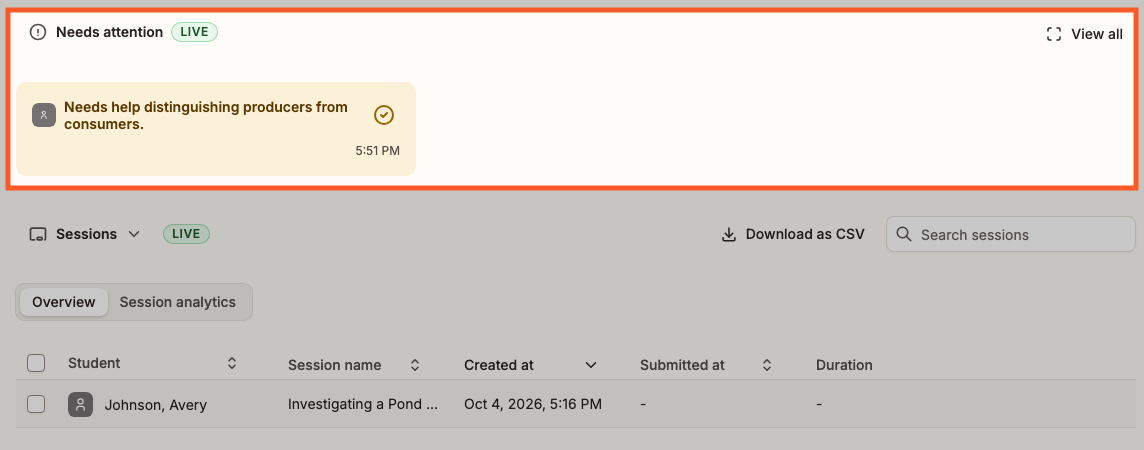
When there are no open alerts, Needs attention reads "Sparky will let you know if someone needs help during the activity."
Needs attention
Sparky can flag repeated incorrect attempts, distress or giving up, disengagement, or an explicit request for teacher or human help. Ordinary questions or brief confusion do not necessarily raise an alert.
Cards sit in a row under Needs attention, with an avatar, an alert headline, a check icon at the top right and a timestamp. An explanation can appear beneath the headline; click Show more if the explanation is cut off. The example above shows a headline without a longer explanation.
Click a card to open that student's session at the message that triggered it. The alert appears again there, directly beneath the message that set it off, with the rest of their work above.
Once you have helped — or decided there is nothing to do — click the check icon on the card to Mark as resolved. The card's check fills in and it drops out of the row of open alerts.
Nothing is deleted. The row you see by default scrolls sideways through open alerts only. Click View all, at the right-hand end of the Needs attention heading, to see every alert for the activity, resolved ones included, and Collapse to go back. From the expanded list you can click a resolved card's check again to Mark as unresolved.
The live sessions table
The Sessions table adds rows as students start work and updates them as responses and submissions come in.
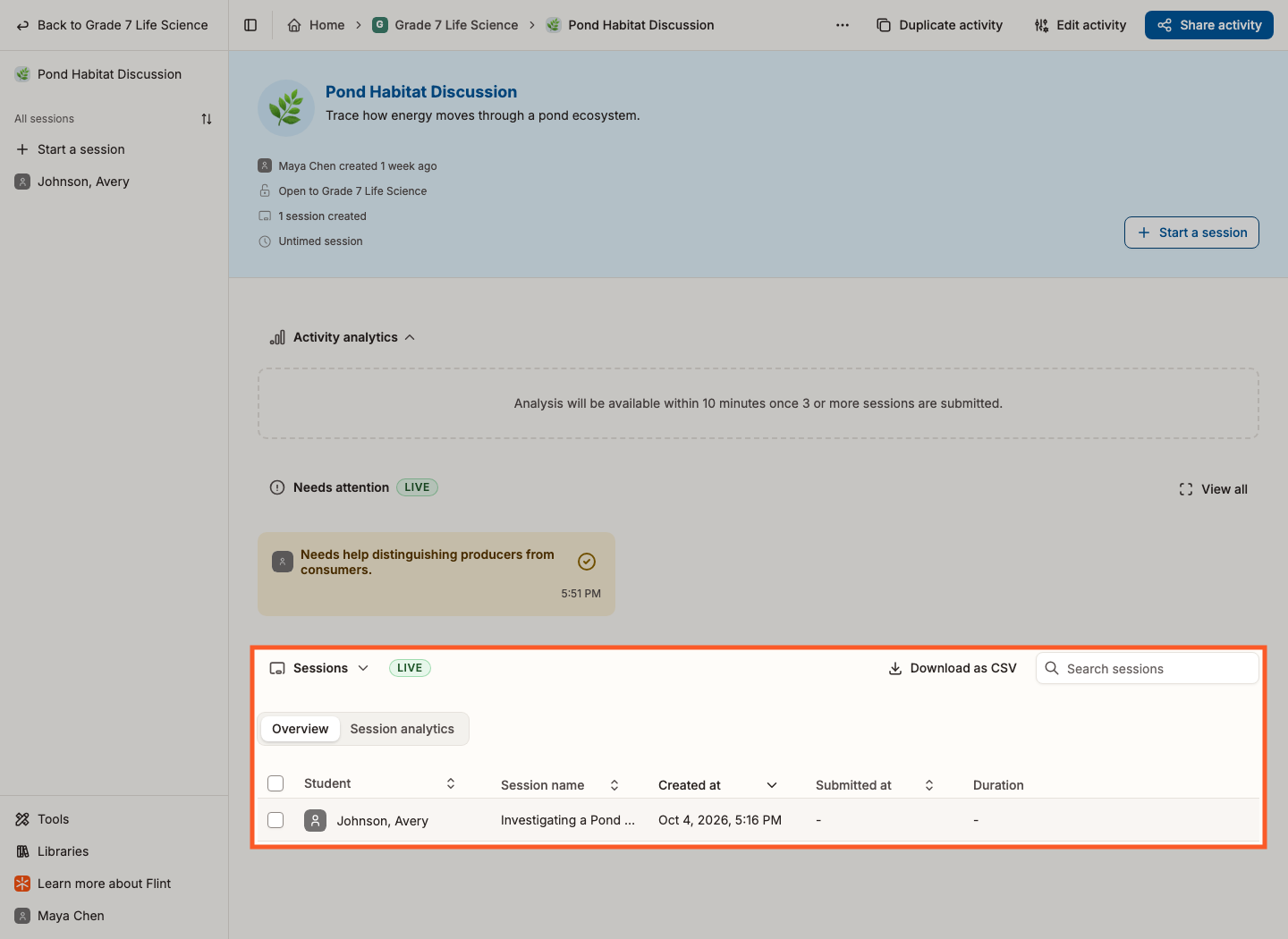
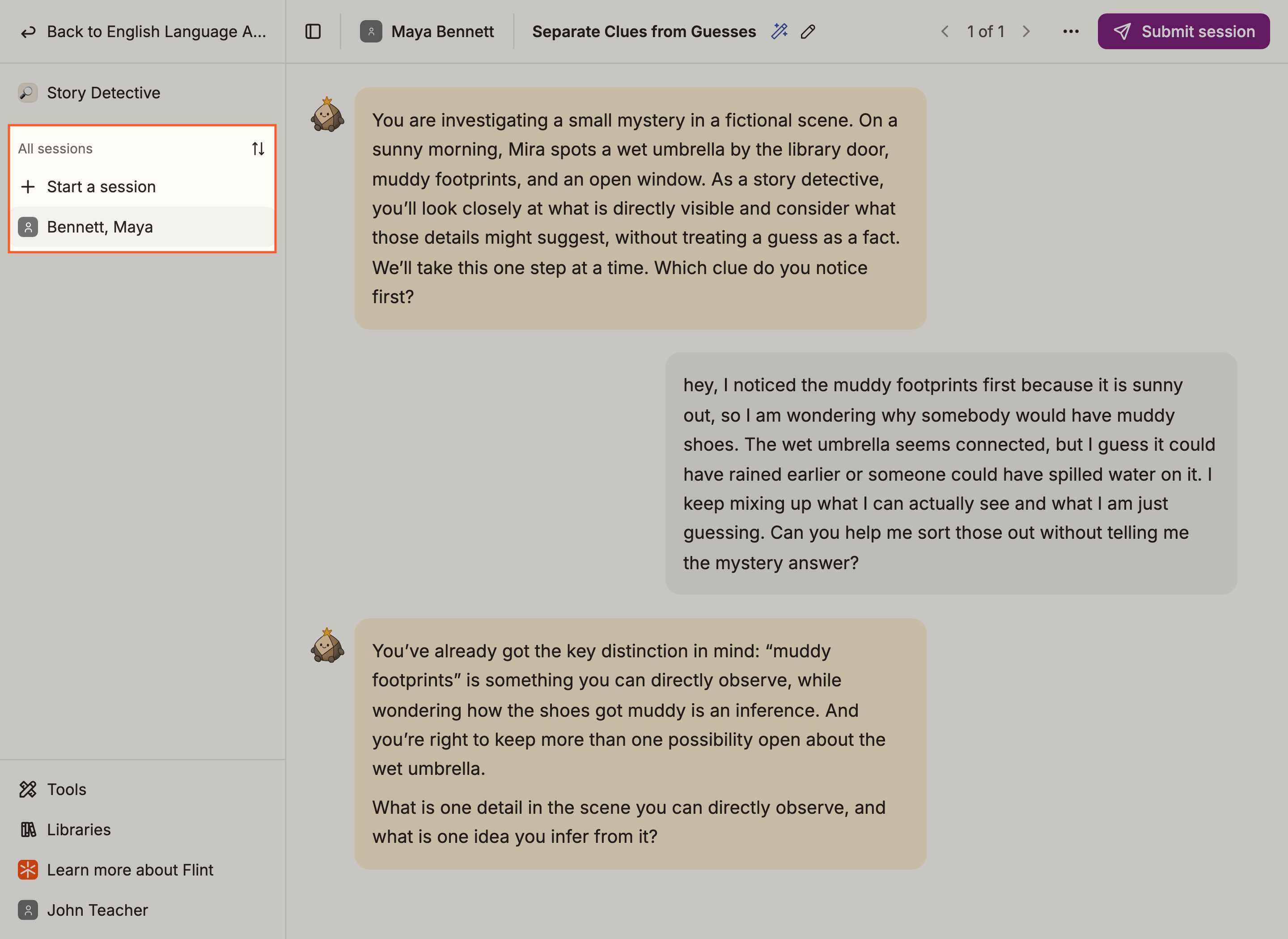
Click any row to read the conversation, whether the session is still running or already finished. Once you are in a session, the activity's left sidebar lists everyone under All sessions, so you can move from student to student without going back.
The separate Story Detective example below shows the sidebar location with one session listed.
Who can see sessions and alerts
- Only people with Can edit on the activity see the live updates and Needs attention alerts. Inside a session, an eye icon on the alert is a reminder: "Only people who can edit this activity can view this alert."
- Participants without Can edit do not see Needs attention or the activity alerts inside their sessions, and do not get the activity's all-student Sessions table.
- Can edit grants access to the activity's sessions and alerts regardless of a person's school-role label, including someone labelled Student.