

A session is one person's conversation with Sparky inside an activity. Each student who opens your activity works in their own session, and that session is what gets submitted, analysed and graded. A conversation that does not live inside an activity is called a chat instead.
File-upload activities and assessments use the word "submission" in place of "session", so you will see Submissions rather than All sessions. File-upload activities start with Submit work; assessments start with Start assessment and collect answers to questions rather than a conversation. The session steps below describe chat activities.
Start a session
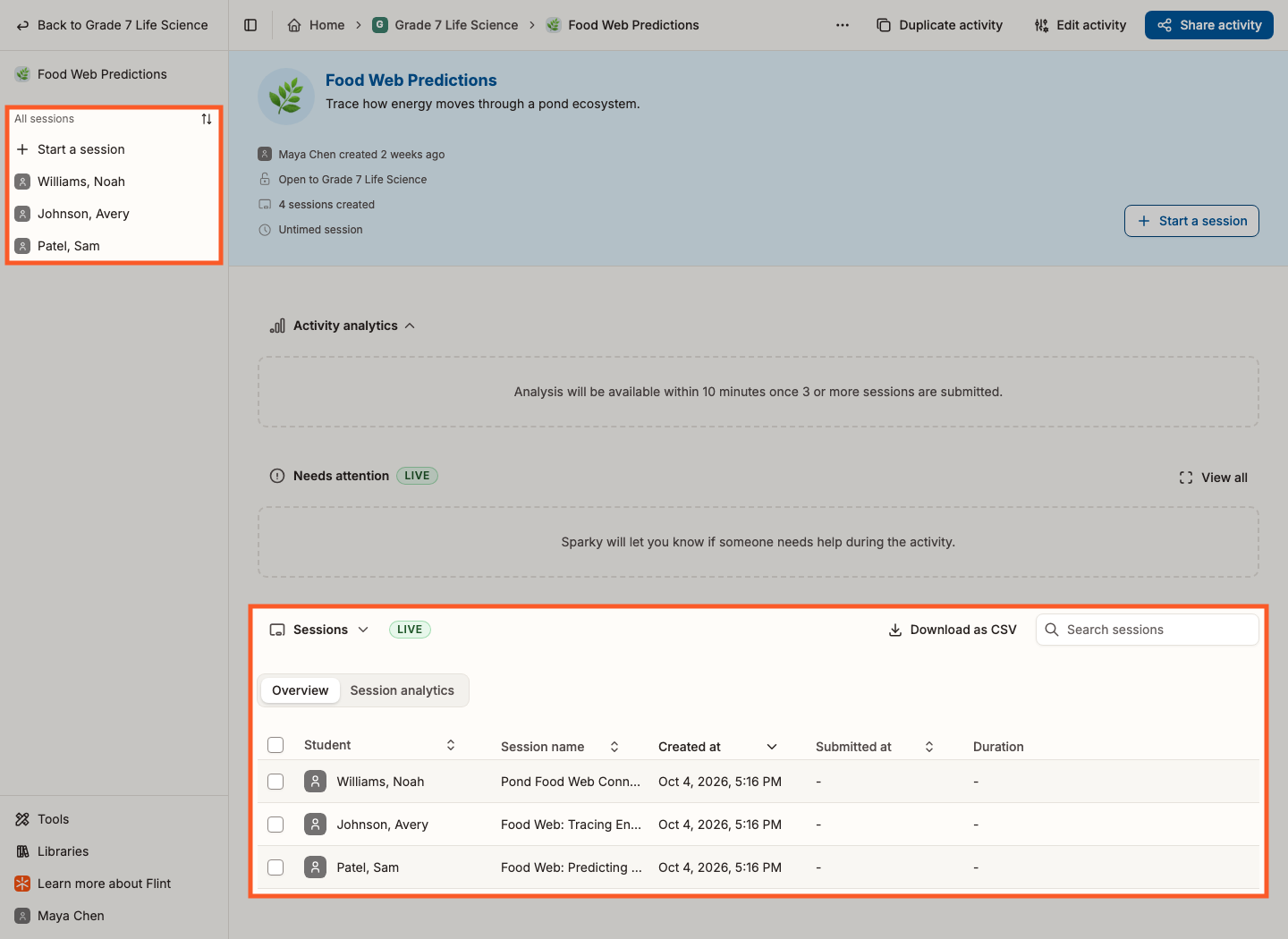
Open the activity and click Start a session. The button appears twice on the activity page — on the activity banner at the top, and at the top of the activity's left sidebar.
Start a session is unavailable while the activity is paused, before its available-from date, or after its due date. Hovering the greyed-out button in the sidebar of a paused activity explains why.
Find the sessions in an activity
The activity's left sidebar lists sessions under All sessions: your own if you are taking part, everyone's if you own the activity. The button beside that heading sorts the list by date, student name or grade.
The activity page lists them too, and what you get there depends on your role:
- If you own the activity, the Sessions table sits at the bottom of the page, one row per session. Its Overview tab shows Student, Session name, Created at, Submitted at and Duration; Session analytics swaps those for Strengths, Areas of improvement and Follow up; a Grades tab appears when the activity has a rubric with more than one category. A grade column sits at the end throughout if the activity is graded, and you can search the table, Download as CSV, Download resources to save the files the students you tick made or shared in the listed sessions as ZIP files with a folder for each student, or Print transcripts to print every listed session with each student on a new page. Download resources keeps images, video, audio and uploaded files as they are, and saves documents as Word files, slides as PowerPoint, spreadsheets as Excel, code as source files and interactives as web pages that work offline. Whiteboards, links and voice messages are not included. Understanding activity analytics in Flint covers the table's tools in more detail.
- If you are taking part, you see Your sessions instead — one row per session with View session or Continue session, and a chevron that opens that session's analysis without leaving the page.
What you can do on a session page
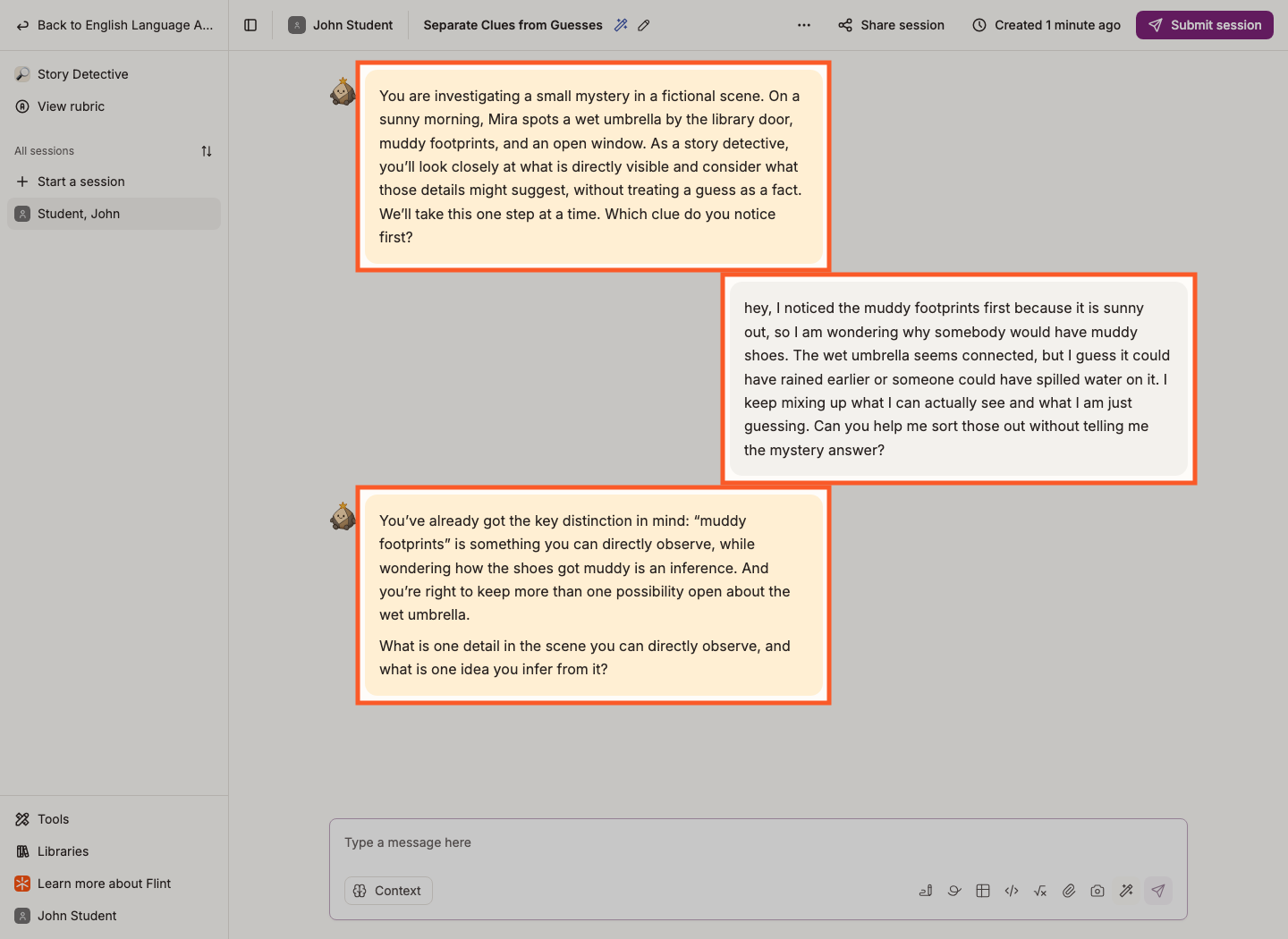
The conversation fills the middle of the screen, newest message last.
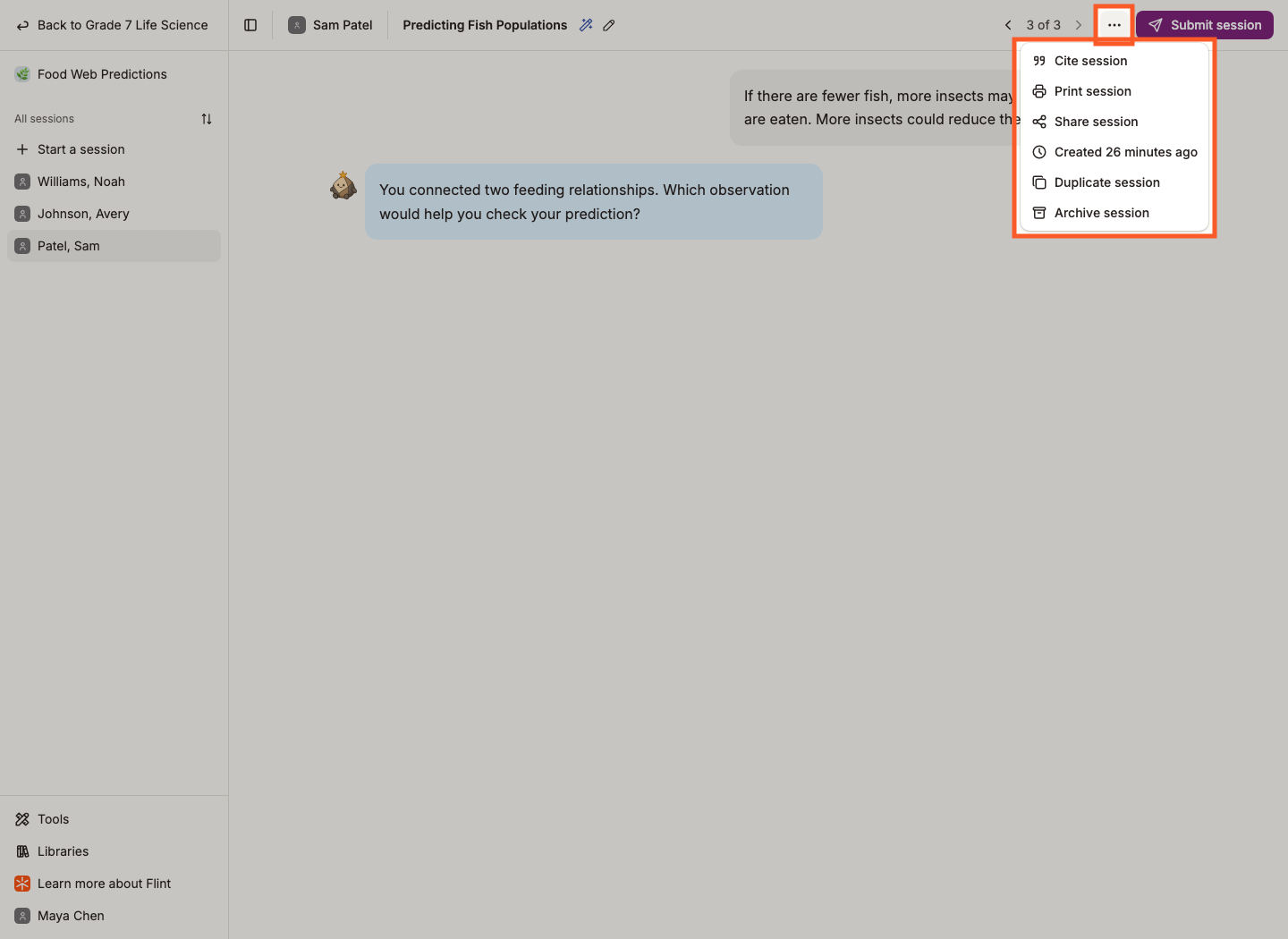
The actions run along the top of the page. When the window is too narrow to show them all, the extras collapse into the ⋯ More actions menu.
| Action | What it does |
|---|---|
| Submit session | Turns the session in for analysis and grading |
| Unsubmit session | Reopens a submitted session and clears its saved grades and scores |
| Share session | Gives specific people access to this one session |
| Duplicate session | Makes your own copy of the session |
| Print session | Opens the print dialog for the whole conversation |
| Cite session | Produces a citation for the conversation |
| View rubric | Shows the activity's grading rubric |
| Edit feedback | Lets activity owners review and change rubric grades and written feedback |
| Share feedback | Lets activity owners select students to notify about feedback by email, without changing session access |
| Play all / Stop all | Plays eligible messages aloud in order, or stops playback; appears when multiple messages support speech playback |
| Archive session | Moves the session out of the activity's list without deleting it |
| Delete session | Removes the session permanently — school owners only |
School ownership includes school admins and a teacher designated as the active term's creator, even if their role label remains Teacher. Owning an activity or a session alone does not grant permanent deletion. Builder previews cannot be shared or permanently deleted as saved sessions.
Not everyone sees every action. Students get Unsubmit session only while the activity is not paused and either Session unsubmission is switched on or the session has not been analysed yet. Students get Archive session only when Session archivable is switched on and the activity is not paused. Activity owners do not need those settings and can act while the activity is paused. Unsubmission still requires a submitted, non-archived session and is unavailable to anyone after the session's effective time limit expires — see setting timers. For the difference between archiving and deleting, see Archiving and deleting sessions.
Activity owners get the feedback actions on analysed, submitted, non-archived sessions. Edit feedback also requires a grading rubric and no pending analysis. Share feedback opens a recipient list; select students with grades or written feedback and click Notify via email. Students must sign in to view the feedback.
Seeing the analysis
Once Flint has analysed a session, a Session analysis panel appears above the conversation with strengths, areas of improvement, suggested next steps, and the grade if the activity is graded.
Students see it once they have submitted. If you own the activity you see it as soon as the analysis is ready, marked with an Only visible to you badge until the student submits.