

A module groups the activities and resources for one topic or week of a class, such as a unit on a novel. You choose the teaching order inside each module, and students see a module only after you publish it.
Modules sits right under Overview in the class sidebar, for teachers and students alike. Setting up modules needs Can edit access to the class.
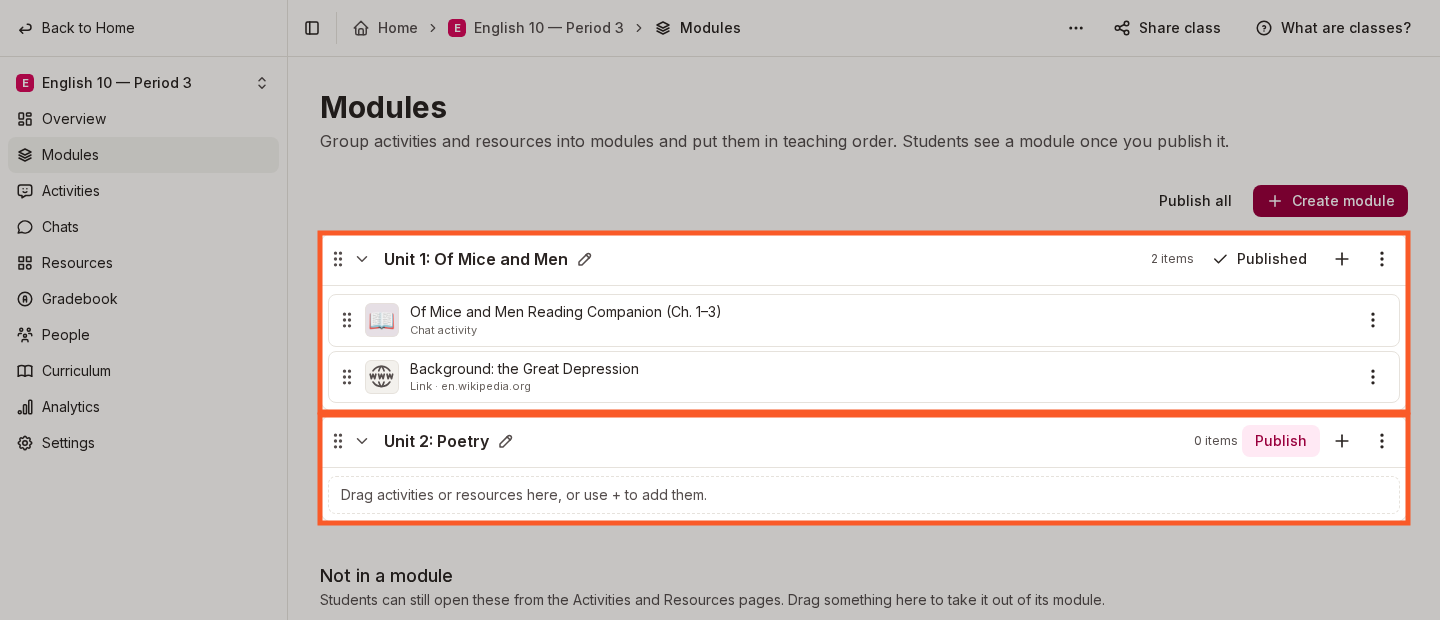
Create a module
- Open the class and select Modules in the class sidebar.
- Select Create module. The new module is called Module, then Module 2, Module 3 and so on, and its name opens for editing.
- Type a name, such as "Unit 1: Of Mice and Men", and press Enter.
To rename a module later, select its name. A new module starts unpublished, so students can't see it until you publish it.
Add activities and resources
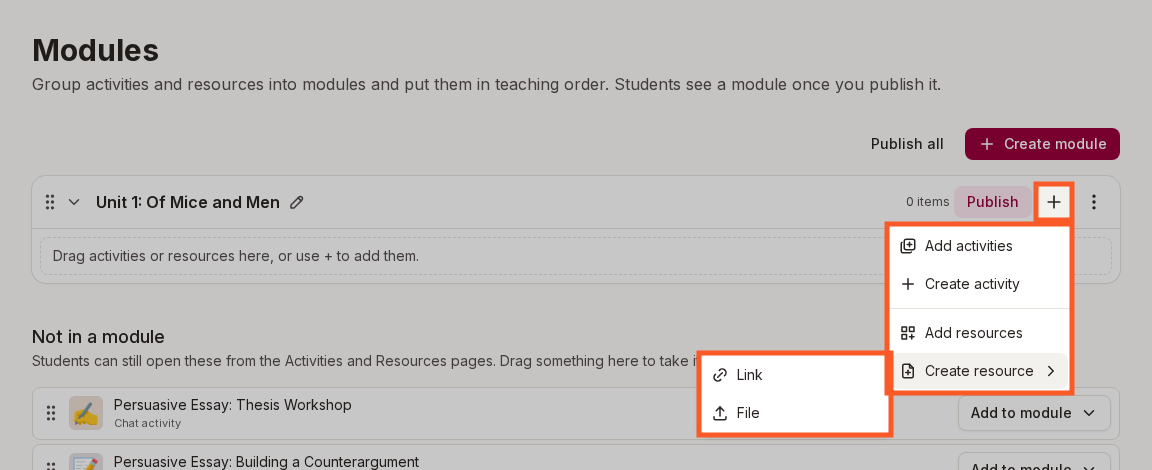
Select + on a module to open its add menu:
- Add activities lists the activities in this class. Tick the ones you want and select Add.
- Create activity opens a new activity that is saved into this module.
- Add resources lists the resources in this class. Tick the ones you want and select Add.
- Create resource adds a new Link or File straight into this module.
An activity or resource belongs to one module at a time. Adding one that is already in another module moves it into this module. Moving an activity never changes its submissions, grades or settings.
Put items in teaching order
Drag an activity or resource by its handle to reorder it within a module, or drop it on another module to move it there. Drag a module by its handle to reorder the modules.
Each item's three-dot menu offers the same moves without dragging:
- Move to module sends the item to another module.
- Move to top, Move up, Move down and Move to bottom reorder the item within its module. These appear when the module holds more than one item.
- Remove from module moves the item to Not in a module.
A module's own three-dot menu has the same four reorder options for the module when the class has more than one module, plus Delete module.
Items that aren't in a module
Activities and resources that sit in no module appear under Not in a module, below your modules. Students can still open them from the class's Activities and Resources pages. To put one in a module, select Add to module next to it, or drag it onto the module. To take an item out of its module, drag it into Not in a module.
Publish a module
Select Publish on a module. Publishing makes the module's activities and resources visible to all students in the class, and the button then reads Published.
To hide the module again, select Published. Students lose access to its activities and resources, including any sessions they have in progress.
Publish all publishes every module in the class, and Unpublish all appears once every module is published. Flint asks you to confirm either one before it changes anything.
What students see
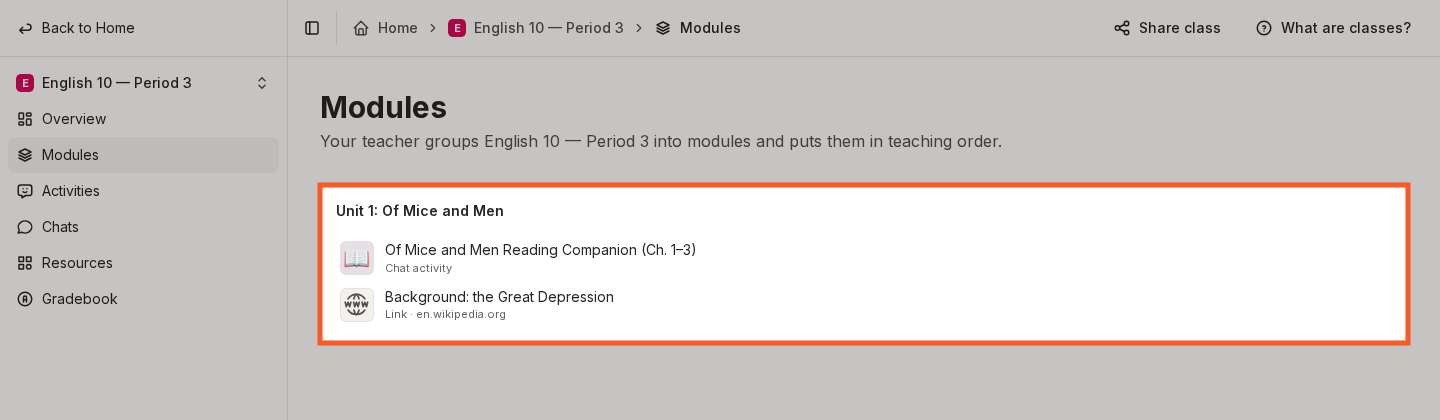
Students open the same Modules tab and see only the published modules, each with its items in your order. A resource you hid on the Resources page stays hidden there too. While no module in the class is published, students see "Your teacher has not published any modules. Check back later."
An activity or resource inside an unpublished module is hidden from students everywhere: on the Modules tab, on the Activities and Resources pages, and when they follow a direct link. When someone with Can edit access to the class opens an activity in an unpublished module, Flint shows the banner "Students can't see this activity because the module, module name, is not published." Select Go to module settings to go to the class's Modules tab and publish the module. The activity's share dialog warns "Students can't open this link because the module, module name, is not published."
Delete a module
- Select the module's three-dot menu.
- Choose Delete module.
- If the module holds items, confirm with Delete module.
Deleting a module never deletes its activities or resources. They move to Not in a module, where students can open them, and they keep their submissions, grades and settings. An empty module is deleted without asking.
Modules and activity folders
Modules and activity folders are separate ways to organize a class, and you can use both:
- A folder groups activities on the class's Activities page. A folder holds only activities and has no publish step.
- A module holds both activities and resources, sets their teaching order on the Modules tab, and decides when students can see them.
Modules can't contain other modules, just as folders can't contain other folders.