

Sparky can build a themed slide deck with illustrations, ready to present or hand on. You can ask for one in a chat or a conversational activity session.
Ask Sparky for a deck
-
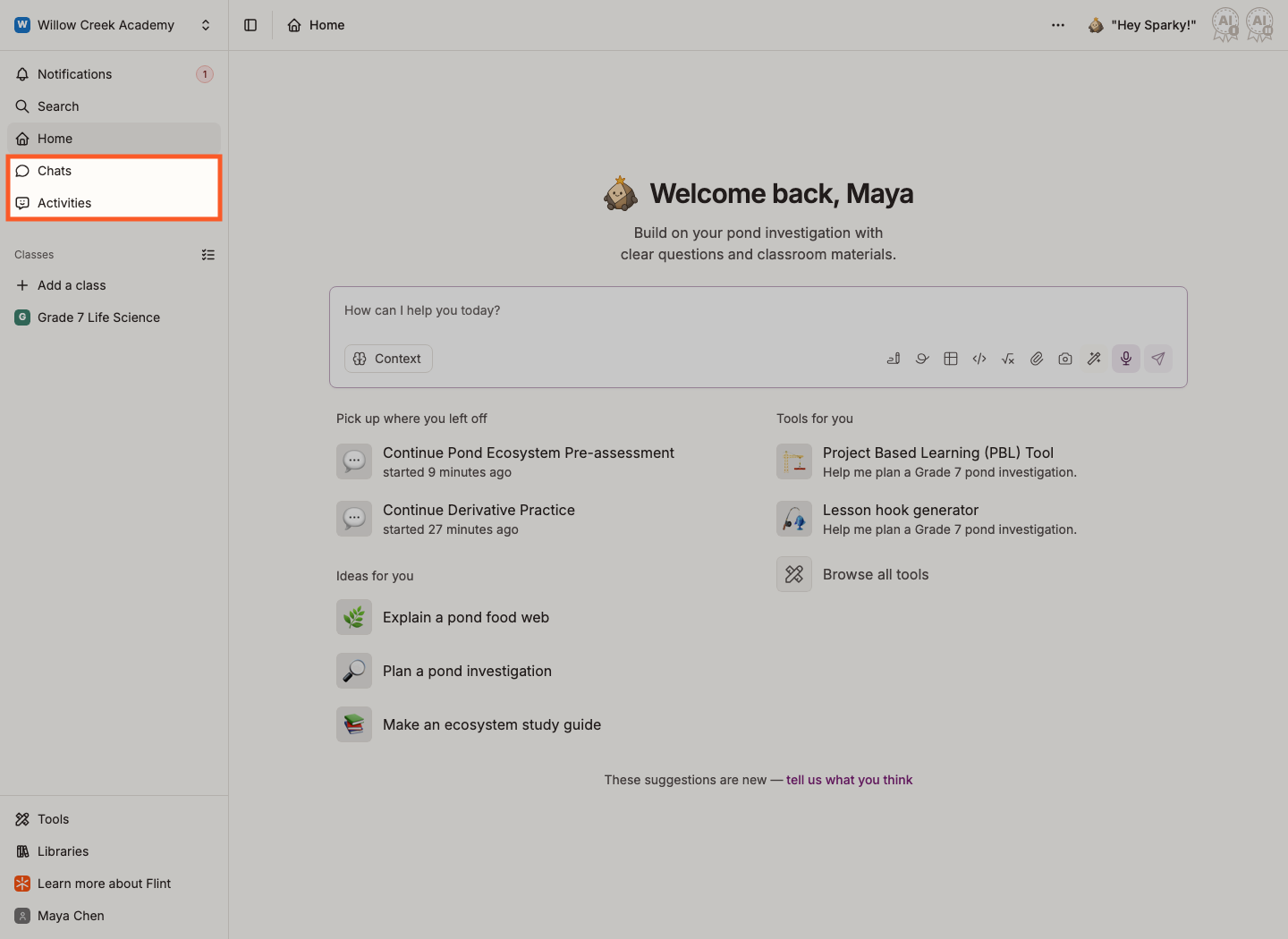
Start a chat — click Chats in the sidebar, then Start a chat — or open a lesson with Sparky and work in a session there.
-
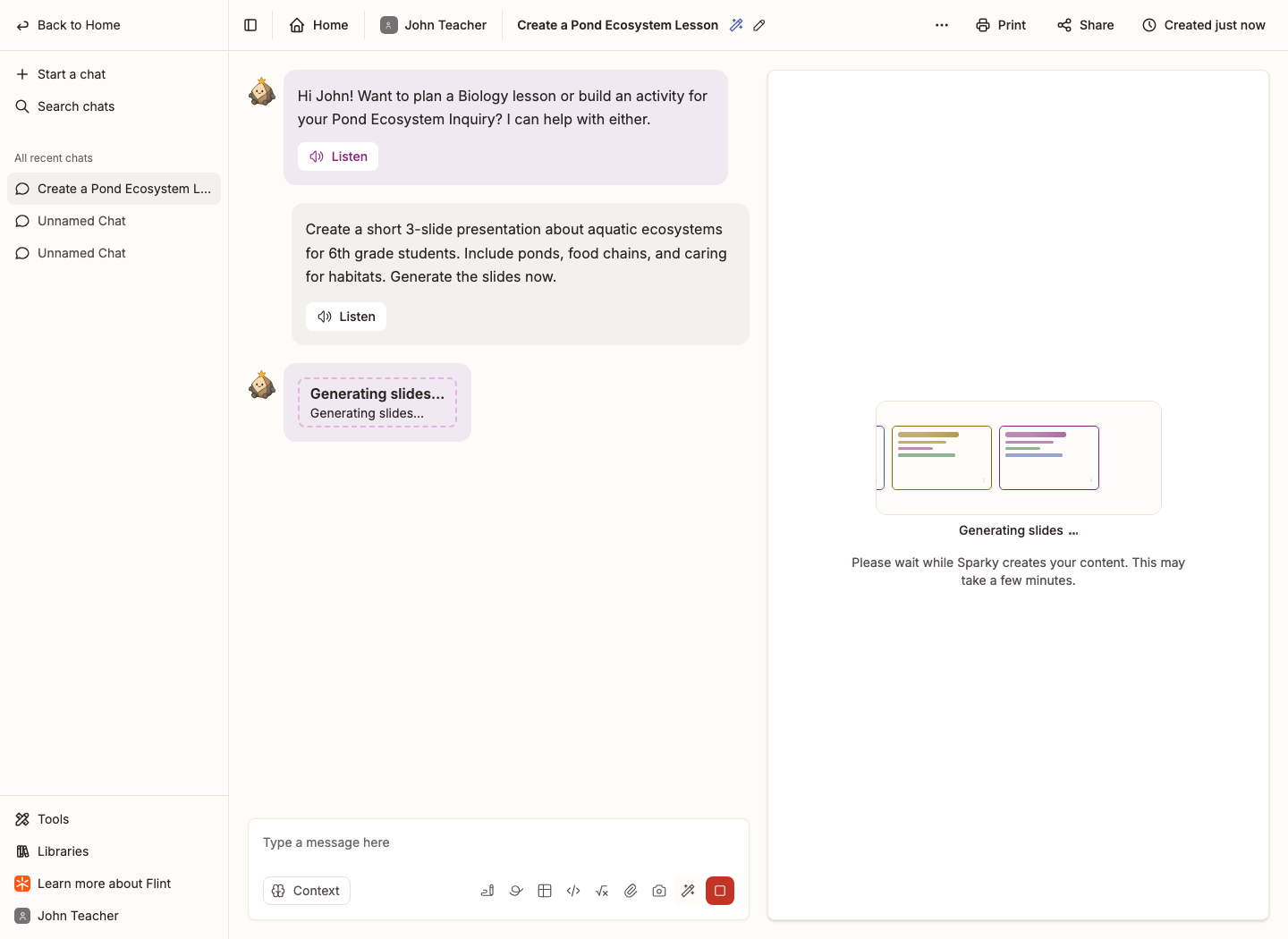
Say clearly that you want slides: "Create a presentation on…", "Generate slides about…", "Make a slide deck that explains…". Add the grade level, the learning objective and anything that has to be covered.
-
Give Sparky context if you have it. Add attachment(s) attaches files from Flint, your computer, Google Drive or Microsoft OneDrive; Create a document or Insert an equation add material inline; and pasting a link attaches the page.
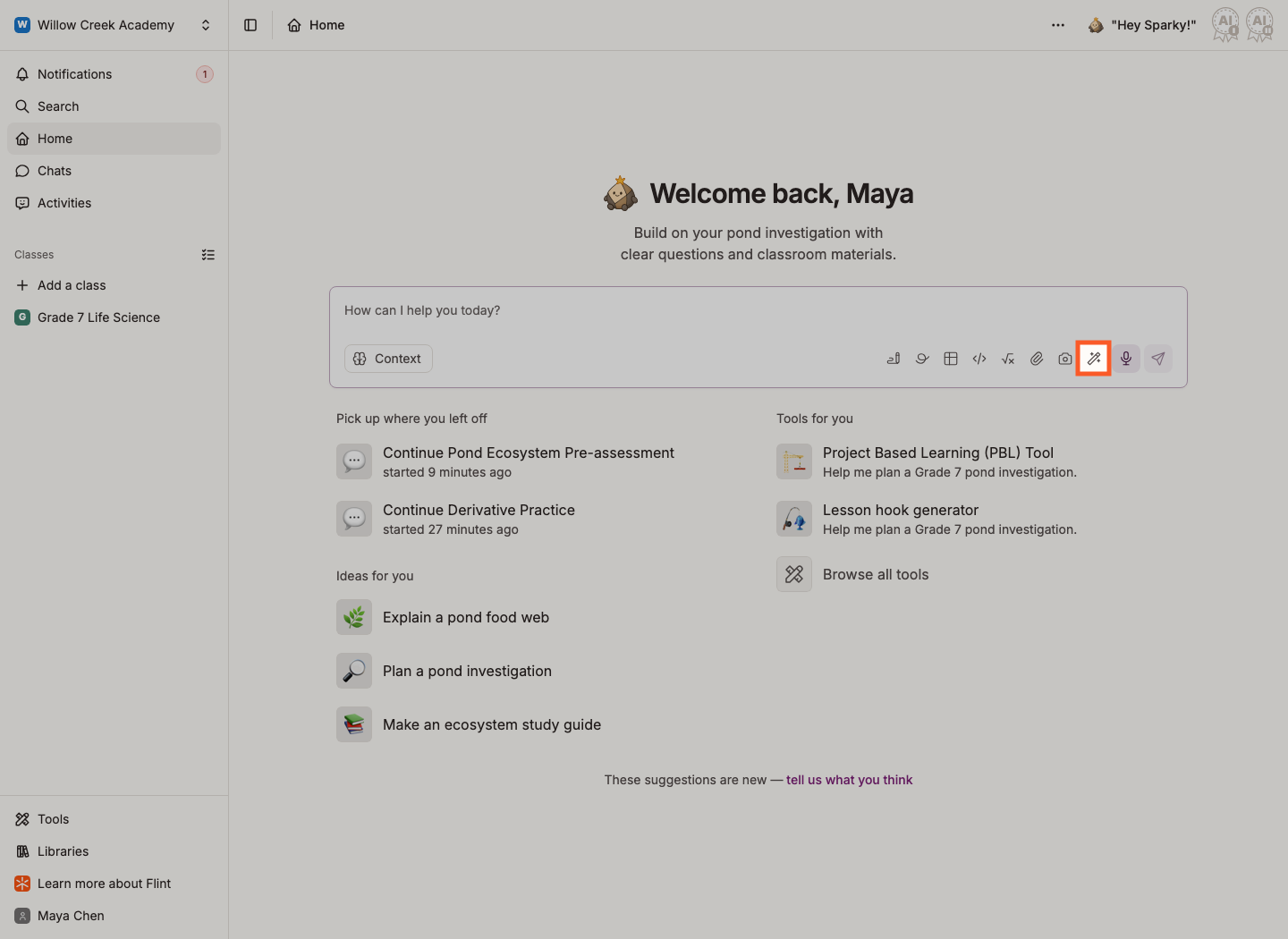
Where the wand (Generate content) is available, choose Slides to set the generation mode, then describe your lesson. Selecting a mode keeps your existing message text rather than inserting a ready-made prompt.
-
Give it a minute. Generating a deck takes longer than a normal reply — leave the tab open while Sparky works.
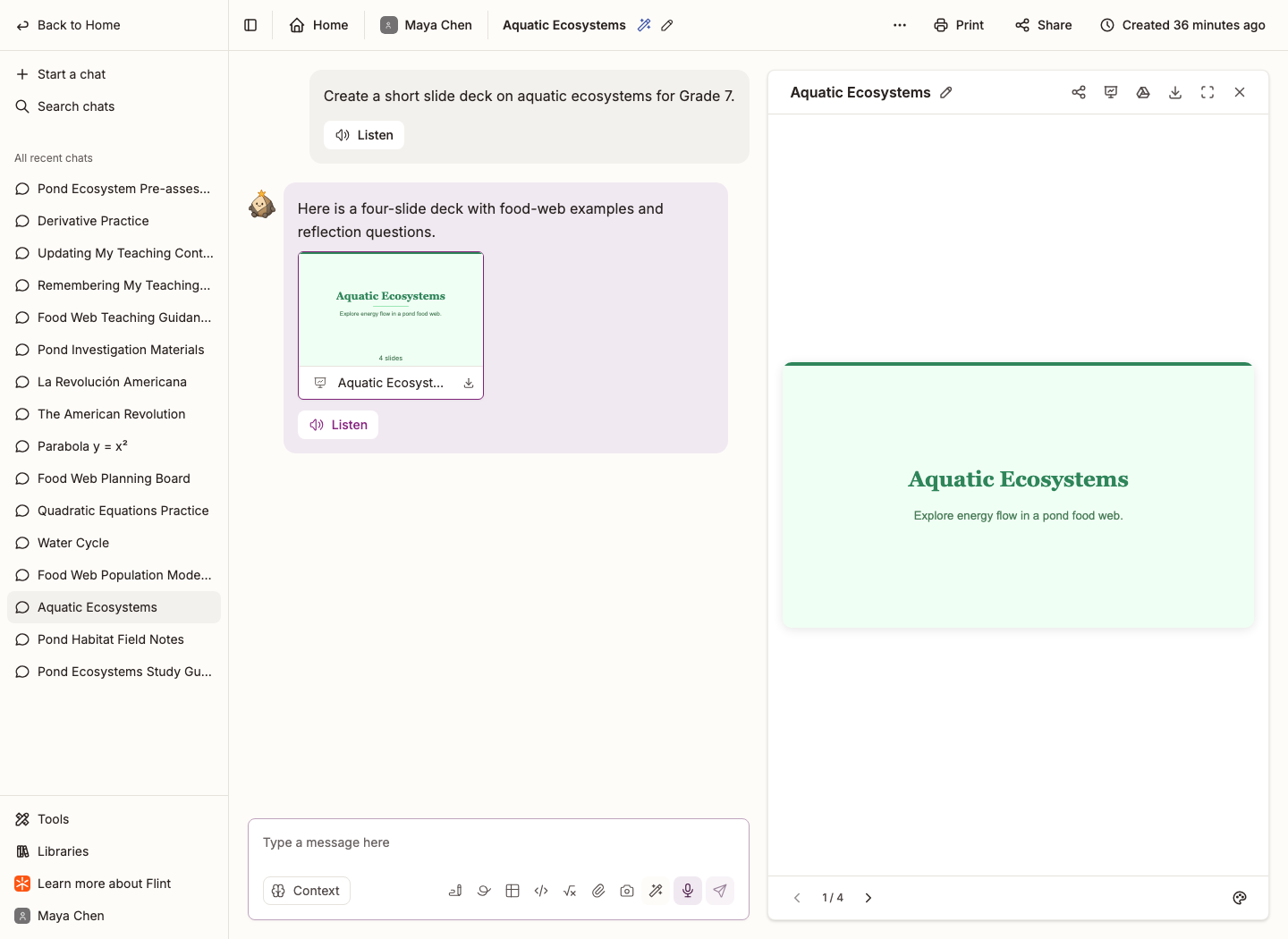
The screenshots use separate examples: the generating request asks for three slides for 6th grade; the finished deck shown here has four slides for Grade 7.
Change how it looks
When the chat and deck are editable, click the palette icon (Change theme) at the bottom of the deck panel and pick one of six themes. The preview and PowerPoint download use the new theme immediately. Changing a sent deck creates a draft version attached to your message, leaving the original unchanged. Flint autosaves the draft; Open in Google Slides is unavailable while that version is still saving. Send the attached version when you want to include it in the conversation.
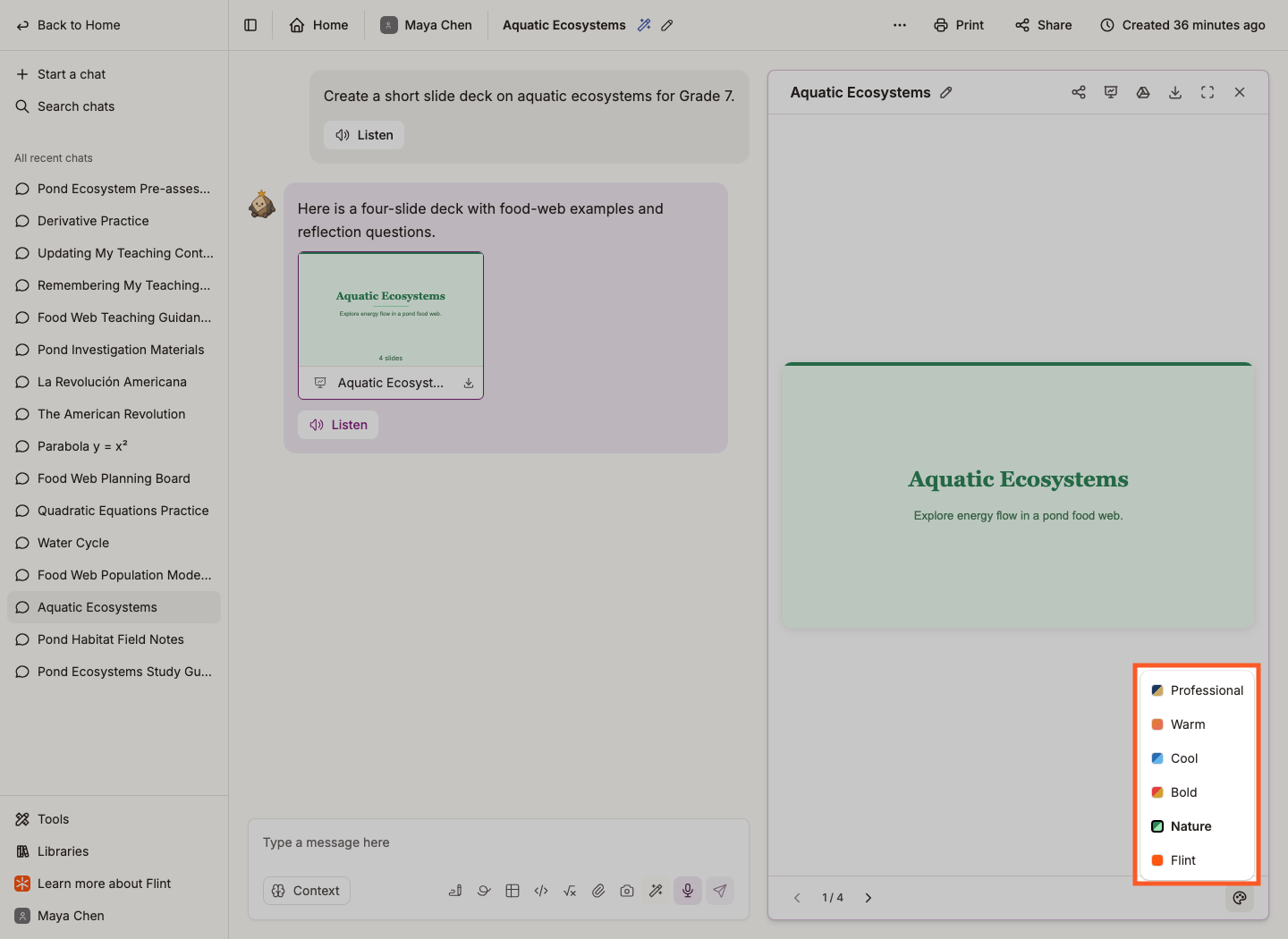
| Theme | Look |
|---|---|
| Professional | Navy blue with gold accents on white |
| Warm | Orange with terracotta accents on cream |
| Cool | Blue with sky-blue accents on ice white |
| Bold | Red with amber accents on a dark background |
| Nature | Green with mint accents on soft green |
| Flint | Flint orange on white |
You can also just ask: "use our school colors, navy and gold", or "make slide 4 sky blue". Sparky applies the colors across the deck, or to the single slide you named.
Present, download and edit
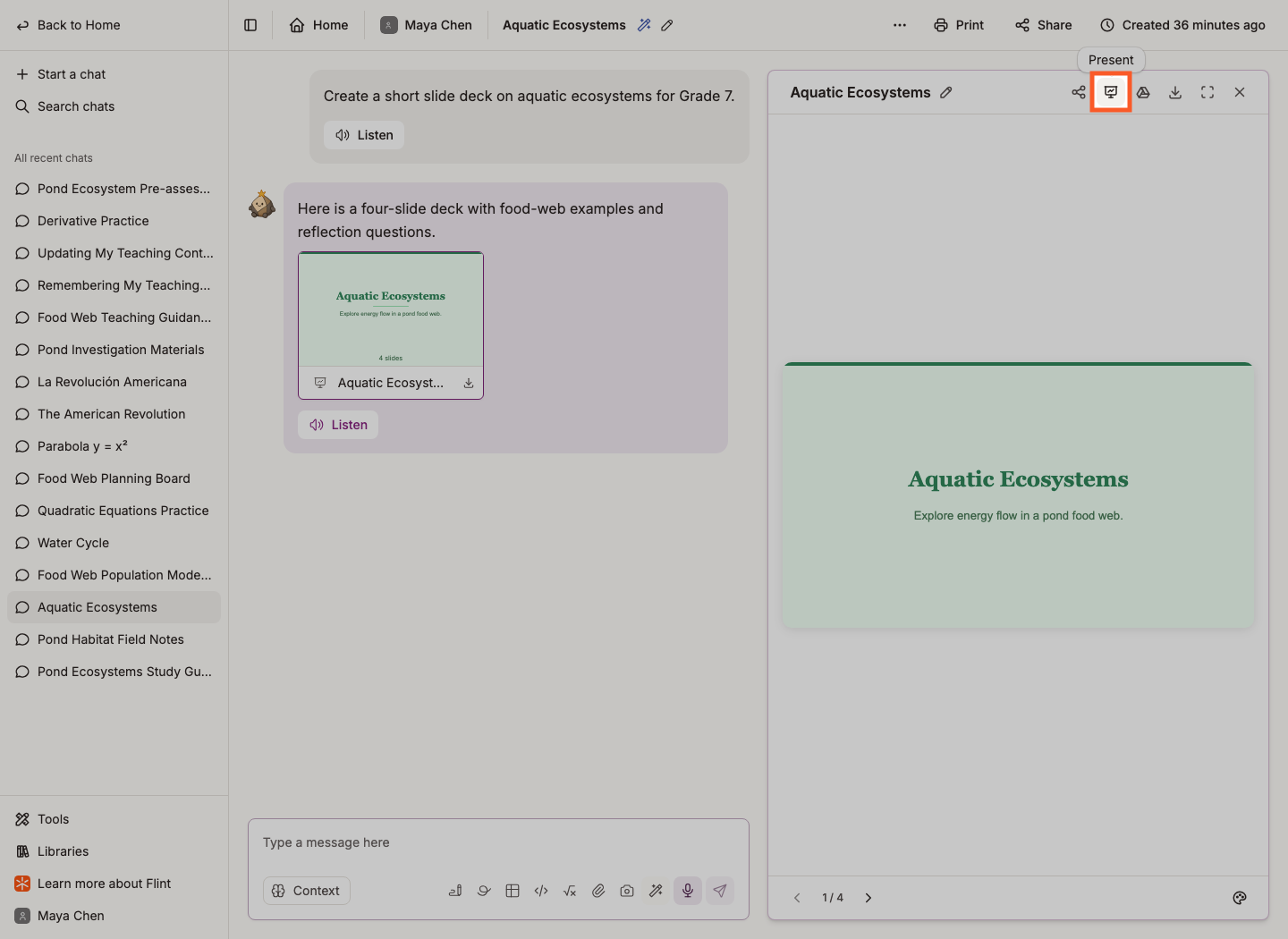
Present at the top of the panel goes fullscreen. Move between slides with the arrow keys, the spacebar, or by clicking the slide; press Escape to come out. The arrows at the bottom of the panel step through slides while you stay in the chat.
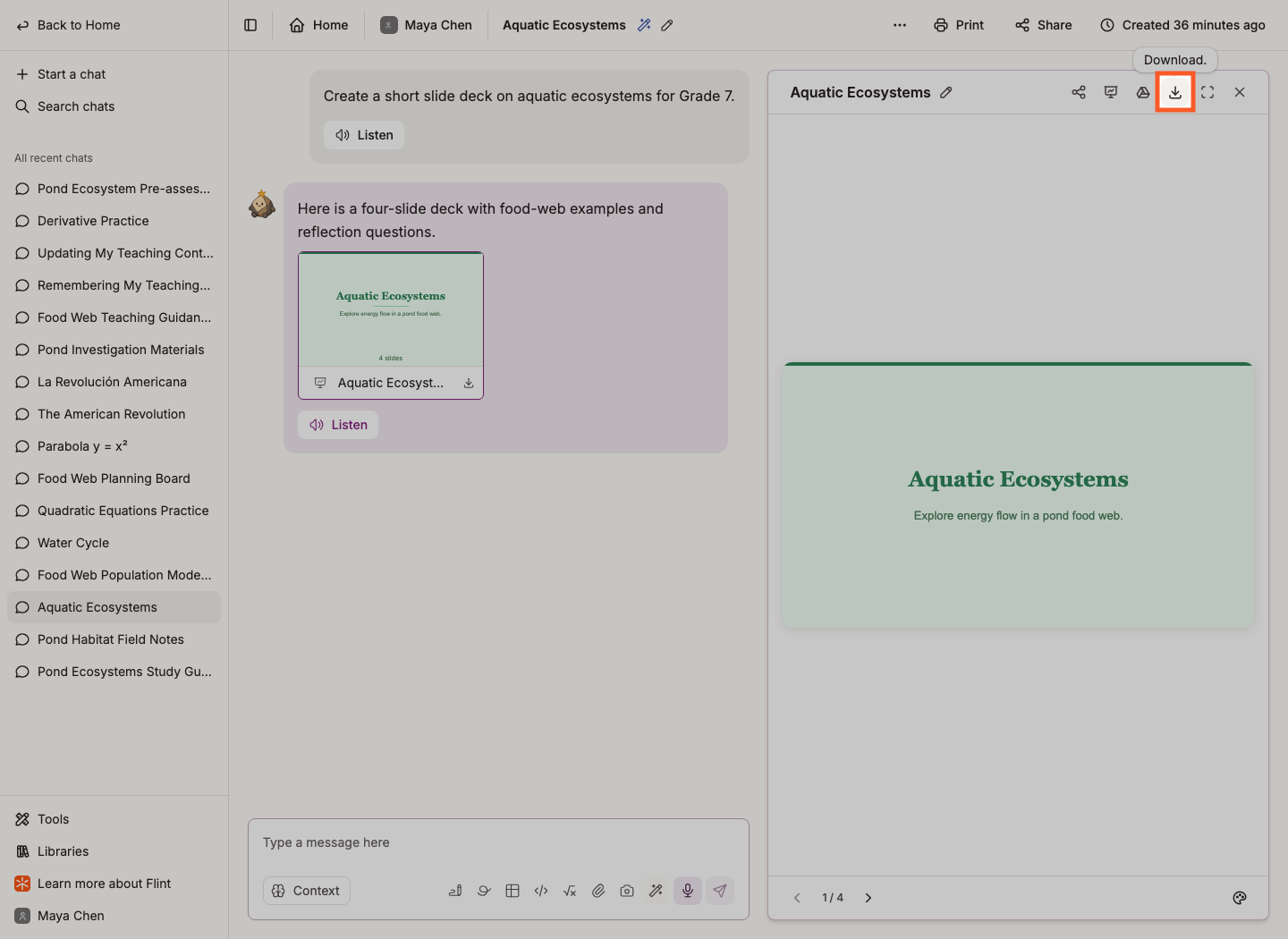
Open in Google Slides at the top of the panel creates a new copy of the saved version in your Google Drive and opens that copy. If your Google Drive is not connected, sign in to Google and authorize Flint first. Each export creates a separate file; Google Slides edits do not sync back to Flint. Export again after changing the deck in Flint if you need an updated copy. Download on the deck's card in the chat offers PowerPoint (.pptx) and, once the version is saved, Open in Google Slides. The download icon at the top of the panel saves the PowerPoint file straight away, using your selected theme.
To change the content, just ask: "Add another slide about the water cycle", "Make the introduction more detailed", "Include more examples on slide 3". Sparky creates an edited version of the existing deck and keeps the original. Use the panel's previous/next version controls to compare versions, and export the version you want.
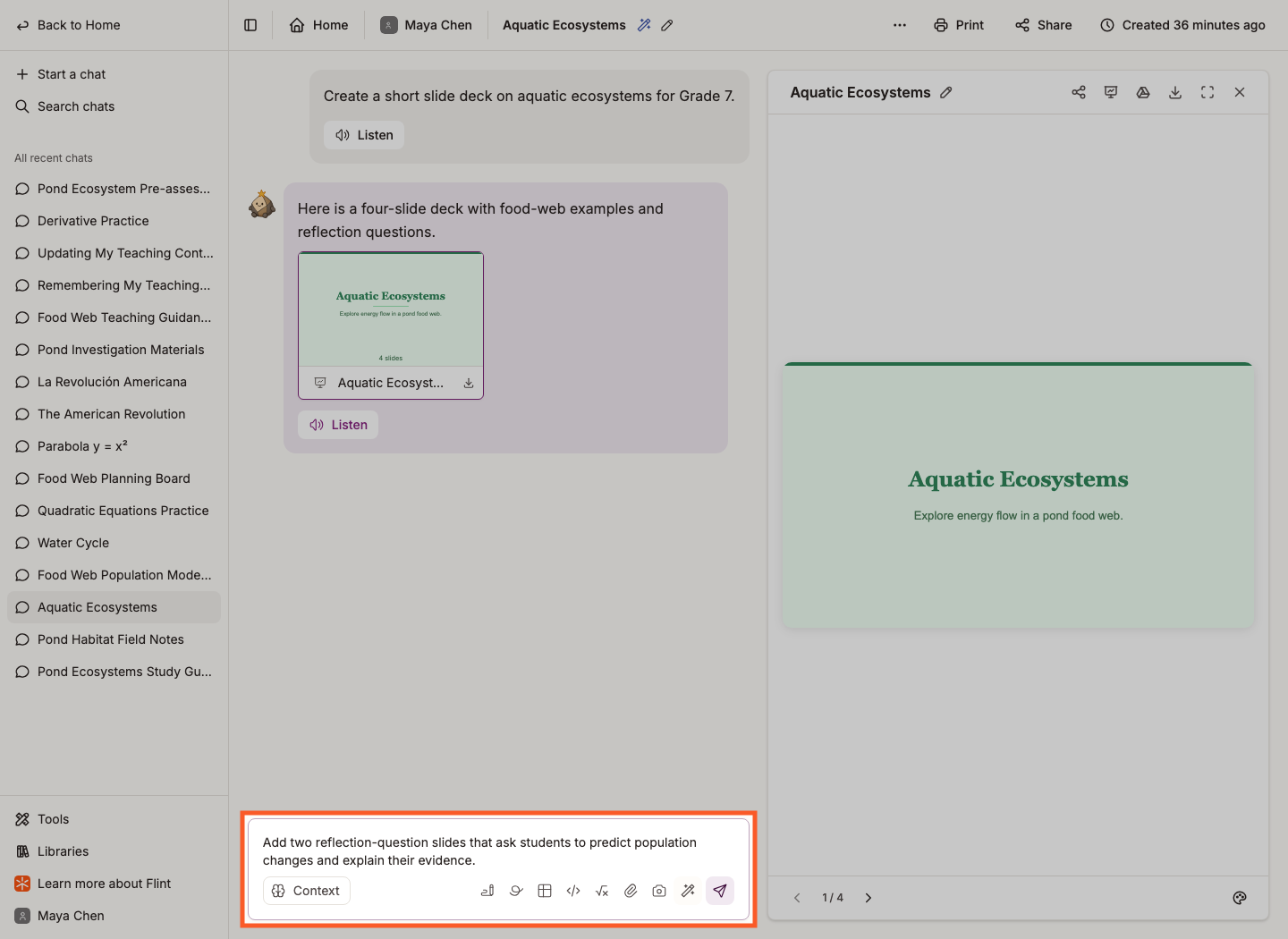
The screenshot shows the request before sending, not a completed edit. Send your request and wait for Sparky's edited version.
Getting a better deck
- Say who it's for. Grade level, what they already know, and what they should be able to do afterwards.
- Say it's slides. "Create a presentation", "generate slides" and "make a slide deck" all land; "help me teach this" might come back as a document.
- Ask for the shape you want. Sparky builds from title slides, section headers, slides with an image, text-only slides, full-screen focus slides for a single word or question, and a closing slide.
- Ask for the rest in the same message. "Create a presentation on photosynthesis and a worksheet that goes into more detail on each step" gets you both.
Things to know
- Illustrations. Sparky adds an AI illustration to the slides where a visual actually helps — not to title, focus or text-only slides.
- Watermarks. If your school has slide watermarks turned on when Sparky generates or edits the deck, a small semi-transparent Flint mark appears at the bottom right of each slide. Changing the setting does not change older deck versions. See Managing AI-generated image watermarks in Flint.
- File format. Decks download as PowerPoint (
.pptx). Saved versions can also be exported as new Google Slides copies.
New features land regularly — the what's new page keeps track.