

Want to build your AI literacy? Here's how to find the course, and how to share your certificate once you've earned it.
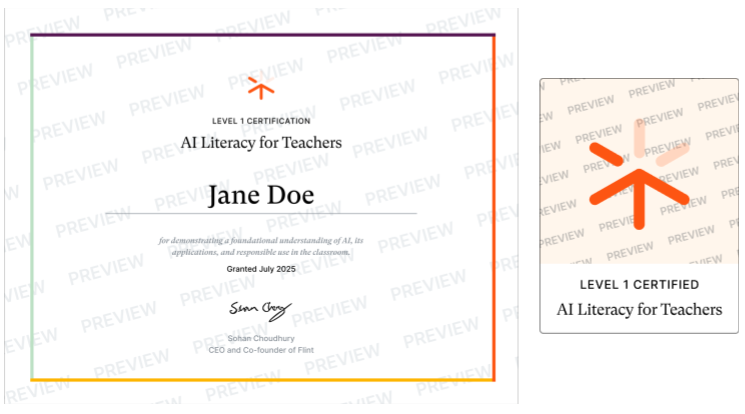
The certificate preview and LinkedIn screenshots below are older examples. Some show the earlier AI Literacy certificate; the form example uses a Flint Innovative Educator certificate. The in-app AI Literacy course now has the two levels described here. Use your own certificate's details rather than the names in the pictures.
What is it?
The AI Literacy course is designed for teachers and any school or district staff who want to build their AI knowledge. It covers the foundations of AI, how it works, and good practice for using AI in general — then applies all of that to working with Sparky, Flint's AI.
The course has two levels, each with its own certificate: Level 1, Mastering AI Fundamentals, covers what these tools are, how to use them well, and what they get wrong; Level 2, Applying AI in Education, covers putting AI to work — your own tasks, what students actually do with it, classroom policy, parents, and teaching with it. Before the course starts, it asks what you teach and how comfortable you are with AI, and builds your lesson path from your answers.
Why is it important?
AI literacy in general is important to ensure our teachers, students, and staff are using it responsibly and effectively. AI is relatively new to the education world, and can be extremely powerful and resourceful when used properly. If you're still hesitant about using AI in your classroom, this course is the perfect place to learn more and help relieve any uncertainty. We're here to support you in your journey on using Flint!
Where to find it
Open AI Literacy for Teachers — Level 1, or open Learn more about Flint in the sidebar and choose AI Literacy for Teachers · Level 1 or Level 2. The course is free for teachers and school or district staff — no school subscription required. Its sidebar links are for non-student accounts.
If your school uses Flint's UK site, open AI Literacy for Teachers — Level 1 on uk.flintk12.com or use the same sidebar links there. The UK site has its own version of both levels, and you earn a certificate for each level you finish.
You need a Flint account to take the course, because Flint saves your progress and emails your certificate to you. If you're not signed in, the course page shows Sign up to start and Sign in. After you sign in, accept Flint's terms with Agree and continue, then answer the opening questions. In countries where Flint's sign-up asks your age, the course asks it before the terms.
The first time you save your answers to the opening questions, Flint emails you a welcome message with a link back to the course.
If you previously used the community course, the instructions here describe the new in-app course, not that earlier version.
Work at your own pace
Your opening answers shape a personalized lesson path. Work through the lessons, practice with Sparky, and return later — your progress is saved. Open Your resources in the course sidebar for your certificate and the drafts, classroom AI policy, and readings or examples you've saved during the course.
Your Flint Home page shows a badge for each level. A badge stays a grey outline until you finish that level, then turns silver for Level 1 and gold for Level 2. Hover over a badge to see what the level covers, then select Take the course to open it, or Open your certificate once you've earned it. The same badges appear on your own profile page, and only you see them there.
You've finished the course — what now?
Once you finish every lesson in your level's personalized path, your certificate is generated automatically. Flint emails it to you with the certificate PDF attached, and you can also find it under Your resources in the course. If the PDF is still being prepared, check back there when it's ready.
The quick way: on the course's finish screen or under Your resources, click Add to LinkedIn profile. LinkedIn's certification form opens pre-filled with your certificate's name, issuer, issue date, credential URL and ID. Review the details and save it on LinkedIn.
Prefer to add it by hand? This step will differ based on whether you already have certifications and licenses on your profile.
You will need to first add a certificate section. Go to your LinkedIn profile page and click "Add profile section".
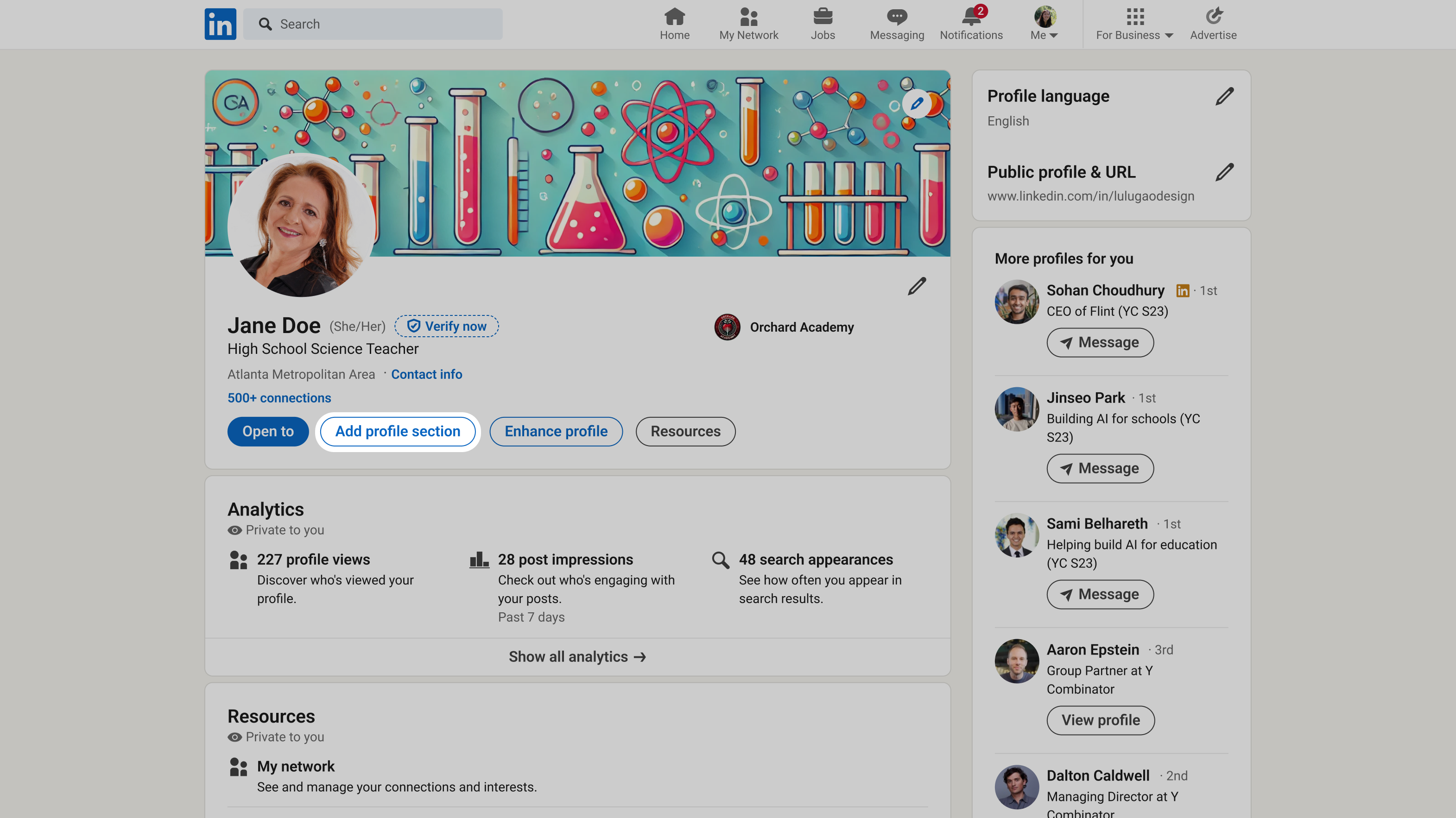
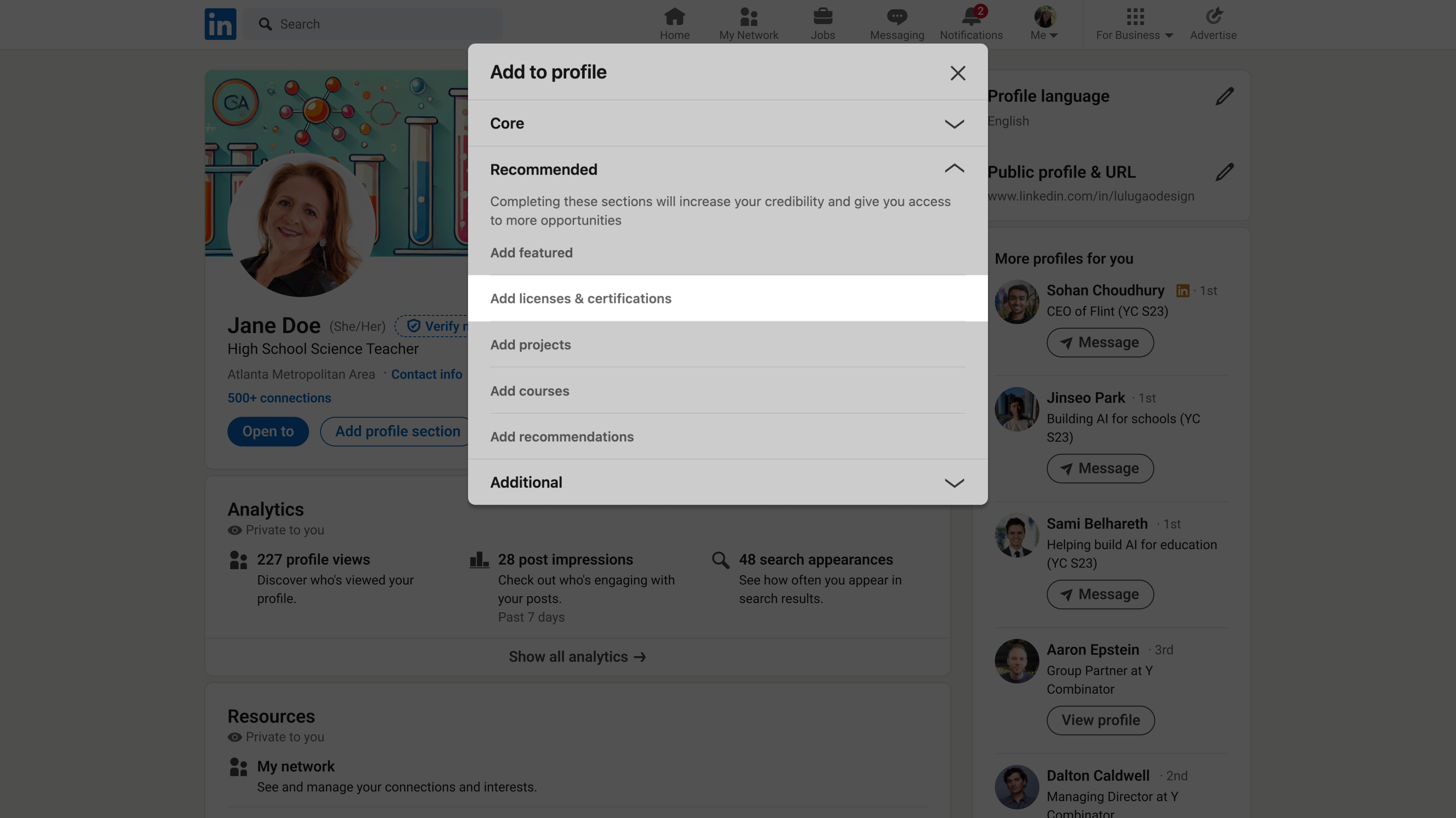
Under "Recommended" you'll see an option to add "Licenses and certifications".
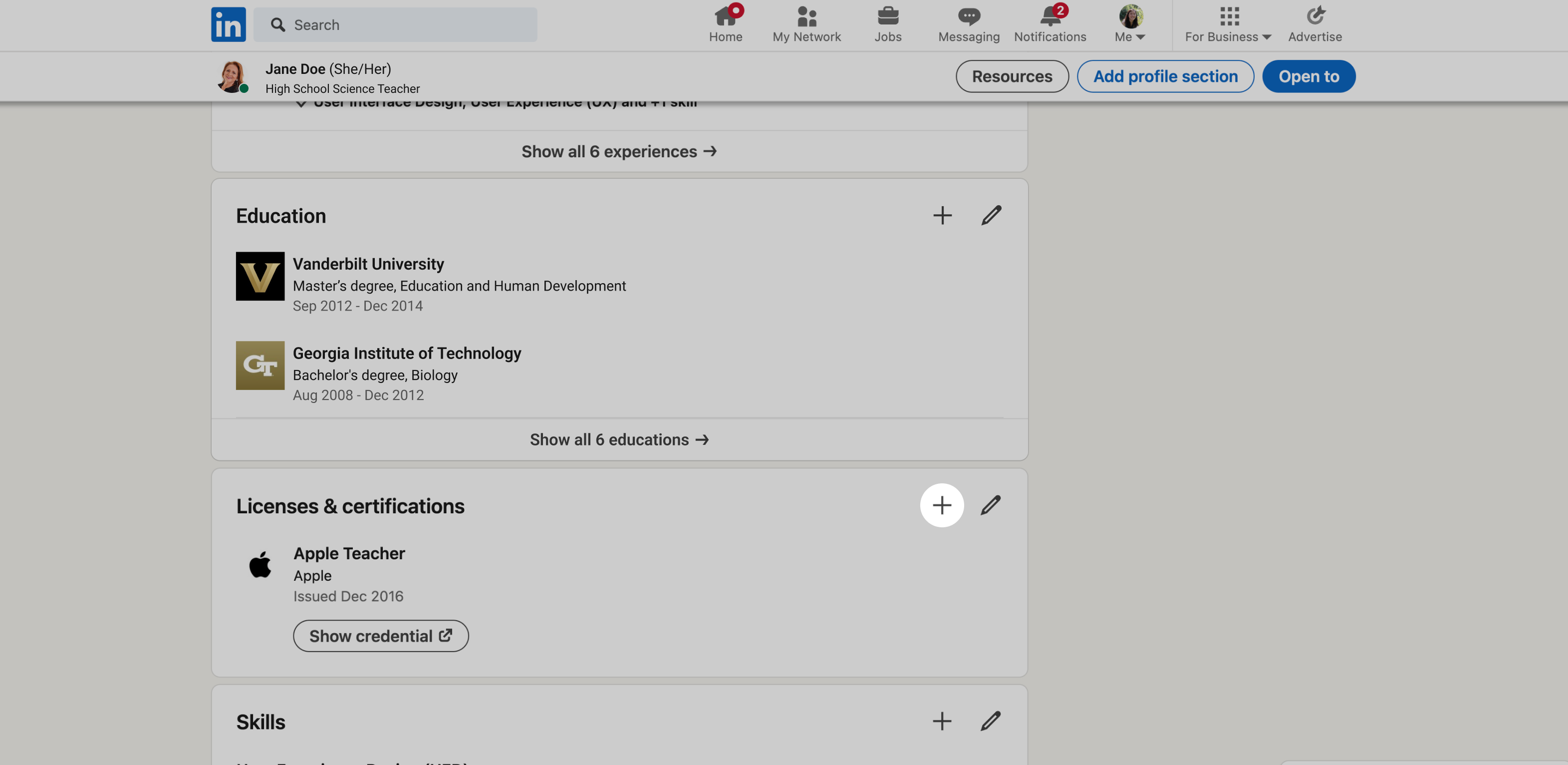
Scroll down on your profile to the "Licenses & certifications" and click the plus icon to add a new certification.
You can then fill out the form with the following information:
| Field | Value |
|---|---|
| Name* | Mastering AI Fundamentals (Level 1) or Applying AI in Education (Level 2) |
| Issuing organization* | Flint |
| Issue date | Month and year you completed the level |
| Credential URL | Your certificate's public link — use "Copy link" on the finish screen or under Your resources |
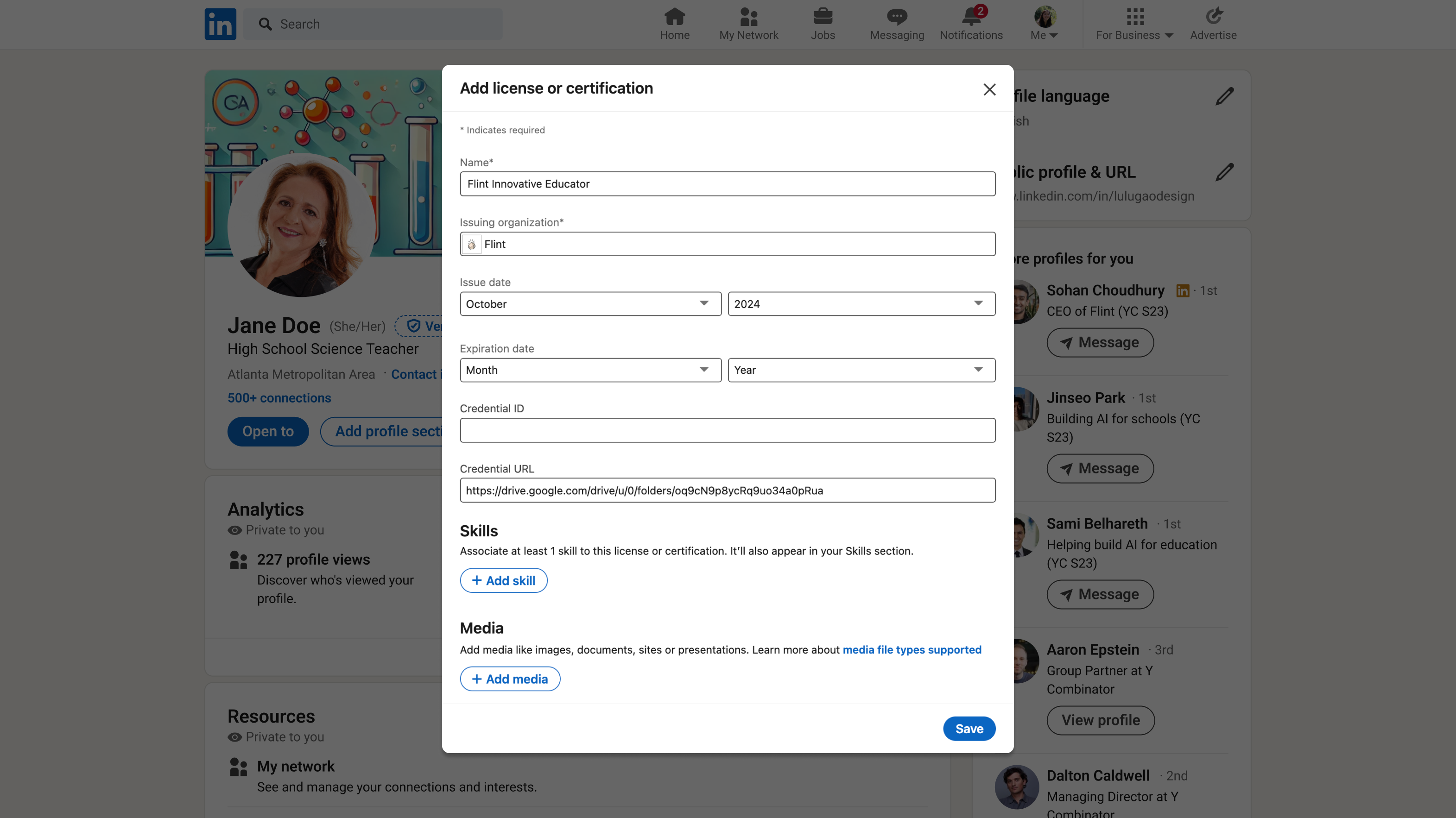
This example uses a Flint Innovative Educator certificate. For AI Literacy, enter your level's title, completion date and public certificate link copied from Flint, as described in the table above.
Add certificate PDF as media
Under "Media", you can add the certificate PDF from your completion email or download it from Your resources in the course. A description is optional.
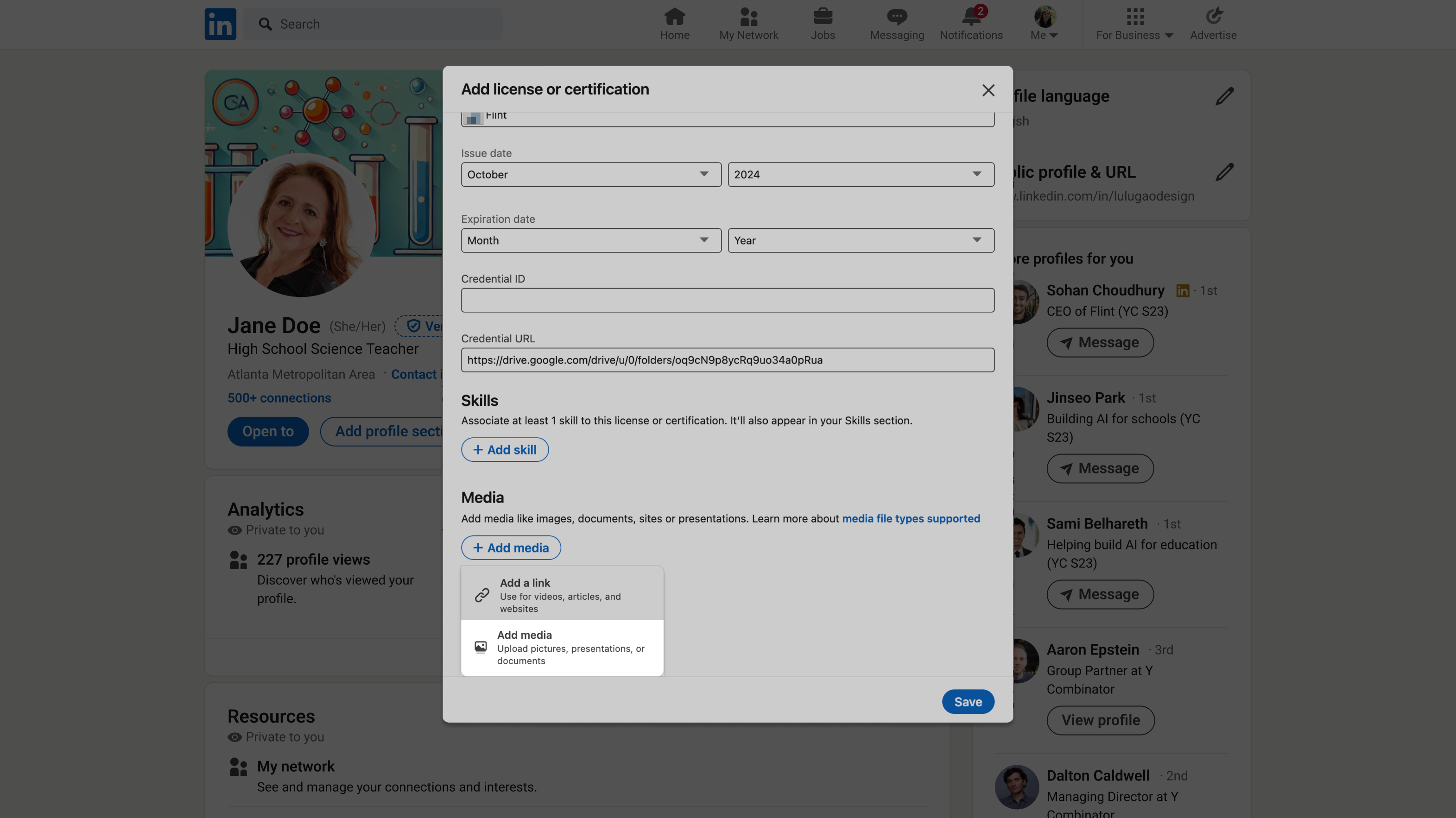
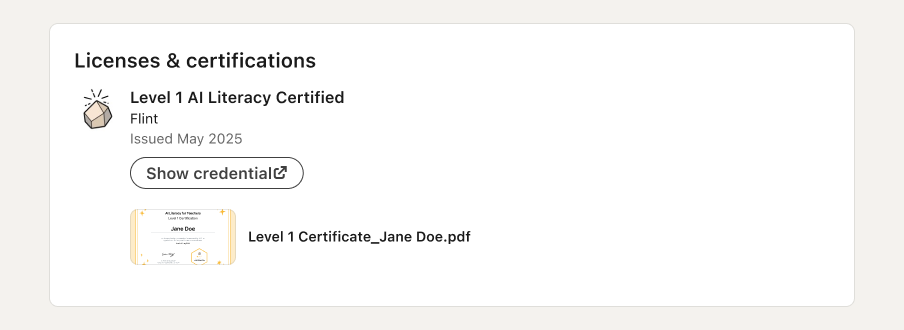
Click "Save" and you're done — your AI Literacy certificate now shows on your LinkedIn profile. 🥳
Other Flint courses and recognition
- Flint 101: Course and Certification — the foundations course for teachers new to Flint.
- Flint Innovative Educator (FIE) — recognition for educators doing standout work with Flint.