

A Lesson with Sparky activity's Primary language — "Set the main language for Sparky to use" — is the language Sparky works in, and Secondary language(s) adds as many others as you need on top of it. Between them, the two pickers offer more than 800 options, from Afar to Zulu - South Africa.
The options include general languages, script variants, and language-and-region pairs, which is why the list is so long: English - United States, English - United Kingdom and English - India are three separate entries for the same language. Pick the one that matches how your students speak and read.
Set an activity's languages
These steps apply to Lesson with Sparky. File Upload and Test or Quiz do not expose a Language panel or these conversation-language settings.
- Open the activity and click Edit activity at the top of the page.
- In Settings, beside the conversation, expand Language.
- Choose a Primary language. Both pickers are searchable, so type a few letters rather than scrolling.
- Add any Secondary language(s) — "Allow Sparky to use additional languages". Picking All languages allows any additional language, and replaces anything else you had chosen there.
- Click Update activity to save.
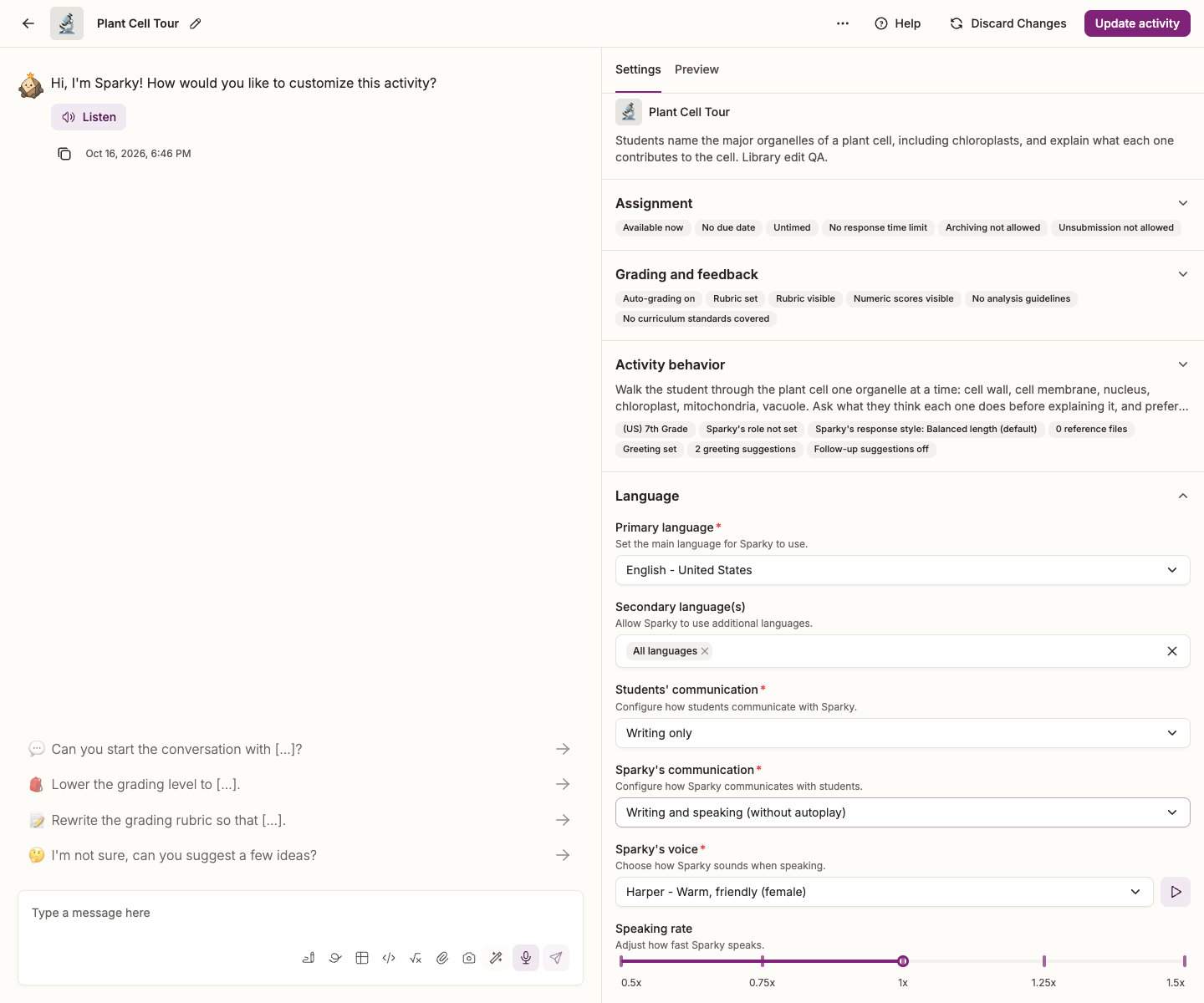
You can also ask in the builder conversation: "make this a Spanish activity, but let students ask questions in English". Sparky sets the languages and shows you what it changed; click Update activity to save.
To have Sparky speak and listen as well as write, see How to enable speech-to-text and text-to-speech.
- Afar
- Afar - Djibouti
- Afar - Eritrea
- Afar - Ethiopia
- Afrikaans
- Afrikaans - Namibia
- Afrikaans - South Africa
- Aghem
- Aghem - Cameroon
- Akan
- Akan - Ghana
- Albanian
- Albanian - Albania
- Albanian - North Macedonia
- Alsatian
- Alsatian - France
- Alsatian - Liechtenstein
- Alsatian - Switzerland
- Amharic
- Amharic - Ethiopia
- Arabic
- Arabic - Algeria
- Arabic - Bahrain
- Arabic - Chad
- Arabic - Comoros
- Arabic - Djibouti
- Arabic - Egypt
- Arabic - Eritrea
- Arabic - Iraq
- Arabic - Israel
- Arabic - Jordan
- Arabic - Kuwait
- Arabic - Lebanon
- Arabic - Libya
- Arabic - Mauritania
- Arabic - Morocco
- Arabic - Oman
- Arabic - Palestinian Authority
- Arabic - Qatar
- Arabic - Saudi Arabia
- Arabic - Somalia
- Arabic - South Sudan
- Arabic - Sudan
- Arabic - Syria
- Arabic - Tunisia
- Arabic - U.A.E.
- Arabic - World
- Arabic - Yemen
- Armenian
- Armenian - Armenia
- Assamese
- Assamese - India
- Asturian
- Asturian - Spain
- Asu
- Asu - Tanzania
- Azerbaijani (Cyrillic)
- Azerbaijani (Cyrillic) - Azerbaijan
- Azerbaijani (Latin)
- Azerbaijani (Latin)
- Azerbaijani (Latin) - Azerbaijan
- Bafia
- Bafia - Cameroon
- Bamanankan
- Bamanankan (Latin) - Mali
- Bangla
- Bangla - Bangladesh
- Bangla - India
- Basaa
- Basaa - Cameroon
- Bashkir
- Bashkir - Russia
- Basque
- Basque - Spain
- Belarusian
- Belarusian - Belarus
- Bemba
- Bemba - Zambia
- Bena
- Bena - Tanzania
- Blin
- Blin - Eritrea
- Bodo
- Bodo - India
- Bosnian (Cyrillic)
- Bosnian (Cyrillic) - Bosnia and Herzegovina
- Bosnian (Latin)
- Bosnian (Latin)
- Bosnian (Latin) - Bosnia and Herzegovina
- Breton
- Breton - France
- Bulgarian
- Bulgarian - Bulgaria
- Burmese
- Burmese - Myanmar
- Catalan
- Catalan - Andorra
- Catalan - France
- Catalan - Italy
- Catalan - Spain
- Cebuan (Latin)
- Cebuan (Latin) - Philippines
- Cebuano
- Central Atlas Tamazight (Latin) - Morocco
- Central Kurdish
- Central Kurdish
- Central Kurdish - Iraq
- Chakma
- Chakma - Chakma
- Chakma - India
- Chechen - Russia
- Cherokee
- Cherokee
- Cherokee - United States
- Chiga
- Chiga - Uganda
- Chinese (Simplified)
- Chinese (Simplified)
- Chinese (Simplified) - People's Republic of China
- Chinese (Simplified) - Singapore
- Chinese (Traditional)
- Chinese (Traditional) - Hong Kong S.A.R.
- Chinese (Traditional) - Macao S.A.R.
- Chinese (Traditional) - Taiwan
- Church Slavic - Russia
- Congo Swahili
- Congo Swahili - Congo DRC
- Cornish
- Cornish - United Kingdom
- Corsican
- Corsican - France
- Croatian
- Croatian - Croatia
- Croatian (Latin) - Bosnia and Herzegovina
- Czech
- Czech - Czech Republic
- Danish
- Danish - Denmark
- Danish - Greenland
- Dari
- Dari - Afghanistan
- Divehi
- Divehi - Maldives
- Duala
- Duala - Cameroon
- Dutch
- Dutch - Aruba
- Dutch - Belgium
- Dutch - Bonaire, Sint Eustatius and Saba
- Dutch - Curaçao
- Dutch - Netherlands
- Dutch - Sint Maarten
- Dutch - Suriname
- Dzongkha
- Dzongkha - Bhutan
- Embu
- Embu - Kenya
- English
- English - American Samoa
- English - Anguilla
- English - Antigua and Barbuda
- English - Australia
- English - Austria
- English - Bahamas
- English - Barbados
- English - Belgium
- English - Belize
- English - Bermuda
- English - Botswana
- English - British Indian Ocean Territory
- English - British Virgin Islands
- English - Burundi
- English - Cameroon
- English - Canada
- English - Caribbean
- English - Cayman Islands
- English - Christmas Island
- English - Cocos [Keeling] Islands
- English - Cook Islands
- English - Cyprus
- English - Denmark
- English - Dominica
- English - Eritrea
- English - Europe
- English - Falkland Islands
- English - Fiji
- English - Finland
- English - Gambia
- English - Germany
- English - Ghana
- English - Gibraltar
- English - Grenada
- English - Guam
- English - Guernsey
- English - Guyana
- English - Hong Kong
- English - India
- English - Ireland
- English - Isle of Man
- English - Israel
- English - Jamaica
- English - Jersey
- English - Kenya
- English - Kiribati
- English - Lesotho
- English - Liberia
- English - Macao SAR
- English - Madagascar
- English - Malawi
- English - Malaysia
- English - Malta
- English - Marshall Islands
- English - Mauritius
- English - Micronesia
- English - Montserrat
- English - Namibia
- English - Nauru
- English - Netherlands
- English - New Zealand
- English - Nigeria
- English - Niue
- English - Norfolk Island
- English - Northern Mariana Islands
- English - Pakistan
- English - Palau
- English - Papua New Guinea
- English - Pitcairn Islands
- English - Puerto Rico
- English - Republic of the Philippines
- English - Rwanda
- English - Saint Kitts and Nevis
- English - Saint Lucia
- English - Saint Vincent and the Grenadines
- English - Samoa
- English - Seychelles
- English - Sierra Leone
- English - Singapore
- English - Sint Maarten
- English - Slovenia
- English - Solomon Islands
- English - South Africa
- English - South Sudan
- English - St Helena, Ascension, Tristan da Cunha
- English - Sudan
- English - Swaziland
- English - Sweden
- English - Switzerland
- English - Tanzania
- English - Tokelau
- English - Tonga
- English - Trinidad and Tobago
- English - Turks and Caicos Islands
- English - Tuvalu
- English - Uganda
- English - United Arab Emirates
- English - United Kingdom
- English - United States
- English - US Minor Outlying Islands
- English - US Virgin Islands
- English - Vanuatu
- English - World
- English - Zambia
- English - Zimbabwe
- Esperanto
- Esperanto - World
- Estonian
- Estonian - Estonia
- Ewe
- Ewe - Ghana
- Ewe - Togo
- Ewondo
- Ewondo - Cameroon
- Faroese
- Faroese - Denmark
- Faroese - Faroe Islands
- Filipino
- Filipino - Philippines
- Finnish
- Finnish - Finland
- French
- French - Algeria
- French - Belgium
- French - Benin
- French - Burkina Faso
- French - Burundi
- French - Cameroon
- French - Canada
- French - Central African Republic
- French - Chad
- French - Comoros
- French - Congo
- French - Congo, DRC
- French - Côte d'Ivoire
- French - Djibouti
- French - Equatorial Guinea
- French - France
- French - French Guiana
- French - French Polynesia
- French - Gabon
- French - Guadeloupe
- French - Guinea
- French - Haiti
- French - Luxembourg
- French - Madagascar
- French - Mali
- French - Martinique
- French - Mauritania
- French - Mauritius
- French - Mayotte
- French - Morocco
- French - New Caledonia
- French - Niger
- French - Principality of Monaco
- French - Reunion
- French - Rwanda
- French - Saint Barthélemy
- French - Saint Martin
- French - Saint Pierre and Miquelon
- French - Senegal
- French - Seychelles
- French - Switzerland
- French - Syria
- French - Togo
- French - Tunisia
- French - Vanuatu
- French - Wallis and Futuna
- Frisian
- Frisian - Netherlands
- Friulian
- Friulian - Italy
- Fulah
- Fulah - Cameroon
- Fulah - Guinea
- Fulah - Mauritania
- Fulah - Nigeria
- Fulah - Senegal
- Fulah (Latin)
- Fulah (Latin) - Burkina Faso
- Fulah (Latin) - Cameroon
- Fulah (Latin) - Gambia
- Fulah (Latin) - Ghana
- Fulah (Latin) - Guinea
- Fulah (Latin) - Guinea-Bissau
- Fulah (Latin) - Liberia
- Fulah (Latin) - Mauritania
- Fulah (Latin) - Niger
- Fulah (Latin) - Nigeria
- Fulah (Latin) - Sierra Leone
- Galician
- Galician - Spain
- Ganda
- Ganda - Uganda
- Georgian
- Georgian - Georgia
- German
- German - Austria
- German - Belgium
- German - Germany
- German - Italy
- German - Liechtenstein
- German - Luxembourg
- German - Switzerland
- Greek
- Greek - Cyprus
- Greek - Greece
- Greenlandic
- Greenlandic - Greenland
- Guarani
- Guarani - Paraguay
- Gujarati
- Gujarati - India
- Gusii
- Gusii - Kenya
- Hausa (Latin)
- Hausa (Latin)
- Hausa (Latin) - Ghana
- Hausa (Latin) - Niger
- Hausa (Latin) - Nigeria
- Hawaiian
- Hawaiian - United States
- Hebrew
- Hebrew - Israel
- Hindi
- Hindi - India
- Hungarian
- Hungarian - Hungary
- Icelandic
- Icelandic - Iceland
- Igbo
- Igbo - Nigeria
- Indonesian
- Indonesian - Indonesia
- Interlingua
- Interlingua - France
- Interlingua - World
- Inuktitut (Latin)
- Inuktitut (Latin)
- Inuktitut (Latin) - Canada
- Inuktitut (Syllabics)
- Inuktitut (Syllabics) - Canada
- Irish
- Irish - Ireland
- Italian
- Italian - Italy
- Italian - San Marino
- Italian - Switzerland
- Italian - Vatican City
- Japanese
- Japanese - Japan
- Javanese
- Javanese - Latin
- Javanese - Latin, Indonesia
- Jola-Fonyi
- Jola-Fonyi - Senegal
- K'iche
- K'iche - Guatemala
- Kabuverdianu
- Kabuverdianu - Cabo Verde
- Kabyle
- Kabyle - Algeria
- Kako
- Kako - Cameroon
- Kalenjin
- Kalenjin - Kenya
- Kamba
- Kamba - Kenya
- Kannada
- Kannada - India
- Kashmiri
- Kashmiri - Perso-Arabic
- Kashmiri - Perso-Arabic
- Kazakh
- Kazakh - Kazakhstan
- Khmer
- Khmer - Cambodia
- Kikuyu
- Kikuyu - Kenya
- Kinyarwanda
- Kinyarwanda - Rwanda
- Kiswahili
- Kiswahili - Kenya
- Kiswahili - Tanzania
- Kiswahili - Uganda
- Konkani
- Konkani - India
- Korean
- Korean - Korea
- Korean - North Korea
- Koyra Chiini
- Koyra Chiini - Mali
- Koyraboro Senni
- Koyraboro Senni - Mali
- Kurdish - Perso-Arabic, Iran
- Kwasio
- Kwasio - Cameroon
- Kyrgyz
- Kyrgyz - Kyrgyzstan
- Lakota
- Lakota - United States
- Langi
- Langi - Tanzania
- Lao
- Lao - Lao P.D.R.
- Latin
- Latvian
- Latvian - Latvia
- Lingala
- Lingala - Angola
- Lingala - Central African Republic
- Lingala - Congo
- Lingala - Congo DRC
- Lithuanian
- Lithuanian - Lithuania
- Low German
- Low German - Germany
- Low German - Netherlands
- Lower Sorbian
- Lower Sorbian - Germany
- Luba-Katanga
- Luba-Katanga - Congo DRC
- Luo
- Luo - Kenya
- Luxembourgish
- Luxembourgish - Luxembourg
- Luyia
- Luyia - Kenya
- Macedonian
- Macedonian - North Macedonia
- Machame
- Machame - Tanzania
- Makhuwa-Meetto
- Makhuwa-Meetto - Mozambique
- Makonde
- Makonde - Tanzania
- Malagasy
- Malagasy - Madagascar
- Malay
- Malay - Brunei Darussalam
- Malay - Malaysia
- Malayalam
- Malayalam - India
- Maltese
- Maltese - Malta
- Manx
- Manx - Isle of Man
- Maori
- Maori - New Zealand
- Mapudungun
- Mapudungun - Chile
- Marathi
- Marathi - India
- Masai
- Masai - Kenya
- Masai - Tanzania
- Mazanderani - Iran
- Meru
- Meru - Kenya
- Meta'
- Meta' - Cameroon
- Mohawk
- Mohawk - Canada
- Mongolian (Cyrillic)
- Mongolian (Cyrillic)
- Mongolian (Cyrillic) - Mongolia
- Mongolian (Traditional Mongolian)
- Mongolian (Traditional Mongolian) - Mongolia
- Mongolian (Traditional Mongolian) - People's Republic of China
- Morisyen
- Morisyen - Mauritius
- Mundang
- Mundang - Cameroon
- N'ko
- N'ko - Guinea
- Nama
- Nama - Namibia
- Nepali
- Nepali - India
- Nepali - Nepal
- Ngiemboon
- Ngiemboon - Cameroon
- Ngomba
- Ngomba - Cameroon
- North Ndebele
- North Ndebele - Zimbabwe
- Northern Luri - Iran
- Northern Luri - Iraq
- Norwegian (Bokmal)
- Norwegian (Bokmal)
- Norwegian (Bokmal) - Norway
- Norwegian (Nynorsk)
- Norwegian (Nynorsk) - Norway
- Norwegian Bokmål - Svalbard and Jan Mayen
- Nuer
- Nuer - South Sudan
- Nuer - Sudan
- Nyankole
- Nyankole - Uganda
- Occitan
- Occitan - France
- Odia
- Odia - India
- Oromo
- Oromo - Ethiopia
- Oromo - Kenya
- Ossetian
- Ossetian - Cyrillic, Georgia
- Ossetian - Cyrillic, Russia
- Pashto
- Pashto - Afghanistan
- Pashto - Pakistan
- Persian
- Persian - Afghanistan
- Persian - Iran
- Polish
- Polish - Poland
- Portuguese
- Portuguese - Angola
- Portuguese - Brazil
- Portuguese - Cabo Verde
- Portuguese - Equatorial Guinea
- Portuguese - Guinea-Bissau
- Portuguese - Luxembourg
- Portuguese - Macao SAR
- Portuguese - Mozambique
- Portuguese - Portugal
- Portuguese - São Tomé and Príncipe
- Portuguese - Switzerland
- Portuguese - Timor-Leste
- Prussian
- Punjabi
- Punjabi
- Punjabi - India
- Punjabi - Islamic Republic of Pakistan
- Quechua
- Quechua - Bolivia
- Quechua - Ecuador
- Quechua - Peru
- Ripuarian
- Ripuarian - Germany
- Romanian
- Romanian - Moldova
- Romanian - Romania
- Romansh
- Romansh - Switzerland
- Rombo
- Rombo - Tanzania
- Rundi
- Rundi - Burundi
- Russian
- Russian - Belarus
- Russian - Kazakhstan
- Russian - Kyrgyzstan
- Russian - Moldova
- Russian - Russia
- Russian - Ukraine
- Rwa
- Rwa - Tanzania
- Saho
- Saho - Eritrea
- Sakha
- Sakha - Russia
- Samburu
- Samburu - Kenya
- Sami (Inari)
- Sami (Inari) - Finland
- Sami (Lule)
- Sami (Lule) - Norway
- Sami (Lule) - Sweden
- Sami (Northern)
- Sami (Northern) - Finland
- Sami (Northern) - Norway
- Sami (Northern) - Sweden
- Sami (Skolt)
- Sami (Skolt) - Finland
- Sami (Southern)
- Sami (Southern) - Norway
- Sami (Southern) - Sweden
- Sango
- Sango - Central African Republic
- Sangu
- Sangu - Tanzania
- Sanskrit
- Sanskrit - India
- Scottish Gaelic
- Scottish Gaelic - United Kingdom
- Sena
- Sena - Mozambique
- Serbian (Cyrillic)
- Serbian (Cyrillic) - Bosnia and Herzegovina
- Serbian (Cyrillic) - Montenegro
- Serbian (Cyrillic) - Serbia
- Serbian (Cyrillic) - Serbia and Montenegro (Former)
- Serbian (Latin)
- Serbian (Latin)
- Serbian (Latin) - Bosnia and Herzegovina
- Serbian (Latin) - Montenegro
- Serbian (Latin) - Serbia
- Serbian (Latin) - Serbia and Montenegro (Former)
- Sesotho sa Leboa
- Sesotho sa Leboa - South Africa
- Setswana
- Setswana - Botswana
- Setswana - South Africa
- Shambala
- Shambala - Tanzania
- Shona
- Shona - Latin
- Shona - Zimbabwe
- Sindhi
- Sindhi
- Sindhi - Islamic Republic of Pakistan
- Sinhala
- Sinhala - Sri Lanka
- Slovak
- Slovak - Slovakia
- Slovenian
- Slovenian - Slovenia
- Soga
- Soga - Uganda
- Somali
- Somali - Djibouti
- Somali - Ethiopia
- Somali - Kenya
- Somali - Somalia
- Sotho
- Sotho - South Africa
- South Ndebele
- South Ndebele - South Africa
- Southern Sotho - Lesotho
- Spanish
- Spanish - Argentina
- Spanish - Belize
- Spanish - Bolivarian Republic of Venezuela
- Spanish - Bolivia
- Spanish - Brazil
- Spanish - Chile
- Spanish - Colombia
- Spanish - Costa Rica
- Spanish - Cuba
- Spanish - Dominican Republic
- Spanish - Ecuador
- Spanish - El Salvador
- Spanish - Equatorial Guinea
- Spanish - Guatemala
- Spanish - Honduras
- Spanish - Latin America
- Spanish - Mexico
- Spanish - Nicaragua
- Spanish - Panama
- Spanish - Paraguay
- Spanish - Peru
- Spanish - Philippines
- Spanish - Puerto Rico
- Spanish - Spain
- Spanish - Spain
- Spanish - United States
- Spanish - Uruguay
- Standard Moroccan Tamazight
- Standard Moroccan Tamazight - Morocco
- Standard Moroccan Tamazight - Tifinagh
- Swati
- Swati - South Africa
- Swati - Swaziland
- Swedish
- Swedish - Åland Islands
- Swedish - Finland
- Swedish - Sweden
- Syriac
- Syriac - Syria
- Tachelhit
- Tachelhit - Tifinagh
- Tachelhit - Tifinagh, Morocco
- Tachelhit (Latin)
- Tachelhit (Latin) - Morocco
- Taita
- Taita - Kenya
- Tajik (Cyrillic)
- Tajik (Cyrillic)
- Tajik (Cyrillic) - Tajikistan
- Tamazight (Latin)
- Tamazight (Latin)
- Tamazight (Latin) - Algeria
- Tamil
- Tamil - India
- Tamil - Malaysia
- Tamil - Singapore
- Tamil - Sri Lanka
- Tasawaq
- Tasawaq - Niger
- Tatar
- Tatar - Russia
- Telugu
- Telugu - India
- Teso
- Teso - Kenya
- Teso - Uganda
- Thai
- Thai - Thailand
- Tibetan
- Tibetan - India
- Tibetan - People's Republic of China
- Tigre
- Tigre - Eritrea
- Tigrinya
- Tigrinya - Eritrea
- Tigrinya - Ethiopia
- Tongan
- Tongan - Tonga
- Tsonga
- Tsonga - South Africa
- Turkish
- Turkish - Cyprus
- Turkish - Turkey
- Turkmen
- Turkmen - Turkmenistan
- Ukrainian
- Ukrainian - Ukraine
- Upper Sorbian
- Upper Sorbian - Germany
- Urdu
- Urdu - India
- Urdu - Islamic Republic of Pakistan
- Uyghur
- Uyghur - People's Republic of China
- Uzbek - Perso-Arabic
- Uzbek - Perso-Arabic, Afghanistan
- Uzbek (Cyrillic)
- Uzbek (Cyrillic) - Uzbekistan
- Uzbek (Latin)
- Uzbek (Latin)
- Uzbek (Latin) - Uzbekistan
- Vai
- Vai
- Vai - Liberia
- Vai (Latin)
- Vai (Latin) - Liberia
- Valencian - Spain
- Venda
- Venda - South Africa
- Vietnamese
- Vietnamese - Vietnam
- Volapük
- Volapük - World
- Vunjo
- Vunjo - Tanzania
- Walser
- Walser - Switzerland
- Welsh
- Welsh - United Kingdom
- Wolaytta
- Wolaytta - Ethiopia
- Wolof
- Wolof - Senegal
- Xhosa
- Xhosa - South Africa
- Yangben
- Yangben - Cameroon
- Yi
- Yi - People's Republic of China
- Yoruba
- Yoruba - Benin
- Yoruba - Nigeria
- Zarma
- Zarma - Niger
- Zulu
- Zulu - South Africa