

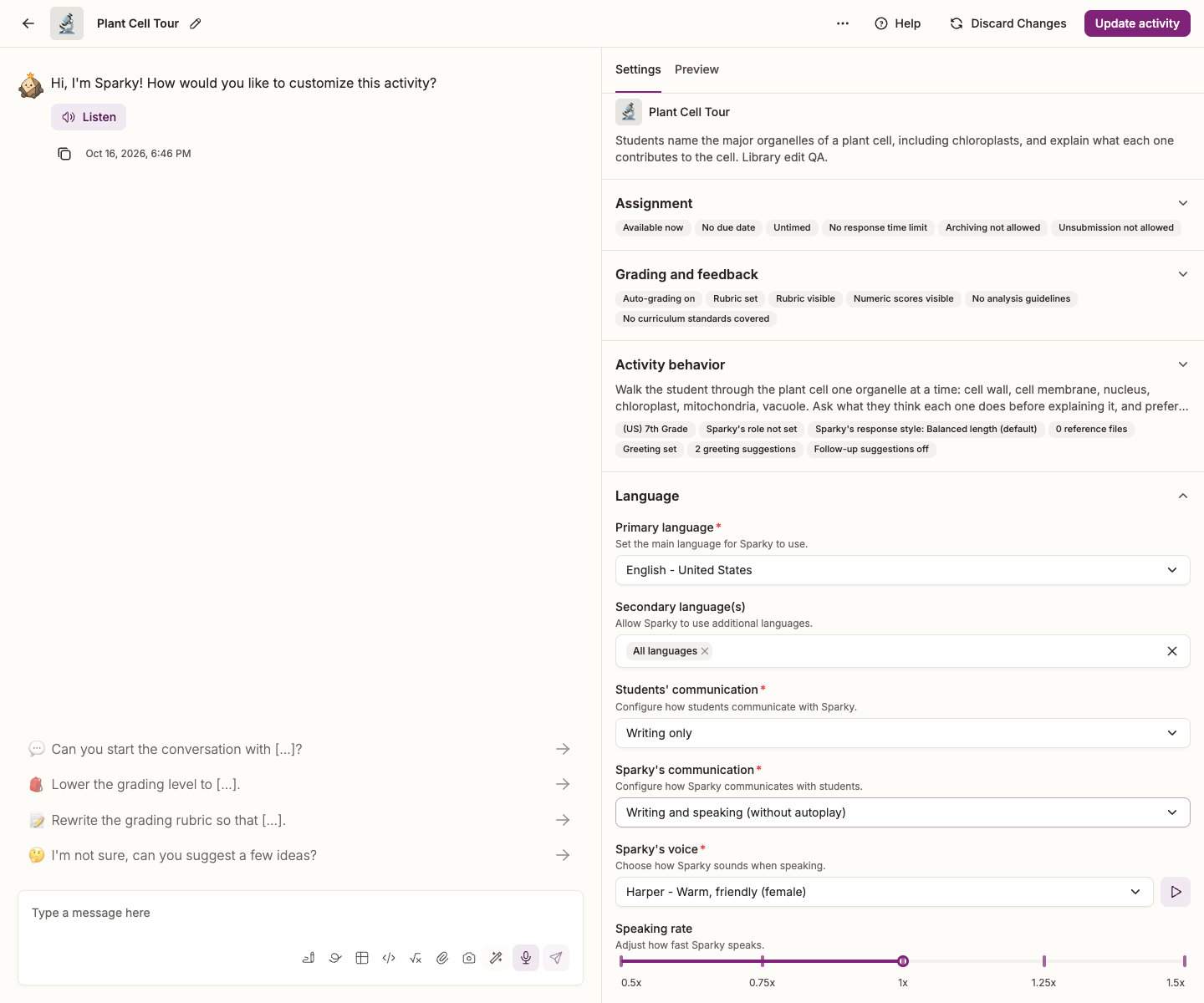
For a Lesson with Sparky, two settings decide whether the conversation is spoken or written, and they work independently — students can speak while Sparky writes, or the other way round. Both live in the activity builder's Language panel, which is not available for Test or Quiz or File Upload activities. Teachers reach for this most often in world languages, in lower school, and for presentation or speaking practice.
| Setting | Options |
|---|---|
| Students' communication | Writing only, Speaking only, Writing or speaking |
| Sparky's communication | Writing only, Speaking only, Writing and speaking (with autoplay), Writing and speaking (without autoplay) |
Speaking only and Writing and speaking (with autoplay) read each of Sparky's messages aloud as it arrives. With Writing and speaking (without autoplay), the audio is there but the student decides when to play it.
Set them
You need edit access to change these settings. If Edit activity is missing, ask an activity owner to make the change.
- Open the activity and click Edit activity at the top of the page.
- In Settings, beside the conversation, expand Language.
- Set Students' communication and Sparky's communication.
- Click Update activity to save.
You can also do this in the builder conversation: "students should answer out loud, and Sparky should speak too". Sparky changes the settings and shows you what it changed — click Update activity to save.
What students do
Students need a working microphone and must allow Flint to use it in their browser. In an empty message box, click the microphone (Speak message), then speak. Click the check button to finish, or Discard recording to cancel.
When the check button says Done speaking — review the transcript, review or edit the transcript, then click Send message. When it says Send recording, finishing sends the recording directly. Speaking only disables typing and uses Send recording rather than transcript review. For microphone problems, see Speech-to-text errors.
Outside activities, chats already offer speaking and Listen without these activity settings. See Using chats in Flint.
Once Sparky speaks
Choosing anything other than Writing only for Sparky's communication adds two more settings to the same panel: Sparky's voice and Speaking rate. See How to customize Sparky's voice.
The activity's Primary language, set at the top of the same panel, sets the language for the live transcript. Primary and secondary languages also guide Sparky's speaking and listening. See What languages does Flint support?.