

This is the short list of things worth doing as a Flint admin. None of it takes long, and each step makes Flint safer and more useful for the teachers and students who follow you in.
Where admin settings live
In the sidebar, select Admin, then Settings. That group holds everything in this checklist.
Settings is split in two. The first group applies to the whole school and carries across school years. Below it, the sidebar shows the name of the term you are working in. Most settings under that name apply to that term only; Alert frequency on the Moderation page sets the school-wide default.
| Page | Applies to | What you set there |
|---|---|---|
| General | School | School name, logo and color; the web address is read-only |
| Sparky customizations | School | Mission and background, Grade-level prompts, AI watermarks |
| AI policy | School | Uploading your school's AI-policy materials |
| SIS and LMS | School; imports target the selected term | Connecting through Edlink, reviewing imports and managing automatic sync |
| Terms | School | Creating terms and choosing which one is active |
| Access | School | Timezone, Access permissions, Allowed IP ranges, Limit access hours; view-only Claimed domains on non-free schools |
| People | Term | Everyone in the term, their roles and grade levels |
| Classes | Term | Every class in the term |
| Moderation | Term, except school-wide alert frequency | Moderation guidelines, custom categories, Content moderators, Alert frequency |
| Curricula and Structure | Term | The curriculum frameworks and standards your school follows |
Plan and paid seat count are managed by Flint, not editable school-admin settings. Contact support for subscription or claimed-domain changes. Claimed domains are separate from the Add domain admission rules on the People page.
Most settings pages stage edits until you select Save in the top right. Custom moderation categories and term changes use their own save or confirmation actions, and curriculum uploads can save automatically. Discard only resets edits still staged on that page.
You can add people by hand, or let your SIS or LMS do it (see the next section).
- Go to Admin → Settings → People, under your term's name.
- Select Add people.
- Paste addresses into Email addresses, or select Upload CSV. A CSV needs an email column and can also carry role and grade level columns.
- Select Next. On Review people, set the Role and Grade Level for each person.
- Select Add. If some people still have no role, use Add ({n} unassigned) as to give all of them the same role at once.
- Select Save on the People page. Nobody is added until you do.
Roles are Student, Teacher and Admin, and you can change anyone's role from the table later. People with no role are treated as students. More about roles
Instead of listing everyone, you can let anyone with a school email address join with the right role already applied.
On the People page, select Add domain, enter the domain (for example orchardacademy.org) and pick the role people at that domain should get. The rule then appears in the table as Anyone at {your domain}. Select Save to apply it.
Importing from your student information system or learning management system brings in people, classes and enrollments in one pass, so teachers open Flint to their real class lists. Flint connects through Edlink at no extra charge.
Start at Admin → Settings → SIS and LMS. The import walks you through a few screens: pick the connection, review and filter the data Edlink is sharing, choose how the imported classes should be set up, then confirm and import.
Create a term you can throw away and import into that one before you touch the term people are using.
- New terms start as Invisible, which means only school owners — normally admins, including teacher-labelled creators — can see them. That is the safest place to test.
- While you are in a term that is not the active one, a banner at the top of the page tells you which term you are viewing and offers a link back to the active one.
- You can delete a test term without affecting anyone.
- Never delete a term people have actually worked in, even after it stops being active — deleting a term deletes the activities, sessions and chats created inside it.
The screen headed "How should imported classes be set up?" sets the defaults every imported class starts with.
Access permissions — who can find and open the class:
| Option | What it means |
|---|---|
| Private | Only people who have been given access. Recommended: students cannot pass a link around to add others. |
| Anyone with the link | Anyone who has the link can open the class. |
| Open to {your school} | Anyone in your school can open the class. |
Status — whether students see the class straight away:
| Option | What it means |
|---|---|
| Published | The class is visible and accessible. |
| Unpublished | The class stays hidden until the teacher publishes it. |
A teacher can change either of these later from the class's Settings tab, so Unpublished is a reasonable default if you are importing a full year of classes at once and teachers only want the current ones visible.
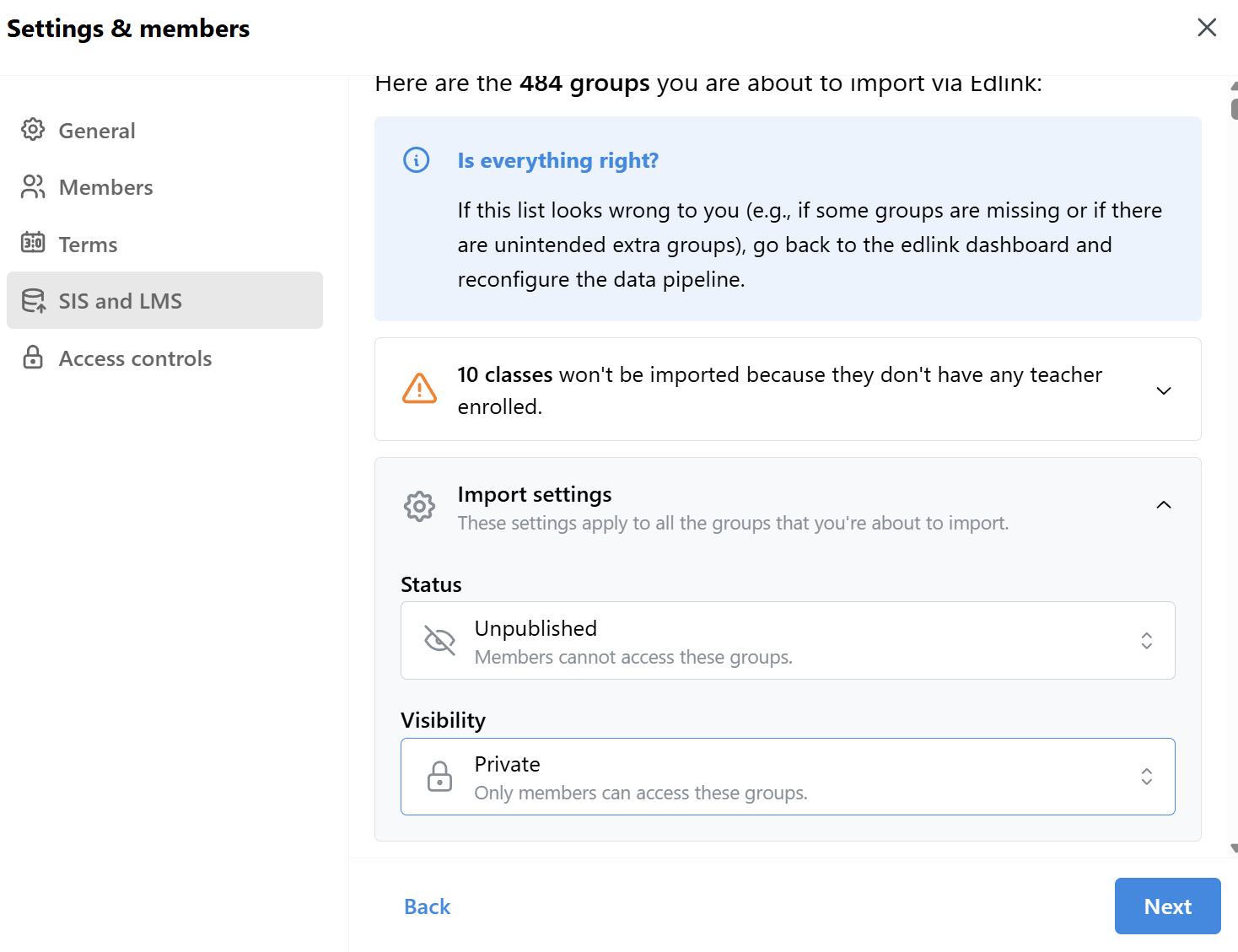
This screenshot shows an earlier settings design. Follow the current labels above; Private and Unpublished remain the illustrated choices.
On Ready to import, I've reviewed the data and I'm ready to import is required. The removal behavior depends on whether automatic sync is enabled:
- Automatic sync off: the optional I want to remove {people} not found on {your provider} confirmation removes everyone except you who is missing from the reviewed import — including staff and accounts added by hand. Filters can leave people out too. Leave it unchecked unless the import is your complete roster.
- Automatic sync on: the reviewed roster becomes the source of truth for people and enrollments managed by that connection. Previously imported people and enrollments now missing are removed; people added by hand remain. There is no separate remove-everyone checkbox.
During the import, Automatically keep {term} in sync lets Flint check Edlink twice a day and apply roster changes while that term is active. Sync uses your saved filters and role/grade corrections, removes missing people and enrollments managed by the connection, and preserves manually added people and existing class settings. Large changes or removal of an admin pause automatic sync for review; Flint emails you. Review and re-import to resume.
- If automatic sync is off, re-run the manual import after add/drop periods. An inactive term also needs a manual import; automatic sync waits until that term is active.
- With automatic sync off, leave Update existing classes off to preserve teacher customizations. Turn it on and pick Fields to update only if you want to overwrite those settings.
- Correct individual roles and grade levels in the import review and save those corrections for later imports. For missing or wrongly shared roster data, review Edlink's Sharing Rules. Note the difference between sharing by Class and by Person; sharing by class is usually the better fit for active classes. Flint's guide to Edlink Sharing Rules
- If something still looks wrong, select Contact Edlink support on the SIS and LMS page. Edlink replies to you by email.
Edlink supports the major LMS platforms (including Blackboard, Brightspace, Canvas, Google Classroom, ManageBac, Microsoft Teams, Moodle, Schoology and Toddle), the major student information systems (including Aeries, Alma, Aspen, Blackbaud, Bromcom, eSchoolPlus, Focus, Infinite Campus, PowerSchool, Renweb FACTS, SIMS, Skyward, Synergy and Veracross), and identity providers such as ClassLink, Clever and Google Workspace.
Moderation is how Flint tells you when a student's message needs a human. It lives at Admin → Settings → Moderation, under your term's name, and it is the one section worth doing before students arrive.
Moderation guidelines tells Sparky how to respond in the moment. Write it the way you would brief a new staff member — where to send a student, whom to name, which part of the handbook to point at.
Example: "For safety concerns, show that we care and suggest calling the school counselor at (123) 456-7890. For inappropriate language, refer the student to Section II, Article III of our handbook."
Content moderators are the people who get the email alerts. You need at least one. Select Add moderator, then fill in:
- Moderator — any teacher or admin who has already signed in to Flint. Moderators no longer have to be admins, so a counselor can watch student wellbeing without gaining admin access.
- Moderation categories for email notifications — Harassment, Hate, Illicit, Sexual, Violence, Self-harm, and Relationship building. Choose the categories this moderator should receive. Self-harm alerts are always sent immediately.
- Grade levels — which students this moderator covers. Splitting grade levels across moderators keeps alerts with the person who knows the student. A moderator who covers every grade also gets alerts about teachers' and admins' messages.
Before saving, make sure your moderators collectively cover all grade levels. Flint blocks Save if any grade is uncovered. An already-selected Self-harm category cannot be deselected.
You can also add Custom moderation categories for anything specific to your school.
Alert frequency sets the school-wide default: Immediately, Hourly, Daily, or Weekly. Each moderator can follow the school default or have a different frequency. Daily summaries are scheduled for 7
AM in the school's timezone; weekly summaries are scheduled for that time on Monday.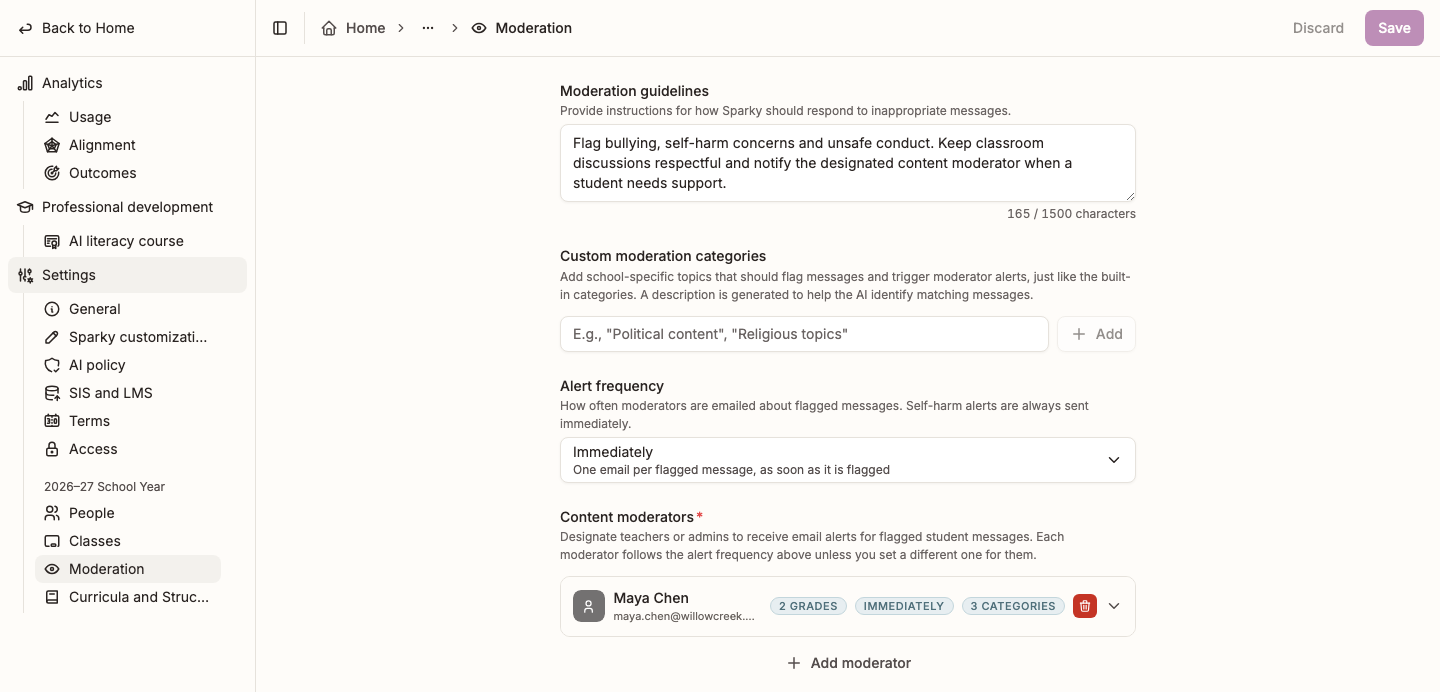
The moderator card shows an in-progress example, not complete saved grade coverage.
Add more than one moderator so alerts never wait on one person's inbox.
Admin → Settings → Sparky customizations is where you tell Sparky about your school once, so every teacher does not have to repeat it in every activity.
Mission and background (up to 5,000 characters) is the big one. Useful things to include:
- What kind of school you are (public, independent, IB, faith-based)
- Where you are
- The grade levels you serve
- Your educational philosophy, and anything you want Sparky to be careful about
Two shortcuts: start from the Mission & Background activity in the public library, or paste everything you would tell a new teacher into a chat with Sparky and ask for a summary under 5,000 characters, then edit it.
How to write your mission and background
Grade-level prompts on the same page let you set how Sparky talks to each grade — reading level, tone, and what it should decline to make. How to customize grade-level prompts
In Admin → Settings → AI policy, import your school's policy materials and select Save. Processed documents give Sparky retrievable context, not a guarantee that every response follows every rule. They do not replace moderation, access or activity settings. Check that the materials reflect the policy you actually share with staff and families.
Admin → Settings → Access holds the school-wide limits.
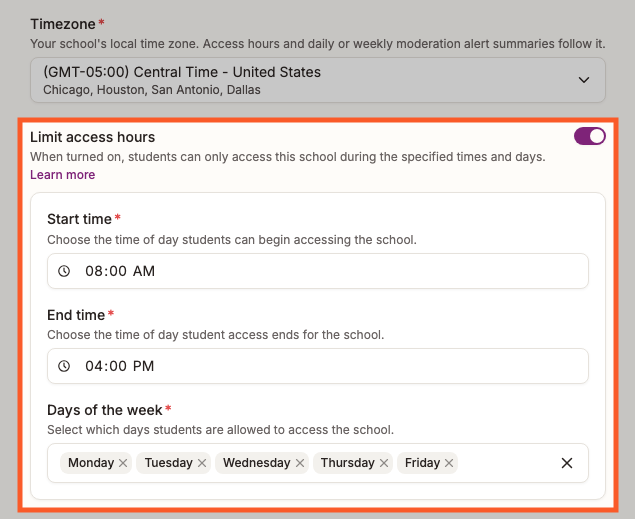
- Timezone — confirm the school's timezone even if access-hour limits are off. Flint also uses it for scheduled moderation summaries.
- Limit access hours — turn it on to pick a Start time, an End time and the Days of the week students may use Flint. More about access hours
- Allowed IP ranges — restrict student access to your own networks by CIDR block. Leave it blank for no restriction. More about restricting Flint to school grounds
- Access permissions — who can discover and access the school itself.
The sidebar's Libraries menu has two entries:
- Public library — activities shared by educators across every Flint school. A good place to find something close to what you want and adapt it.
- School library — activities your own teachers have published for colleagues. If your school belongs to a district with a shared library, this entry reads Shared libraries instead.
Flint changes because admins ask for things.
- Learn more about Flint → Help in the sidebar opens the help home. Select an available contact option to reach our team.
- Learn more about Flint → Feedback opens a new message where you can write and send a feature request or bug report.
- The Flint community is a legacy resource; use the in-app Help and Feedback options if the community is unavailable.
If the messenger is unavailable or functional cookie consent is off, Help and Feedback open the public help center instead. You can also email support@flintk12.com.
For in-app training where enabled, open Admin → Professional development → AI literacy course. The course is not available on the UK deployment. See AI literacy course and certification.