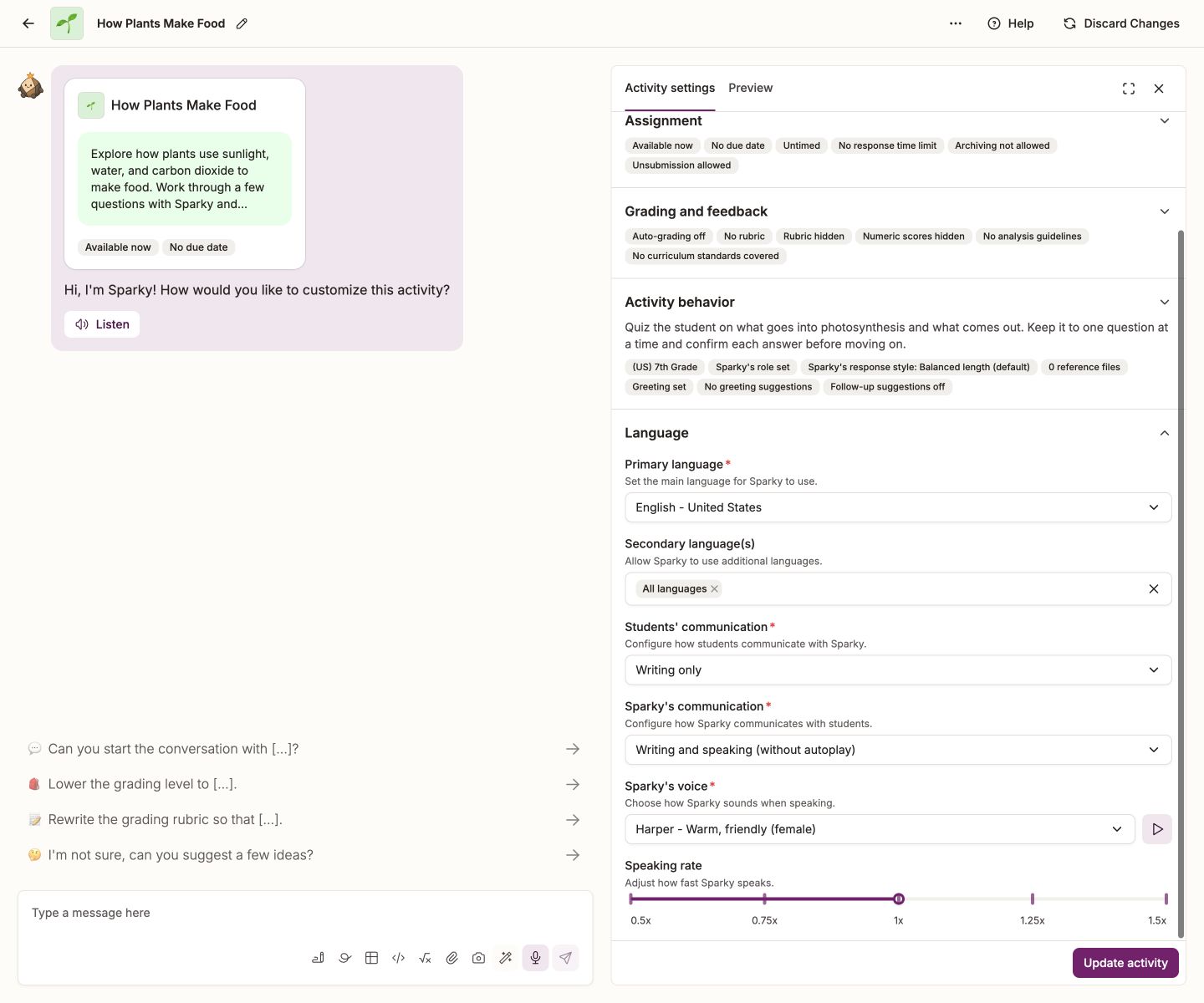

How to customize Sparky's voice

Learn how you can change Sparky's voice and talking speed in speaking activities.

Written by Sun Paik
Updated over a week ago

This update was released February 20, 2026.

In this article, you will learn how you can customize Sparky's voice, both in tone and speed, for speaking activities.

Here is how to do it:

After reaching the Activity Builder, you have two ways to customize Sparky's voice:

Click on the activity you want to customize

Screenshot showing "My activities" page, with activity "IB German Oral Exam Practice" highlighted

πŸ“Œ To find the activity you would like to customize, you can find them in "My activities" or within any of your groups. You can also find activities you have created in your profile. Learn more about activities.

Click "Activity Settings"

You will now be at your activity dashboard page. You can find activity settings in the top right corner of your screen.

Screenshot of activity analytics dashboard for "IB German Oral Exam Practice" activity. The screenshot highlights "Activity settings" in the top right of the screen.

After clicking "Activity settings," you will be taken to the Activity Builder, where you can find both "Build with Sparky" and "Build manually."

Option A: Updating Sparky's voice through "Build with Sparky"

Through "Build with Sparky," you can ask Sparky to make adjustments without having to manually adjust voice tone and speed. Note that Sparky can only adjust its voice if the activity is a speaking activity. Learn how to check if your Sparky is configured to speak in the activity.

Ask Sparky to sound more masculine or feminine

You can easily message or use your mic to ask Sparky to adjust their voice. In this example, I just asked "Can Sparky speak in a masculine voice instead?"

Screenshot of Activity Builder in "Build with Sparky mode," with chat of user asking Sparky to speak in a masculine voice and Sparky adjusting their voice from Harper (feminine) to Reid (masculine).

Sparky then adjusted its voice from Harper (warm and friendly female voice) to Reid (clear and direct male voice). Learn more about what kinds of voices Sparky has available.

Ask Sparky to adjust their speaking rate

This is the same process as when you ask Sparky to sound more masculine or feminine. Simply message or use your mic to ask Sparky to adjust their speaking rate. In this example, I've asked Sparky to speak slower.

Screenshot of activity builder chat window in build with sparky mode, where the user asks "Can you make Sparky speak slower" and Sparky responds adjusting the speaking rate from 1x to 0.875x

Sparky immediately adjusted their speaking rate to change from 1x to 0.875x. Learn more about Sparky's speaking rate.

Click "Update Activity"

After you are done customizing your activity, click "Update activity" to save changes.

Option B: Updating Sparky's voice through "Build Manually"

Through "Build Manually," you can make more granular changes and choose exactly which voice and speaking rate you want for Sparky.

Click "Build Manually"

Screenshot showing activity builder, where you can toggle between build with sparky and build manually on the top center of your screen.

Click "Language"

You can find "Language" in the lefthand sidebar.

Screenshot of the language icon that appears in the lefthand sidebar after you click "Build Manually," which takes you to Language settings

Check that Sparky's speaking is turned on

You can only adjust Sparky's voice and speaking rate if Sparky's communication includes speaking. You can check this by going to "Sparky's communication." In this example, you'll see that Sparky is Speaking only.

Screenshot showing "Sparky's communication" customization section, where you can choose between writing only, speaking only, and writing and speaking either with or without autoplay.

You can choose between Speaking only, Writing and speaking (with autoplay), or Writing and speaking (without autoplay).

Choose Sparky's voice

Go to "Sparky's voice," which you can find at the bottom of Language settings. Use the dropdown to choose how Sparky sounds when speaking. In this example, I've chosen Reid.

Screenshot highlighting "sparky's voice" customization in language settings. You can use the dropdown to choose amongst 9 voice options.

You can also preview how the voice sounds by clicking the play button to the right of the dropdown. Learn what kind of voices Sparky has.

Screenshot highlighting the voice preview button, which is a blue play button that is to the right of the dropdown for choosing Sparky's voice

Choose Sparky's speaking rate

At the very bottom of language settings, you can find the "Speaking rate" customization feature. You can adjust the slider based on how slow or fast you want Sparky to speak. In this example, Sparky is speaking at 0.875x speed, in between .75x and 1x.

Screenshot highlighting the "Speaking rate" customization feature at the very bottom of the Language settings section. The speaking rate can be adjusted via slider. In this screenshot, the user has chosen 0.875x.

Learn more about Sparky's speaking rate.

Click "Update Activity"

After you are done customizing your activity, click "Update activity" to save changes.

Screenshot that shows how to save your customizations by clicking "Update activity," a blue button at the top right of your screen.


What kind of voices does Sparky have?

There are 5 female voices to choose from:

  • Harper - Warm, friendly

  • Avery - Neutral, balanced

  • Kit - Expressive, storytelling

  • Jules - Bright, energetic

  • Robin - Light, gentle

There are 4 male voices to choose from:

  • Elis - Calm ,composed

  • Reid - Clear, direct

  • Miles - Smooth, resonant

  • Blake - Deep, authoritative

What is Sparky's speaking rate?

By default, Sparky will speak at 1x speed, which you can think of as the speaking pace in an average, casual conversation. You can speed up to 1.5x, and slow down to 0.5x.

If you ask Sparky to speak slower or faster through "Build with Sparky," Sparky will approximate how much to adjust itself. If, however, you would like more granular control over Sparky's speaking rate (for example, knowing you want Sparky to speak at 0.875% speed), it may be better to go into "Build Manually" to adjust.

Did this answer your question?