

Grade-level prompts let admins tune how Sparky talks to students of a given age: simpler sentences for the youngest, more academic language and deeper analysis for the oldest. They only change Sparky's behaviour for students — teachers and admins are unaffected.
Sparky is already instructed to use school-appropriate language and avoid slang and acronyms containing profanity, so use these prompts for what's specific to your school's students.
Add a grade-level prompt
Watch: Draft an age-appropriate grade prompt
The walkthrough drafts a grade-level instruction and discards it without saving a school-wide change.
- Click Admin in the left sidebar.
- Click Settings, then Sparky customizations.
- Under Grade-level prompts, click Add.
- In Grades, pick at least one grade level this prompt should apply to.
- In Prompt, describe the tone, language complexity and engagement style you want. Write 10–1,000 characters — for example, "Use short, simple sentences and check understanding often."
- Click Save in the top right.
Click Add again to write a second prompt for a different group. A grade level can only belong to one prompt at a time, so any grade you've already used disappears from the Grades picker on the other prompts.
For this to reach the right students, they need a grade level on their account. See how to manage grade levels in Flint.
If a student has more than one grade level, Sparky receives every matching prompt.
Remove a grade-level prompt
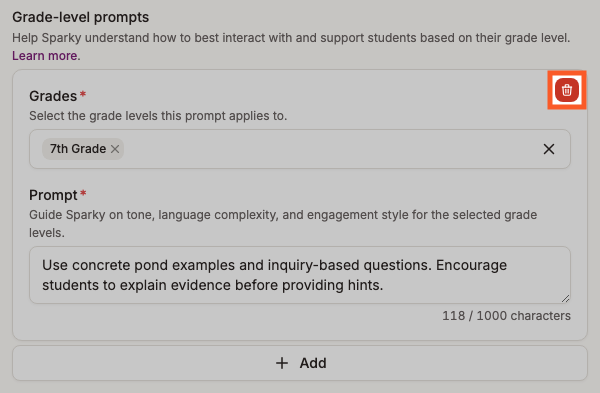
Click the red trash button in the top-right corner of the prompt you want to remove, then click Save. If you delete one by mistake, click Discard before saving and nothing changes.