

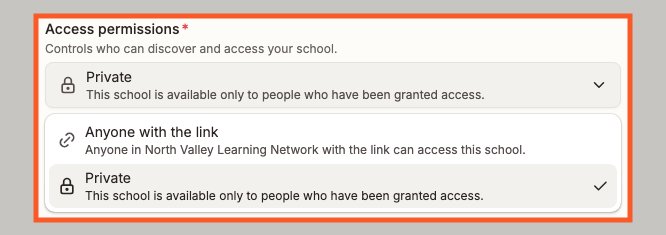
Access permissions control who can find and open something in Flint. Classes and activities share three access options. Schools offer two of them: Private and Anyone with the link. The wording adapts to what you're looking at.
The three options
| Option | Who gets in |
|---|---|
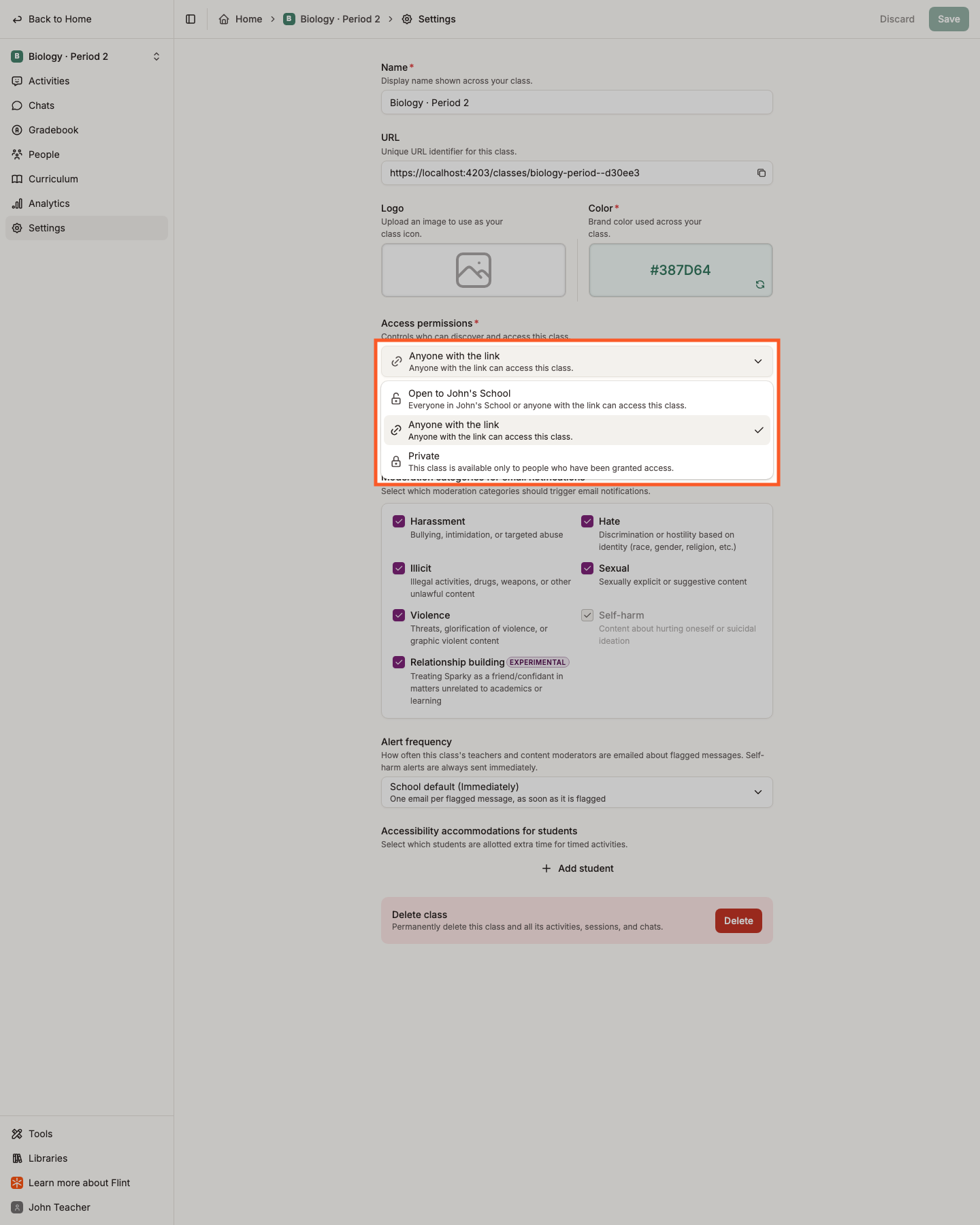
| Private | Only people granted access directly or through inherited permissions. A link alone does not grant access. |
| Anyone with the link | People with existing access, plus people within the audience shown in the option's description who have the link. Other people in that audience need the link to find it. |
| Open to {school or class} | People with existing access, plus the audience shown in the option's description — they can find it by searching. |
The third option names the nearest parent with more restrictive permissions, not always the immediate class. For example, an activity in a private class can read Open to AP US History, while one in a link-access class can read Open to Lincoln High. Check the description under the option for its audience. Stricter school, class, term or district permissions still apply, even when someone has the link. Schools offer only Anyone with the link and Private.
Private does not remove inherited access: people with Can edit on a parent retain access to its contents, including school owners' access to activities and chats. School email-domain rules can also grant school access without individual invitations. Content moderators can open private classes and activities by direct link when the grade-level scope matches. School and term access requirements still apply.
Set a school's access permissions
You need school-owner access and permission to manage school settings, normally as an admin or teacher-labelled owner.
- Click Admin in the left sidebar.
- Click Settings, then Access.
- Choose an option under Access permissions.
- Click Save in the top right.
Whichever you choose, you decide who is actually in the school from Admin › Settings › People: Add people brings in named people, and Add domain lets anyone with an email address at your domain in, with the role you pick. See inviting students, teachers and admins to my school.
Set a class's access permissions
You need Can edit access to the class.
- Open the class.
- Click Settings in the class sidebar.
- Choose an option under Access permissions.
- Click Save in the top right.
Set an activity's access permissions
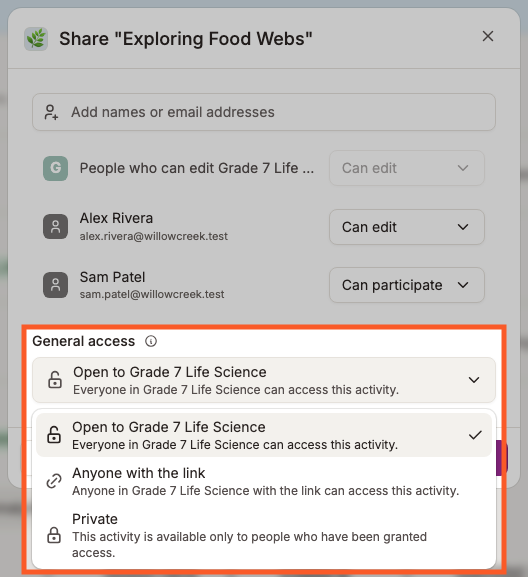
For an activity, the setting lives in the share window under the heading General access. You need Can edit access to change permissions or the people list. Participants can copy the link but cannot change permissions.
- Open the activity and click Share activity in the top right. (You can also click the … menu on an activity's card and choose Share activity.)
- Choose an option under General access.
- Click Done.
The people list above it is where you give named people access, each with Can edit or Can participate. See how to change the access permissions of an activity.