

To change access, you need Can edit on a non-library activity; that access may be inherited from its class or school. Open the activity and select Share activity at the top of the page. Participants can copy a link but cannot change permissions or display join codes. Library activities have a separate link-only sharing view.
General access
The General access menu sets the broad rule. There are three options:
| Option | Who can get in |
|---|---|
| Open to name | Everyone in that group. They can find the activity through search and open it |
| Anyone with the link | People within the displayed audience who have the link or code, including anyone it is forwarded to |
| Private | People with direct or inherited access, plus applicable admin and content-moderator oversight |
The audience is bounded by the nearest school, term or class setting that is more restrictive than the option you choose. A private class can confine link access to its members; an open or link-access class may allow a wider audience. If no ancestor narrows public access, the first option reads Public. Read the audience description under each option rather than assuming every class activity is class-confined.
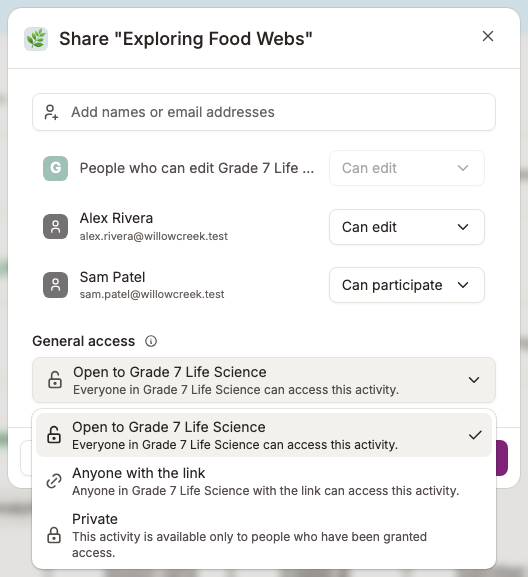
The screenshot shows a class-confined example, not the boundary for every activity. Whichever option you choose:
- School admins can view every activity in their school.
- If the activity is in a class, anyone who can edit that class sees it in the class's activity list.
- Named people and inherited editors keep their access without being sent a link.
- Designated content moderators for the term can review private activities by direct link when their assigned grade-level scope applies. Private does not mean only the rows shown in the dialog can access the activity.
Giving specific people access
Add people at the top of the same dialog. Type a name or paste email addresses into Add names or email addresses, click Invite beside the matching result to add the person to the list, then choose what each person can do:
- Can participate — can take part: start a lesson session, take an assessment, or hand in work if the activity takes file uploads. It does not give access to other students' submissions or an unreleased answer key; the teacher controls when assessment results and the answer key become visible.
- Can edit — can take part, see everyone's sessions and submissions, and change the activity. For assessments, this includes reviewing scores and feedback and sharing results.
Click Done to save the access grants. Any optional email-invitation step is separate from saving access.
To remove a direct grant, open the role menu beside the person's name and choose Remove access, then Done. Inherited rows are read-only here; removing a direct grant does not remove access inherited elsewhere. Use Private with named grants when you need an explicitly listed audience, while accounting for inherited access and oversight above.
One row reads Creator instead of a role. Every activity needs a creator, so that row cannot be removed. To hand the activity to a colleague, give them Can edit, then point at their row and select the star to make them the creator.
Sending it out
At the bottom of the dialog:
- Copy link puts the activity's link on your clipboard.
- Display join code shows a six-character code students can type in. The code follows the currently saved access rule, not unsaved changes in the dialog. Regenerate code replaces the old code.
- Done saves your changes and closes the dialog.
After changing access, click Done first, reopen Share activity, then choose Display join code. Displaying a code does not save pending access changes.
For how the same settings work on a class, see How can I change the access permissions of my class in Flint?, and for the wider picture, Access permissions in Flint.