

Left to itself, a connected SIS or LMS often hands Flint far more than you want — parents, alumni, retired staff, archived classes. Two things control that: Flint's filters on Edlink Import Options, and Edlink's Sharing Rules.
Start in Flint
For most schools the import filters are enough, and they are much quicker to change. On the Edlink Import Options step of an import you can narrow people by role, email address or domain, grade level, and graduation year, and narrow classes by school, term and status, subject, name, specific courses and classes, and teacher — with a live count of who is included and excluded before you import anything. See importing users and classes from an LMS or SIS.
When you save those filters, Flint attempts to write supported filters back to Edlink as sharing rules. Some filters stay in Flint, and mirrored rules can share a wider set that Flint then narrows. Excluding someone from a Flint import does not by itself mean Edlink stops sending their data. Flint manages rules under Developer Rules with the reserved names "Flint import filters" and "Flint import filters: keep unenrolled roles"; give hand-written rules different names so Flint leaves them alone.
If Sorry, we couldn't update Edlink appears, your filters are still saved and applied in Flint. Continue past the filter step again to retry the Edlink update.
Reach for Edlink's dashboard when your district wants to control sharing centrally or when you need a restriction Flint's filters can't express — the View Edlink Sharing Rules link on that step takes you straight there.
An invisible test term keeps its contents hidden from participants, but it does not isolate the connection. Saved import filters and Edlink sharing rules affect the connection, not just that term, and can affect other imports and automatic sync in the active term. Do not experiment with a production connection's filters or rules unless you intend those effects.
Find sharing rules in Edlink
- Sign in to Edlink.
- Open your integration from the dashboard.
- Click Sharing Rules in the left navigation.

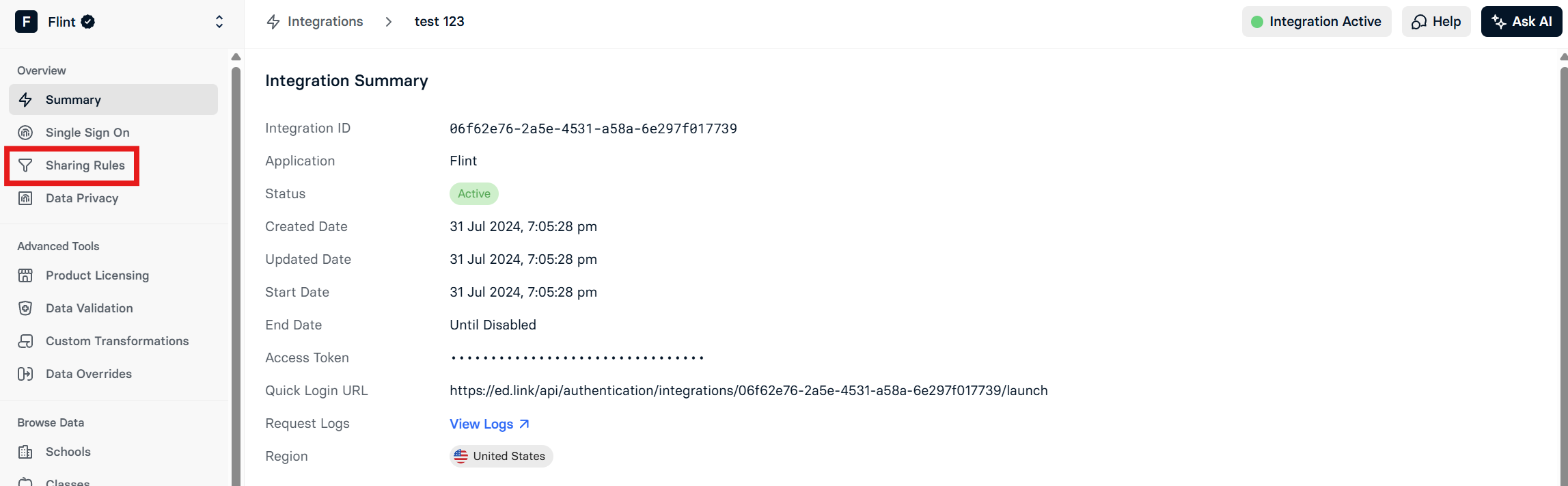
Each rule set has its own switch on that page. Rules you write for your district apply only while District Rules are enabled, and Flint's rules apply while Developer Sharing Rules are enabled — Flint turns that switch on when it successfully writes sharing rules. Edlink applies district rules first and developer rules second, so a developer rule can only narrow what your district rules already share. Beside the switch, Edlink states the other set's status, so you can see at a glance whether district rules are on.

If District Rules are enabled and there are no active rules, nothing is shared at all. Flint warns you about exactly that case on the import screen.
The three kinds of rule
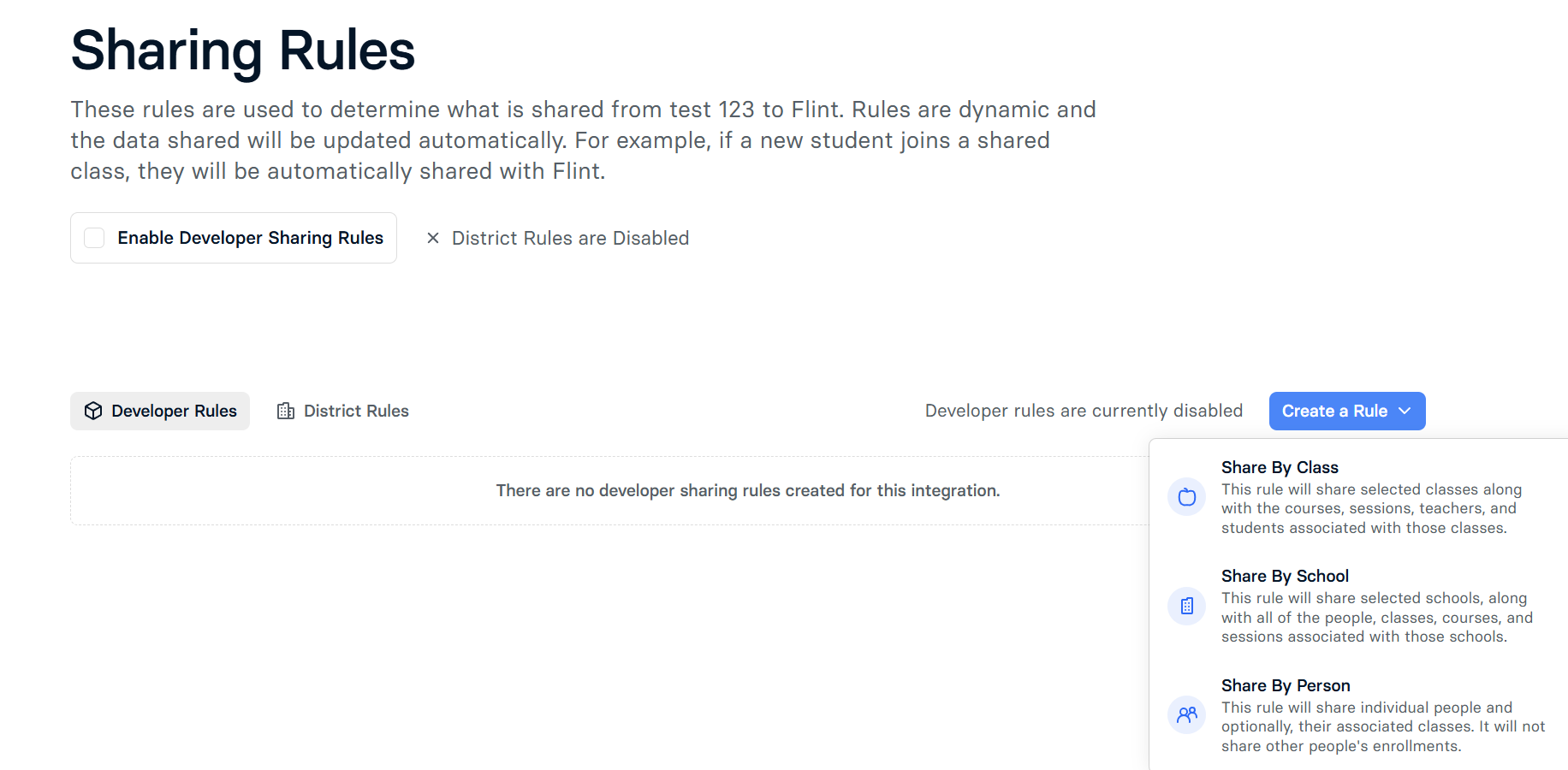
| Rule | What it shares | Good for |
|---|---|---|
| Share By Class | The classes that match, plus their courses, terms, teachers, and students | The most common choice: specific teachers or courses using Flint |
| Share By School | The schools that match, plus all their people, classes, courses, and terms | A whole building or division rolling Flint out |
| Share By Person | The people who match and, optionally, their classes — but not other people's enrollments | A named pilot group, or a privacy-sensitive subset |
Edlink spells out what each rule covers as you choose it:
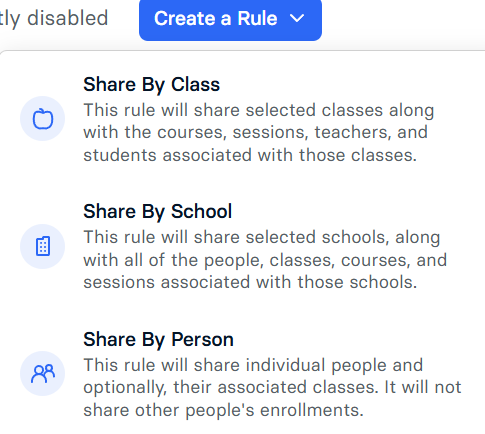
Two things worth knowing before you choose:
- School rules depend on how your source defines a school. Some systems, Google Classroom among them, don't organize data by building, and Edlink then puts everything under a single placeholder school. A "share by school" rule can therefore share far more, or far less, than you expect. Look at Schools under Browse Data in Edlink first to see how your buildings actually come through, and remember that schools grouped as one in your source can't be separated with this rule.
- Class rules never match archived classes. If a class is archived in your source, no class rule will share it.
How conditions combine
Within one rule, every condition must be true — "Role is Teacher and email ends with @school.edu" matches only people who are both. Across rules, Edlink shares everything that any rule matches, so two rules widen what is shared rather than narrowing it.
Edlink's text conditions are case-sensitive, so a rule that excludes classes containing "test" will not catch "MaxTestCourse".
After you change a rule
For a district-owned rule, select District Rules, then Create a Rule and choose the rule type and conditions. Make the rule active, click Save Changes, and ensure District Rules are enabled. Save edits to an existing rule with Save Changes too; unsaved edits do not take effect.
Edlink has to reprocess your data before a rule change takes effect. It calls this a materialization, and depending on how much data your district has it can take anything from a few seconds to several minutes. You can watch it on the Materializations tab of your integration: queued means it is waiting, working means it is running, complete means your rules are live, and error means something went wrong — contact support@ed.link if you see one.
Once it completes, check that people came through with roles: open People in Edlink and look at the roles column. To pull the new data into Flint, start the import again from Admin → Settings → SIS and LMS — Flint loads a fresh copy of the shared data each time you select a connection.
If you enabled Automatically keep term name in sync during import, Flint checks Edlink twice a day and applies roster changes while that term is active, using your saved filters and class settings. It can add or remove people and enrollments managed by the connection; manually added people and changed class settings are preserved. Large changes pause the sync and trigger an email for review. You can still run an import manually after changing rules.
Common problems
Roles are empty in Edlink. Go to Custom Transformations, create a transformation of type Infer Roles, and configure it to infer roles from enrollments, so someone enrolled as a teacher of a class is treated as a teacher. Save and activate it, then check the roles again after the next materialization.
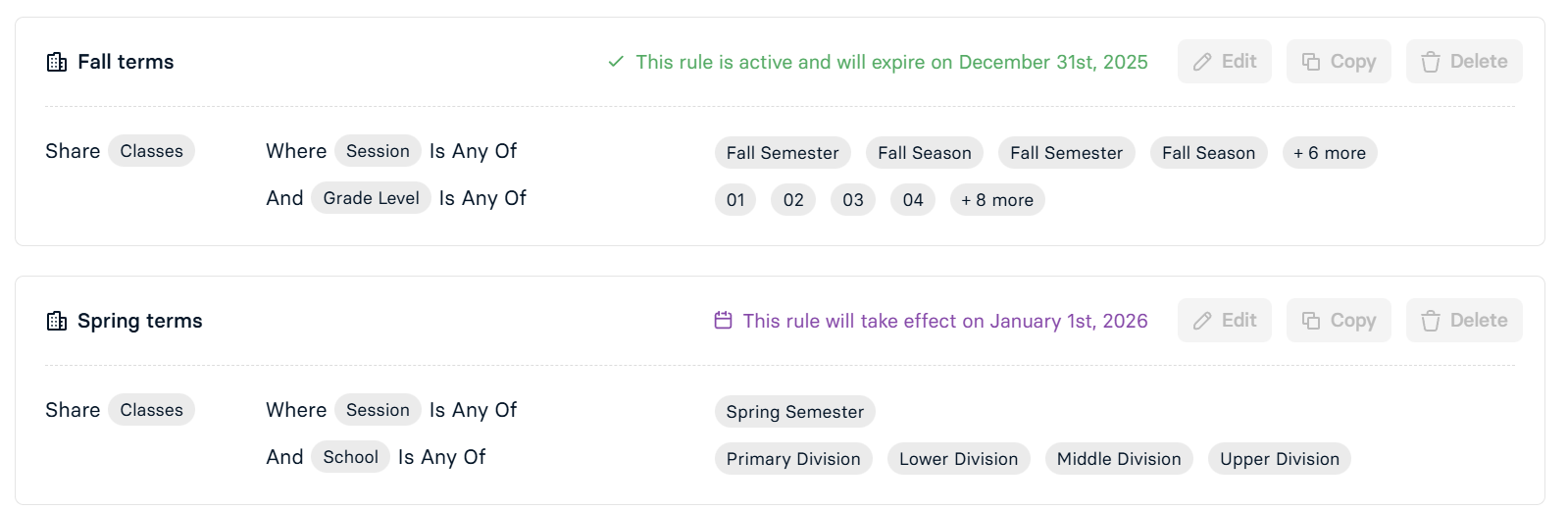
The same class appears twice. Your source is probably sending the fall and spring versions as separate classes. In Flint, turn on Filter by term and status on Edlink Import Options and keep only the terms you want. In Edlink, add a session condition to your class rule so each rule covers one part of the year, as in this pair of rules — the dates in the example are only illustrative:
Someone is missing. Check the excluded lists on Flint's Edlink Import Options step first — they name the filter that left each person or class out. If they aren't there either, Edlink isn't sharing them, and the rules above are where to look.
Picking teachers for a rule. A class rule targeted at your teachers is the quickest way to share exactly the classes Flint needs: every class those teachers teach comes across, along with the students enrolled in them.
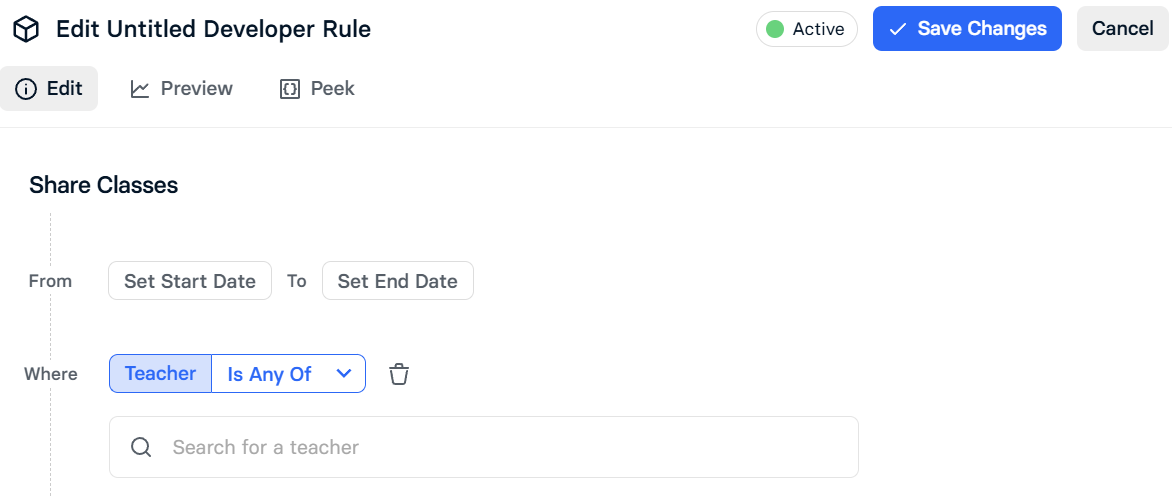
This example shows a Developer Rule editor. Use District Rules for your district-owned rules, and click Save Changes after setting the conditions.
A note on this guide
Flint provides this as a courtesy. Every school's SIS or LMS setup is different, and Edlink's dashboard is Edlink's product, so for help with the rules themselves contact the Edlink support team at support@ed.link and copy your Flint customer success manager.