

A pre-assessment tells you what students already know before you teach a unit. Choose Test or Quiz for structured questions and point-based scores, or a Lesson with Sparky for a conversational check of understanding.
In this guide:
- Why create a pre-assessment in Flint?
- Create a structured Test or Quiz
- Create a conversational pre-assessment
- What if I already gave the pre-assessment on paper?
Why create a pre-assessment in Flint?
- It gives you a baseline score before students have learned the unit.
- You can use the same questions at the end as a post-assessment, and compare the two. Structured tests need a separate copy or multiple attempts enabled; conversational lessons allow new sessions.
- Review student results to see which concepts to spend time on. Structured tests use question points and answer keys; conversational lessons can use an auto-grading rubric.
Create a structured Test or Quiz
For a pre-assessment such as ten multiple-choice questions:
- Open Activities, or the class you want to assign it in, and click Create activity.
- Choose Test or Quiz, then Start building.
- Tell Sparky the grade level, unit, number and type of questions, and attach your source materials if needed. The draft sits beside the conversation. You can use Add question in the Questions tab to add your own questions.
- In Questions, review each question, its answer key or grading guide, and its points. Check Total Points before assigning.
- Choose Preview to try the test as students will see it.
- Click Create assessment. In Review assignment settings, check Available from and Due date, then click Finish creating activity.
- Use Share activity to check access and send students the link or join code.
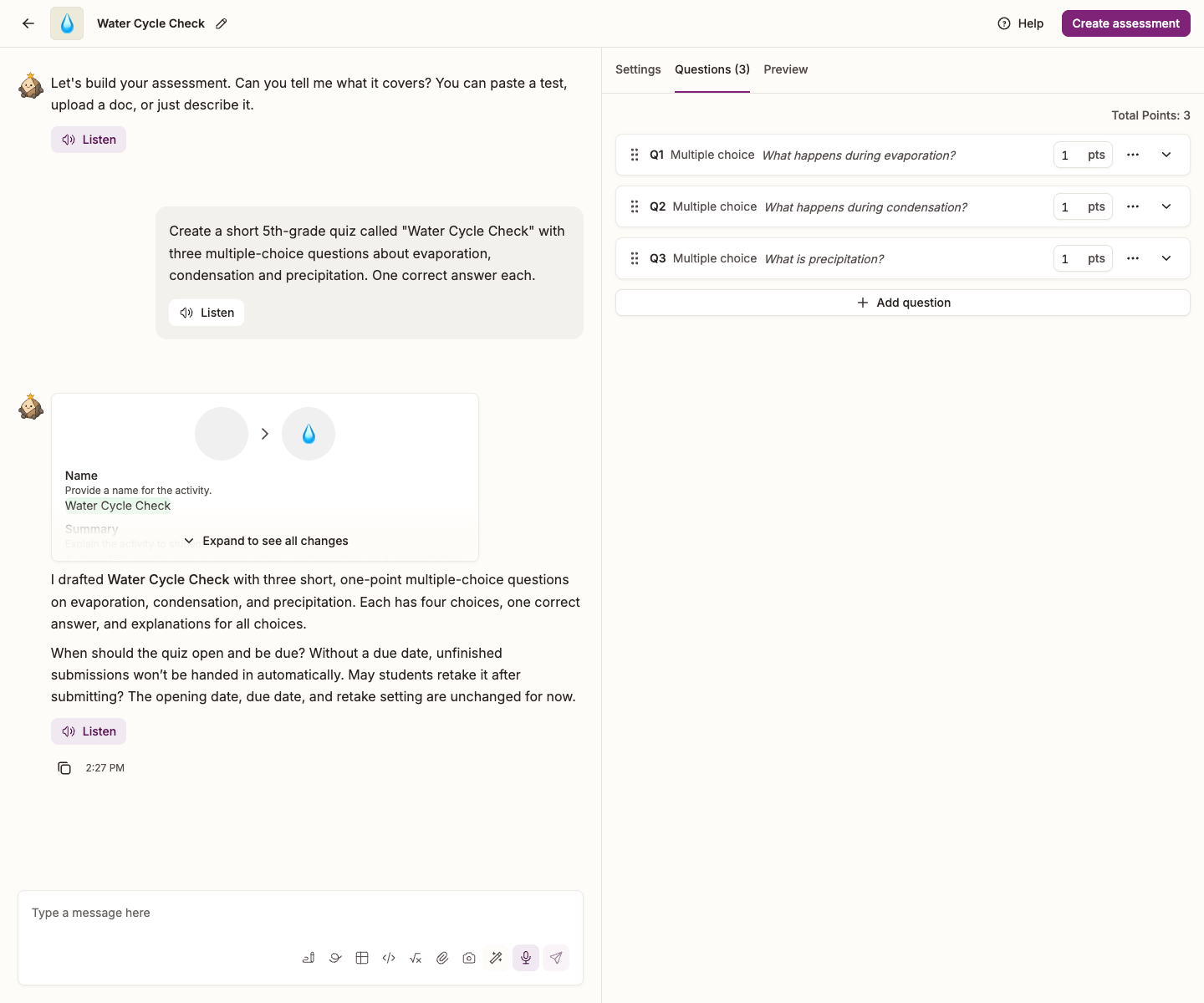
Multiple-choice answers are scored against their answer keys when students submit. For auto-graded free responses, Sparky uses your grading guide to assign points and write response analysis. Review completed submissions before sharing results; free-response scores can be corrected by the teacher, while multiple-choice scores cannot. Responses awaiting manual grading need a score before the total is complete.
Use Share results to release scores and teacher feedback to selected students. Share answer key is a separate action that reveals the key and any available Sparky response analysis to students who have submitted — sharing scores does not automatically share either of those.
Structured tests allow one submitted attempt per student by default. For a post-assessment with separate results, select Duplicate activity on the activity page and check the new copy's dates and access. To reuse the original instead, go to Edit activity → Settings → Assignment, turn on Allow multiple attempts, adjust Available from and Due date so the test is open, then click Update assessment. Keep the pre-assessment results for comparison, and wait to share the answer key if you plan to reuse the questions.
The class-analysis section described below belongs to conversational lessons, not structured Test or Quiz activities.
Create a conversational pre-assessment
Use this route when you want students to answer through a conversation with Sparky rather than a structured test form.
About the pictures below: these show the conversational Lesson with Sparky route, not the Test or Quiz editor. The grading and sharing screenshots use separate examples, identified in their captions.
You land on Home, where you can chat with Sparky.
To create the activity directly inside a class, start a chat inside that class instead. A handoff from Home creates a school-level activity in the current term; naming a class in your message does not move the activity into that class.
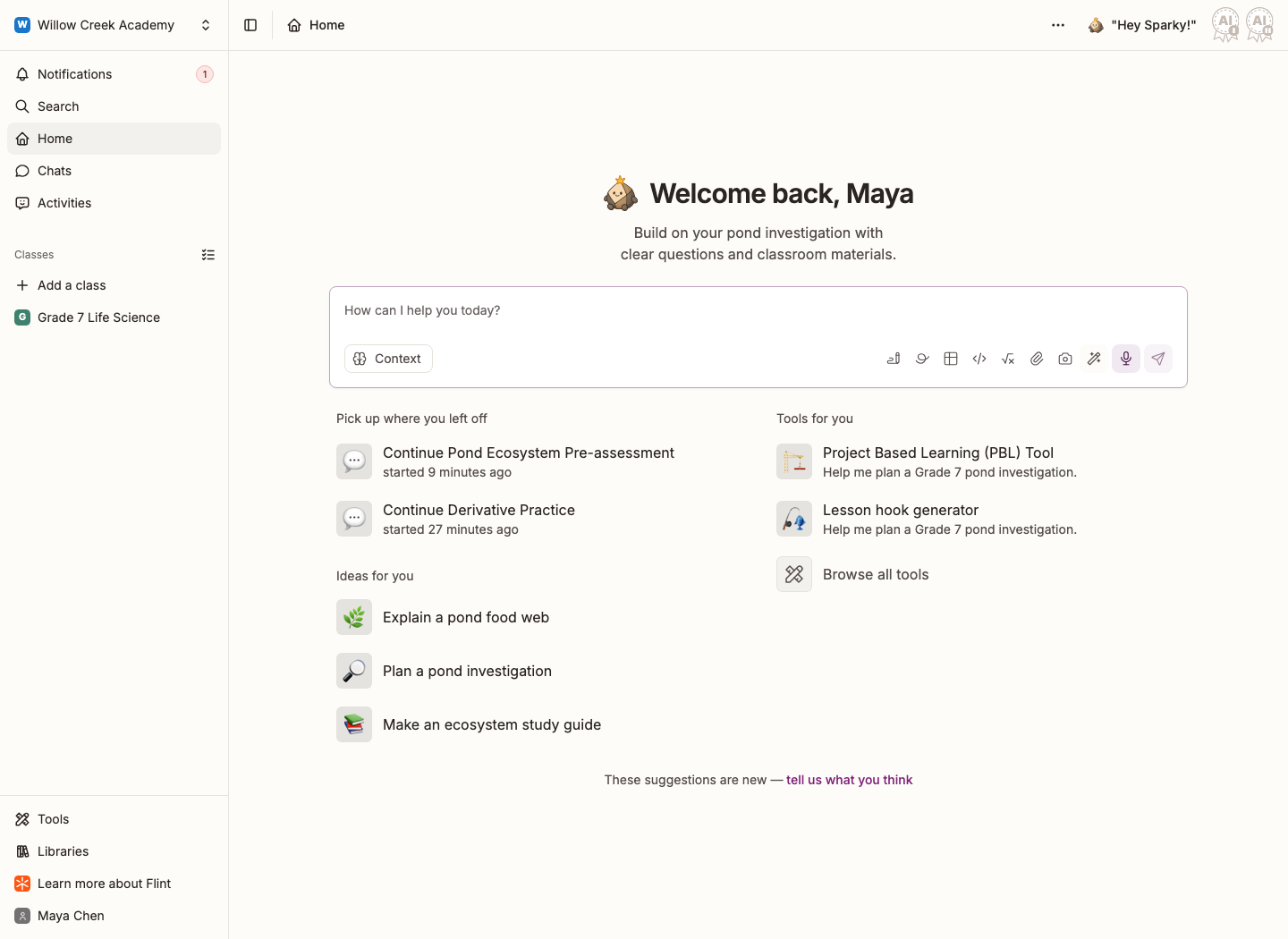
Be specific about the grade, the class, the unit, and the number and type of questions.
📌 A message you can copy: "Create a conversational Flint pre-assessment for my [grade level] [class name] class. Ask ten questions about [unit] to assess what students already know, without teaching the answers first."
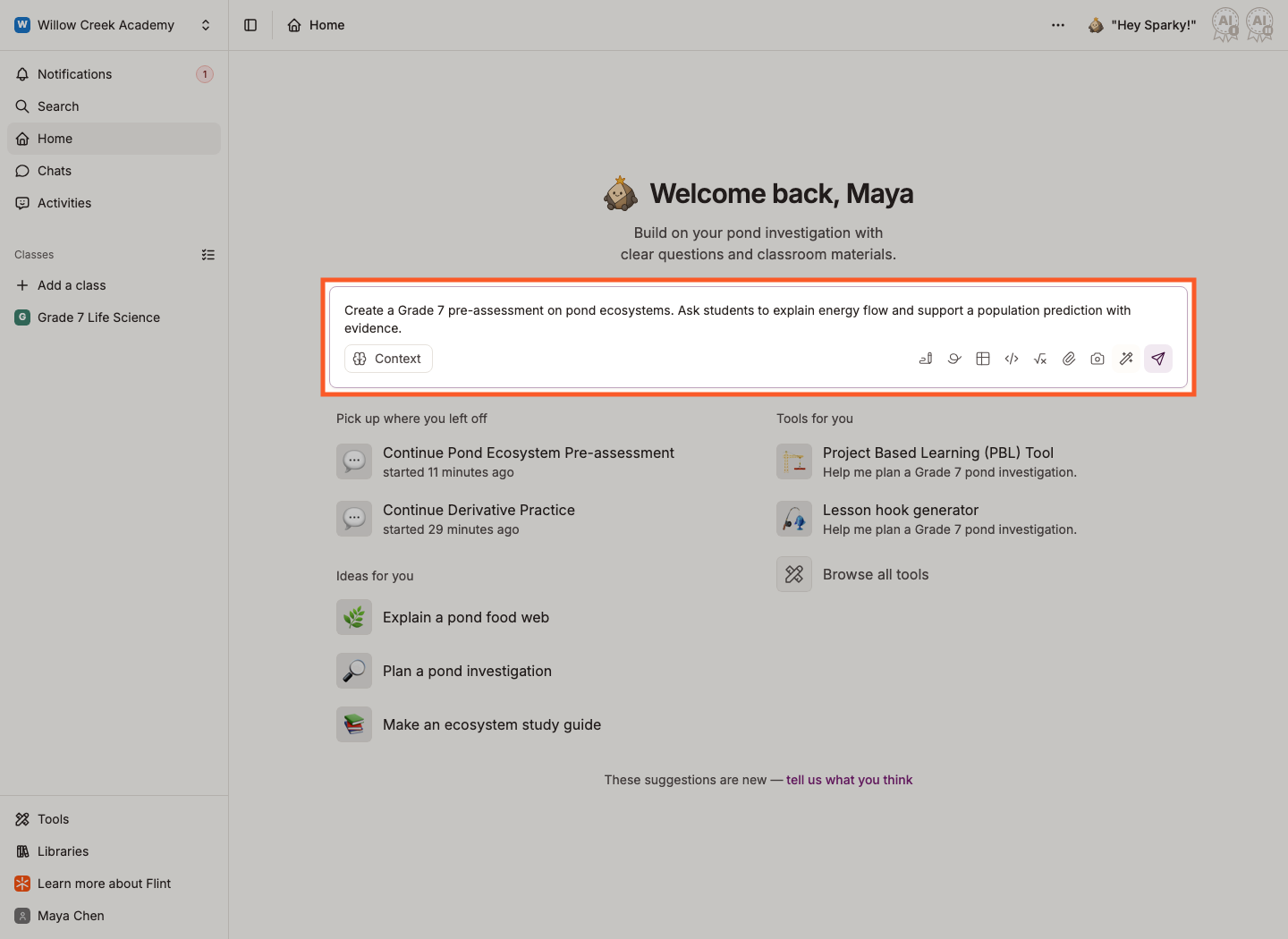
Add whatever you'd give a student teacher: the lesson plan, the readings, the syllabus. Drag a file onto the message box, or click the paperclip.
Sparky writes better questions when it can see the material the unit actually covers.
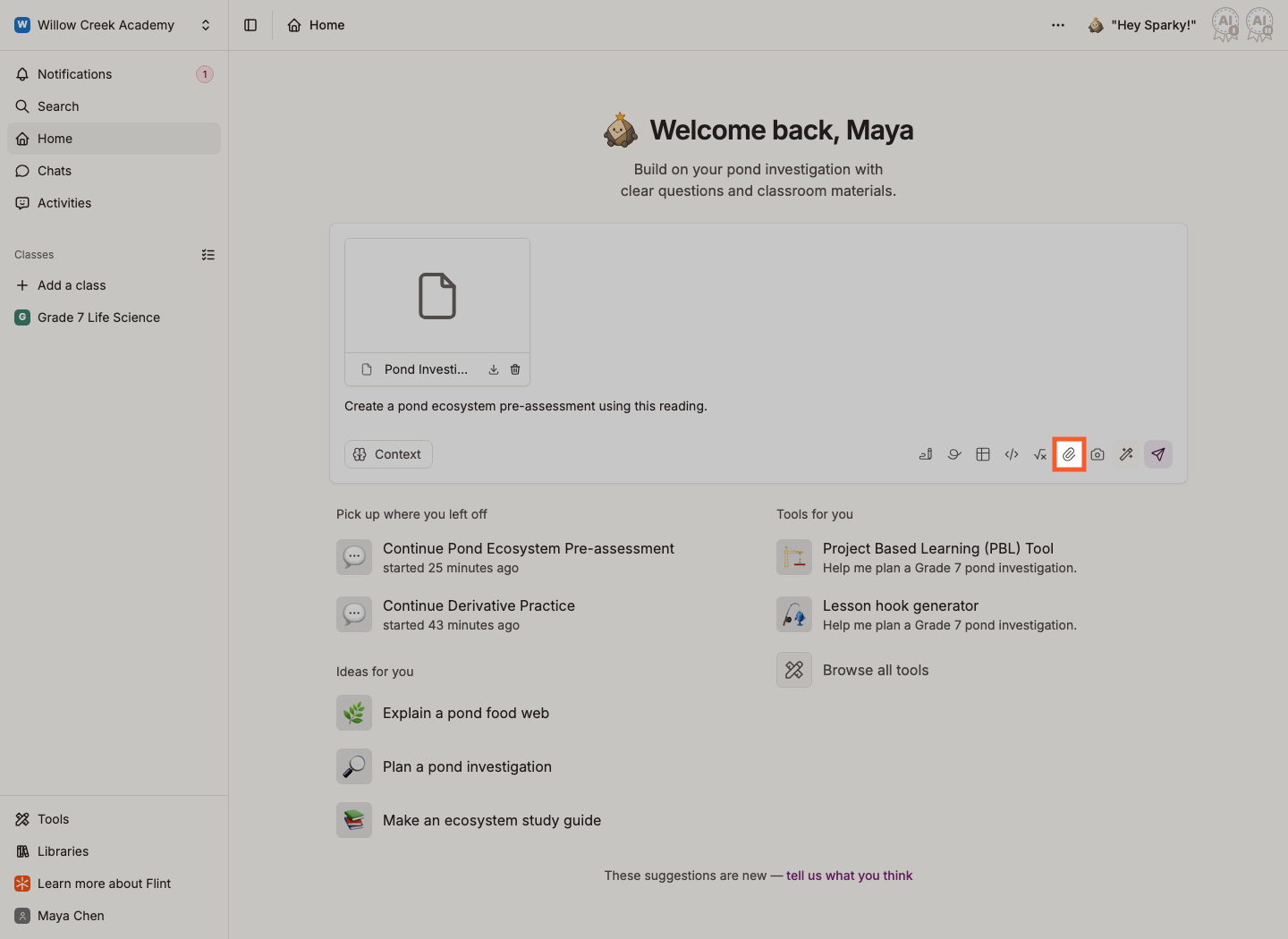
Press Enter, or click the send button.
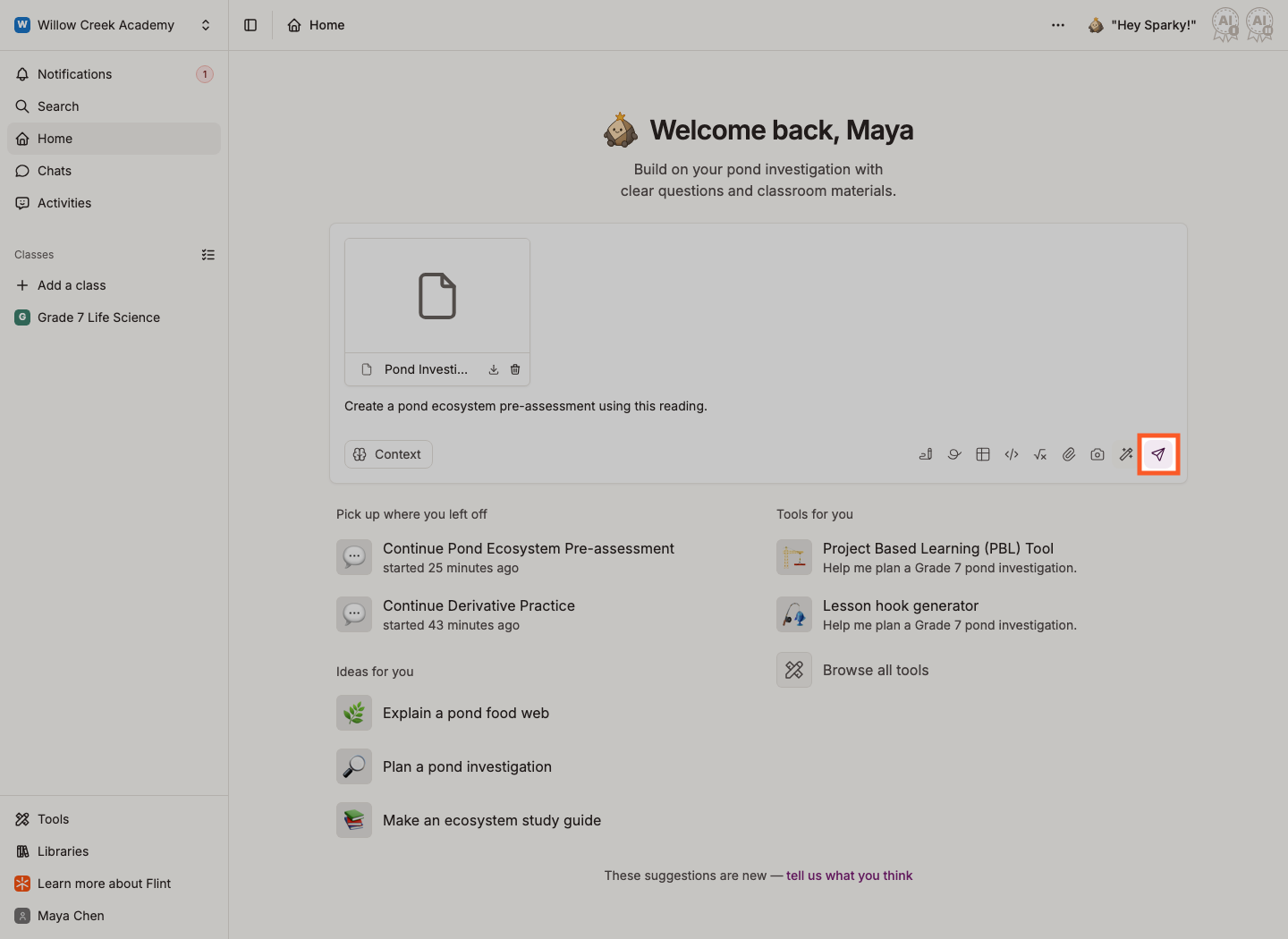
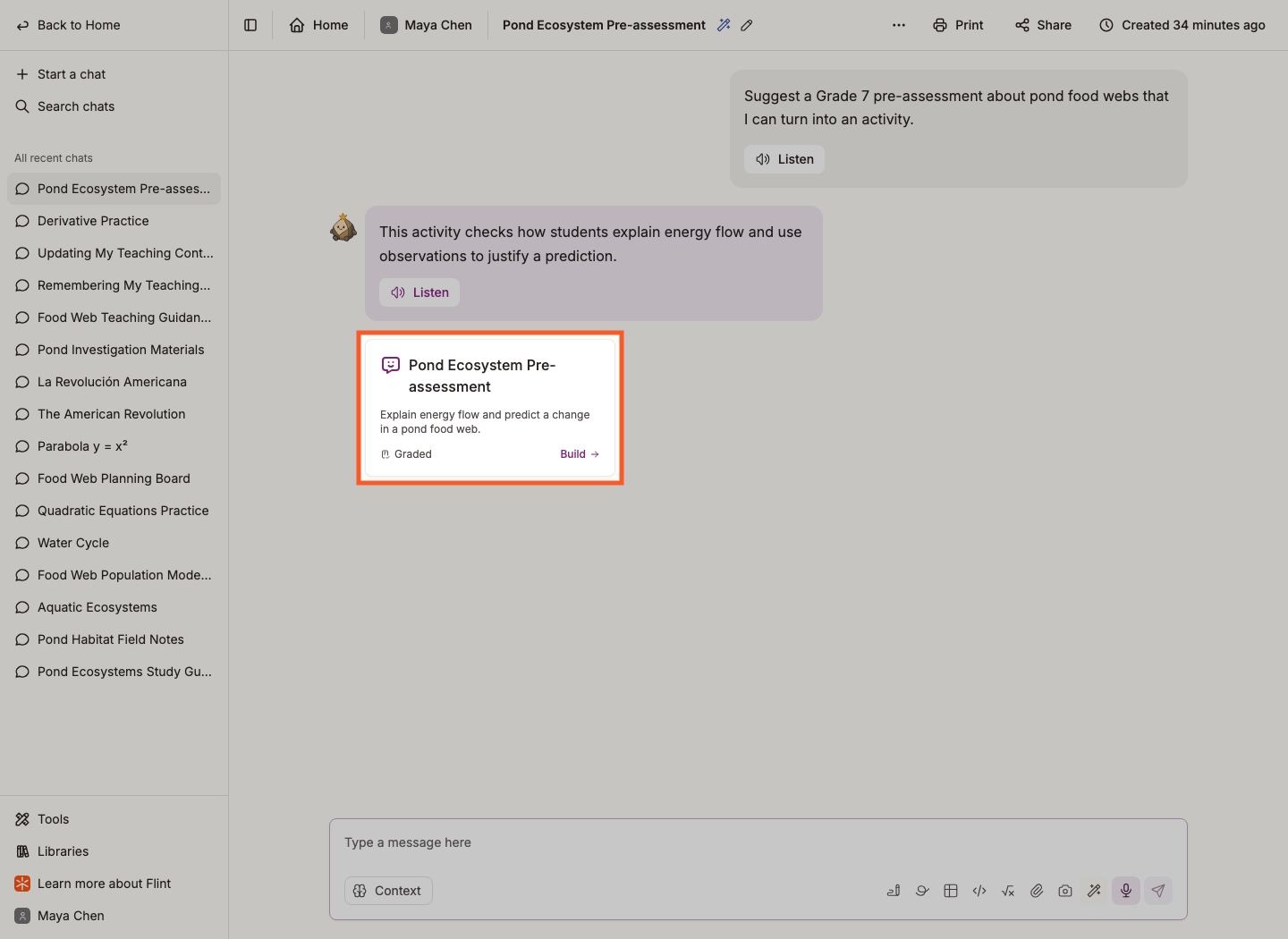
Wait for Sparky's reply to finish, then click the card showing the conversational activity's name, summary and Build to open the activity builder.
If you were only discussing ideas and do not see a card, ask Sparky to turn the chosen idea into a Flint activity. Customize it in the builder.
The builder opens with the conversation. Wait for Sparky to finish building the proposed activity, then tell Sparky: "Enable auto-grading and use percentage scores in the grading rubric."
A conversational percentage comes from the scores attached to your rubric's grade levels, not automatically from the number of correct answers. Rubric categories contribute equally; there is no category-weight control. Keep the same rubric criteria for pre/post comparisons, or use Test or Quiz for fixed question-point percentages.
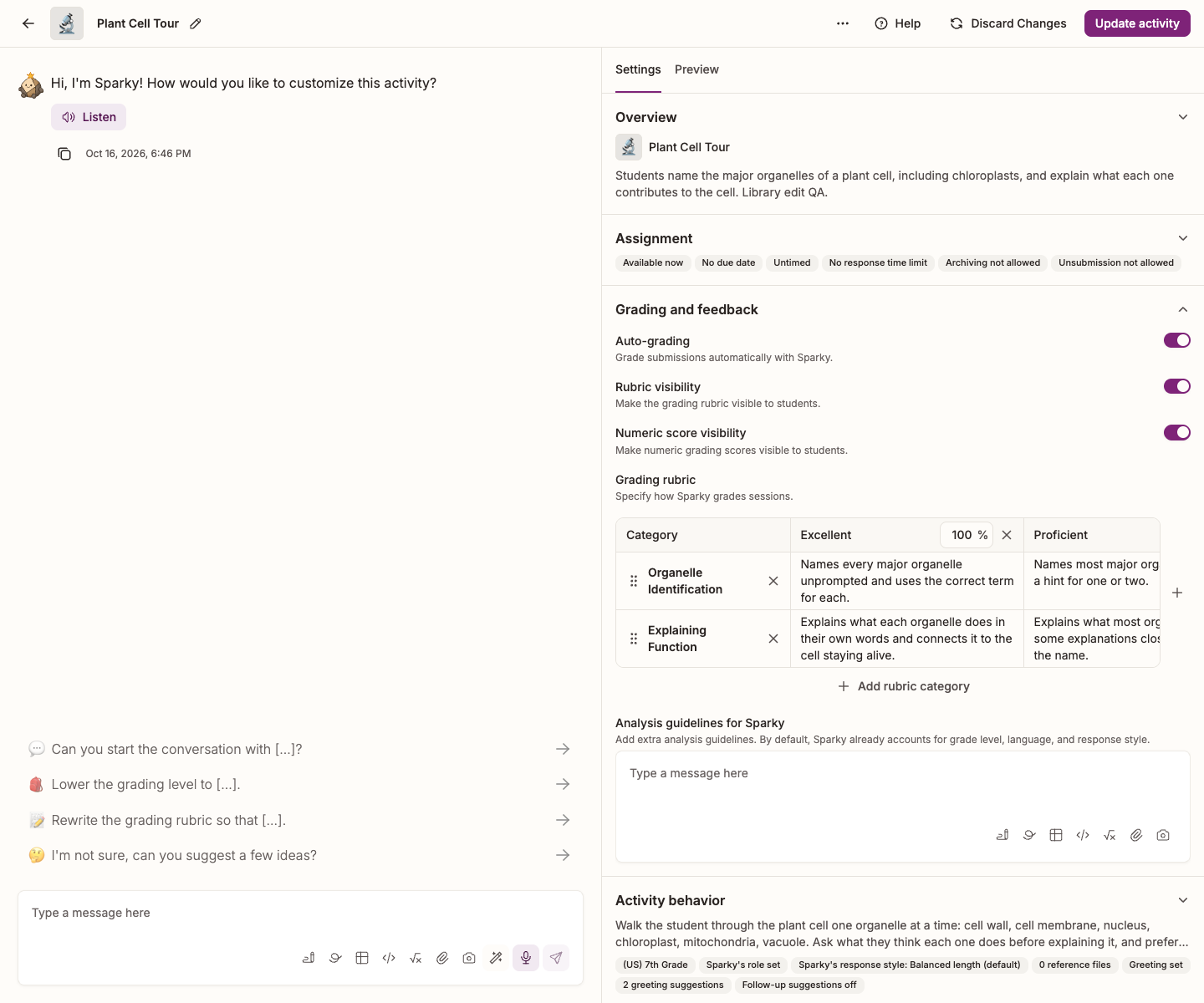
Sparky shows the proposed changes. Check Settings → Grading and feedback, beside the conversation, to confirm that Auto-grading is on and the Grading rubric has the grade levels, criteria and percentage scores you want. Ask for adjustments or edit the rubric yourself before saving.
Before you save, try it: click the play button in Preview to watch a simulated student work through it, or Try session myself to answer the questions yourself.
Create activity is in the top right of the page, next to Help.
The share window opens as soon as the activity is created. Check General access and any named people's roles before sending the activity out.
The options include Open to name, Anyone with the link, and Private. The audience depends on the activity's class, school and inherited access restrictions; read the description under the option you select. Click Done to save access changes. Use Share activity to reopen the window, then Copy link to send the link or Display join code to put a code on the board. Learn more about activity access.
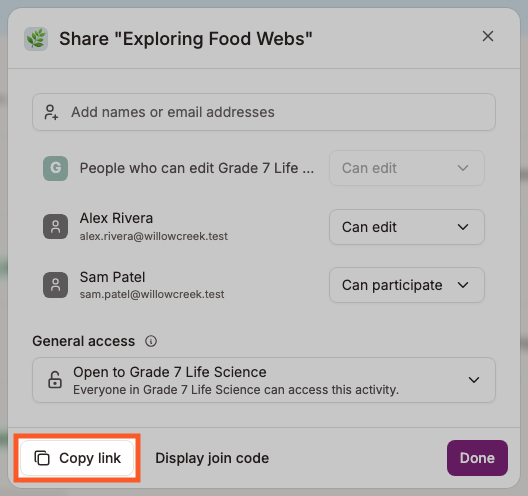
This sharing example is Exploring Food Webs, inside Grade 7 Life Science. Its first option is Open to Grade 7 Life Science, rather than the school name.
For this conversational route, Activity analytics becomes available after at least three submitted sessions have finished individual analysis. This counts sessions, not distinct students; archived or deleted sessions do not count. Allow time for the class summary to generate. This does not apply to structured Test or Quiz activities. Learn more about activity analytics.
What if I already gave the pre-assessment on paper?
For equally weighted questions, work out each student's percentage as correct answers ÷ total questions × 100, and use that as the baseline to compare against. If questions have different point values, use points earned ÷ points possible × 100 instead.