

Watch: Check an AI lesson summary against its evidence
Watch: Review quiz and file-upload work without releasing results
The walkthrough reviews existing quiz and file-upload work without releasing results.
Open an activity you can edit to review student work. A Lesson with Sparky has Activity analytics, Needs attention and a session table. Test or Quiz and File Upload activities have a Submissions table, without the lesson's classroom analytics or live-alert sections.
The first two sections are only for people with Can edit access to a lesson. Students see their own work, not the teacher dashboard. Some retained media below shows an earlier conversational-lesson interface; follow the written instructions for current controls.
Activity analytics for lessons
The top section summarises how the class performed, in three cards:
- Strengths — what students did well across the class
- Areas of improvement — where they struggled
- Follow-up — what to teach or practise next
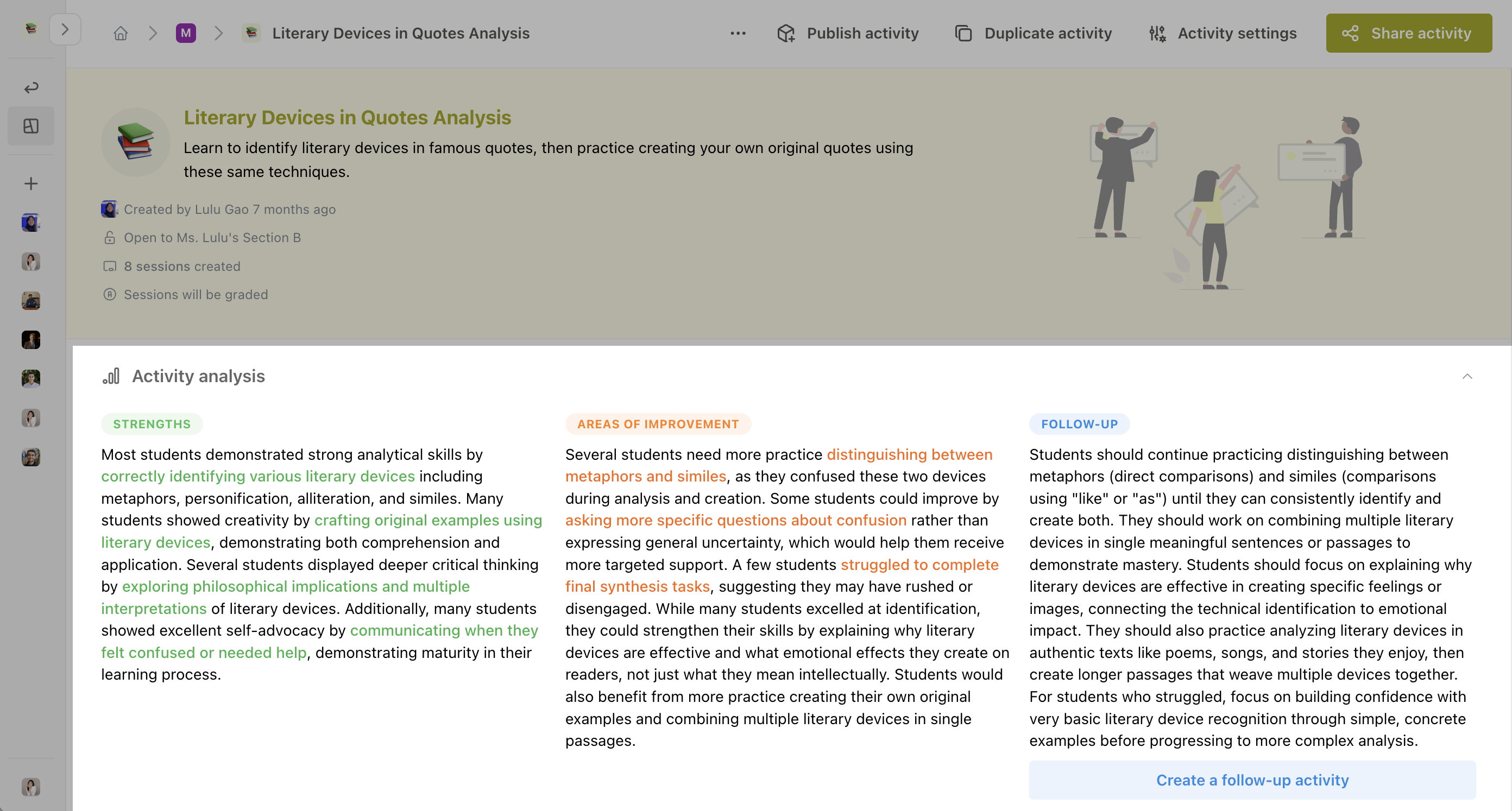
Until enough work is in, the screen reads "Analysis will be available within 10 minutes once 3 or more sessions are submitted." Class analysis needs at least three analyzed lesson submissions that are not archived or deleted. Updates are queued for about ten minutes after new session analysis is ready. Further session analyses can move that time, and processing can take longer; the screen's wording is not a guaranteed deadline.
Tracing an insight back to a student
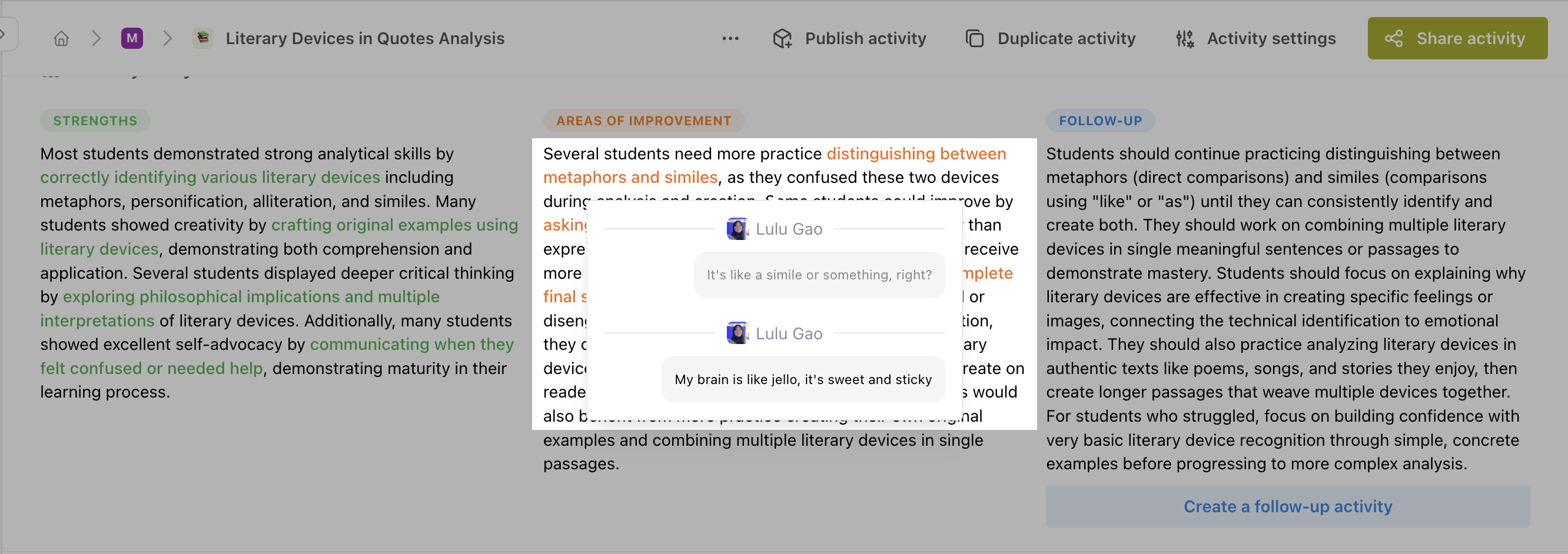
Some phrases in the cards are coloured. Click one and a popover lists the student messages that insight was drawn from, so you can see exactly who said what.
Creating a follow-up activity
The Follow-up card ends with a Create a follow-up activity button. It opens the activity builder with a draft based on what the class struggled with — so if students mixed up metaphors and similes, you get a head start on an activity that practises exactly that.
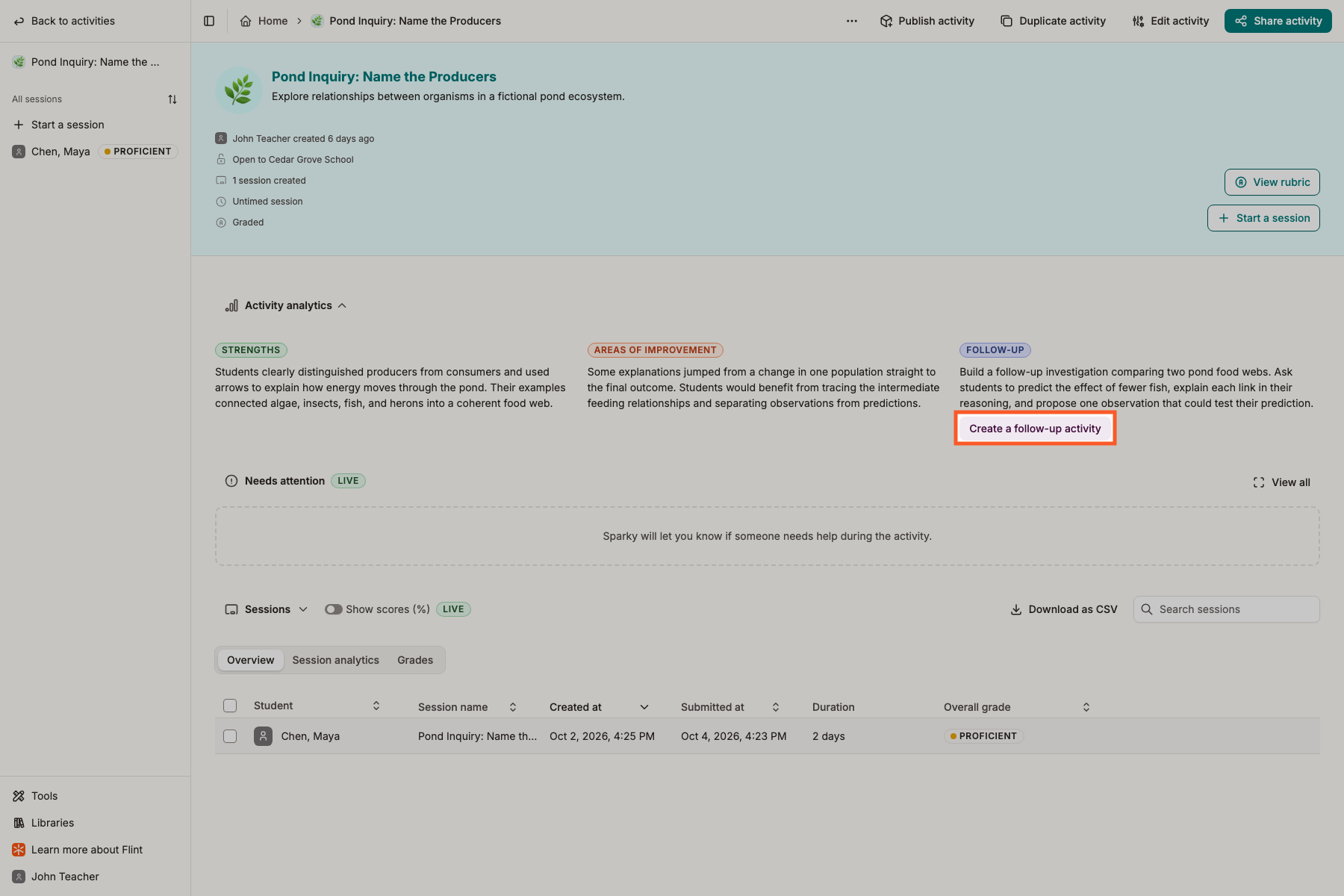
This screenshot illustrates the follow-up button and a populated summary. The visible session count does not show how or when that summary was generated.
Needs attention for lessons
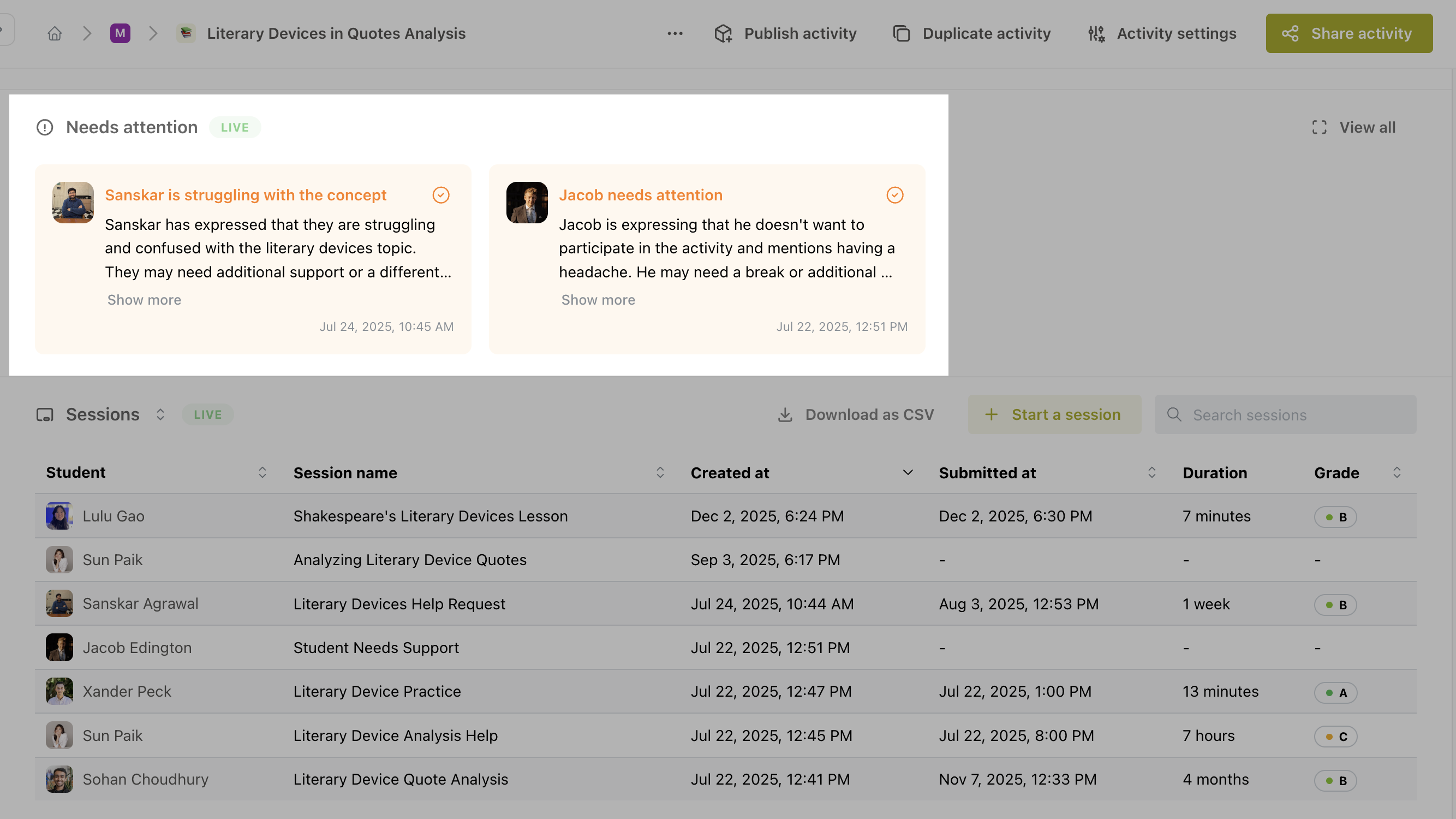
This section carries a LIVE badge and fills up while students are still working. Each card names the student, says what Sparky noticed and when, and links to that moment in the session.
- Click a card to open the message that triggered the alert
- Use the tick button to Mark as resolved, or Mark as unresolved if you change your mind
- View all expands the section into a full list; it then reads Collapse
Sessions and submissions
For a lesson, the table heading is a filter — switch between Sessions, My sessions and Archived sessions. Tests, quizzes and file uploads use Submissions without that session filter.
Lessons and file uploads have these tabs; assessments have no table tabs:
| Tab | What it shows |
|---|---|
| Overview | For lessons: Student, Session name, Created at, Submitted at and Duration. For file uploads: Student, Files, Created at and Submitted at. |
| Session analytics | Student, plus Strengths, Areas of improvement and Follow up for each piece of work |
| Grades | Student plus one column per rubric category — appears only when the lesson or upload rubric has several categories |
If a lesson or upload has a rubric, a Grade column sits at the end of every tab (Overall grade when the rubric has several categories). Show scores (%) adds percentages when score viewing is permitted.
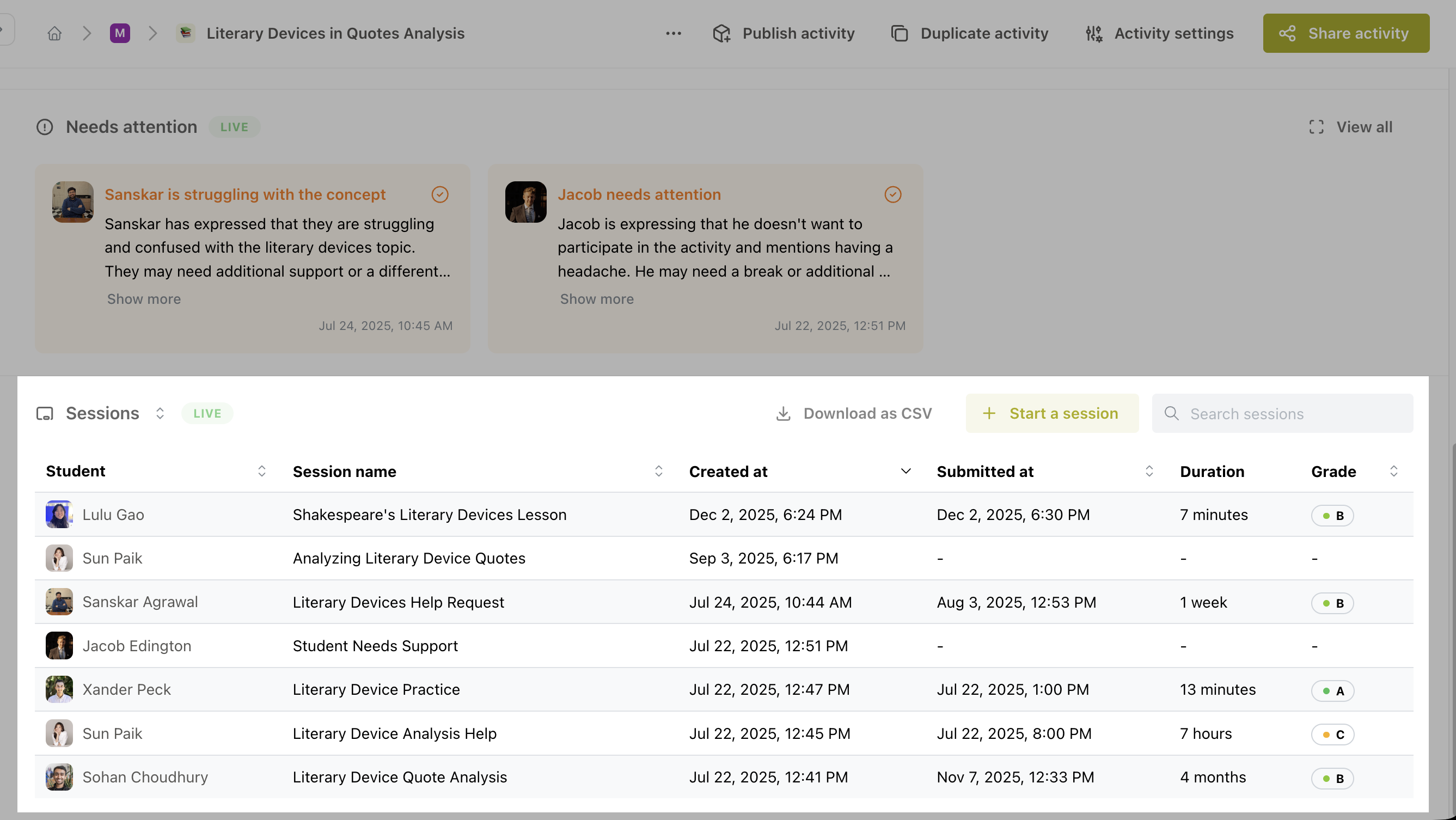
For lessons, Search sessions narrows the list. If you can see the lesson's analytics, Download resources sits above the table, with a More actions (three dots) menu beside it that holds Download as CSV and Print transcripts. Download as CSV exports the list. Download resources saves the students' files from the listed sessions (see below). Print transcripts opens every listed session on one page, each student's conversation under their name, date and grade, and each starting on a new printed page. Click Print there to print it, or choose Save as PDF in the print dialog to keep the whole class in one file. All three follow your search and filter. Assessments and file uploads have no search, CSV export, resource download or transcript printing. Use the Student column's sort menu to switch between first-name and last-name ordering.
Downloading the files from a lesson's sessions
Download resources saves the files from the listed sessions as ZIP files, with a folder for each student. The files include what students uploaded and what Sparky made in their sessions. Files you attached to the activity itself are left out.
- Click Download resources. The dialog lists each student whose session has files, with the file names and a count. Every student is ticked.
- Untick any student whose files you don't need.
- Click Download.
Each file arrives in a format you can open without Flint:
| In the session | In the ZIP file |
|---|---|
| Images, videos, audio and uploaded files | The original file |
| Documents | A Word file (.docx) |
| Slides | A PowerPoint file (.pptx) |
| Spreadsheets | An Excel file (.xlsx) |
| Code | A file in the code's language, such as .py for Python |
| Interactive visuals | A web page (.html) that opens in your browser |
Whiteboards, links and voice messages are not included. One ZIP file holds up to 250 MB, so a large class downloads in parts: click Download part 1, then Download part 2 and so on as each part is ready. If Flint can't download a file, the dialog names it and saves everything else.
Test or Quiz results
The Submissions table shows Student, Created at, Submitted at, Grade, Duration, Answered and Skipped. Click a row to review the student's answers and question-level results.
With grading permission, click Edit feedback on a completed submission to add overall and question feedback, then Save feedback. Clear edits discards unsaved feedback.
For hand-graded free responses, open the question and edit Score: beside it once auto-grading finishes. Enter a whole number from zero to the question's points, then click or tab out of the field to save. Points save separately from written feedback; Clear edits does not undo saved scores. Multiple-choice scores are machine-graded and cannot be edited by a teacher.
Share results publishes scores and saved teacher feedback to selected students and emails them a link. Only submitted, fully scored attempts with an overall grade and a student email address are ready to share. Finish grading every question first. If no submissions are ready, check for missing hand-graded scores and the student's email address. Saving feedback is not the same as releasing it. Share answer key on the activity is a separate control: it reveals correct answers or grading guides and any available Sparky response analysis to students who have submitted. Sharing scores does not automatically share that answer key or AI analysis.
A single student's lesson session
Click a lesson's row to open the transcript. Session analysis sits above it with Strengths, Areas of improvement and Follow-up cards for that student alone, alongside their grade and any rubric feedback you have left.
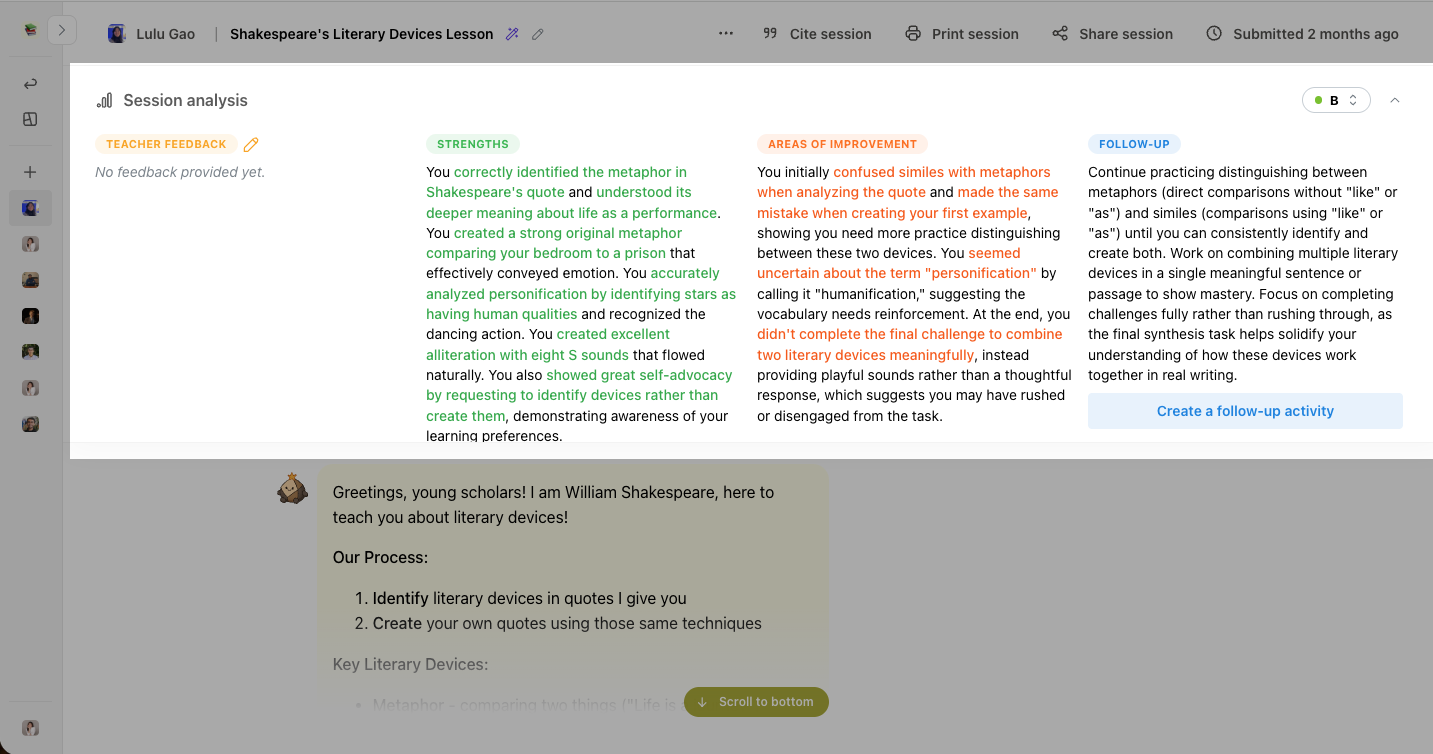
Learn more about session analytics.
Use the evidence and alerts to identify learning gaps, intervene while students work, plan follow-up practice, and understand student thinking beyond a final grade.