

Teachers join Flint the same way everyone else does — you add their email addresses and give them the Teacher role. This is the quickest route for a pilot group, where you want a handful of named teachers rather than your whole staff.
As a staff school or term owner, including a teacher designated as the term's creator, check the term name above People before you start. These invitations add teachers to that term; the Admin role label alone is not the management permission.
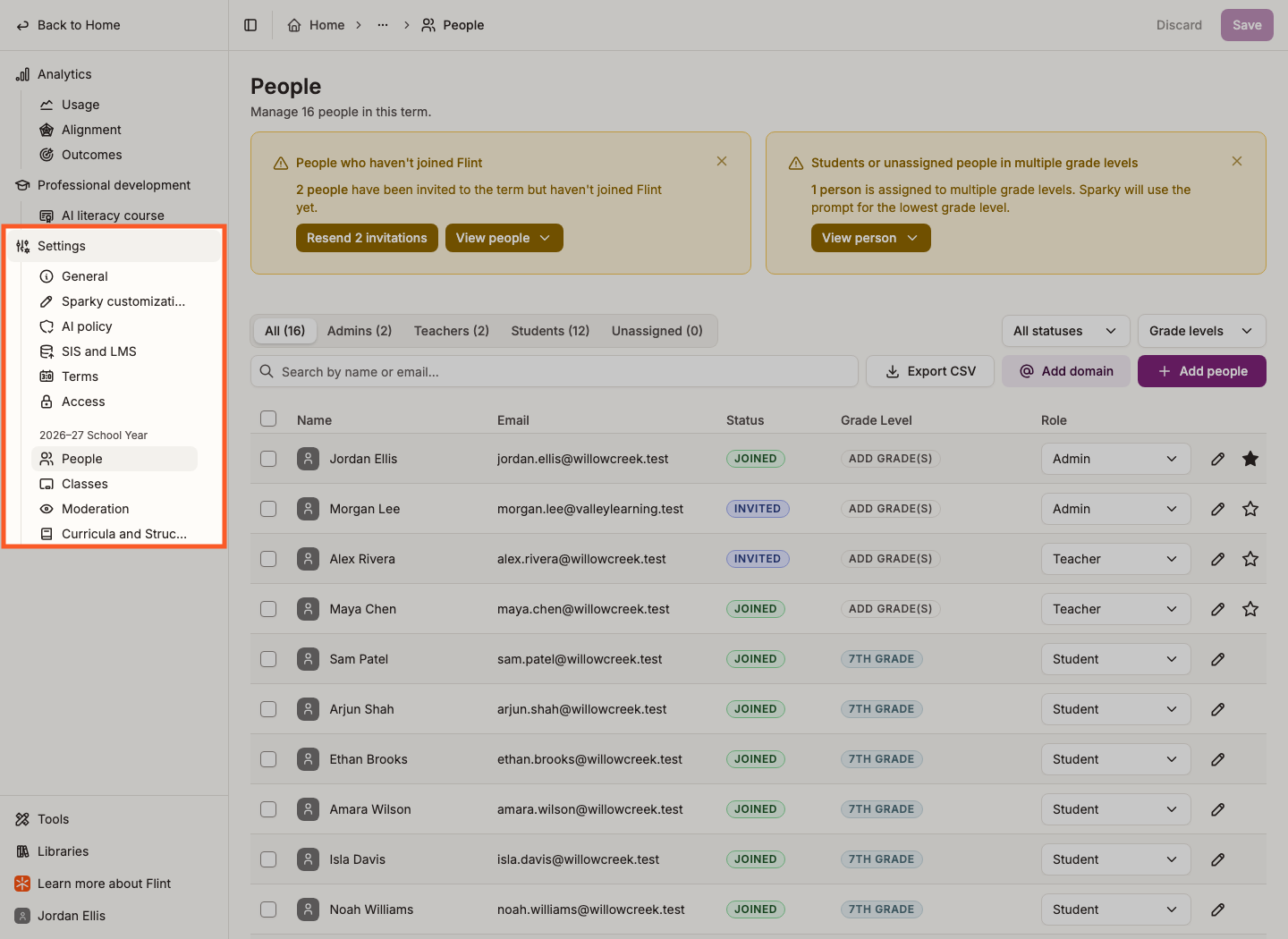
- Go to Admin → Settings → People.
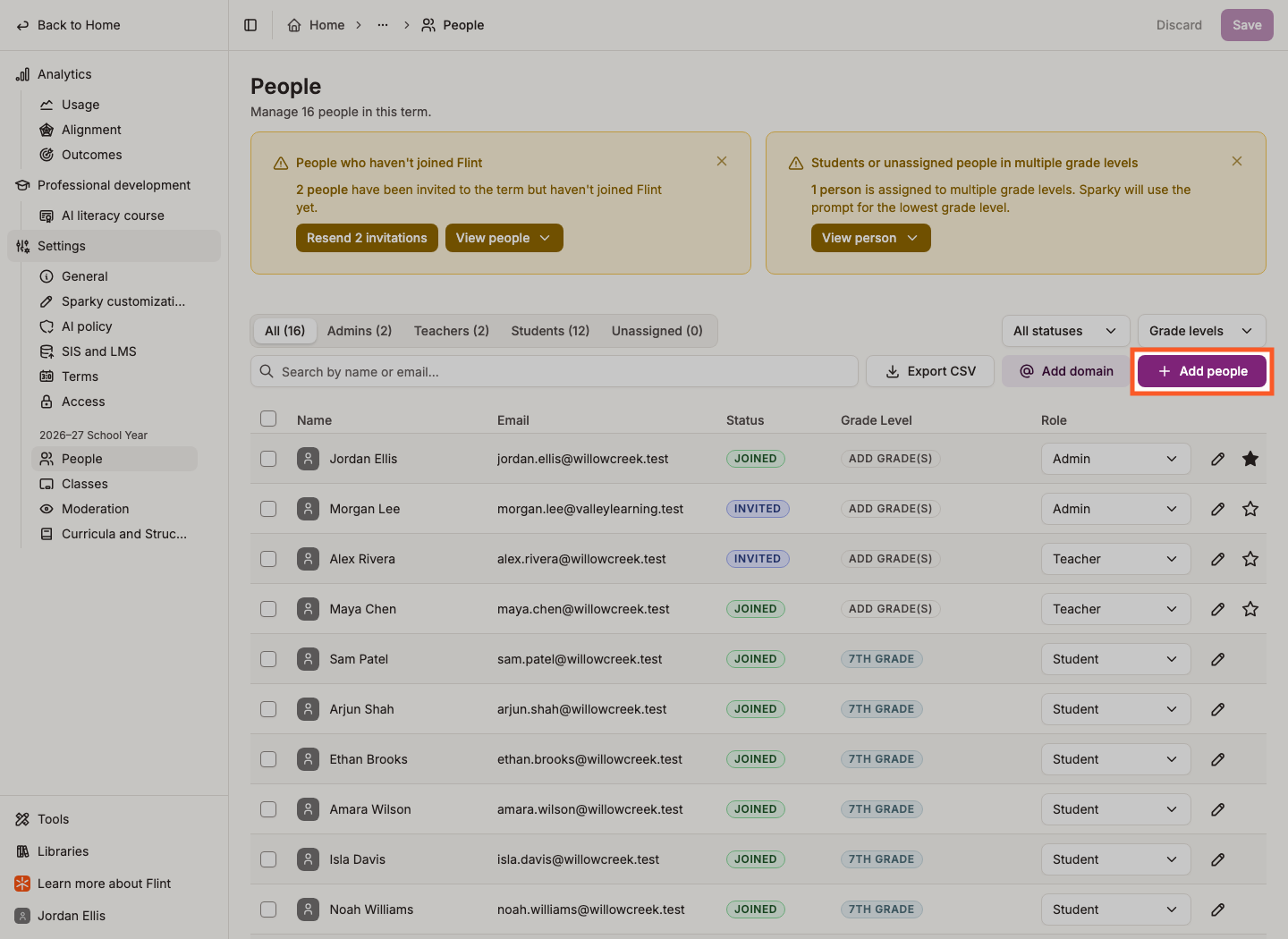
- Click Add people.
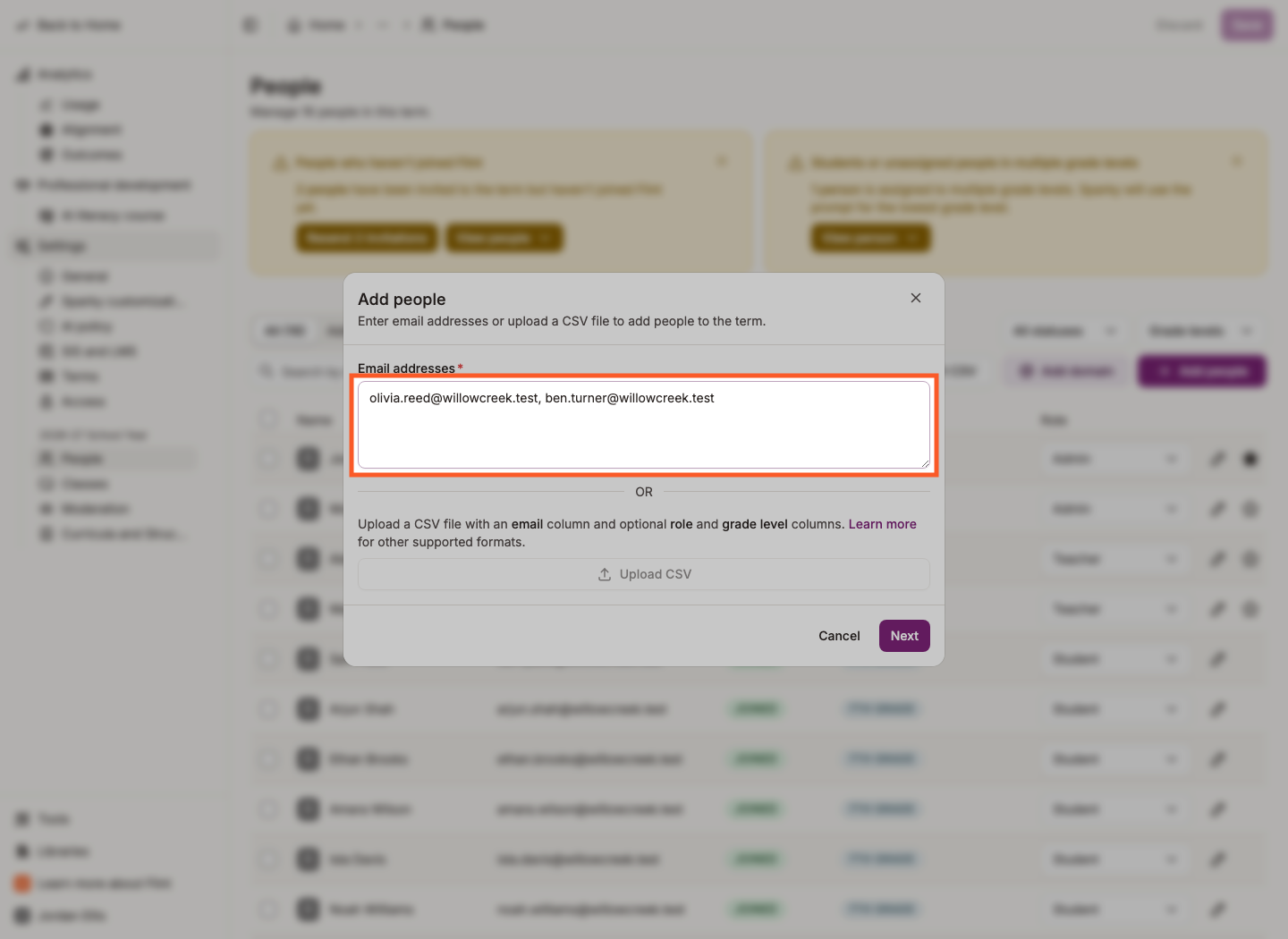
- Paste the teachers' email addresses into Email addresses, separated by commas, spaces, or new lines.
- Click Next.
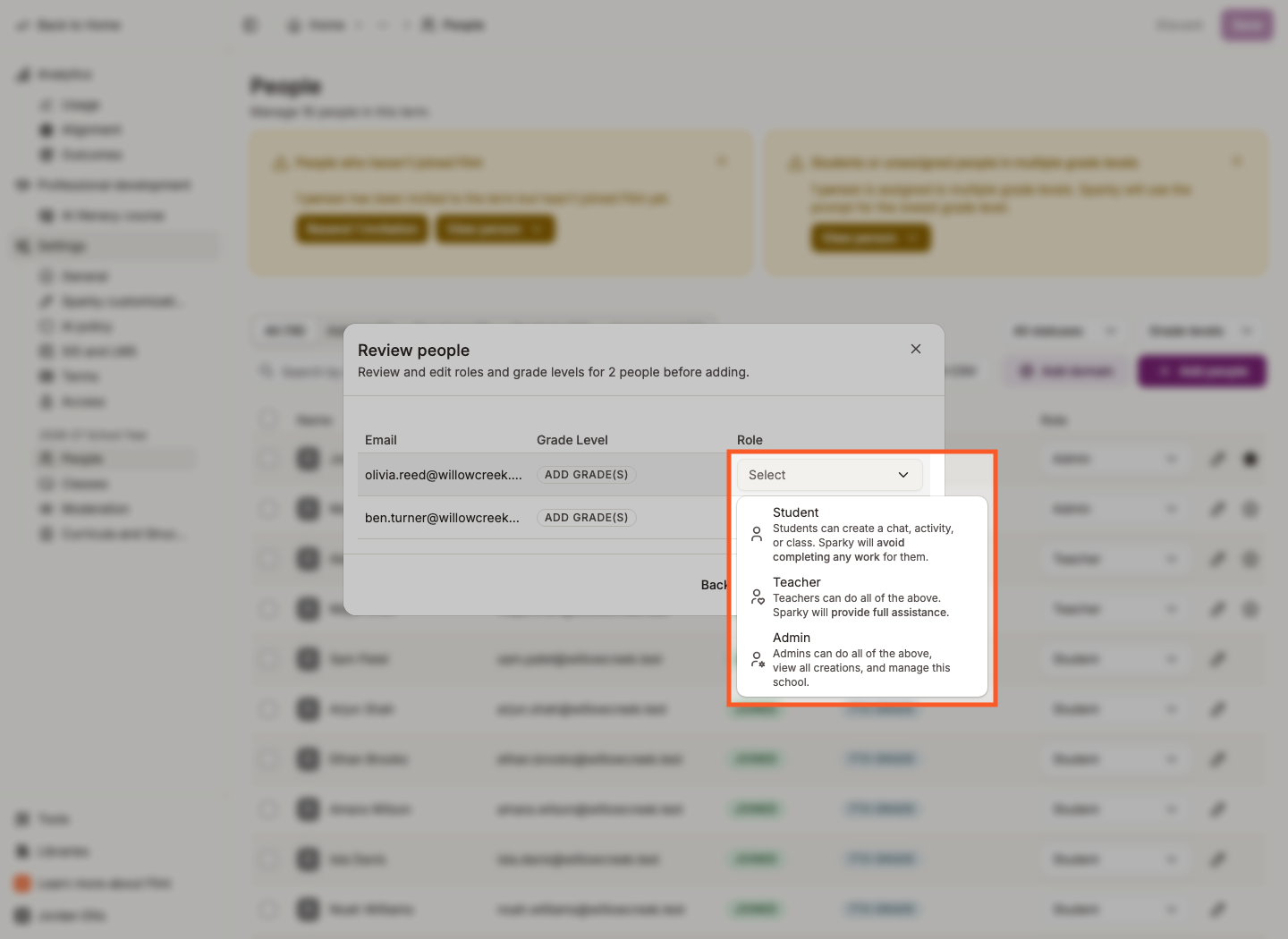
- On Review people, click Add (N unassigned) as and choose Teacher to give all of them that role at once, or set each row's Role individually and then click Add.
- Click Save in the top right and confirm.
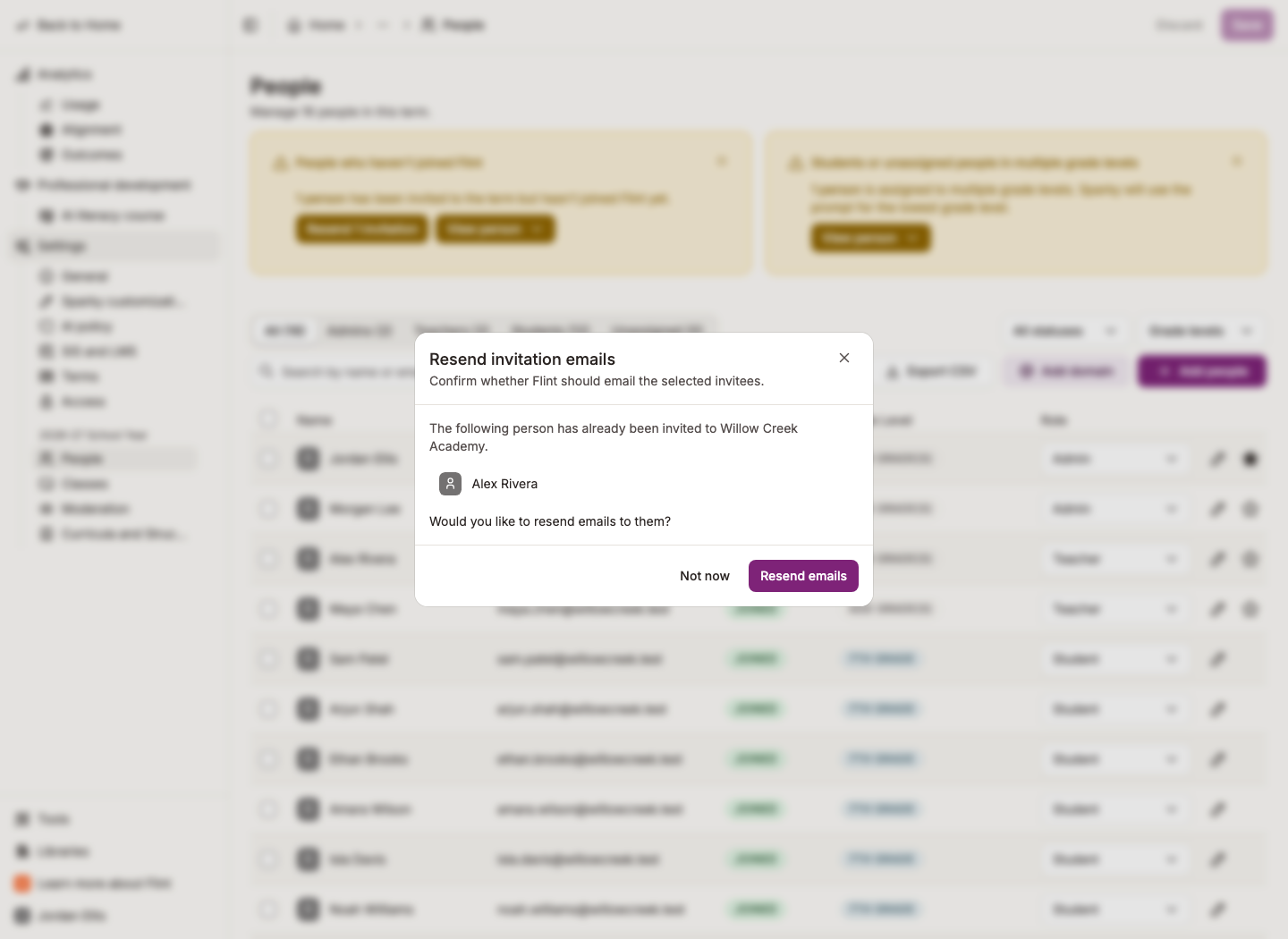
- When Flint asks whether to email the new invitees, choose Send emails, or Not now to leave them added without sending an email.
These screenshots use different fictional teacher examples; they are not one continuous roster change.
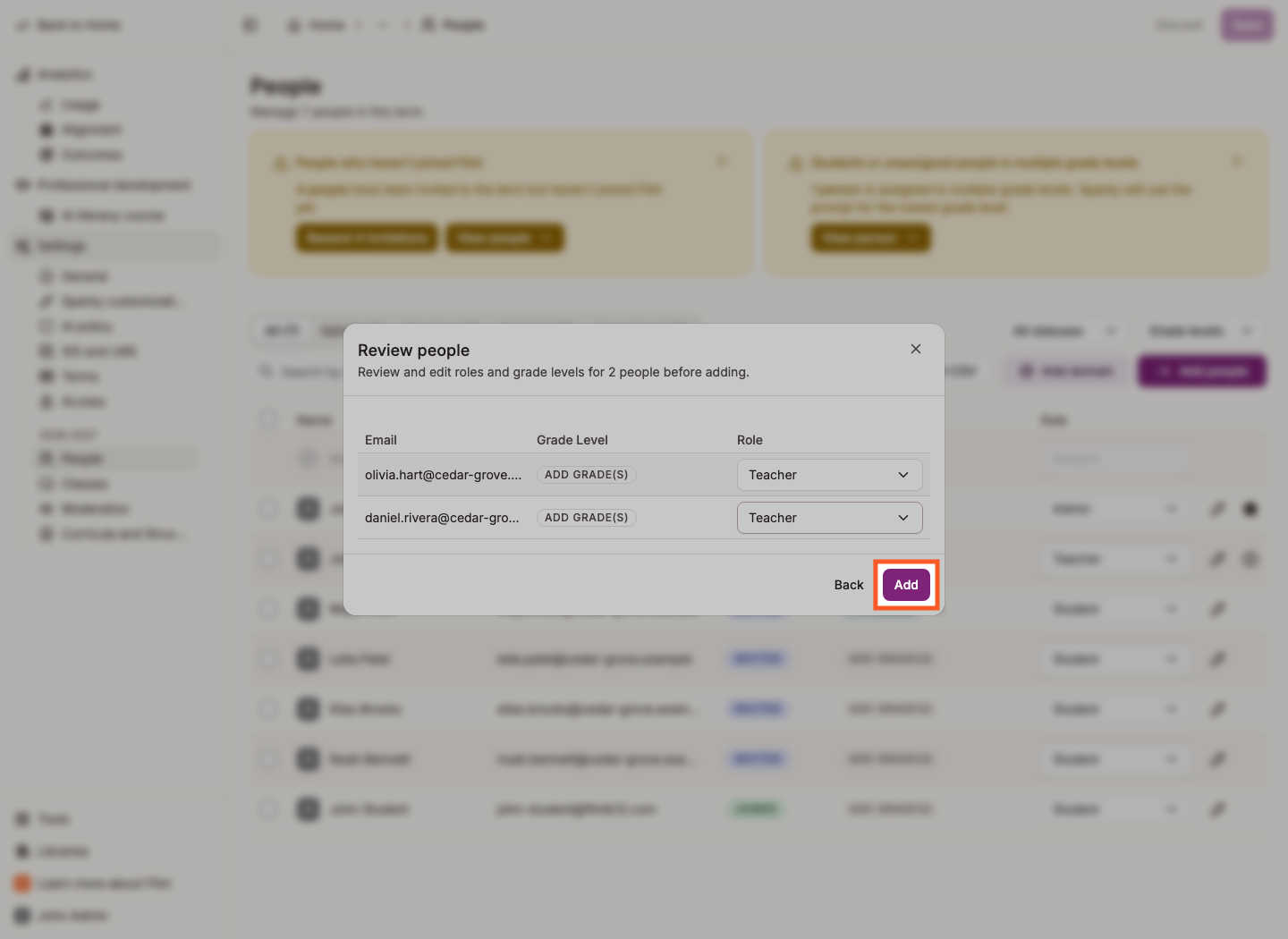
The screenshot above shows Add, which stages the teachers on the People page. You still need to click Save there and confirm.
The screenshot below is a separate Resend invitation emails example for an existing invitee. New invitations use Send invitation emails and Send emails, as in step 7.
The Teacher role matters: Sparky gives teachers full assistance, while it avoids completing work for students. You can change anyone's role later from the same page.
For the other ways to add people — uploading a CSV, opening your school to an email domain, or resending invitations — see inviting students, teachers, and admins to my school. To bring in your whole staff and student body at once, import from your SIS or LMS.