

Sparky looks for concerning content as it responds to student messages — a threat, bullying, or a student talking about hurting themselves. When Sparky flags a message, Flint emails a safety alert to the designated recipients and records the flag in analytics so someone can follow up. AI flagging does not replace staff oversight.
School moderation settings and school-wide analytics require the relevant school or term ownership, including a teacher-labelled school creator. Being a moderator does not grant that access; recipients without ownership can follow their alert email's session link. Student-owned personal schools do not expose these full Admin pages. To change a class's settings or moderators, you need Can edit on the class. See Roles in Flint.
Moderation guidelines, custom categories and school moderators apply to the selected term. The school's default Alert frequency applies across terms.
How it works, in short
- Sparky does the flagging. There's no separate step for you to run and nothing for students to trigger; it happens as part of the conversation.
- Sparky flags students' messages, and staff messages in activity sessions. In an activity session, Sparky treats whoever is writing as a student, so a teacher's or admin's message there can be flagged. Teachers' and admins' other chats, including their Activity Builder chats, never raise a flag.
- There are two layers of moderators. School moderators cover a whole term and are assigned grade levels; class moderators only hear about their own class.
- Safety alerts arrive by email only. Flint doesn't send an in-app notification when Sparky flags a message. Choose Immediately, Hourly, Daily or Weekly for non-self-harm alerts; the default is Immediately. Self-harm alerts are always sent immediately.
- Self-harm can't be switched off. Once a moderator is receiving self-harm alerts, that category is locked on.
- Every grade level needs cover. Flint won't let you save a moderator list that leaves a grade level without a moderator.
What Flint flags
Sparky flags a student's message when it is about the student or a real person in their life, read in light of the whole conversation. Slang and jokes don't change that: "lol im gonna kms" is still flagged. A topic the student is studying for school, such as a war or the violence in a novel, isn't flagged, and neither is an everyday idiom about schoolwork like "this test is murdering me". When Sparky can't tell whether a message is about the student's own life, it flags it.
| Category | What it covers |
|---|---|
| Harassment | Bullying, intimidation, or targeted abuse |
| Hate | Discrimination or hostility based on identity (race, gender, religion, etc.) |
| Illicit | Illegal activities, drugs, weapons, or other unlawful content |
| Sexual | Sexually explicit or suggestive content |
| Violence | Threats, glorification of violence, or graphic violent content. Also a student saying someone hurt, abused or neglected them, including an adult or a family member |
| Self-harm | Content about hurting oneself or suicidal ideation |
| Relationship building | Treating Sparky as a friend/confidant in matters unrelated to academics or learning. Also a student asking Sparky to keep what they say secret, such as "you won't tell my mom, right?" |
Each moderator chooses which of these they want emails about — except Self-harm, which stays on. Relationship building is marked experimental; we'd love your feedback on how it's working.
Add your own categories
If your school cares about something that isn't on that list, add it:
- Click Admin › Settings › Moderation.
- Under Custom moderation categories, type a short name — for example "Political content" — and click Add.
- Flint writes a description of what should be flagged under that name. Edit it if it isn't quite right, then click Save inside the category draft. The category is saved immediately, independently of the page's top-right Save and Discard controls.
Names can be up to 250 characters and descriptions up to 500, and you can have up to 20 custom categories per term. To remove one, click the trash button next to it and confirm Remove — future messages stop being flagged under it.
For a student's message, every school moderator whose grade levels match gets alerts for custom categories.
School moderators
School moderators watch a whole term. They can be admins, teachers, counselors or other student support staff — Flint only lets you pick someone who is a teacher or admin in your school and has already signed in at least once.
An admin- or teacher-labelled school creator starts out as a moderator, covering every grade level and every category. A student who creates a personal school is not made a school moderator. A new term receives copies of the active term's moderators, moderation guidelines and custom categories. Later changes to one term do not update the other term's copies. See Creating and managing terms.
Add or change a school moderator
Watch: Review existing term moderation without saving
The walkthrough reviews existing term moderation and discards a draft, rather than saving new moderator coverage.
- Click Admin in the left sidebar.
- Click Settings, then Moderation (it sits under your term's name).
- Under Content moderators, click Add moderator, or click an existing moderator to open their card.
- In Moderator, choose the teacher or admin.
- In Moderation categories for email notifications, tick the categories they should hear about.
- In Grade levels, choose which students they cover.
- In Alert frequency, keep School default or choose an override for this moderator.
- Click Save in the top right.
A new moderator starts out covering every grade level and every category, so steps 5 and 6 are about narrowing that down. Each moderator's card shows their coverage at a glance — All grades or a count, and All categories or a count.
The card also has a Teachers' and admins' messages checkbox. Tick it to email this moderator when Sparky flags a message written by a teacher or admin. Cards with it ticked show a Staff badge. If no moderator has it ticked, every school moderator gets these alerts. Moderators Flint adds for you, such as the school's creator, start with the box ticked; a moderator you add with Add moderator starts with it unticked. See Teachers' and admins' messages below for when Sparky flags staff.
To remove someone, click the trash button on their card and save. Flint blocks the save if it would leave a grade level without a moderator, and tells you which grades still need cover.
Moderation guidelines
Moderation guidelines are instructions for Sparky. When Sparky flags a student's message, it follows your guidelines and writes its own reply, so a student who says something worrying gets a supportive, school-appropriate response rather than a generic one.
Students never see your guidelines, so write them as directions to Sparky, not as a script for students.
Moderation guidelines don't decide what gets flagged. To flag specific words or topics, add a custom category under Custom moderation categories (see Add your own categories above).
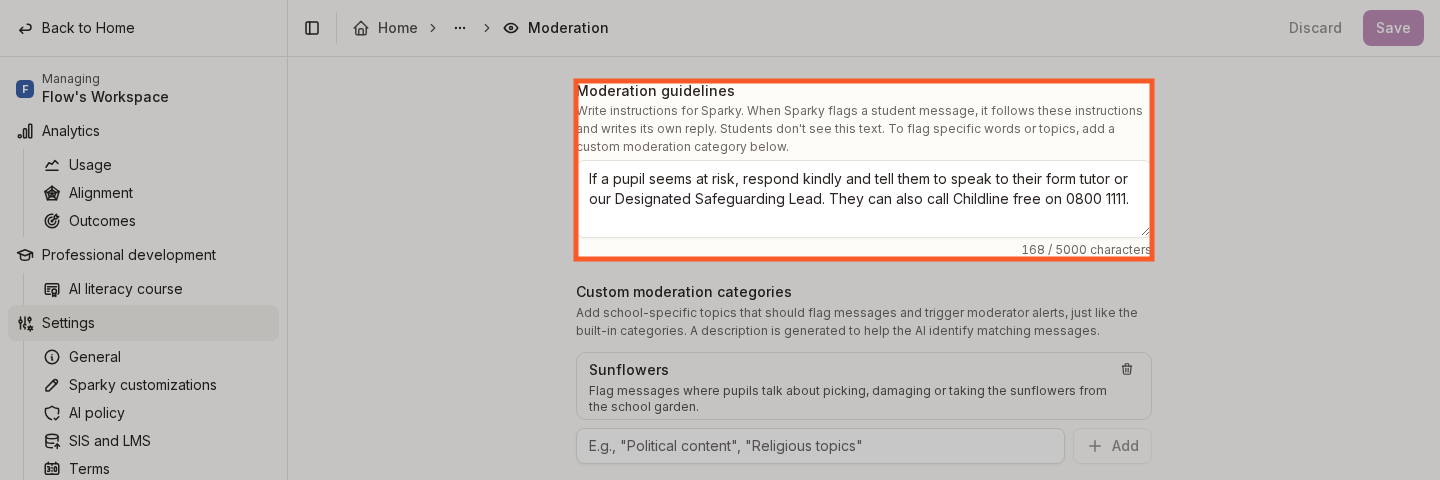
- Click Admin › Settings › Moderation.
- Write your instructions in Moderation guidelines (up to 5,000 characters).
- Click Save.
- Say who to contact. Give Sparky the name and number of your counseling office so it can pass them on.
- Point at your own policies. "Refer students to Section II, Article III of the student handbook."
- Set the tone. Say how you want Sparky to respond — calm, kind, redirecting gently back to learning. For example, tell Sparky never to repeat the flagged words back to the student.
For example: "Stay calm and kind. Never repeat the flagged words back to the student. If a student uses inappropriate language, point them to Section II, Article III of our student handbook. For safety concerns, tell the student they can talk to the school counselor and share the counseling office's contact details."
Class moderators
A class moderator only hears about flagged student messages in their own class, and only for the categories chosen in that class's settings. Teachers with Can edit on the class also receive these alerts automatically, even without a filled moderator shield. An admin-labelled editor does not qualify through that automatic teacher rule; use the moderator shield when they should receive class alerts.
- Open the class.
- Click Settings in the class sidebar.
- Under Moderation categories for email notifications, tick or untick categories. Self-harm stays on.
- In Alert frequency, keep School default or choose a frequency for this class's recipients.
- Click Save.
Watch: Review a class’s existing alert settings
The walkthrough reviews existing categories and frequency, then cancels without changing alert settings.
- Open the class and click People in the class sidebar.
- Find the person. If they aren't there yet, click Add people and add them by email.
- In their Access column, change Can participate to Can edit — only people who can edit a class can moderate it.
- Click the shield icon next to their name. It fills in once they're a moderator. A teacher with Can edit already receives class alerts through their access role, independently of this shield.
- Click Save.
At least one person who can edit the class has to be a moderator, so Flint won't let you save after unsetting the last one.
Watch: Designate a class moderator
Teachers' and admins' messages
In an activity session, Sparky treats whoever is writing as a student, so it can flag a teacher's or admin's message there. A View as student preview never raises a flag. Outside activity sessions, Sparky never flags a teacher's or admin's message: a teacher can discuss violence, self-harm or other sensitive topics in an ordinary chat or in the Activity Builder, for example while drafting a lesson, without raising a flag.
When Sparky flags a message, Flint looks up the writer's role in the school. A flag on a teacher's or admin's message goes only to the school moderators with Teachers' and admins' messages ticked, or to every school moderator when nobody has it ticked. Grade levels don't narrow these alerts. Each moderator still gets only the categories they chose, plus your custom categories. The writer never gets an alert about their own message, and class moderators and the class's teachers don't get alerts about staff messages.
Where flagged messages show up
Flagged messages appear on every plan, including Flint's free plan, both across the school and in each class. See Flint is free for teachers: what the school plan adds.
- Click Admin in the left sidebar.
- Click Analytics, then Alignment.
- Scroll to Inappropriate messages.
- Click a flagged message to open the session it came from, scrolled to that message with a Flagged message note naming the categories it matched.
On the free plan, Inappropriate messages shows your school's real flagged messages at the top of the Alignment tab. The sections below it are sample data, because alignment insights for the whole school are part of the school plan.
Watch: Open a school moderation flag
- Open the class and click Analytics in the class sidebar.
- Open the Alignment tab.
- Scroll to Inappropriate messages.
- Click a flagged message to open the session it came from.
People with Can edit on the class also see an Inappropriate messages card under Needs attention on the class's Overview when messages in the class were flagged in the last 30 days. The card shows how many messages were flagged and how many students they came from. Click it to open the class's Analytics on the Alignment tab.
Watch: Open a class moderation flag
Use the date range at the top of the page to change the period you're looking at.
What changes in a flagged chat
Once Sparky flags any message in a chat, Sparky stops showing follow-up suggestions (the reply buttons under its messages) for the rest of that chat. The chat also stops appearing under Pick up where you left off on Home.
The email alerts
Safety alerts come only by email; Flint doesn't show them as in-app notifications. They come from support@mail.flintk12.com, so add that address to your safe-senders list if your school filters mail aggressively.
Alerts name the person whose chat was flagged and the categories triggered, and link straight to the session so you can read the whole conversation before deciding what to do. Self-harm always bypasses the digest schedule and is sent immediately. Other alerts follow the applicable Alert frequency:
| Frequency | Delivery |
|---|---|
| Immediately | One email per flagged message; the default |
| Hourly | A summary each hour |
| Daily | A summary at 7 AM in the school's timezone |
| Weekly | A summary on Monday at 7 AM in the school's timezone |
To set the school default, open Admin › Settings › Moderation, choose Alert frequency, then Save. A school moderator's card and a class's Settings page can each override that default; selecting School default restores inheritance. If you qualify through both school and class settings, Flint uses the faster frequency for your alerts. Daily and weekly timing uses UTC if the school has no timezone configured.