

A tool starts a chat with Sparky that is already set up for one task, such as AI Lesson Plan Generator or AI Study Guide Maker. Click Tools near the bottom of the sidebar to see every tool you can use.
Find a tool
- Click Tools in the sidebar.
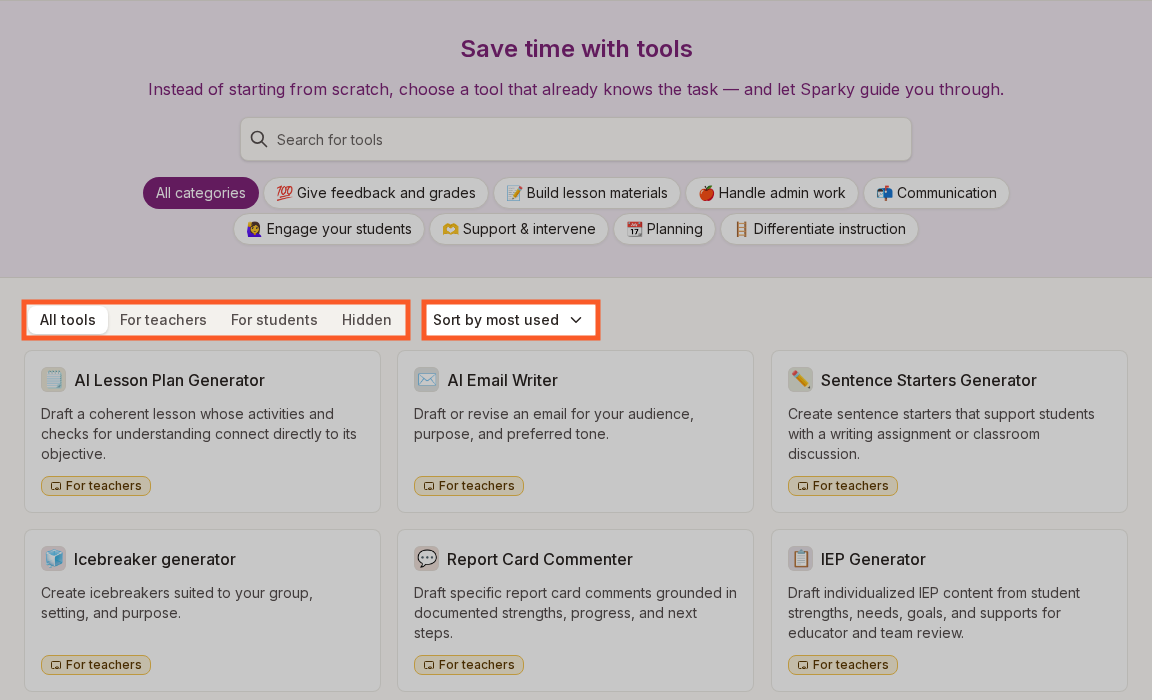
- Choose a tab:
- All tools lists every tool you can use.
- For teachers lists tools that help you with your own work, such as planning, feedback and report card comments.
- For students lists the tools your students can use.
- Hidden lists the tools you or your school have hidden.
- Type in Search for tools to match a tool's name or description, or click a category under the search box. The For students tab shows student categories, such as Writing support and Study and review. The other tabs show teacher categories, such as Build lesson materials and Planning. All categories clears the category.
- Click Sort by most used to choose Most used or Tool name. Most used puts the tools you have used most at the top.
- Click a tool card to start a chat with that tool.
Each card has a yellow For teachers tag or a purple For students tag. Students see only the tools for students, with no tabs and no tags.
Open a tool inside a class
Each class has its own Tools page. Open the class and click Tools near the bottom of the class sidebar. A tool you open there starts a chat inside that class instead of a school-wide chat.
When a student opens a tool from a class's Tools page, the chat belongs to that class. Teachers with Can edit on the class find it under Chats in the class sidebar, like any other class chat. A tool chat a student starts from the school-wide Tools page belongs to the term instead, and only school admins can open it. See Seeing your students' chats.
Hide a tool from your students
Teachers can hide any tool for students.
- Click Tools in the sidebar.
- Click the For students tab.
- Click the eye button in the top-right corner of the tool's card. Its tooltip says Hide tool from students.
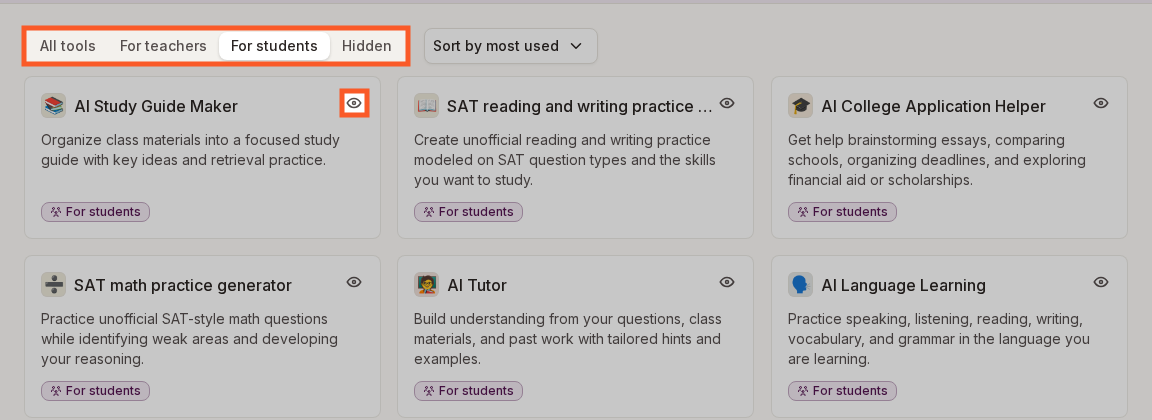
The eye changes to a crossed-out eye. The tool stays in All tools and For students for you, and it also appears under Hidden.
Your choice applies to the students in every class where you have Can edit. If a class has several teachers with Can edit, a tool any of them hides is hidden from that class's students. To show the tool again, click the crossed-out eye. Its tooltip says Show tool to students.
You can't hide tools for teachers. Only a school admin can hide those.
Hide a tool for your whole school
School admins see an eye button on every tool card. On a tool for teachers, the button hides the tool from every teacher in the school (Hide tool from teachers). On a tool for students, it hides the tool from every student in the school (Hide tool from students). A tool you hide stays on your own Tools page with a crossed-out eye, and it also appears under Hidden. Click the crossed-out eye to show the tool again.
When a school admin hides a tool for students, teachers still see its card with a lock instead of the eye. The lock's tooltip says Hidden by your school, and only a school admin can show that tool again. A tool for teachers that the school hides disappears from teachers' Tools pages.
What happens to a hidden tool
- The tool no longer appears on the Tools page or class Tools pages of the people it is hidden from.
- Sparky stops suggesting the tool on their Home page.
- A saved link to the tool opens a page saying the school has turned the tool off, with a Browse tools button, instead of starting a chat.
- Chats that people already started with the tool keep working.