

Sparky has tools it reaches for on its own in a standalone chat and a conversational activity session. Describe what you want and Sparky chooses. Saying which form you want ("make slides", "draw me a diagram") helps it choose.
Where the wand (Generate content) is available, you can also select a mode: Video, Image, Slides, Graph, 3D model, Live simulation, Flashcards or Practice problems. Then type your topic and send. Selecting a mode keeps the text you have already written. Practice problems makes ungraded, self-paced practice, not a scored Test or Quiz activity.
What Sparky can make
Documents
Anything that will be read, printed, handed out or filled in — worksheets, study guides, rubrics, lesson plans, letters, reports. Documents come back formatted, with headings, tables and inline images or charts.
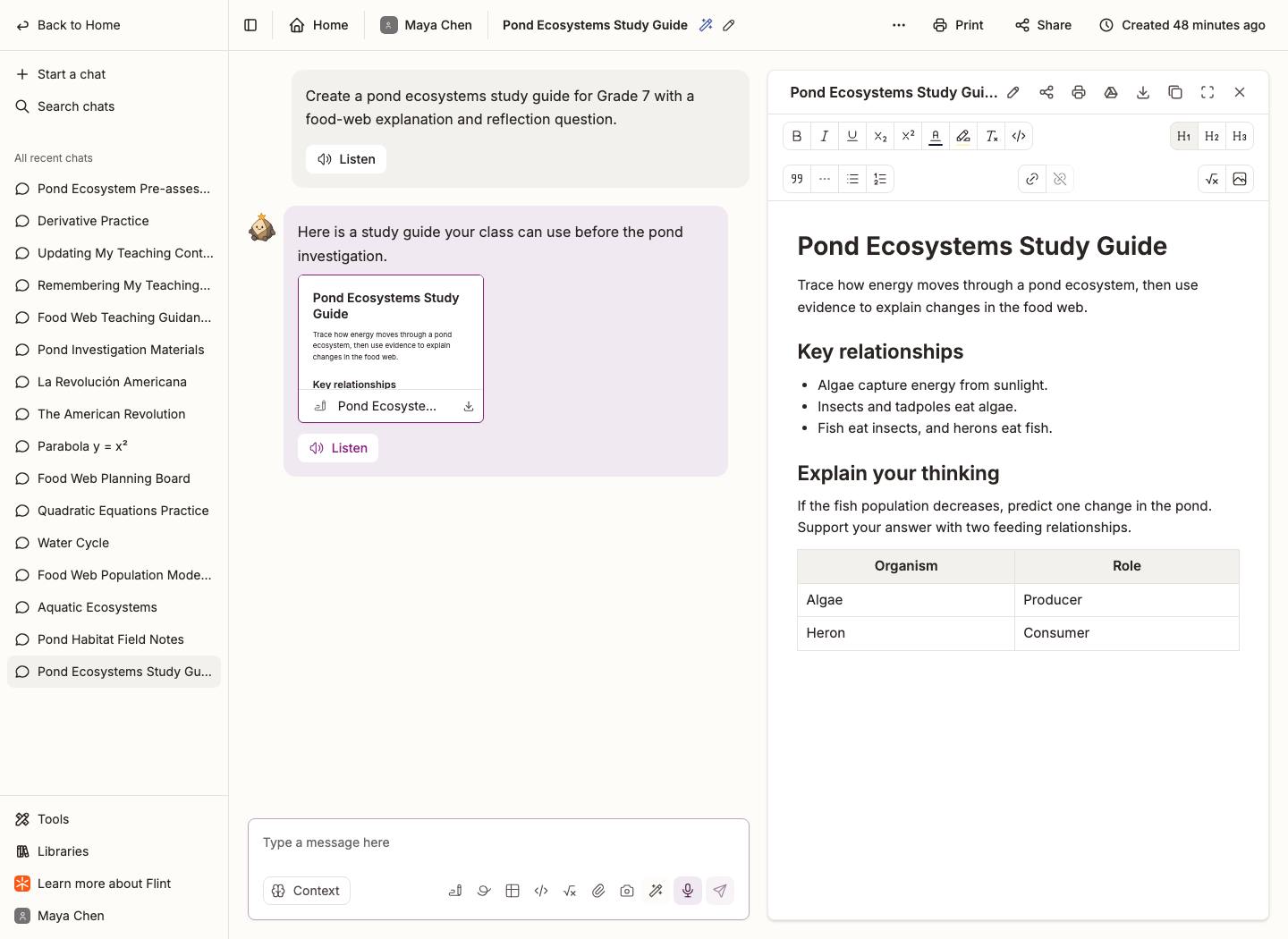
Example prompt: "Create a study guide for the American Revolution that covers the causes, key events, and outcomes."
For a saved document, Download offers Word (.docx), Open in Google Docs, and Save as PDF when the document has text. Save as PDF opens the browser's print dialog; choose the PDF destination there.
When you ask for a PDF or Word file, Sparky makes a document and tells you how to get that format. For a PDF, click Print on the document and choose the PDF destination in the print dialog.
See Document generation in Flint.
Slides
A themed deck for material you will present or walk through in order, downloadable as PowerPoint (.pptx) or openable with Open in Google Slides.
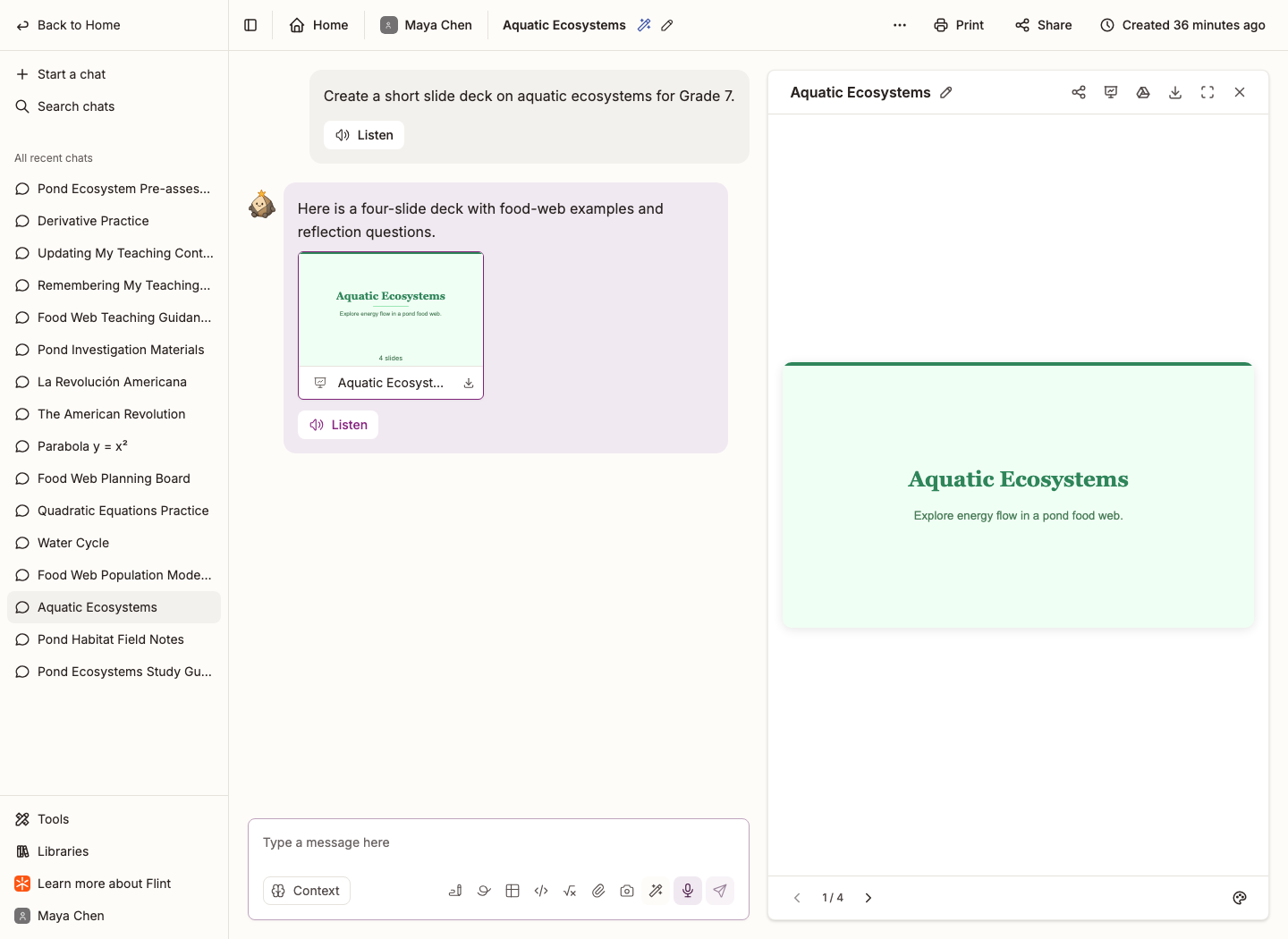
Example prompt: "Create a 5-slide presentation about the solar system for my 4th grade science class."
See Slide generation in Flint.
Videos
A narrated explainer of about 90 seconds, good for introducing, recapping or demonstrating something students can replay.
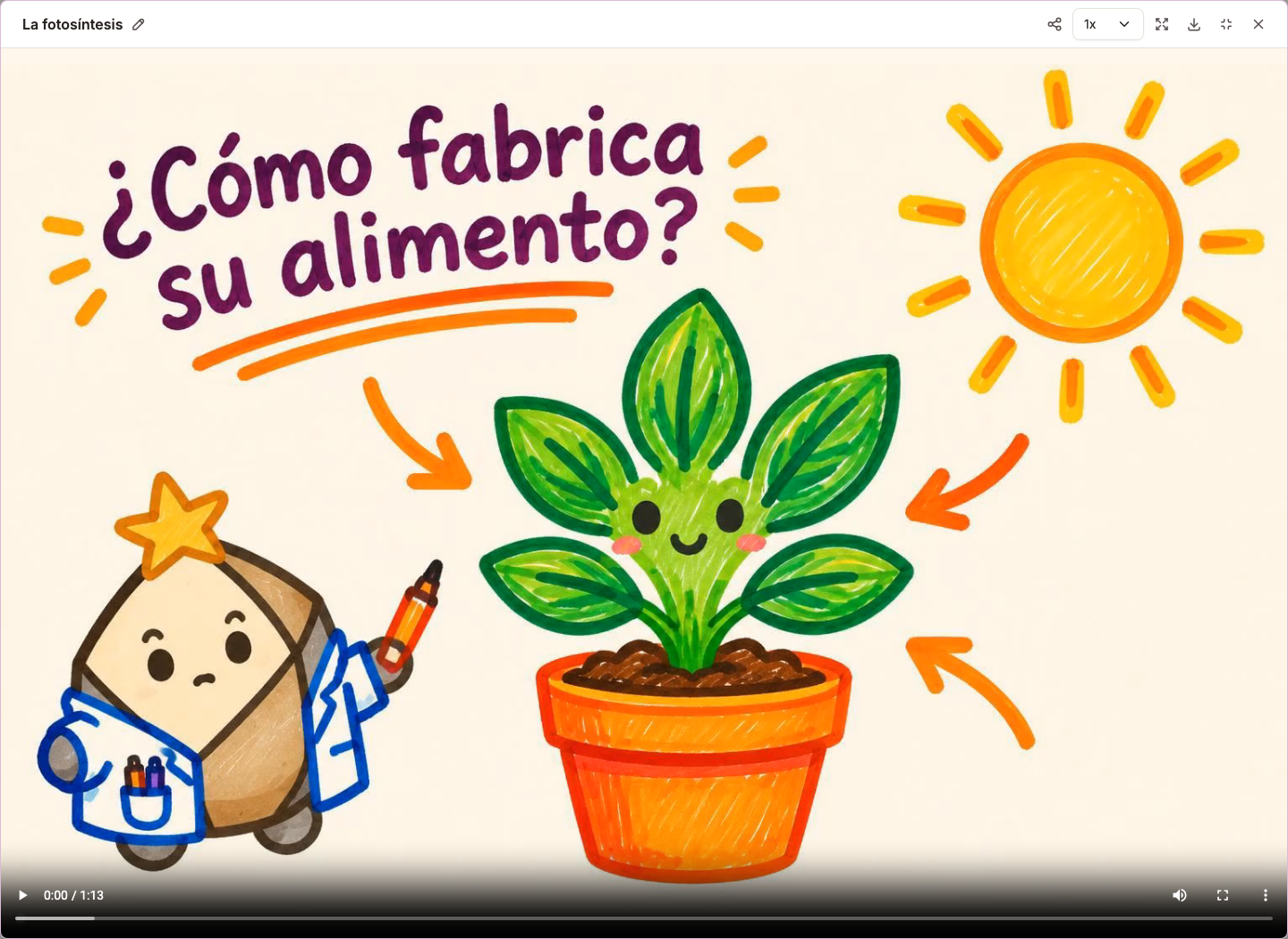
Example prompt: "Create a short video explaining how photosynthesis works in plants."
See Video generation in Flint.
Images and conceptual diagrams
AI-drawn illustrations and diagrams that explain how something works — a historical scene, labelled anatomy, a process flow or a cycle. These use image generation, not Python plotting. Sparky keeps every image it draws suitable for the age of the students who will see it, including the images in documents, slides and videos.
Example prompt: "Draw an illustration of the water cycle showing evaporation, condensation, and precipitation."
Graphs and data visualizations
For precise static plots, geometric figures and data visualizations, Sparky can use Python to compute the values and proportions. While it draws, the chat shows Let me draw that.... Choosing Graph in Generate content instead requests an interactive graph with labelled axes and computed plotted values, unless you explicitly ask for a static plot. Graphs are not always Python images.
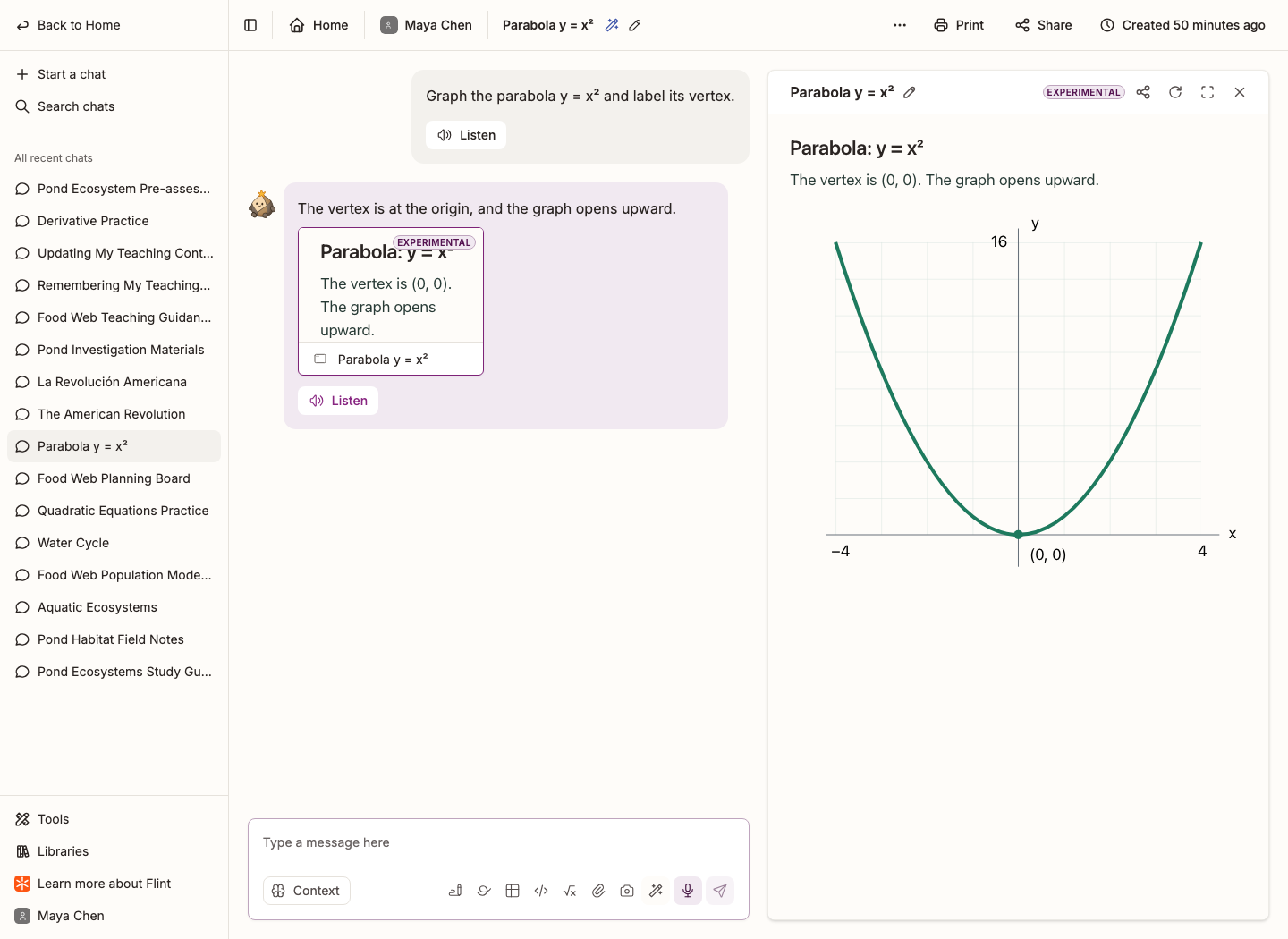
Example prompt: "Graph the function y = x² from -5 to 5 and label the vertex."
Interactives
Something clearer to try than to read about: simulators, drag-and-drop sorting and matching, step-by-step walkthroughs, flashcards, self-checking practice, 3D scenes.
Example prompt: "Build a simulator where students change the light level and watch the plant's growth rate."
Code
A program to read and change. Code opens with syntax highlighting; supported languages also have an Execute button to run the code and see its output. Flint can run Python, JavaScript, TypeScript, Java, R and Bash; the UK deployment supports Python, JavaScript and TypeScript. Execute is unavailable in a read-only view.
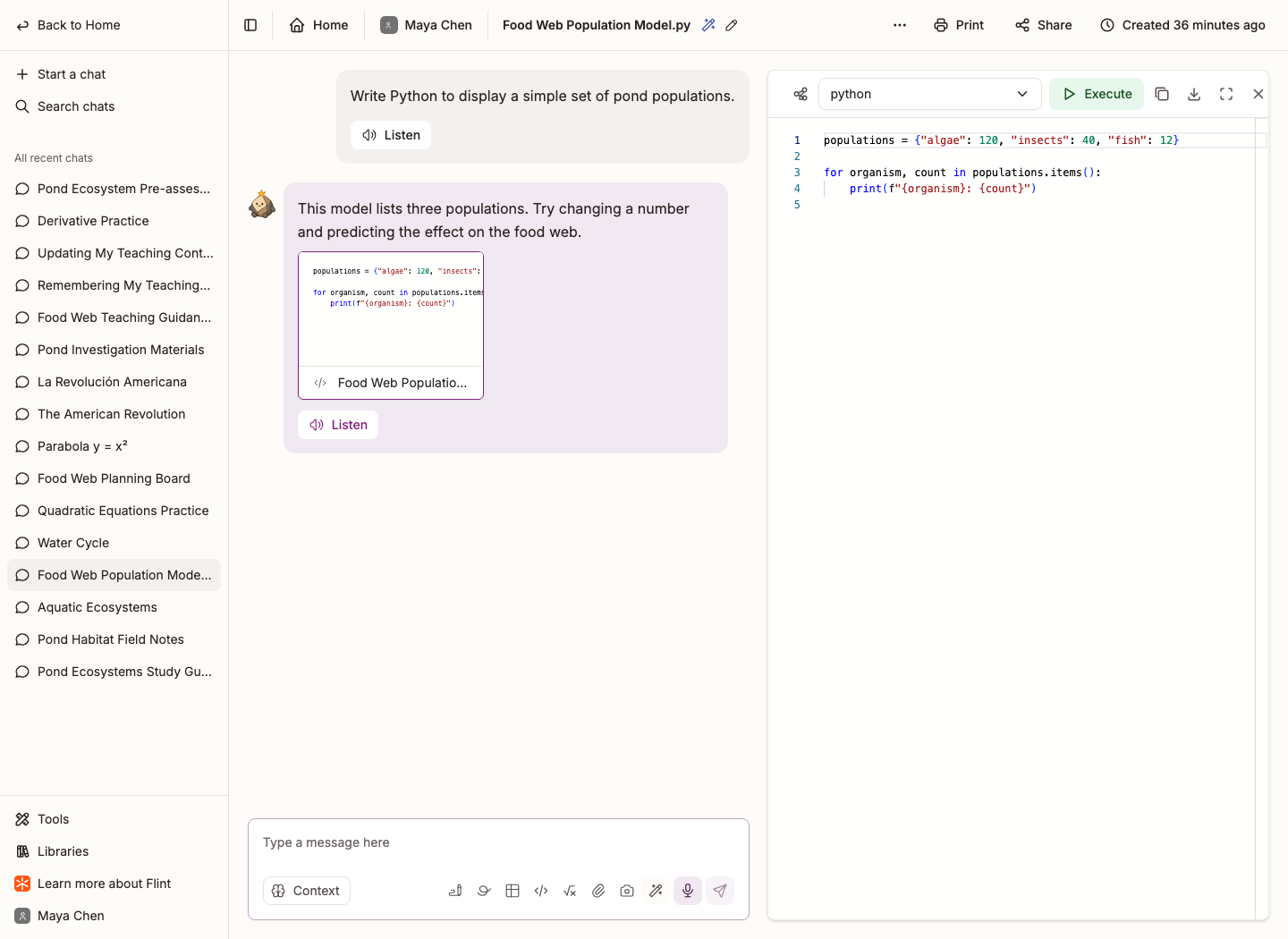
Example prompt: "Write a Python function that calculates the area of a circle given the radius, then run it with a radius of 5."
See How do I add code to Flint?.
Spreadsheets and data files
Ask Sparky for a spreadsheet you can open and edit in Flint, with sheets, rows, columns and formulas that recalculate as cells change. You can also click Create a spreadsheet to start a blank one. Ask Sparky to open an uploaded .xlsx or .csv as an editable spreadsheet; the original uploaded file stays unchanged.
Use the Format menu to make cells bold, italic, underlined or struck through, change text and fill color, add borders, align text and wrap text. Select the cells to chart, with labels in the first column and headings in the first row, then choose Bar chart, Line chart or Pie chart from Insert chart. You can also ask Sparky to format cells or add a chart.
Example prompt: "Create an editable spreadsheet for these project scores, with formulas for the totals and averages."
Download offers Excel (.xlsx) and CSV (.csv). The Excel file keeps your formatting and charts; the CSV file has only the cell values. Open in Google Sheets at the top of the panel saves a separate copy of the saved version to your Google Drive as a Google Sheet and opens it; the spreadsheet card's Download menu offers it too once the spreadsheet is saved. You may first be asked to sign in to Google and authorize Drive access. Later Flint edits do not update that copy. When you ask for an Excel or CSV file, Sparky usually makes a Flint spreadsheet and tells you how to get that format from Download. At a school on the free plan, Sparky usually makes a downloadable file instead. Formats Flint has no editor for, such as calendar files, come as downloadable files; while Sparky makes one, the chat shows Let me make the file....
Whiteboards
A blank canvas for drawing and annotating in a chat. An artifact link shares a read-only view of the whiteboard, not shared editing access.
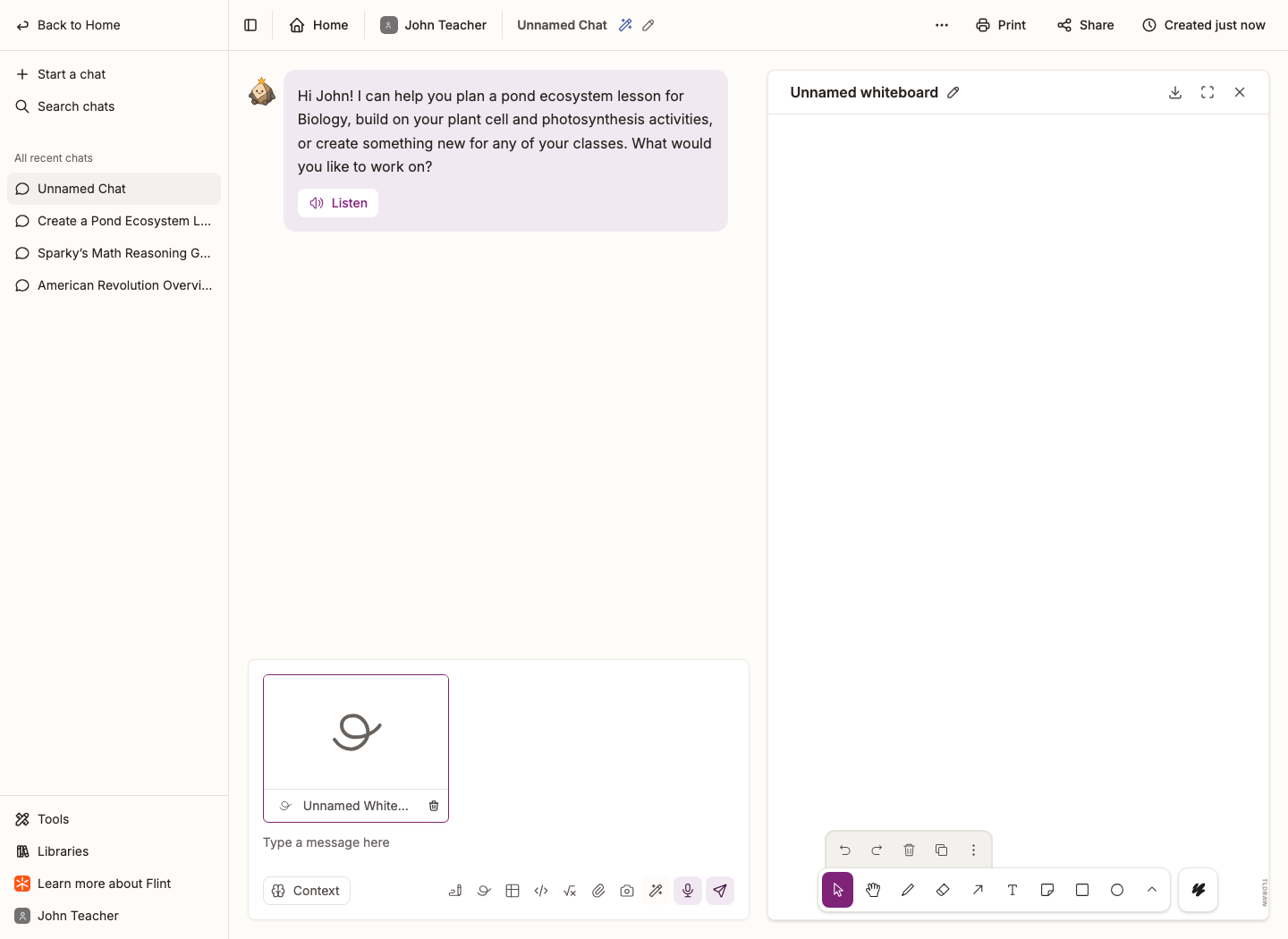
Example prompt: "Create a blank whiteboard for our class brainstorming session on renewable energy sources."
You can ask for several of these in one message — "a presentation on photosynthesis and a worksheet on each step" — and Sparky makes them all.
Changing something Sparky made
Just say what to change. Documents, slides, images, whiteboards, spreadsheets and interactives can be edited rather than recreated from scratch. Videos, static visualizations, code and downloadable data files are made again from your new request.
Sharing an artifact without the whole chat
If you own a chat, have permission to share it, and the chat belongs to a term, open content from a sent message and click Share in the content panel. Choose Open to a class, Anyone with the link or Private, then Copy link. The class option appears when an eligible class is available; Private limits access to chat owners. When you open an artifact to a class you teach, the artifact also appears under that class's Resources; choosing another option removes the artifact from Resources.
The artifact link opens a read-only view, not the conversation or editing access. Anyone with the link still respects the parent school, class or activity's access restrictions; check the audience described in the sharing dialog. The link shows the latest sent version of that artifact in the same chat, not unsent edits or its version history.
The same dialog can publish a copy of the artifact to a library, where people find it under Resources. See How do I share a chat on Flint?.
What else Sparky can do
-
Search the web. Sparky looks things up when an answer needs to be current, and adds citations you can click to check the source.
-
Look at your images. Upload a photo, a diagram, a screenshot or a student's work and ask Sparky what it sees — "are all the organelles on this plant cell labelled correctly?"
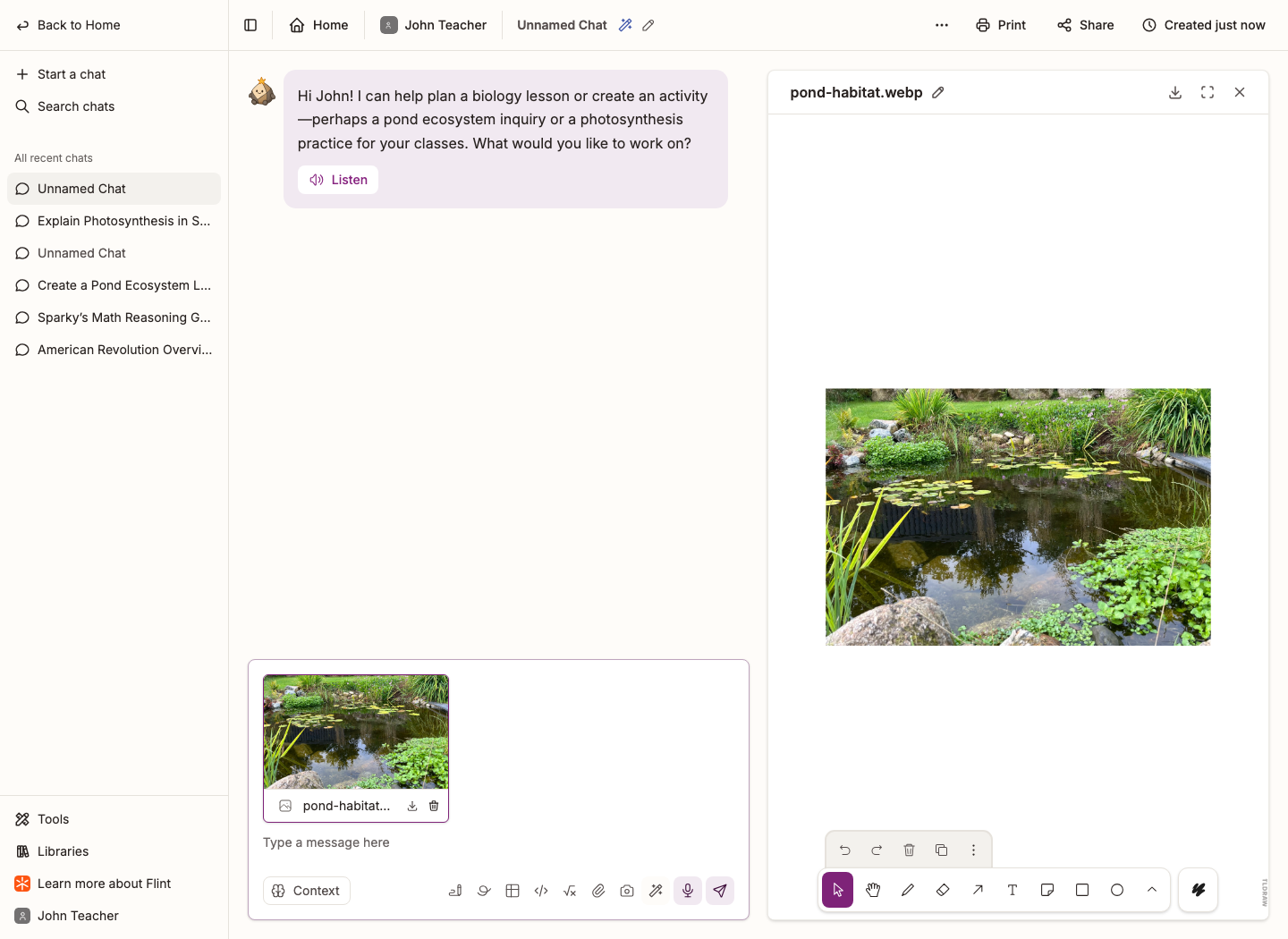
The pond photo is attached but not yet sent in this screenshot. Send your message and question to ask Sparky about the image; the photo is an upload, not an AI-generated illustration.
-
Do the maths properly. Sparky checks calculations and answers by working them out itself rather than guessing, and shows the steps with proper notation. While it works, the chat shows Let me check that... or Let me work that out....
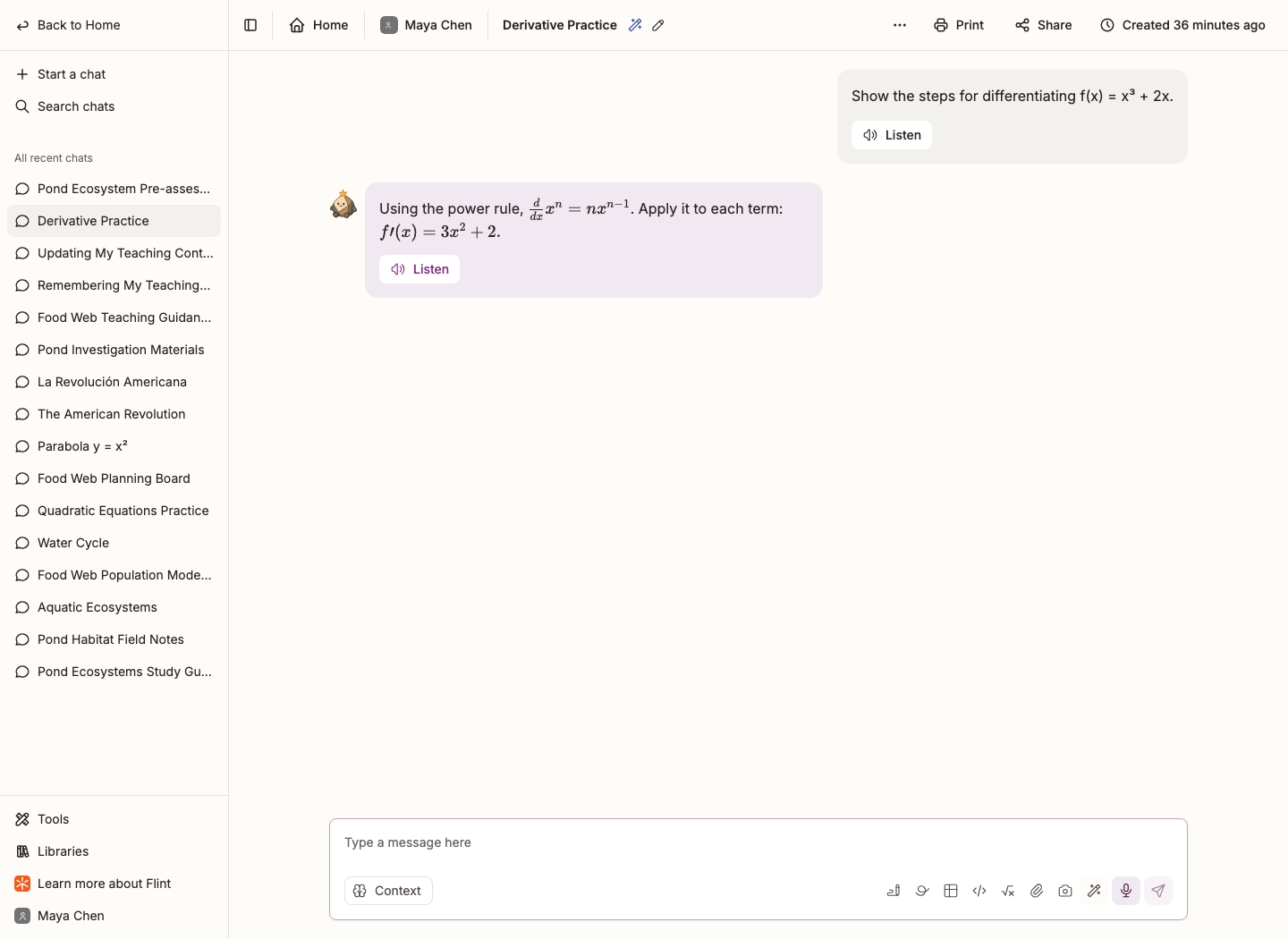
The same notation carries into documents, so practice sets come out properly typeset.
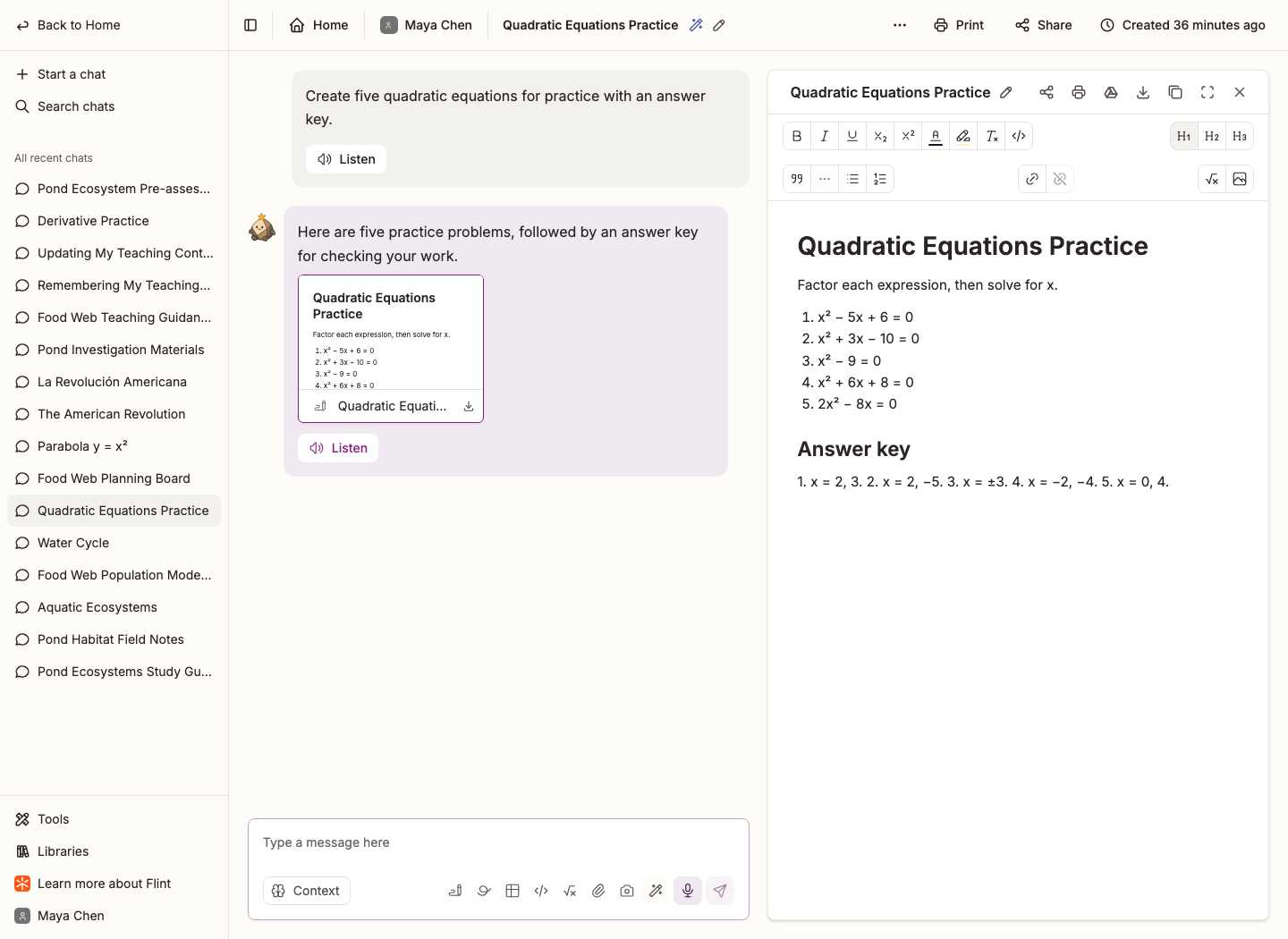
See Math support, evidence-based feedback, and level selectors!.
-
Answer questions about Flint. Sparky reads this help center, so "how do I add a co-teacher?" gets an answer in the chat.
-
Look things up in your Flint account. Sparky can check your classes, activities, sessions, submitted work and people — only the ones you already have access to.
-
Remember what matters. Ask Sparky to remember something about how you teach or learn and it applies next time. See Memories in Flint.
Turn a chat into an activity
In a standalone chat under a term or class, ask Sparky to create an activity. Its suggestion appears as a card with the activity's name, summary and Build. Click the card to open the builder with the suggestion filled in; this prepared suggestion can skip the activity-type screen. Your chat stays exactly as it is. See the guide below for draft and saving behavior.
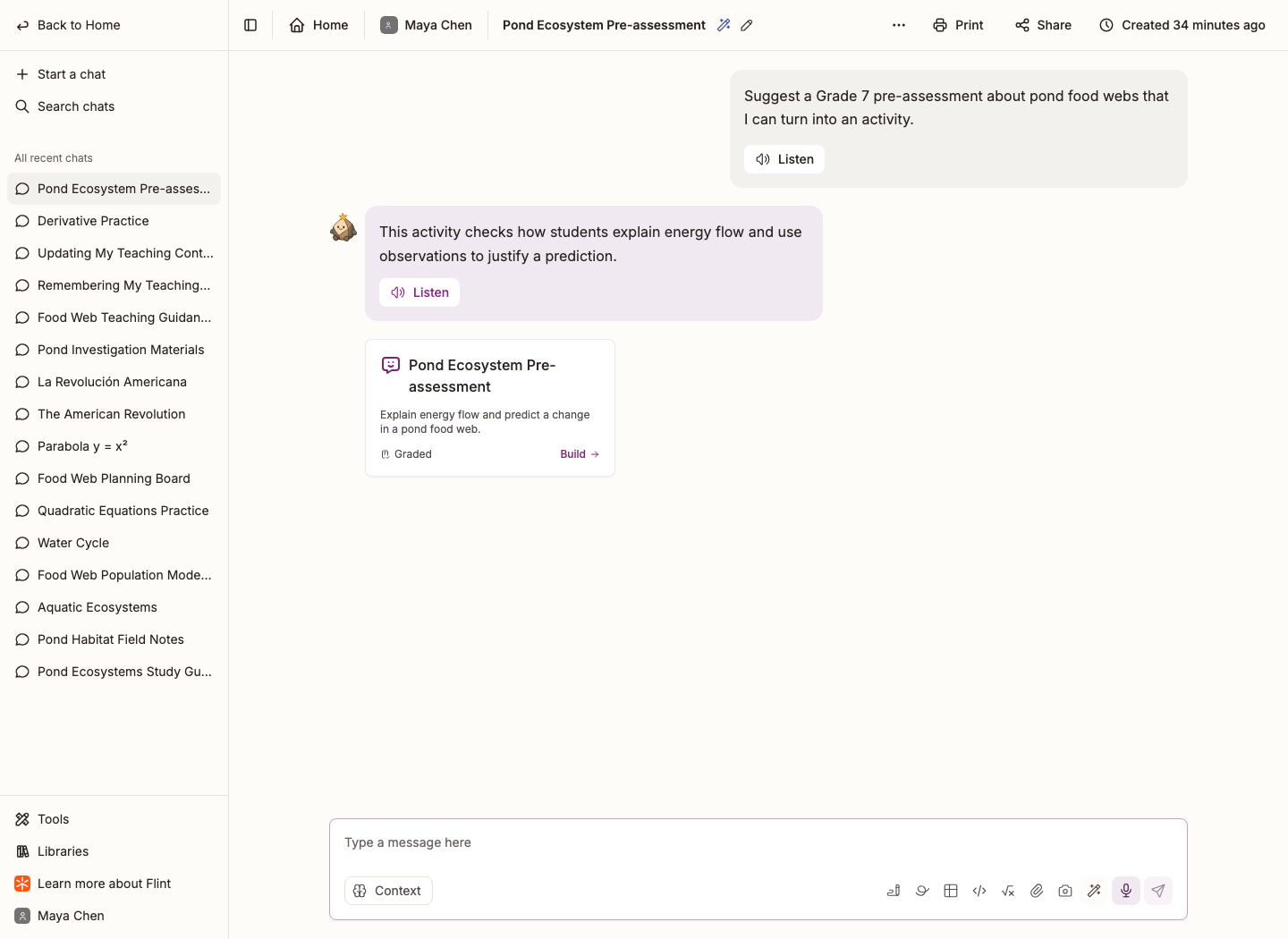
Example prompt: "I want to create an activity where students practice writing persuasive essays about environmental issues."
See How to convert chats to activities in Flint.