

Use Search in the left sidebar to browse resources you have access to in your school's selected term, rather than opening each class separately. Search is not a complete inventory of every term or submission type.
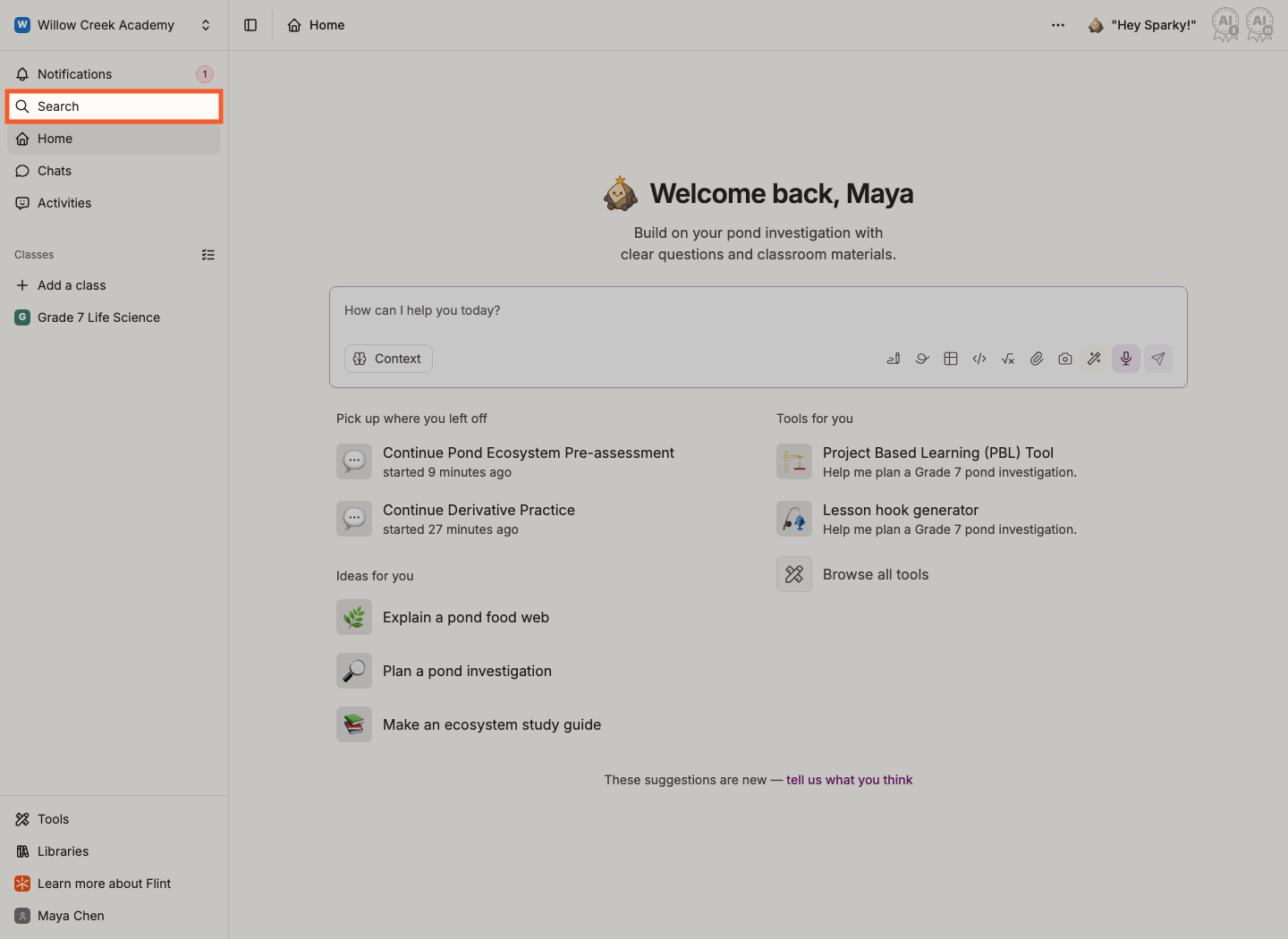
Click Search and a window opens listing accessible resources in the selected term, grouped into sections:
- Classes
- People
- Activities
- Folders
- Sessions
- Chats
You don't have to type anything — with the box empty you're browsing, not searching. Start typing a name and every section narrows to what matches.
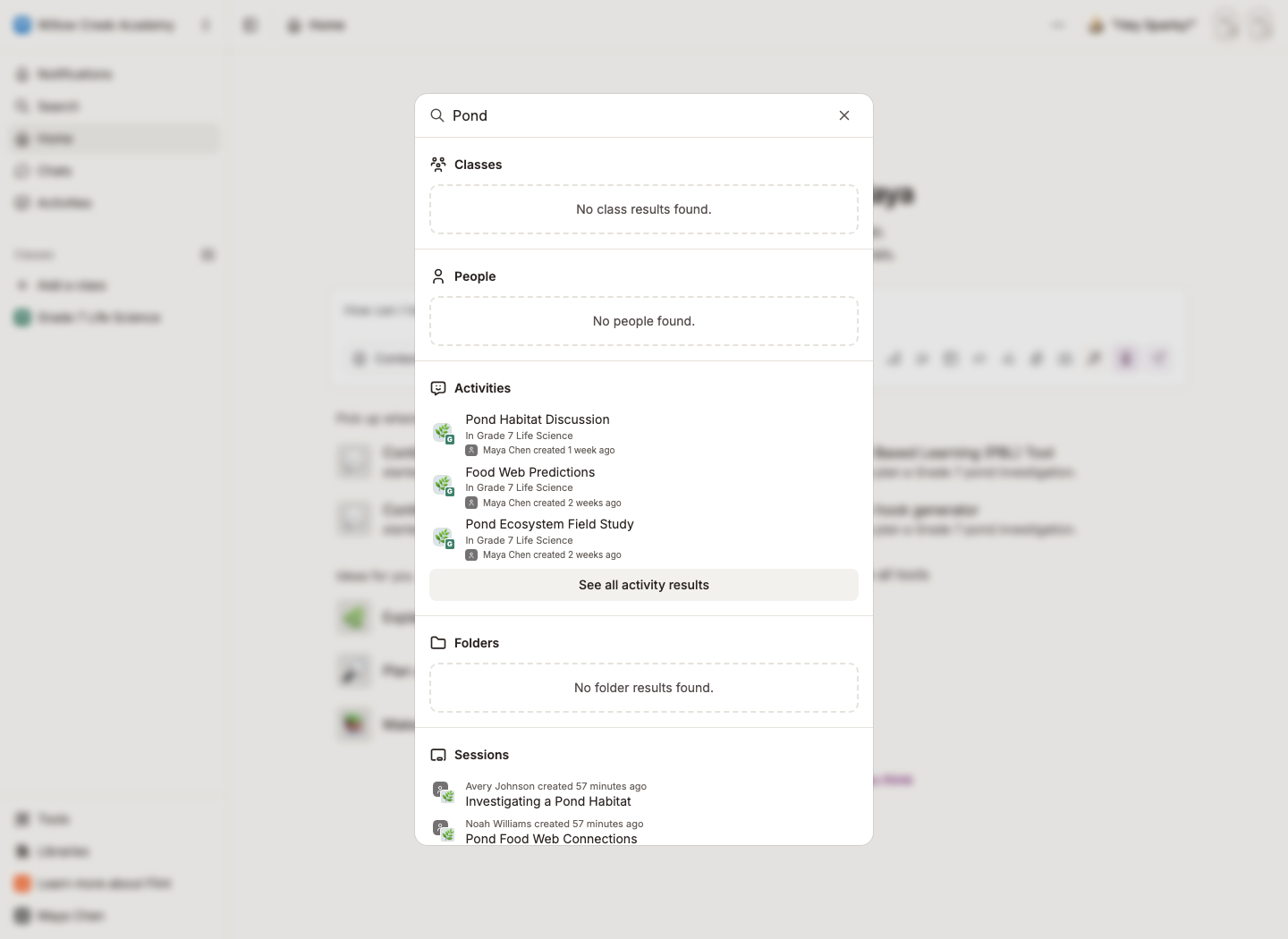
See all matching results in one section
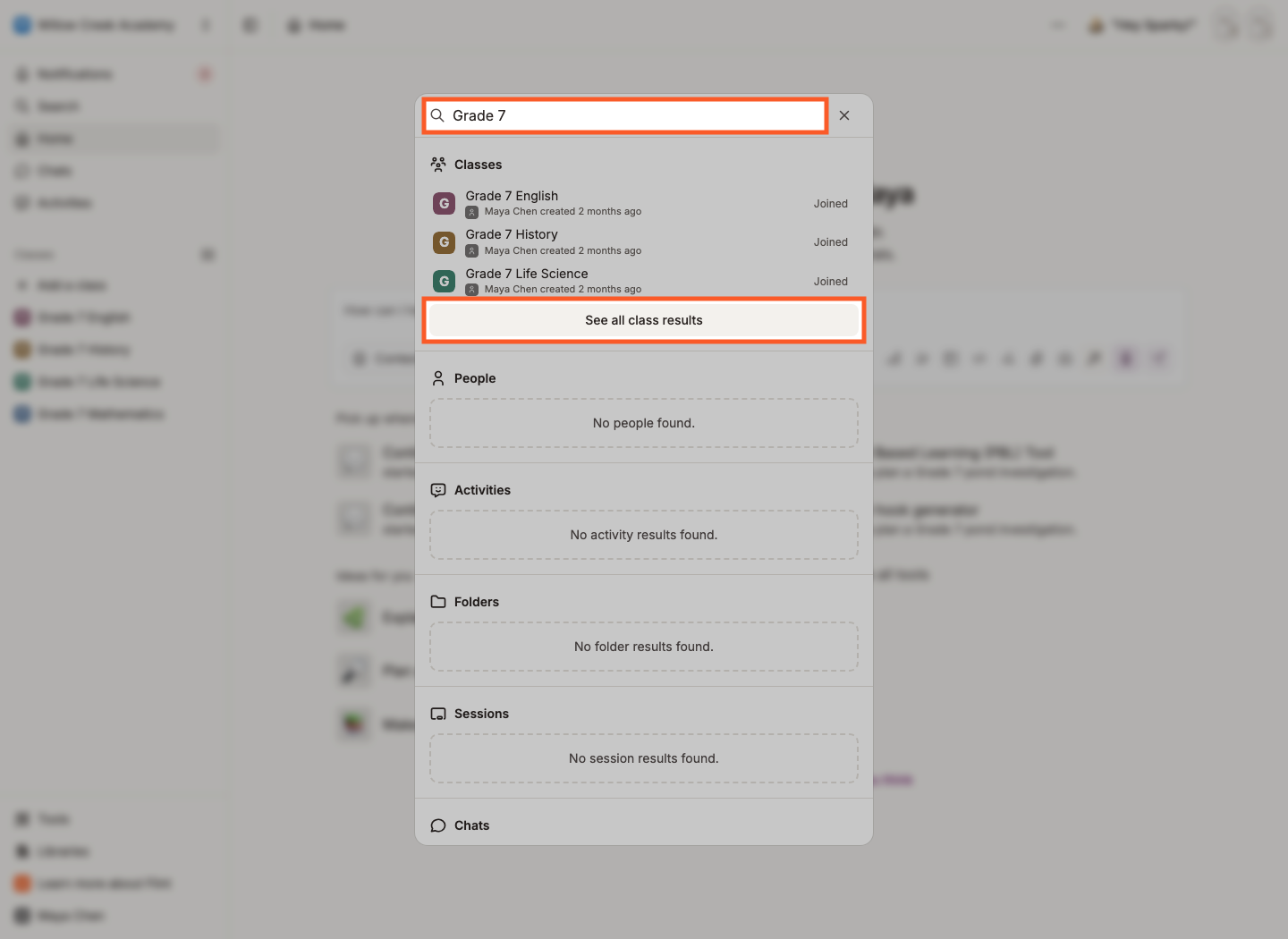
Each section shows only its first three results. To see the rest, click the button at the end of it — See all class results, See all people results, See all activity results, See all folder results, See all session results or See all chat results.
The window switches to that one section and a badge appears next to the search box naming it. Scroll for Load more, or click the X on the badge to go back to all sections at once.
What you'll see
Search follows access permissions. Teachers can find resources they own, resources shared with them, and open resources they can discover — not just their own classes and activities. Term People results are available to term owners and teachers; searching a class's people requires owner access to that class. An empty People section does not necessarily mean nobody belongs to the term.
Search in the sidebar covers the selected term in your school. To find earlier work, switch to the previous term first. Search buttons inside a class — on the class People page, for instance — look at that class only, and the box says so: it reads Search in {class name} rather than just Search.
Sessions results are Lesson with Sparky conversations. For File Upload or Test or Quiz submissions, open the activity and browse its submissions instead. Search includes archived chats and sessions, but does not list archived classes. See How to view archived chats and sessions for archived conversation work.