

Introduction to system prompts

A system prompt is a standing instruction given to an AI. It is not normally shown as a chat message. It guides the role the AI plays, the tone it uses, and the rules it is instructed to follow.
It's the difference between "answer whatever you're asked" and "you are a biology tutor for 9th graders — ask guiding questions, and never give away the answer".
How a system prompt shapes a conversation
A system prompt can be as plain as "You are a helpful assistant" or as specific as "You are an assistant that speaks like Shakespeare", which asks the AI to use Shakespearean style.
Here are some examples of the kind of role a system prompt can set:
- Historical figure: "You are Albert Einstein. Explain the theory of relativity."
- Fictional character: "You are Harry Potter, explaining Quidditch."
- Subject matter expert: "You are a professional biologist. Explain the process of photosynthesis."
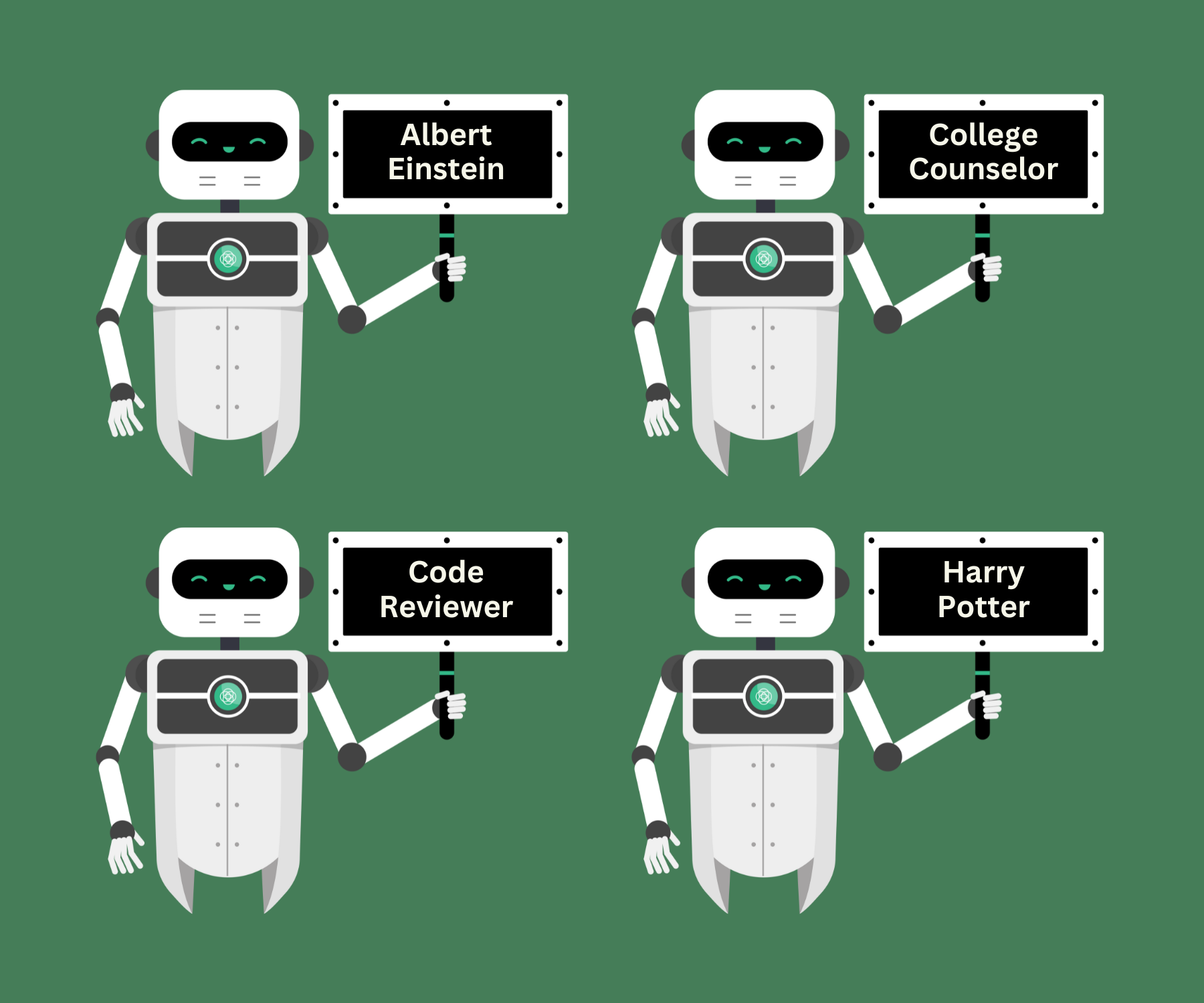
The AI can play these roles convincingly, but it doesn't truly understand them, and it has none of the real-life experience or expertise of the person it is imitating.
Where you write a system prompt in Flint
You don't write raw system prompts in Flint — you fill in fields, and Flint assembles the instructions for you. In a Lesson with Sparky activity's Activity behavior section, two fields do most of this work:
| Field | What it sets |
|---|---|
| Sparky's role | Who Sparky is for this activity, and what it is there to do |
| Guidelines for Sparky | The instructions Sparky is given for the session |
Flint adds more on top of what you write: the Grade level you chose, the language settings, and your school's mission and background. In student conversations, Flint also instructs Sparky to support learning rather than do students' work for them. Participants without Can edit access cannot open the activity's Activity behavior editor. Sparky is instructed not to reveal its system prompt, but prompts do not guarantee that every reply follows every instruction.
If you have Can edit access, open your activity and click Edit activity, then expand the Activity behavior section in Settings, beside the conversation — or describe what you want in the builder conversation and let it fill the fields in for you.
Click Update activity to save changes whether you edited fields or asked Sparky. Until you save, students continue to use the previous settings.
These role and behavior settings apply to Lesson with Sparky, not every activity type. File Upload and Test or Quiz activities do not have an Activity behavior or Language panel; a test or quiz uses questions rather than a conversation with Sparky.
Key points to remember
- A system prompt guides an AI's role and rules for a conversation.
- System instructions guide replies, but do not guarantee perfect compliance.
- The AI can play a role convincingly without understanding it.
- In Flint, Sparky's role and Guidelines for Sparky are where you shape this, and Flint supplies the rest.