

What a learning report is
A learning report summarises one student's analysed activity sessions and their activity and class context. Reports are generated for the school's active term; standalone personal and class chats do not feed the report.
Reports are refreshed on Sundays when the student has newly analysed activity work. The date the current one was written sits under its heading.
Who can see one
Learning reports are available for students in schools on a paid or trial plan. A student can see their own; a school admin or someone with Can edit access to the term can view eligible students' reports in that term. Reports are not generated for teachers or admins.
The Overview tab appears when the student, plan and viewer permissions qualify, even if no report has been generated yet. An empty report does not mean the tab is unavailable.
Opening your own report
-
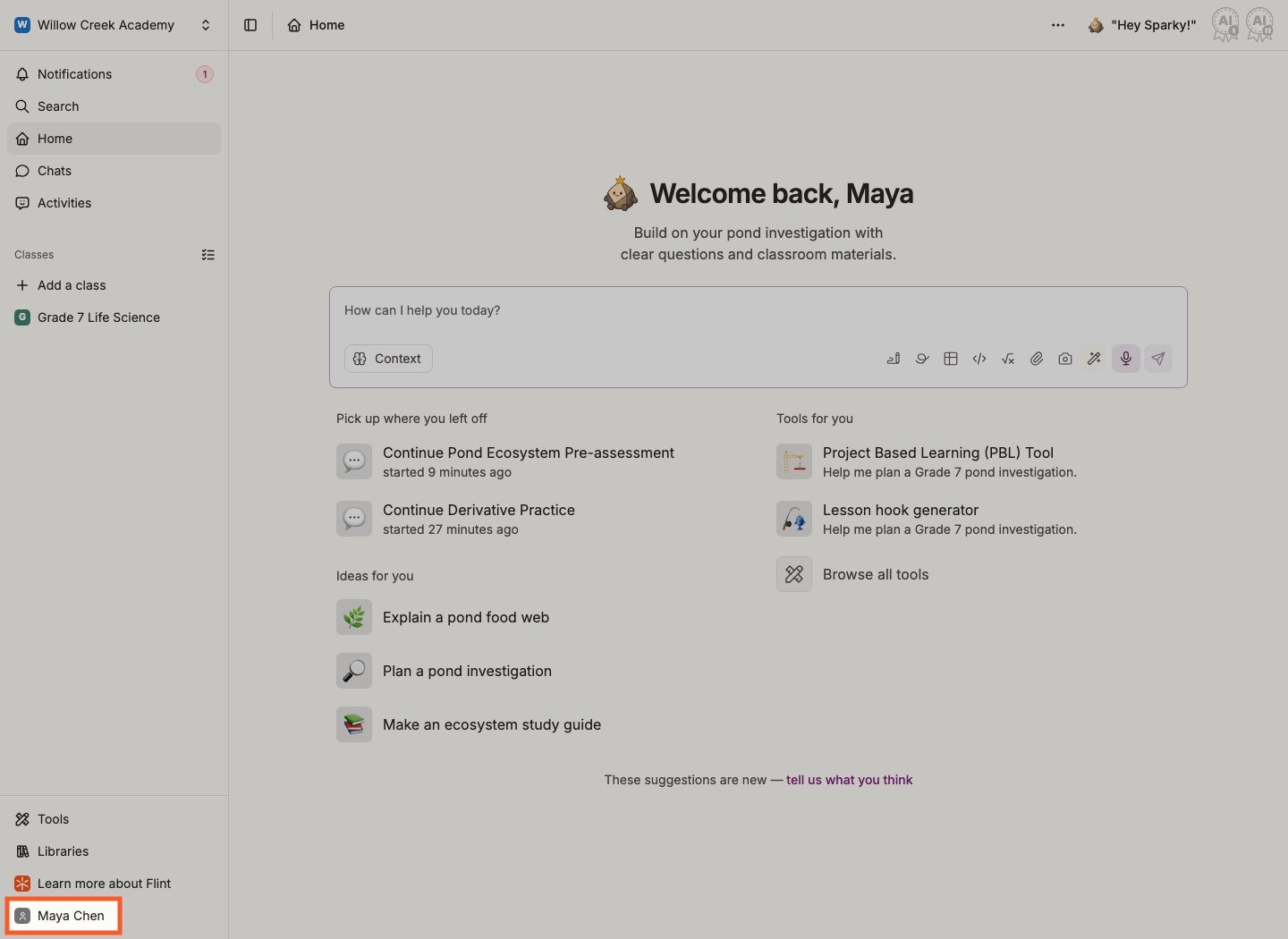
Click your name at the bottom of the sidebar.
-
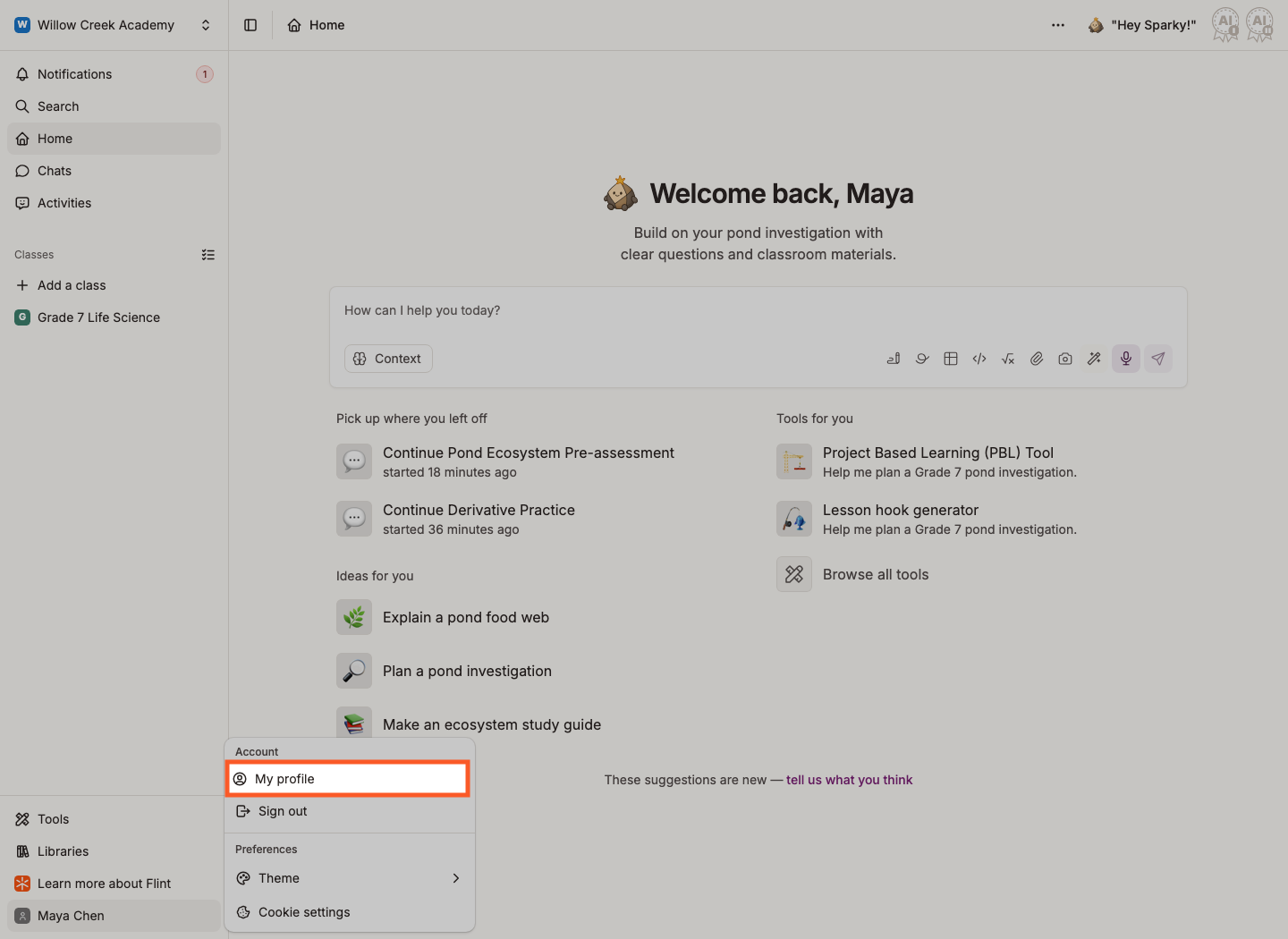
Click My profile.
-
Open the Overview tab. An available report is headed My learning profile.
The profile's other tabs — Classes, Activities, Sessions and Chats — list your work.
Opening a student's report as an admin
-
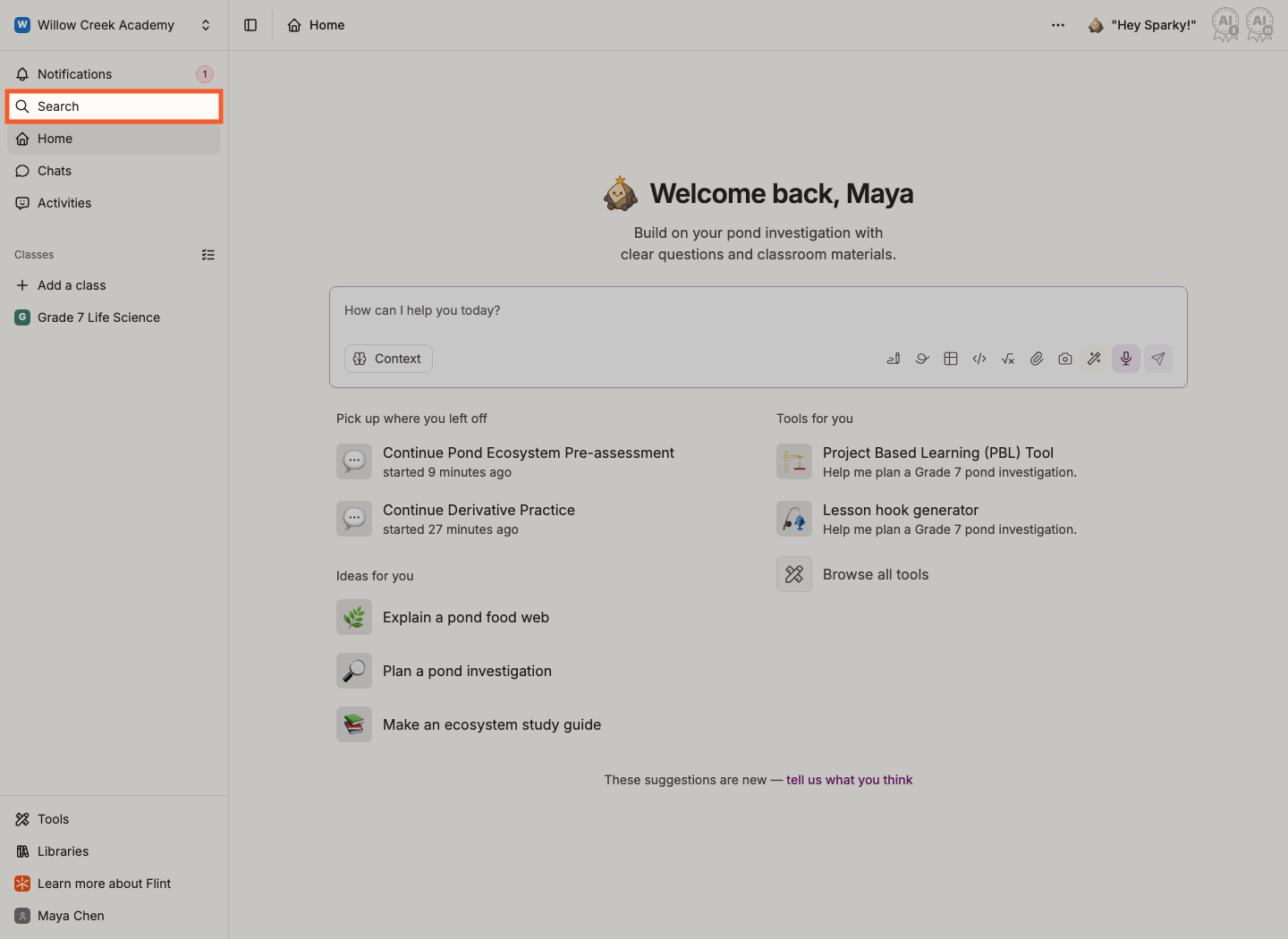
Click Search in the sidebar.
-
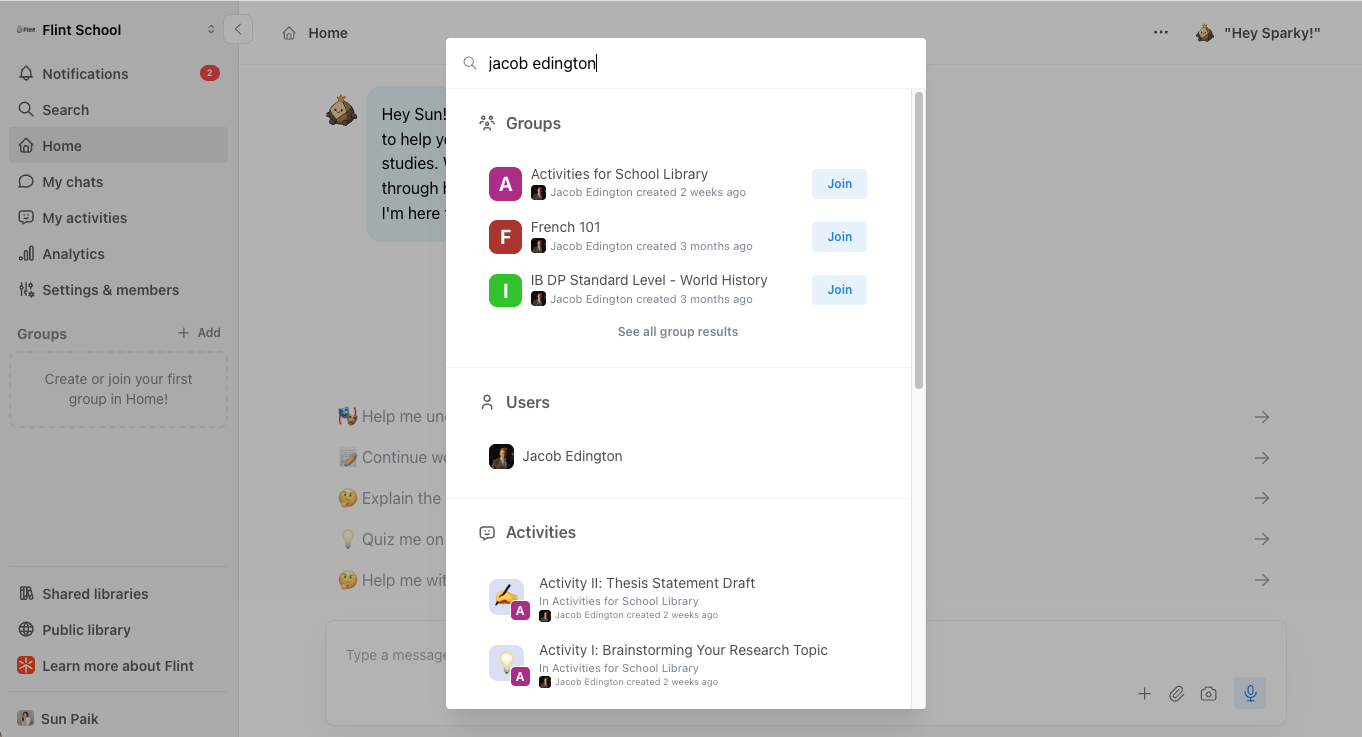
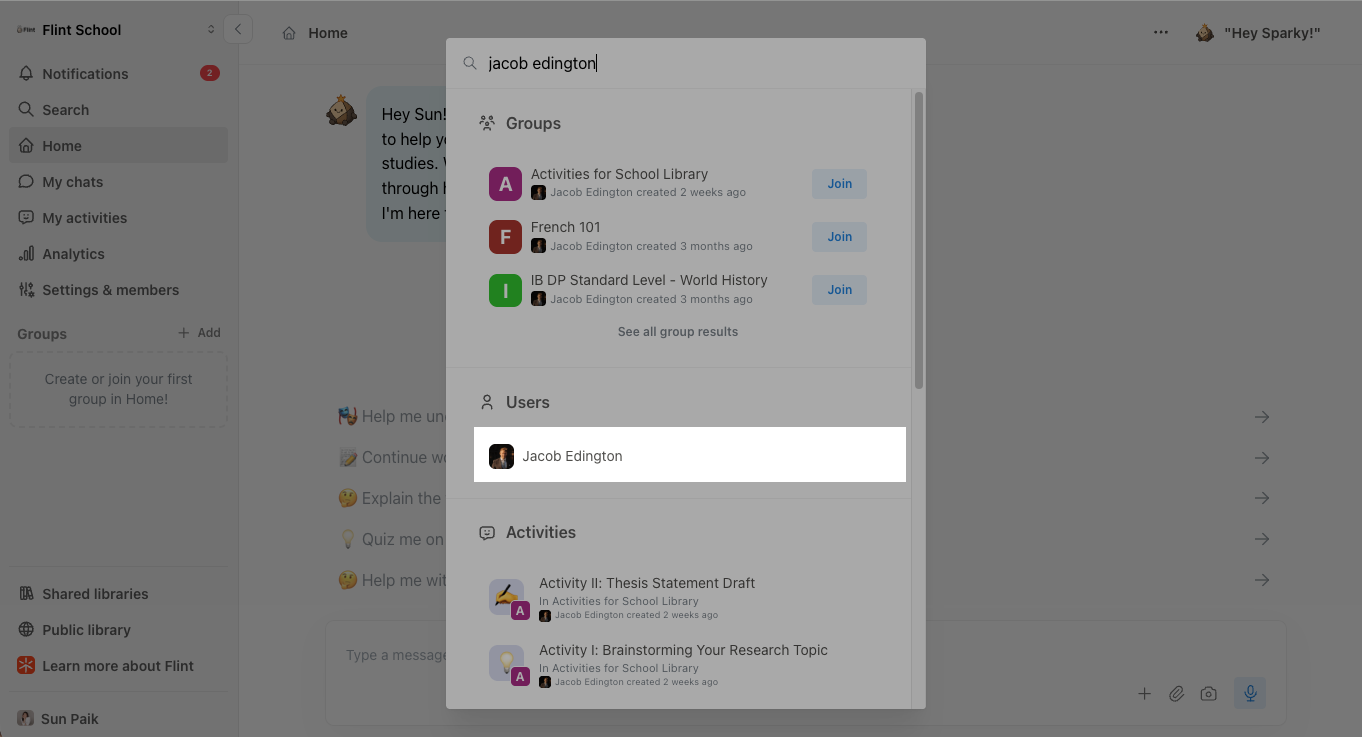
Type the student's name and pick them from the People section of the results.
The next two screenshots show an older Search panel, where People was called Users and classes were called groups. They use Jacob Edington as the example; the current profile example below uses fictional student Sam Patel.
-
Open the Overview tab on their profile.
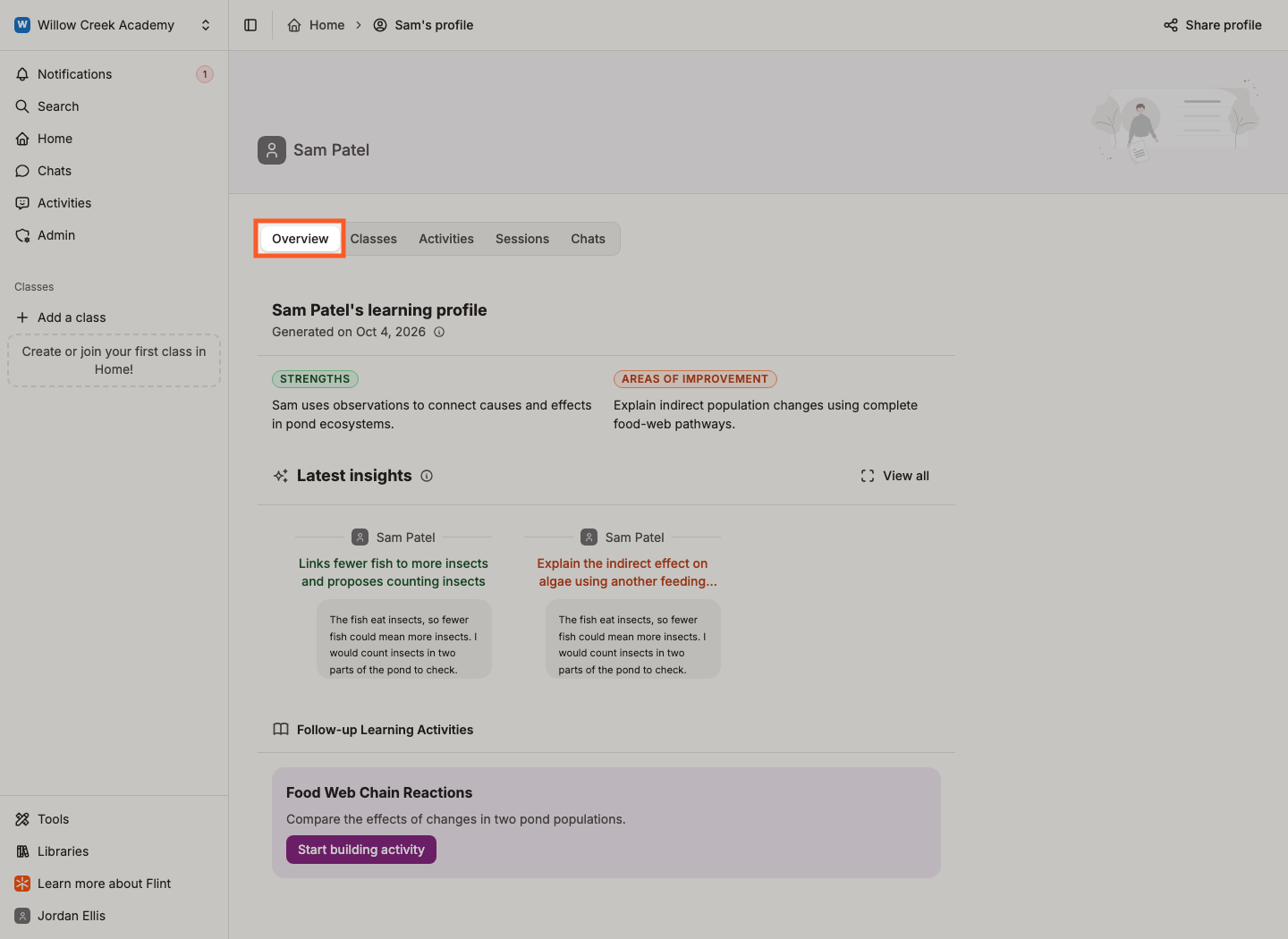
This example shows Sam Patel's learning profile, viewed by Jordan Ellis. Your own report instead reads My learning profile.
You can also reach a student's profile from Admin → Settings → People: every name in that list links through to their profile.
What is in a report
Strengths and areas of improvement
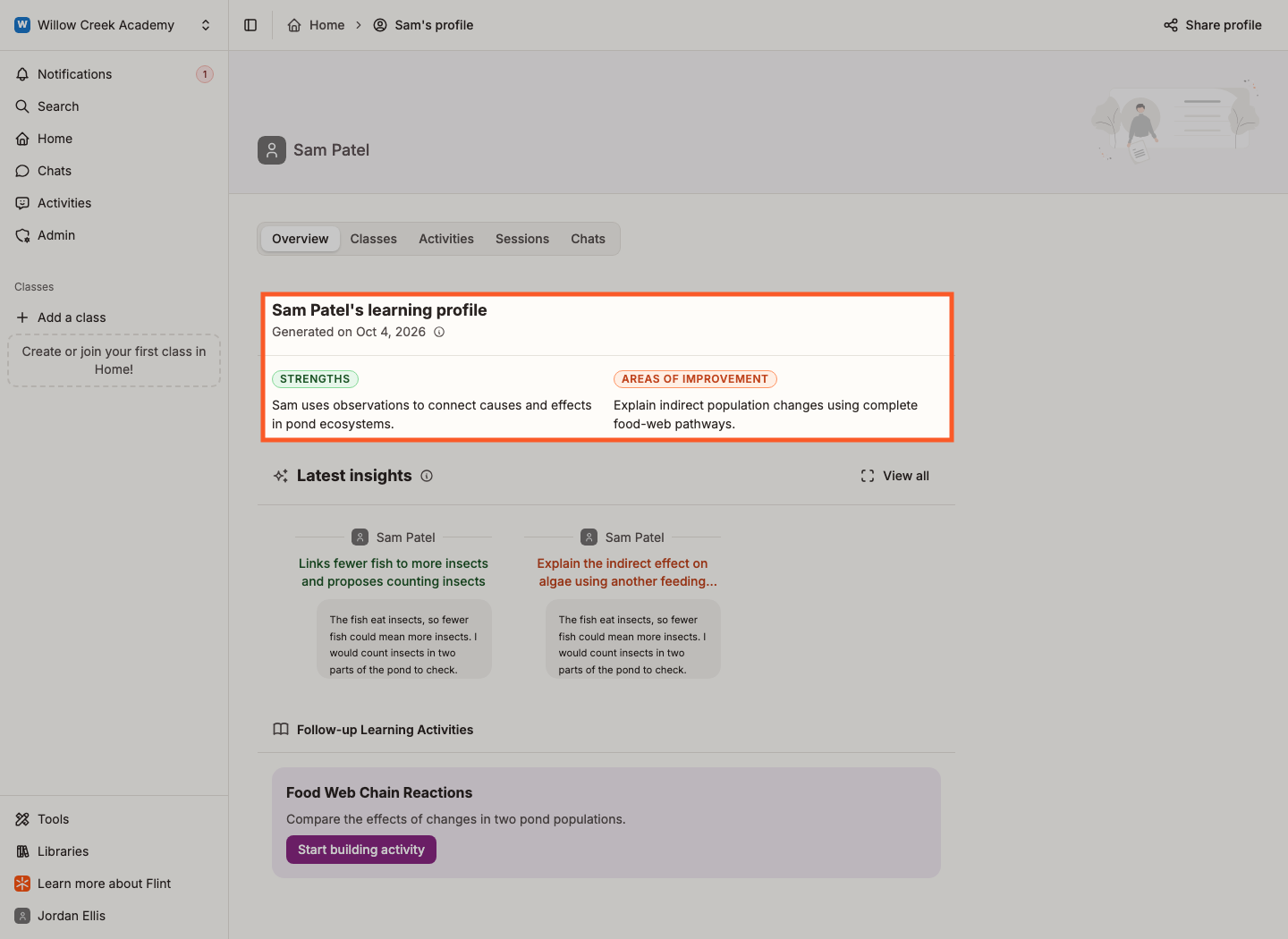
At the top, Sparky's read on the student's learning, in two cards:
- Strengths — topics and skills they have handled consistently well
- Areas of improvement — what they would benefit from practising, with concrete suggestions for how
Click a coloured phrase in either card and a popover shows the messages that claim was drawn from, so you can always check the evidence behind it.
Latest insights
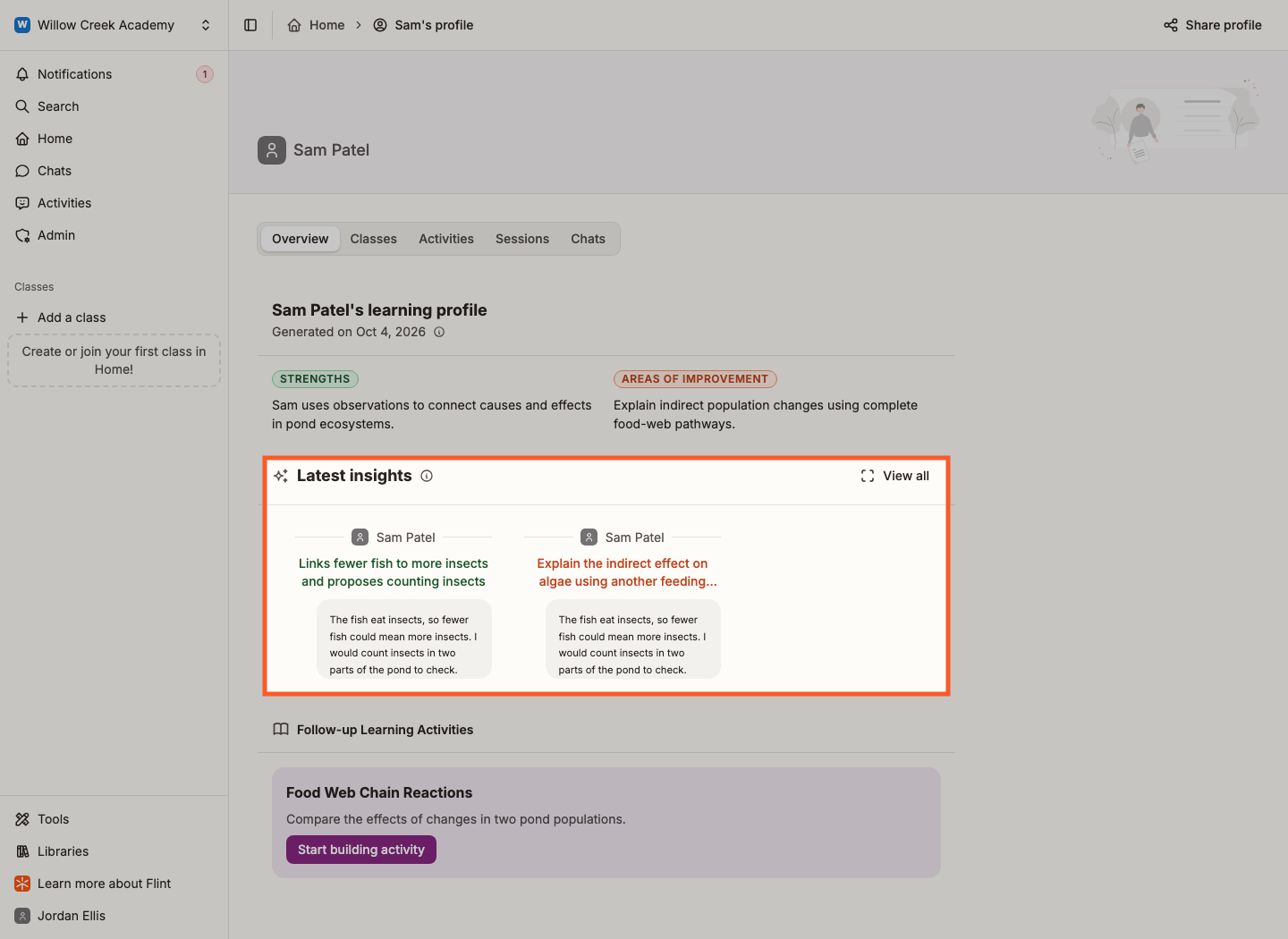
Latest insights is a row of moments from the student's conversations with Sparky. Each card says what the student showed and quotes what they actually wrote, and clicking it opens that point in the session. View all expands the row into the full list.
Follow-up Learning Activities
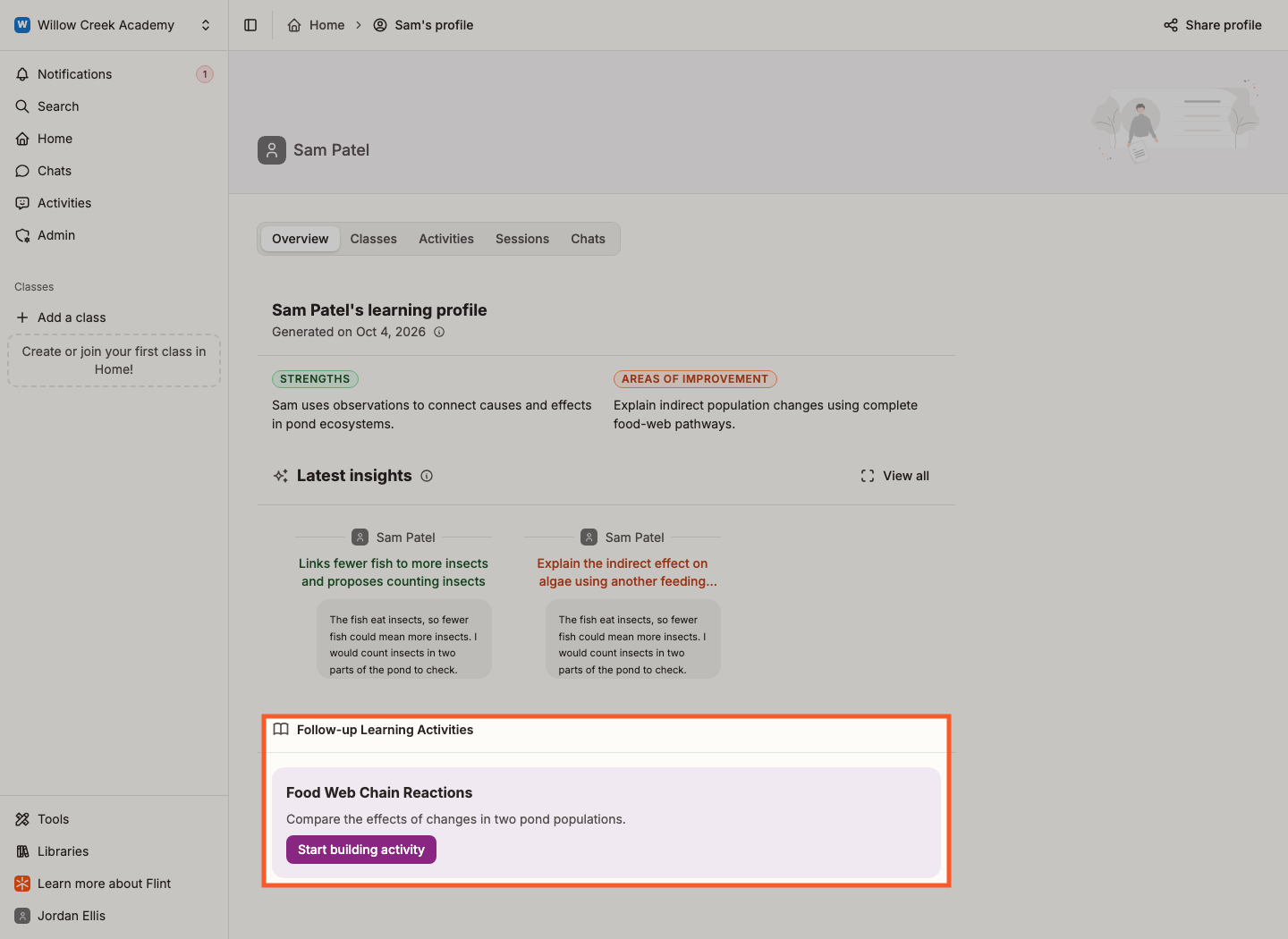
At the bottom, Sparky suggests activities pitched at this student — some reinforcing what they are good at, some practising what they are not, at an appropriate difficulty level. Start building activity opens the activity builder with that suggestion as the brief.
If the report is empty
A student needs analysed activity sessions before Sparky can generate a report. With no report or insight cards, an eligible student's Overview tab shows No profile insights and prompts them to start using activities. Newly analysed work is picked up by the Sunday report-generation schedule, not immediately after every interaction.
While generation is in progress, your report can say Your learning profile is being generated. Check back shortly!