

A rubric is a table: one row for each thing you are assessing, one column for each grade. In Lesson with Sparky and File Upload activities, turn on Auto-grading to have Sparky grade submitted conversations or files against your rubric category by category. You can change grades or add your own feedback afterwards.
The custom rubric builder below is for those two activity types. Test or Quiz uses a fixed grading rubric for its questions, not a custom rubric in a Grading and feedback section. Its manual settings show Overview and Assignment, and its grading rubric is hidden from students.
To build or change the rubric, open the activity and click Edit activity at the top of the page. To review grades, open a submitted session or file instead.
Before changing an existing rubric: changing grade scores or adding/removing grade columns can change grades and scores on work already submitted, including manually overridden overall grades. When you save, review the Update rubric scores confirmation. Flint maps each stored category score to the nearest new grade score and recalculates the overall grade and score; the previous grade label is not necessarily preserved. Check existing work after saving.
Build a rubric
With Sparky
In the builder conversation, describe what you want assessed: "grade this on thesis, use of evidence and grammar, on a 1 to 4 scale". Sparky writes the rubric and shows you what it changed. Click Update activity to save.
By hand
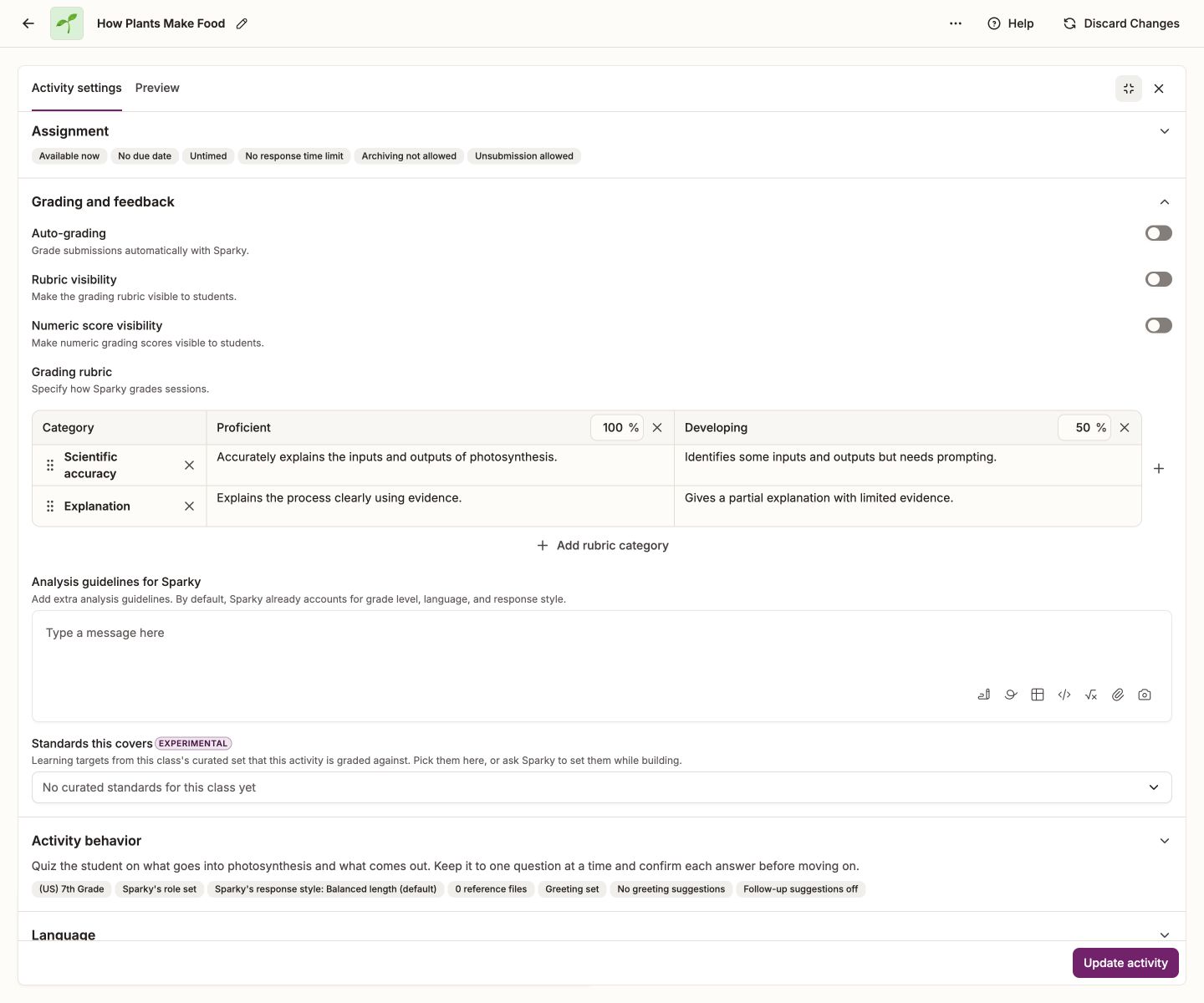
Click the activity thumbnail, select Activity settings, then expand Grading and feedback. The table sits under Grading rubric — "Specify how Sparky grades sessions."
On an empty rubric the only thing to click is Add rubric category below the table, which starts you off with one row and one grade column. This first category has no name field. Adding a second category reveals name fields for both rows. From there:
- Add a grade with the + to the right of the table. Name it in the header ("Excellent", "Proficient", "4") and set what it is worth in the small box beside the name, as a percentage.
- Add a category with Add rubric category. Name it ("Content knowledge", "Grammar") and describe what each grade looks like in that category.
- Reorder categories by dragging the handle at the left of a row.
- Remove a category or a grade with the ✕ on that row or in that column's header.
A rubric needs at least two grades and at least one category, and every category needs criteria for every grade. Give each grade a unique, nonblank name and a whole-number percentage from 0 to 100. When category name fields are visible, each category also needs a unique, nonblank name. If something is missing, Flint tells you when you save.
Click Update activity to save.
Turning a one-category rubric into several
A new one-category rubric hides the Category column — you just see the grades and their criteria. Click Add rubric category and the column appears, with a name box on the original row too. Name both categories and fill in the new criteria.
Example with several categories
The screenshot above has two named categories: Scientific accuracy and Explanation, with Proficient and Developing as the grade columns.
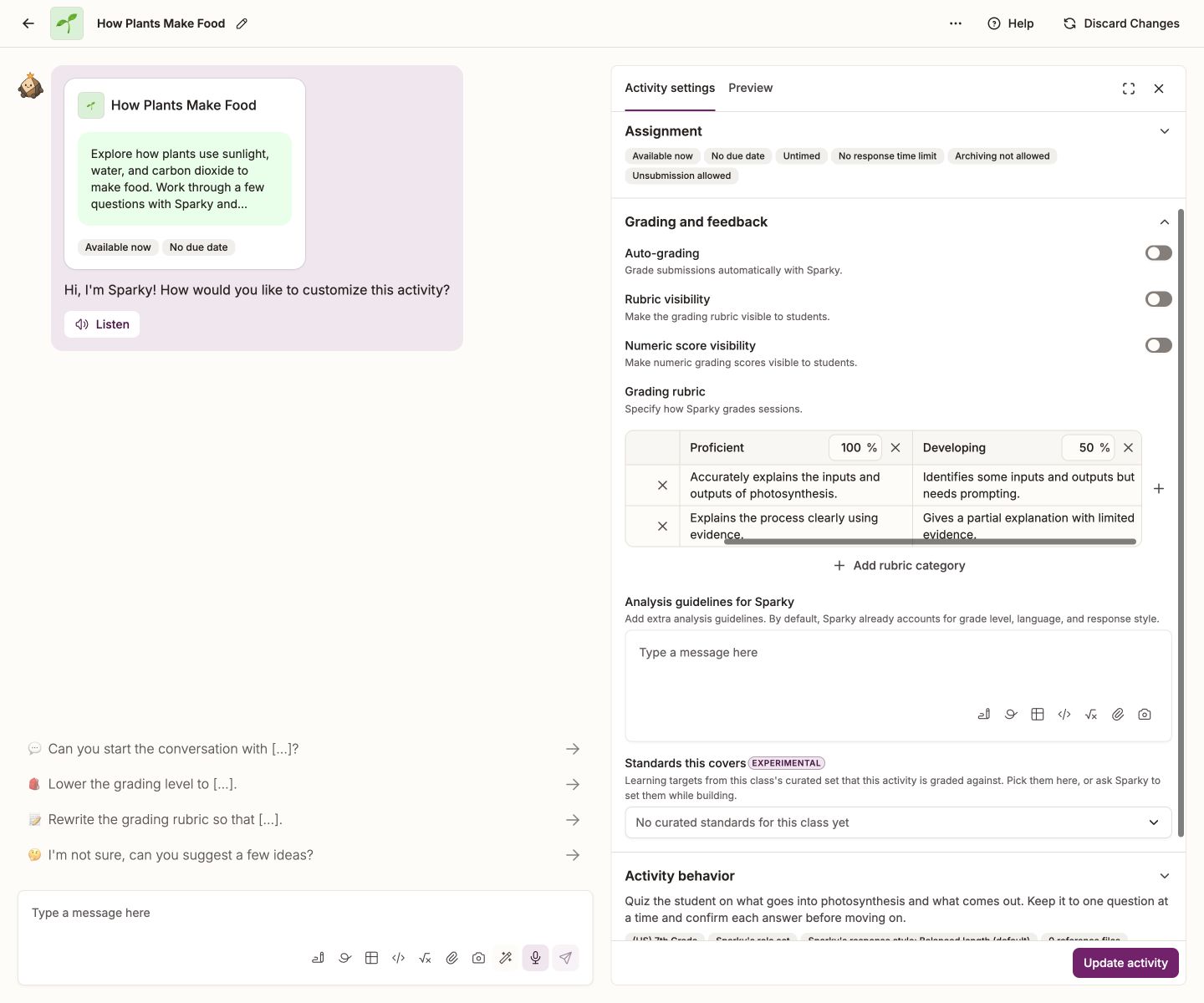
Rubric-related settings in Grading and feedback
| Setting | What it does |
|---|---|
| Auto-grading | Grade submitted conversations or files automatically with Sparky |
| Rubric visibility | Make the grading rubric visible to students |
| Numeric score visibility | Make numeric grading scores visible to students |
| Grade weight category | How this activity's score counts towards overall grades, if the class uses weighting |
| Analysis guidelines for Sparky | Extra instructions for session analysis in Lesson with Sparky. Put grading criteria in the rubric; this field is not available for File Upload |
On class activities, Standards this covers selects learning objectives for analysis separately from rubric grading.
Review grades and leave feedback
You need owner access to the activity to edit feedback. Open nonarchived submitted work; for Lesson with Sparky, wait for analysis to finish, including any pending reanalysis.
- Open a submitted session or file.
- Click Edit feedback. The Edit feedback panel opens on the right.
- For a multi-category rubric, each category is a row showing its grade. Open a row to see the criteria for every grade, and click one to assign it instead. A one-category rubric without a category name shows the grade criteria directly.
- For a multi-category rubric, write category feedback in the box under its criteria. Use Overall feedback near the top of the panel for overall comments, or for feedback on a one-category rubric without a category name.
- Click Save feedback.
Changing a category grade recalculates the overall grade and score shown at the top of the panel. To set the overall grade yourself, use the dropdown there. Clear edits discards everything you have changed since the last save.
Every category needs a grade before the panel will save, and it tells you if one is still missing.
Students see their grades on their submitted work once grading is ready. If Rubric visibility is on they can open the full rubric, with anything you wrote in Overall feedback shown as Additional feedback.
Export grades
On the activity page, the sessions table has a Download as CSV button that exports the sessions together with their grades. When a rubric has more than one category the table also offers a Grades tab with a column per category, and a Show scores (%) switch.
File-upload activities do not offer the CSV export.
For how these grades roll up across a whole class, see Everything you need to know about Flint's gradebook.