You can submit sessions your students forgot to turn in, one at a time or several at once. Submitting queues the sessions for analysis. Sparky generates grades only when the activity has a rubric and Auto-grading is on. See How to turn off auto-grading.
These steps apply to Lesson with Sparky (chat) activities that you can edit. File Upload and Test or Quiz activities use submissions and do not offer this bulk Submit sessions action.
Open the activity
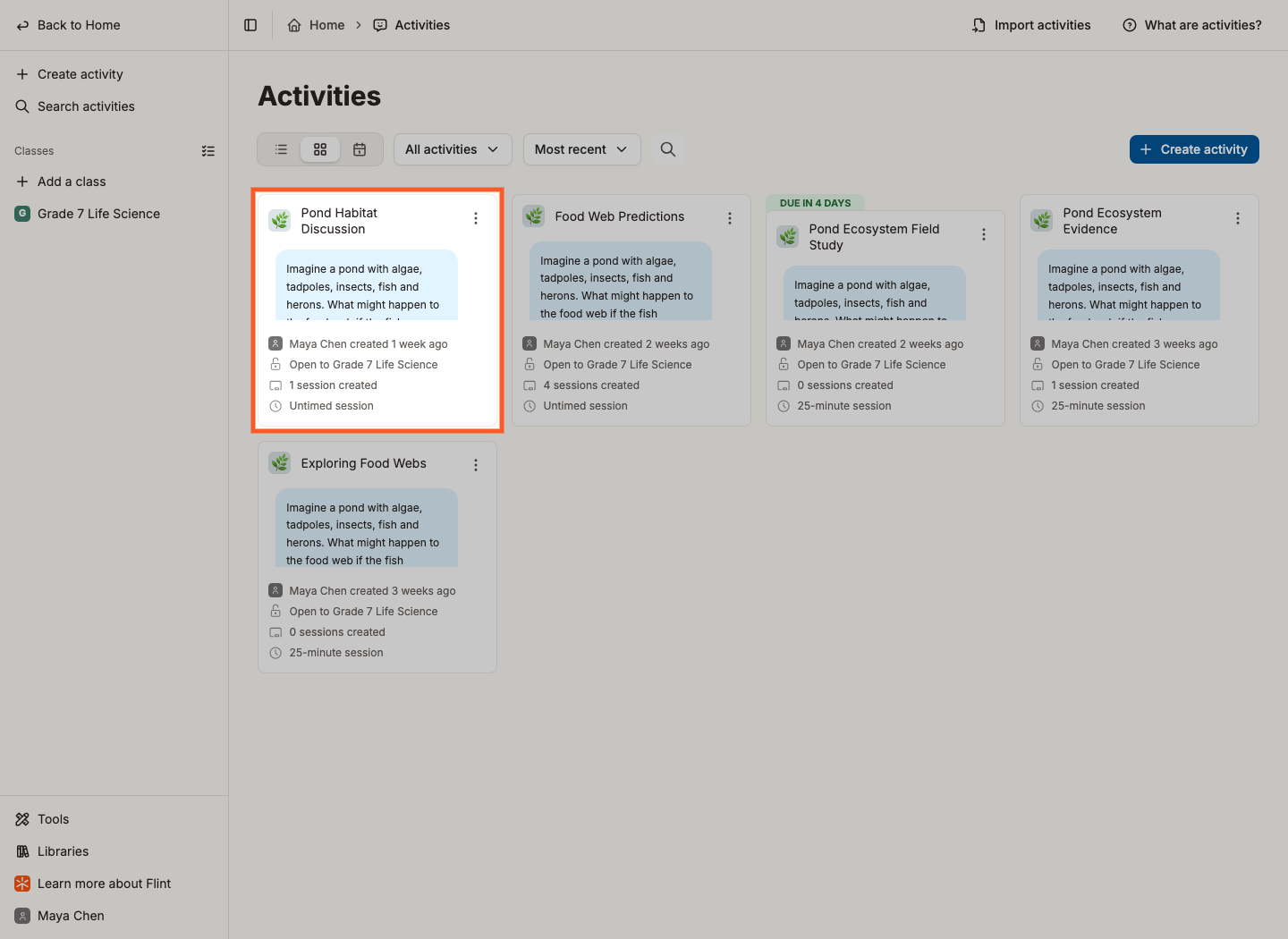
Click Activities in the sidebar, then click the activity. To find the activity through its class, open the class and click Activities in the class sidebar. A class opens on its Overview page, not its activity list.
📌 The Activities page has a filter at the top — My activities, Shared with me or All activities — if you are looking for an activity someone shared with you. Learn more about activities.
Find the Sessions table
Scroll to the bottom of the activity page. The Sessions table lists one row per session, with Student, Session name, Created at, Submitted at and Duration on its Overview tab. Learn more about sessions.
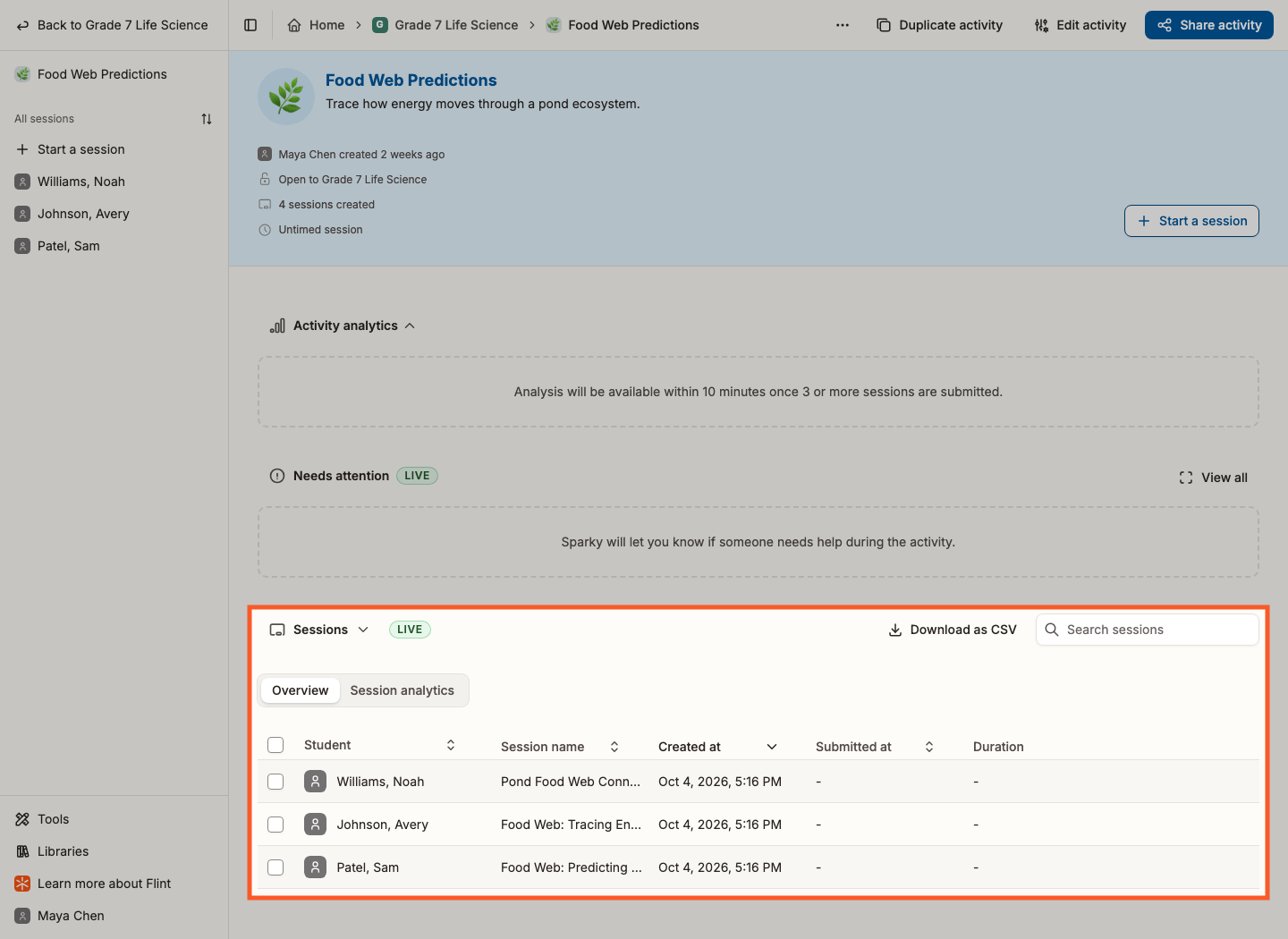
This table, and the checkboxes on it, are only shown to people who can edit the activity. Students see a Your sessions list instead, covering their own work only.
Select the sessions
Check that students have finished and sent their work before submitting on their behalf. Once submitted, a session cannot be edited by the student unless it is unsubmitted and its timing and settings allow more work.
Tick the checkbox at the top of the checkbox column to select the nonarchived sessions currently loaded in the filtered list. To include more sessions, click Load more until the list is fully loaded, then select all. Clear any search or filter you do not want to limit the selection.
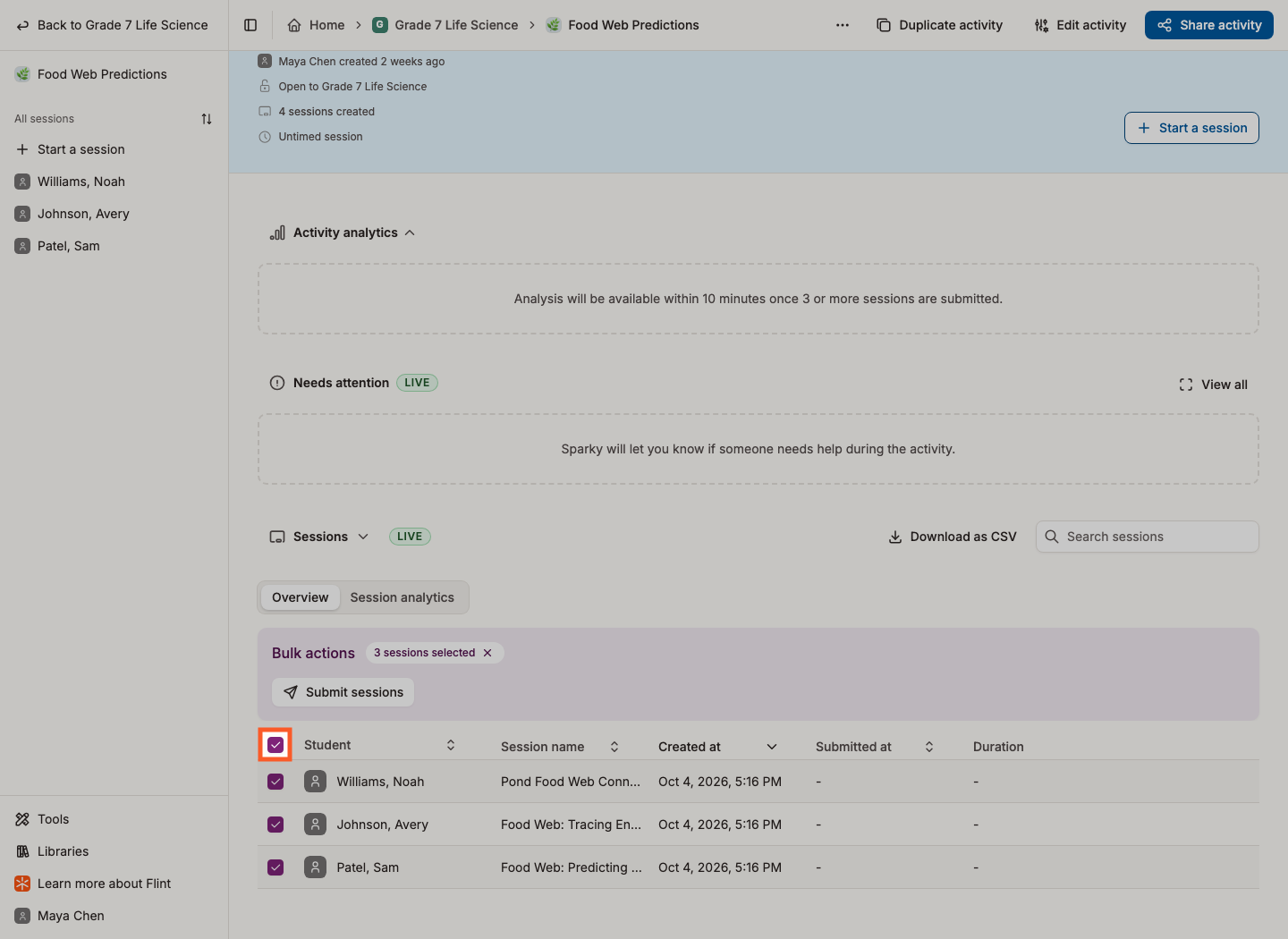
Or tick them one at a time to pick out just the sessions you want.
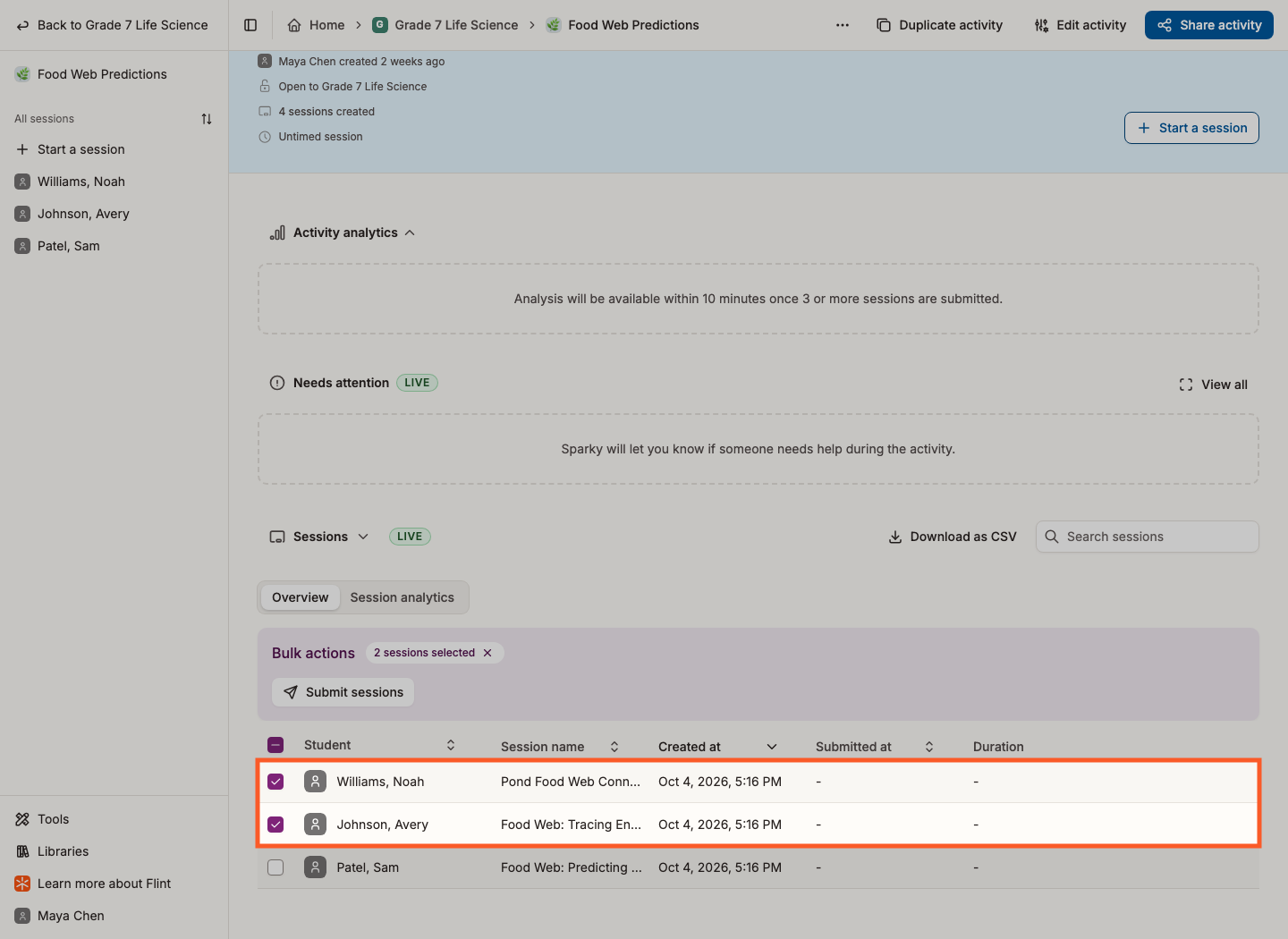
Archived sessions cannot be selected — their checkbox is there but greyed out, so you can see the rows you are not acting on.
Submit them
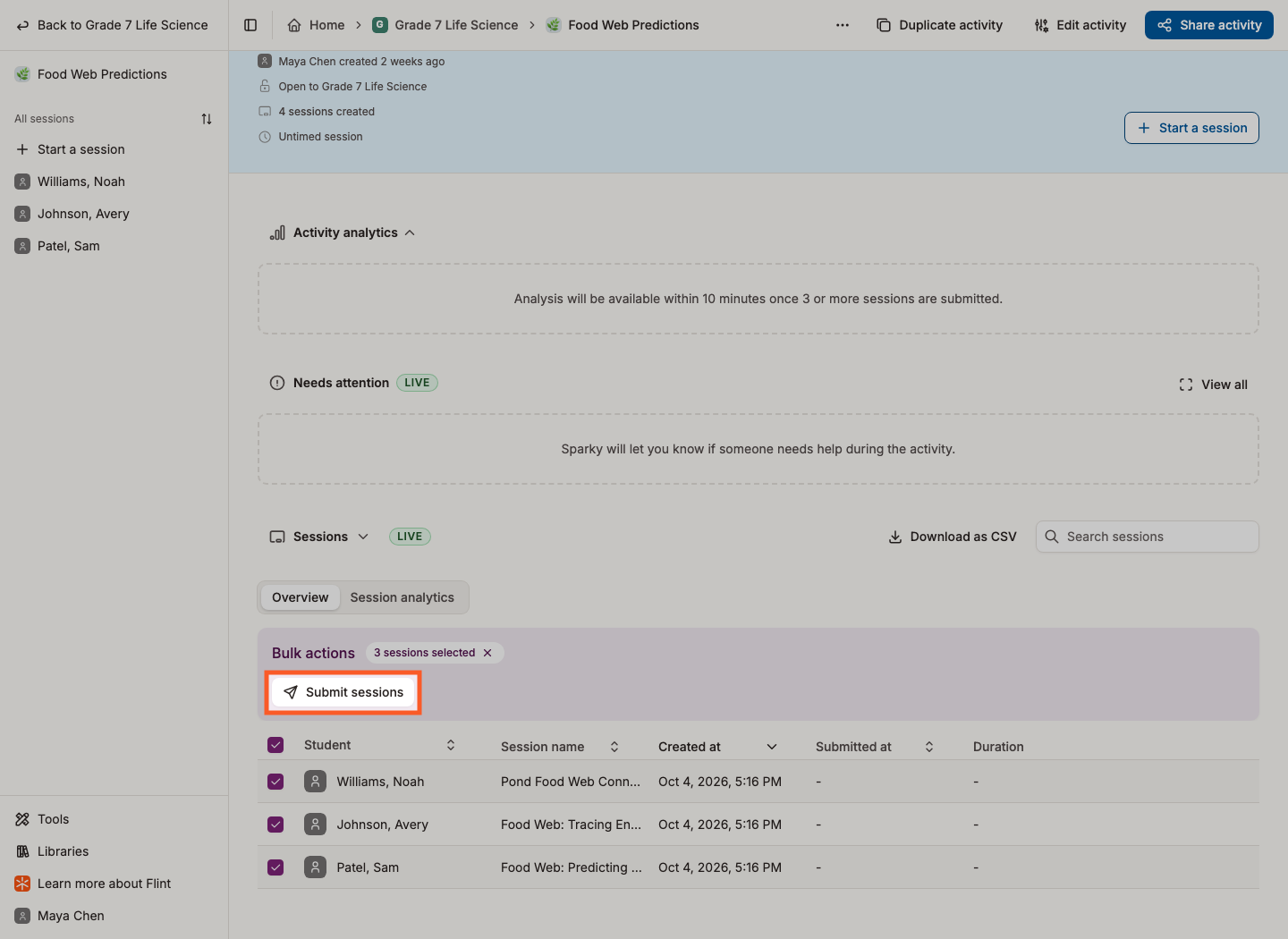
A Bulk actions panel appears as soon as something is selected, showing how many sessions you have picked. Click Submit sessions.
Flint asks "Are you sure you want to submit sessions?" and warns that already submitted sessions will be skipped and won't be re-submitted. Click Yes.
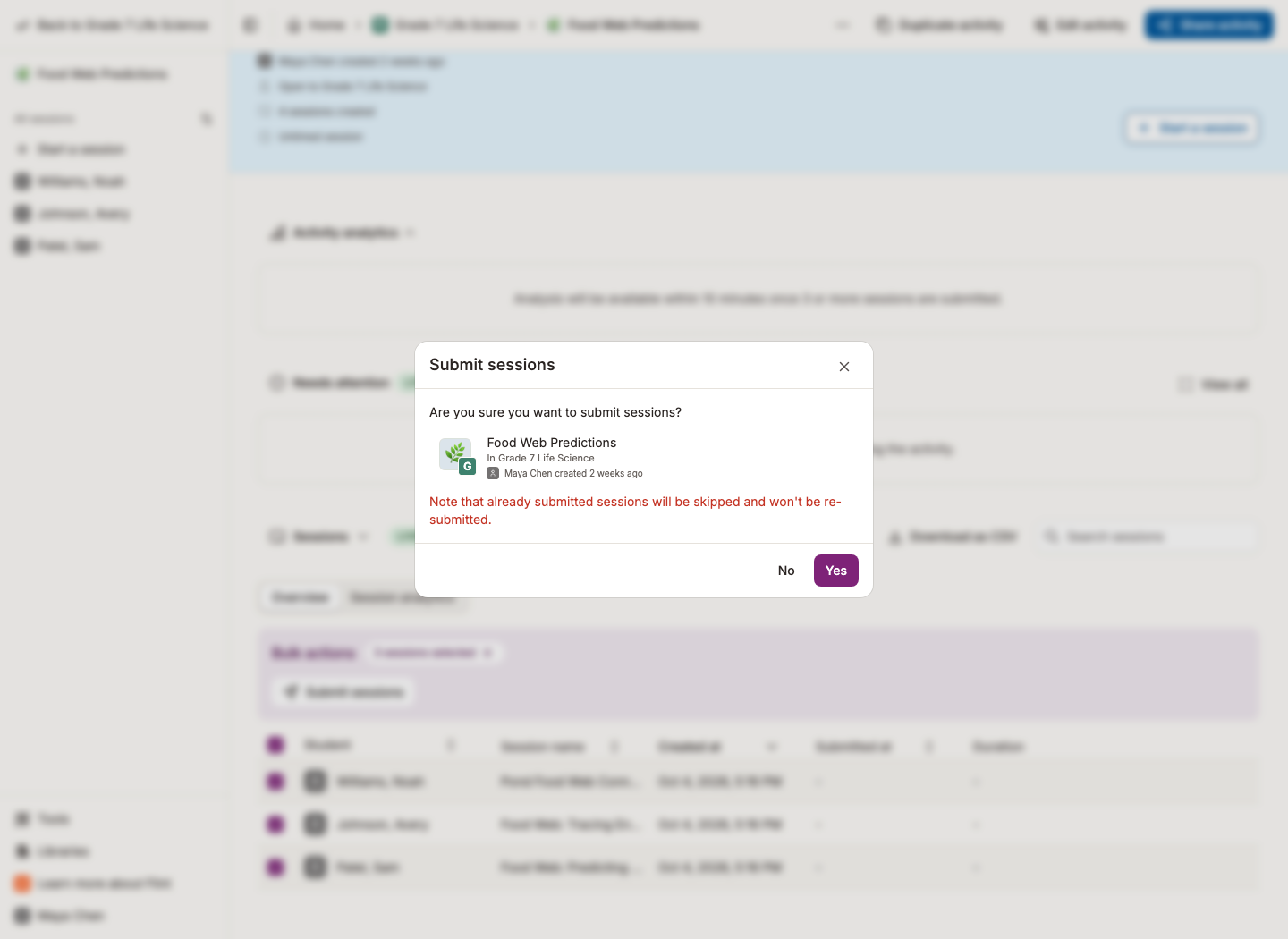
You can select a mix of submitted and unsubmitted sessions: Flint skips sessions already marked as submitted in the table. If every session you picked has been submitted already, Submit sessions is greyed out.
How do I know if a session is not submitted?
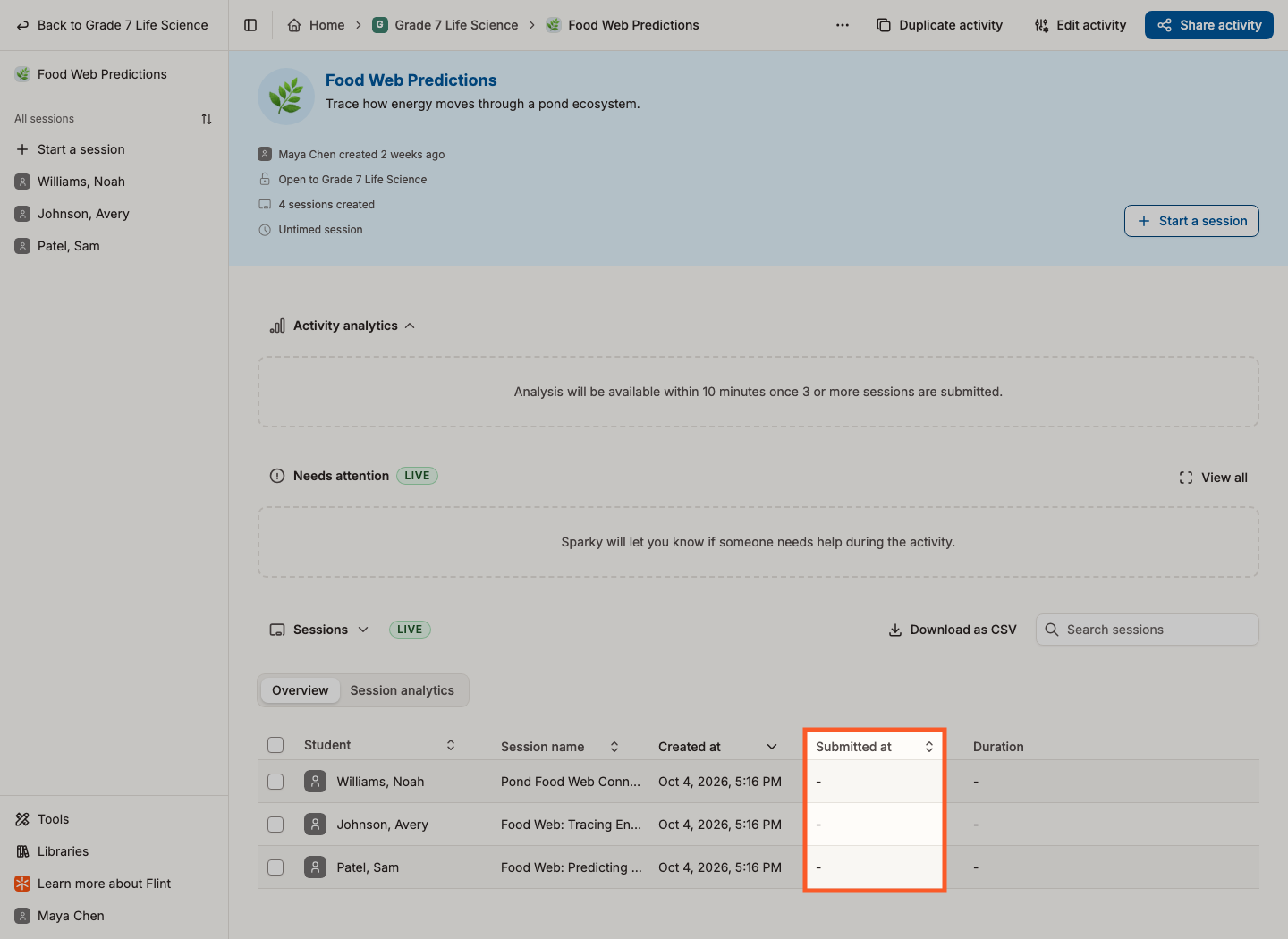
Look at the Submitted at column on the Overview tab. A date and time means the session is in; a dash means it is not.
The example below shows sessions that have not yet been submitted.