

An activity is a piece of work you build for your students — a chat with Sparky, a file-upload assignment, or an assessment with questions and submitted answers. Once it exists, its main controls live in one of two places:
- On the activity's own page. Open the activity. Along the top are Publish activity, Duplicate activity, Edit activity and Share activity, with Delete activity under the ⋯ More actions menu beside them.
- On the activity's card. In Activities, or in a class's Activities tab, click the ⋯ button on any card (Activity actions) for the same options plus Manage availability, Move to folder, Move to class and Pin to your class.
You see Edit activity, Publish activity and Delete activity only on activities you have Can edit access to. Anyone who can open an activity can use Share activity to copy its link, and anyone can duplicate an activity they found in a library.
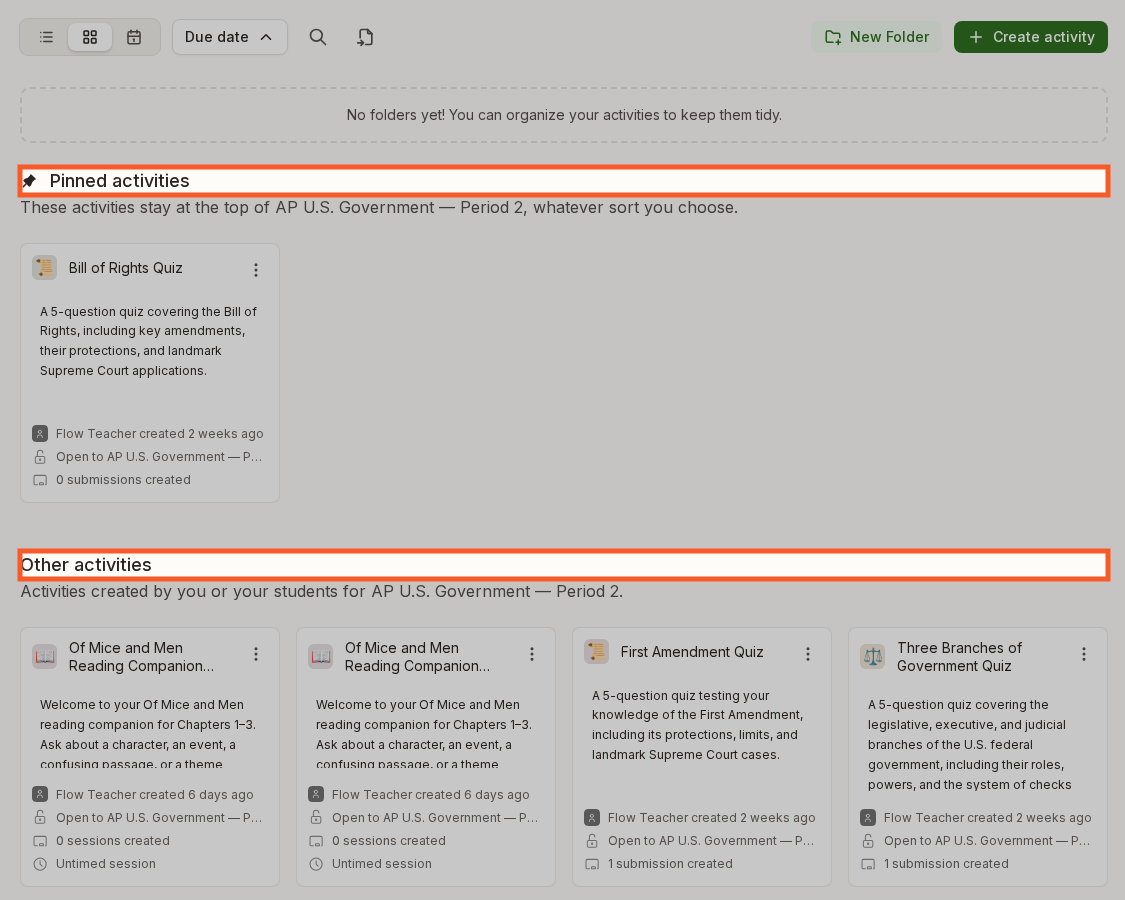
Pin to your class keeps an activity at the top of the class's Activities tab, whatever sort you choose. After you pin, Flint asks whether to email the people in the class. Click Yes to send the emails, or No to pin without them. The tab lists pinned activities under Pinned activities, marked with a pin icon, and everything else under Other activities, in both grid and list view. Students see the same two sections. When you choose Pin to your class or Unpin from your class, the activity moves to the other section straight away. A class with no pinned activities shows a single list, and so does an open folder.
Duplicate an activity
Duplicating gives you a second, independent copy. It is the right move when you want to run the same activity in another class, rework it while keeping the original intact, or hand a colleague a copy they can change without touching yours.
- Click Duplicate activity.
- In Duplicate Activity, choose one or more destinations — classes you can edit in your current term, or the term itself.
- Click Duplicate and assign. The button reads Duplicate when the term is your only destination. If the button reads Next instead, a destination class uses grade weight categories: pick one for each class, then click Duplicate and assign. Flint makes the copies as soon as you click Duplicate and assign or Duplicate.
- For each class copy, Flint lists the class with the copy's dates, which start as the original activity's dates. Click a class to set its Available from and Due date, then click Review. If a copied due date has already passed, pick a later one or clear it. Copies into the term skip this step.
- The confirmation links to each new copy. Click Done.
To copy across terms or schools, use Import Flint content. School- and district-library activities remain restricted to destinations within their school or district.
Rename an activity
- Open the activity and click Edit activity.
- Click the pencil next to the activity's name at the top of the builder, type the new name and press Enter.
- Click Update activity, or Update assessment for an assessment.
The Name field in Settings → Overview, beside the builder conversation, does exactly the same thing.
Share an activity
- Click Share activity.
- Type a name or email address into Add names or email addresses and click Invite.
- Choose what each person can do: Can participate lets them start a session or submission, subject to availability and attempt limits; Can edit lets them change the activity and see everyone's sessions or submissions.
- Click Done.
Copy link copies the activity's link to send by email or through your LMS, and Display join code shows a short code people can use to join instead. To change who can find the activity without being added, use General access in the same dialog — see How can I change the access permissions of an activity in Flint?.
Collaborate with a colleague
Share the activity and give them Can edit. They can then change its settings and see every session or submission — which is what you want for a co-taught class or an activity you are building together. Assessment questions that students have answered in submitted work have editing restrictions; see changing an existing activity.
If you'd rather they had their own version to change freely, duplicate the activity first and share the copy.
Pause an activity
Pausing freezes an activity without deleting anything. Teachers use it to open an activity at the start of a lesson and close it at the end, or to keep an activity locked until the class is ready.
- Open the activity and click Edit activity.
- In Settings, beside the conversation, expand Assignment.
- Turn on Pause activity and click Update activity, or Update assessment for an assessment.
While an activity is paused, students cannot start or continue their work. Existing work stays readable. Turn the switch off to let them carry on, subject to the activity's dates and attempt limits.
Assessment attempts and results
Assessments allow one submitted attempt by default. In Settings → Assignment, turn on Allow multiple attempts if students should be able to submit again.
Open a submitted assessment and finish scoring every answer. Select Share results at the top of the submission page, choose eligible students and confirm. Only completed, fully scored submissions with a student email address are eligible. Flint releases scores and teacher feedback and emails those students a link; students sign in to view their results.
Share answer key is a separate control on the assessment's page: it reveals the key and AI analysis to students who have submitted. Hide answer key hides those again without withdrawing shared scores and teacher feedback.
Publish to a library
A library is a collection of teacher-made activities anyone with access can browse and duplicate. Publishing yours shares the activity's settings — never any student work — and your name stays on it as the creator.
- Click Publish activity (or Publish to library on the card menu).
- Under Select where to publish this activity, tick each library you want: Public library, School library, and District library if your school shares one. You can pick more than one.
- Tick I confirm that this activity does not contain any sensitive, personal, or copyrighted content.
- Click Publish.
If you have published the activity to a selected library before, publishing again updates that library's existing version. Select Publish a duplicate of this activity for a separate version instead. Editing the original alone does not update the published copy.
Watch: Publish a reviewed activity to your school library
The walkthrough publishes and reopens a school-library copy. It does not demonstrate district or public publication, or updating an existing published version.
Anyone who duplicates a published activity can read its settings, so take a moment to check nothing private is sitting in the guidelines. To take it down again, see How to remove an activity from the library.
Delete an activity
- Open the activity and click ⋯ More actions, then Delete activity.
- Type the activity's name into the box to confirm, then click Yes.
Deleting an activity also deletes its sessions and submissions, and it cannot be undone. Shared links to documents, slides or other artifacts generated in that activity also stop working. Copies of those artifacts published to a library keep working. If you only want the activity out of the way for now, pause it or move it instead.