

A chat is a good place to think an idea through; an activity is where students meet it. You do not have to copy anything across between the two — ask Sparky to turn your idea into a Flint activity, or accept its offer to make one, then open the activity card it gives you.
This handoff builds a Lesson with Sparky. For a structured test or quiz, use Activities → Create activity → Test or Quiz → Start building instead. The pre-assessment guide explains both routes.
The activity suggestion in a regular chat starts the builder. Inside the builder, the current draft sits beside the conversation under Settings, ready to review and edit.
Turn a chat into a new activity
-
Start a chat and describe the lesson you want. Being explicit helps: "I'd like to create a Flint activity about the water cycle for my 5th grade science class."
-
Talk it over until you like the shape of it. The more you settle in the chat — the task, the grade level, how you want students pushed — the better the activity you start from.
-
Wait for Sparky's reply to finish, then click the card showing the activity's name, summary and Build. If you have only been brainstorming, ask "turn this into a Flint activity" first.
-
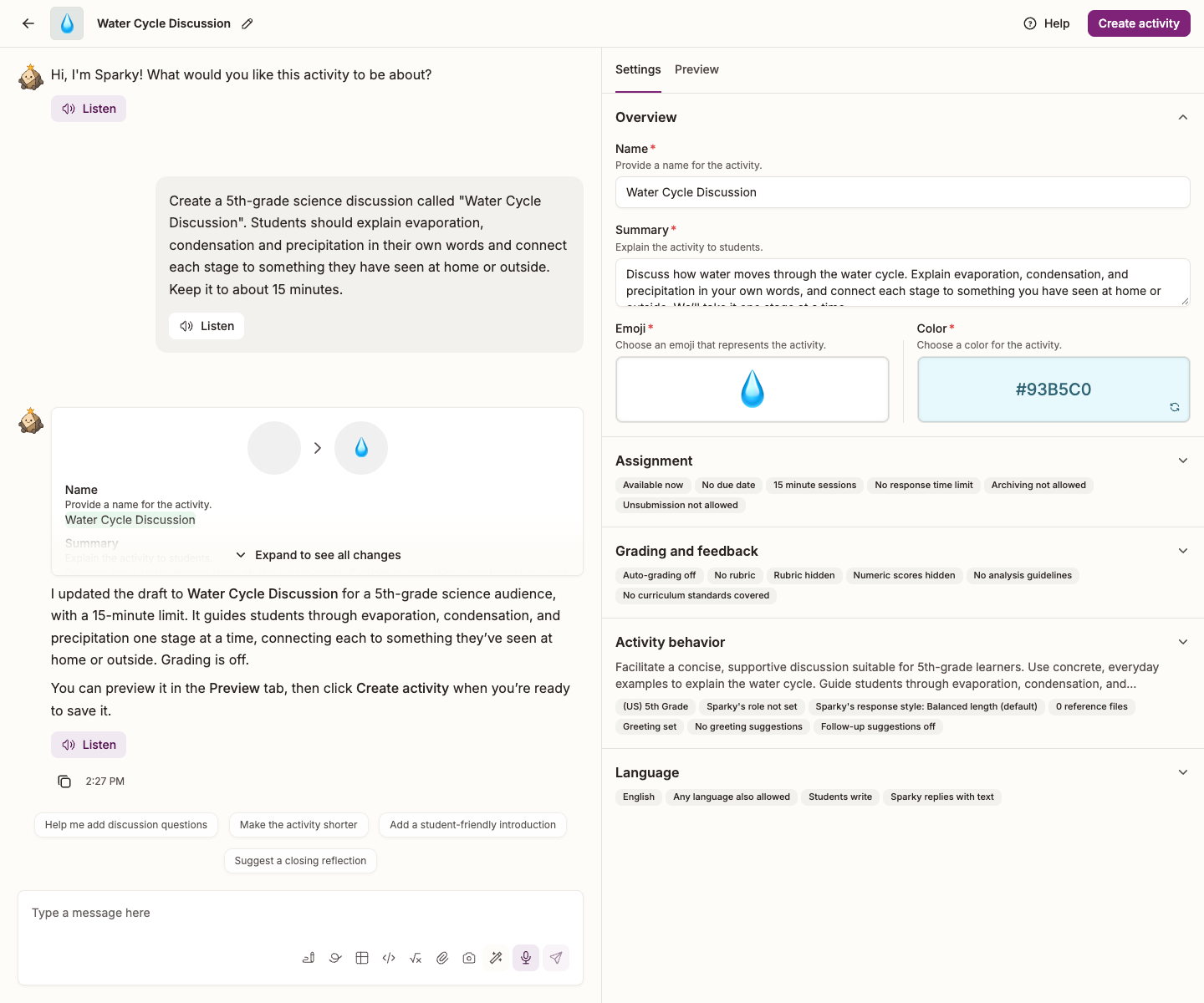
The activity builder opens and Sparky starts building from the proposed details: name, summary, Guidelines for Sparky, Sparky's opening message, and a grading rubric if requested. Wait for Sparky to finish, then review the fields and any starter materials it generated.
-
Keep talking to Sparky, or expand a section in Settings, beside the conversation, to set the details yourself — grade level, languages, time limit, due date and grading.
-
Select the Preview tab to try the lesson, then click Create activity in the top right of the page.
After creating the activity, check sharing permissions. See Activity access permissions.
The activity is not assigned until you click Create activity. Flint can retain an unfinished builder draft and offer to resume it when you return to create an activity in the same class or term. This does not mean every unsent message or manual edit is saved. Your original chat stays untouched either way.
The new activity lands wherever the chat lives: a chat inside a class makes an activity in that class, and a chat started from your home page makes one at school level. Either way it is in Activities in the sidebar.
Watch: Turn a chat plan into a saved lesson
When the card appears
Ask to create, make or build a Flint activity, or say yes when Sparky offers one. Simply discussing a worksheet, quiz or lesson does not guarantee a handoff. Wait for Sparky's reply to finish; if you still do not see a card, ask directly: "turn this into a Flint activity."
Two things to know:
- It shows up in your own chats, not inside an activity session. If you are in a session, open a chat first.
- You can also ask for one without any lead-up: "Make me a 20-minute Flint activity where 8th graders debate the Homestead Act." Review and customize the suggestion in the builder.
Changing an activity you already have
The same handoff works in reverse. Name an existing activity of yours in a chat and say what you want changed, then click Edit “<activity name>” to carry the request into that activity's builder for you to review and save. See Enhancing Activity Prompts through Flint Chats.
What happens to my chat?
Nothing. The activity is new and separate; the chat stays where it is, with the whole conversation in it, and you can go back and start a second activity from the same discussion.