

A chat activity is not limited to one session per person. Students can start a new session whenever the activity is open to them, which is what makes an activity work for several attempts, for a task split across lessons, or simply for starting again after a false start. Each submitted session is analysed separately. When Auto-grading is enabled with a rubric, each session is graded separately too.
These steps are for chat activities. File-upload activities use Submit work. Assessments use Start assessment and only permit another submitted attempt when Allow multiple attempts is enabled in Assignment; that setting is off by default for new assessments.
Start another session
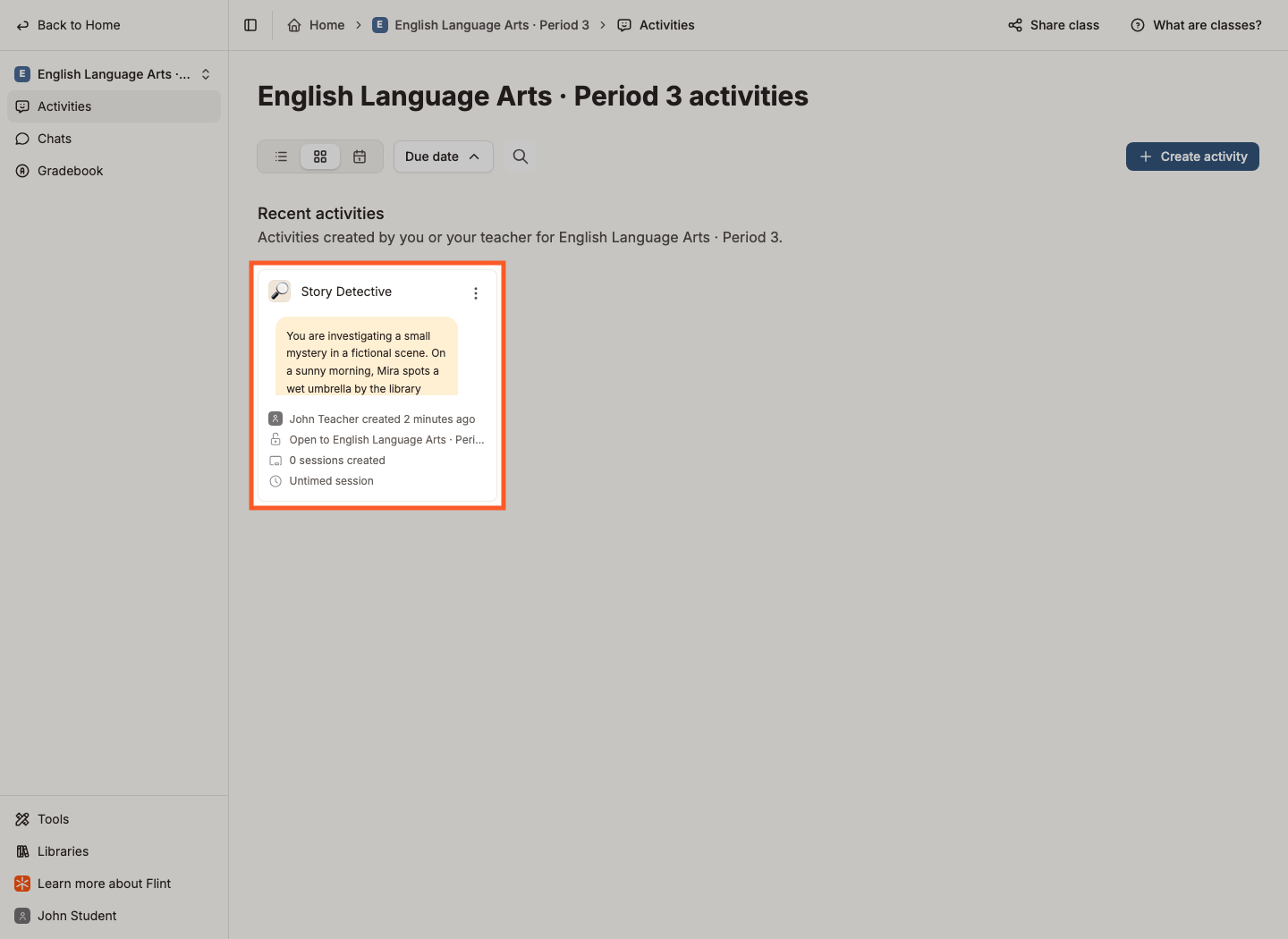
- Open the activity.
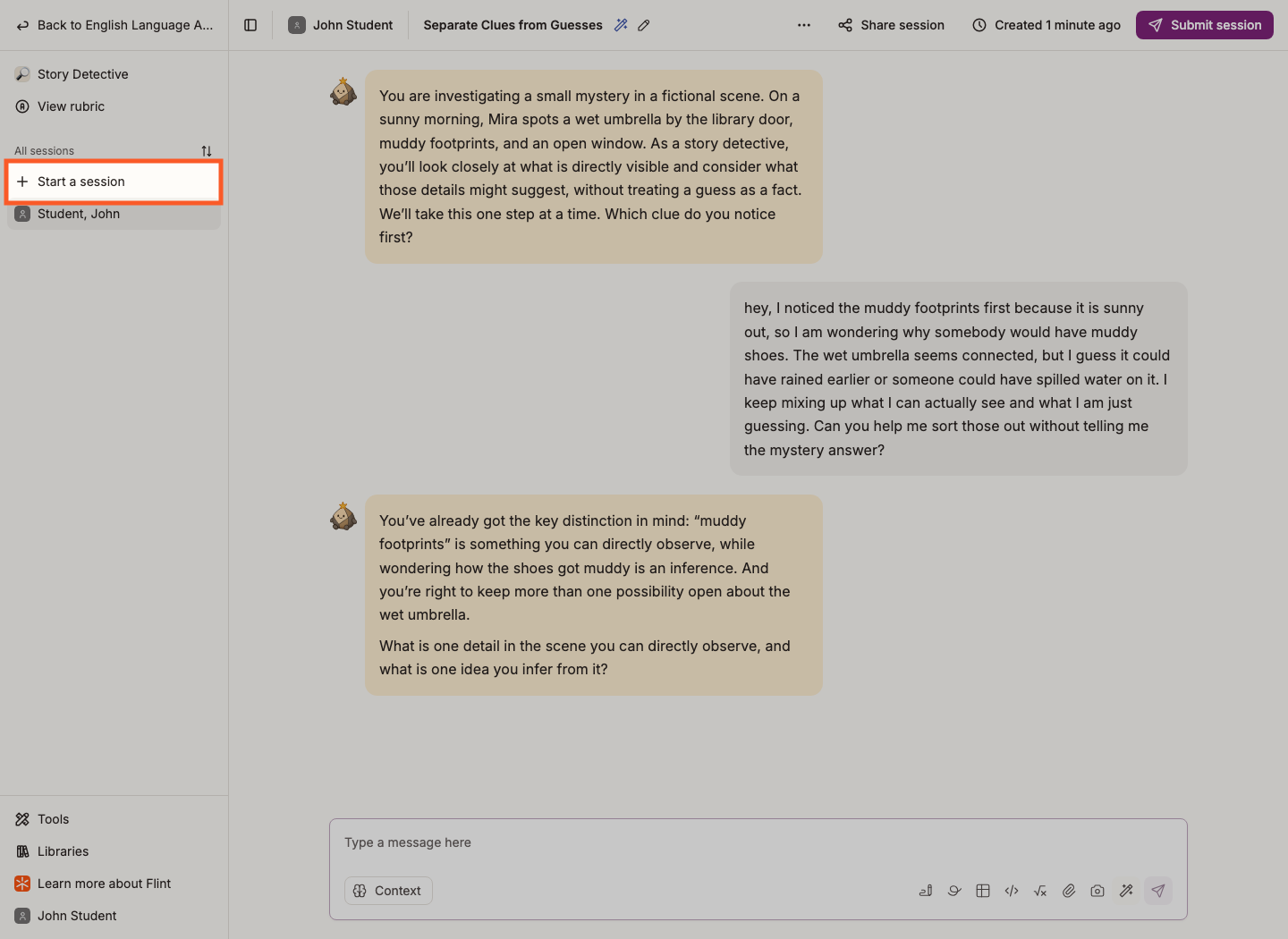
- Click Start a session, on the activity banner or at the top of the activity's left sidebar.
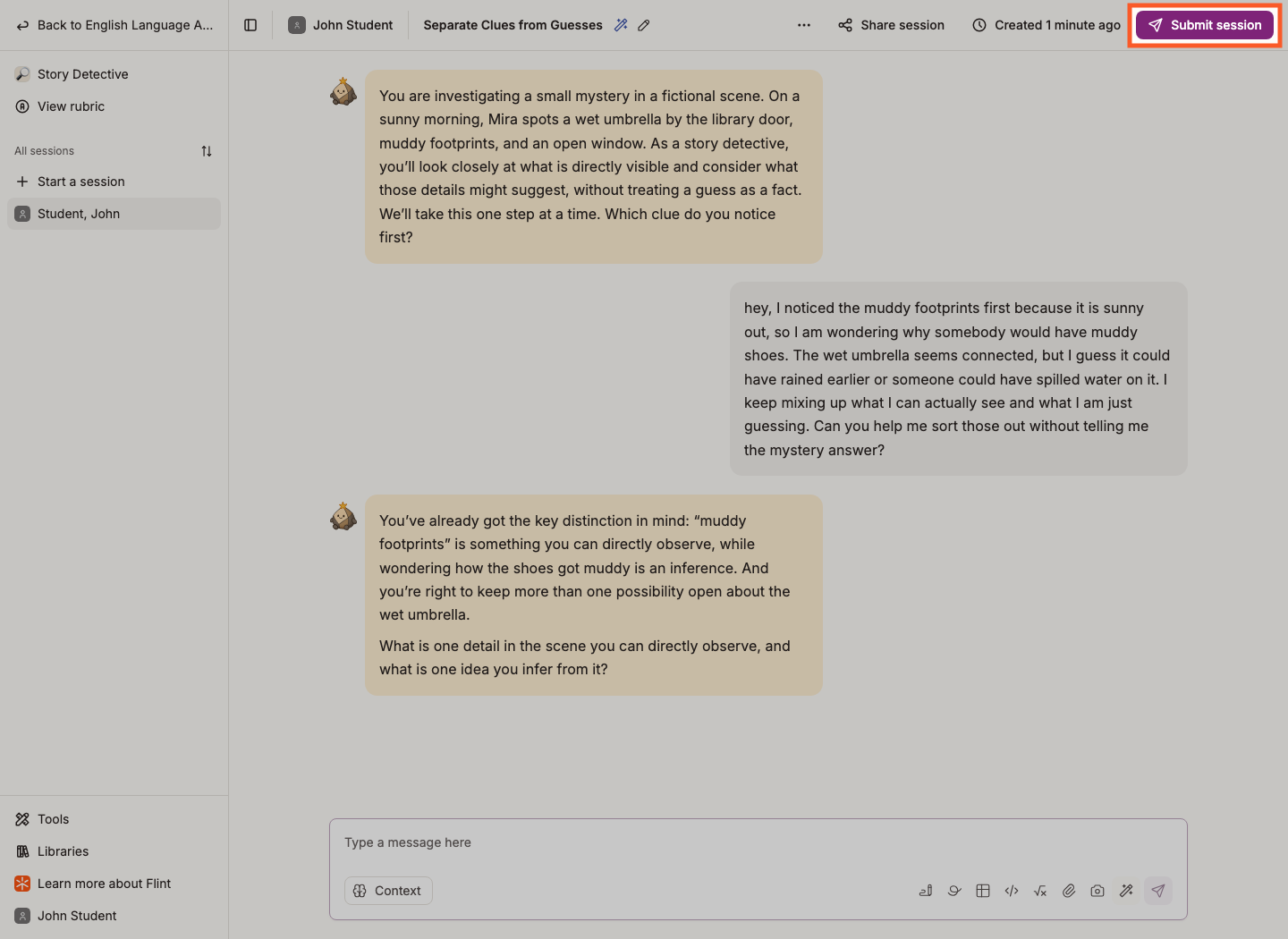
- Work through the new session as usual, and click Submit session when you are finished.
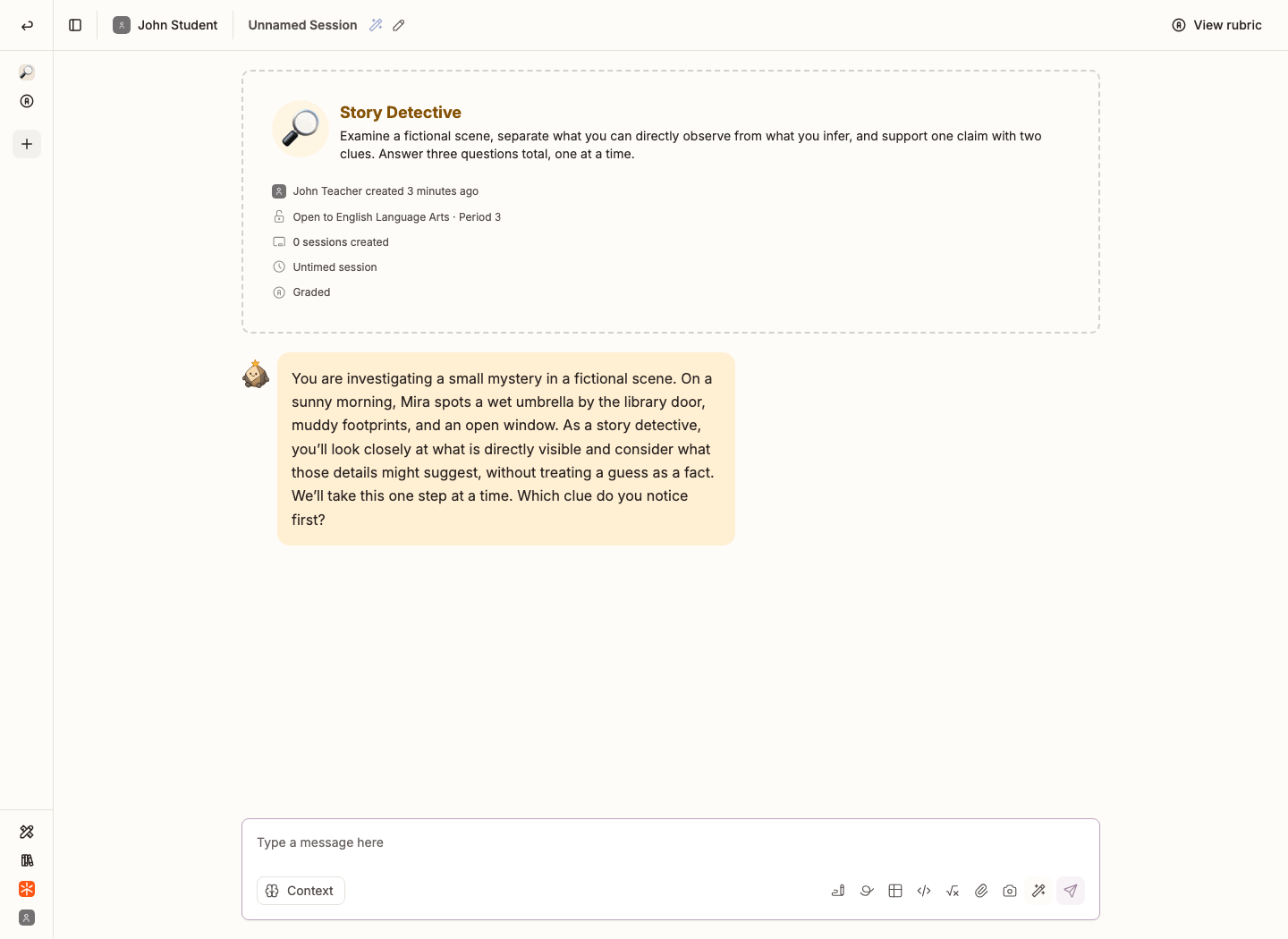
A new session opens on the activity's introduction, with the message box waiting at the bottom. Send your first message to get going and save the session. Clicking Start a session alone does not save a blank session with no message or attachment.
You do not have to submit the session you are in before starting another one, though submitting as you go keeps the record tidy and is what sends each session for analysis.
Where your earlier sessions go
Saved sessions appear in the activity's left sidebar under All sessions, newest first by default. Use Load more for older entries. Archived sessions are separate from the default list. The activity page shows Your sessions when you are taking part without Can edit, or the Sessions table when you can edit the activity, regardless of your school-role label.
When a new session cannot be started
You cannot start a session when the activity is paused, before its Available from date, or after its Due date. The sidebar's Start a session button is greyed out; the banner button is hidden. If you can edit the activity, all three settings live in the Assignment panel of Edit activity.
To let students reopen a session they have already turned in rather than start a fresh one, switch on Session unsubmission in the same panel. The session must also be unarchived, the activity unpaused, and any session timer unexpired.
For everything a session page can do, see Introduction to AI activity sessions in Flint.