

An activity can be a Lesson with Sparky for a conversation or practice, a Test or Quiz with structured questions, or a File Upload for students to hand in work. The conversational tips below apply to Lesson with Sparky.
Create the activity
- Click Create activity — in the sidebar on the Activities page, or above any class's activity list. If you have classes, a menu asks where it should live: pick one, or choose Create in your term to keep it out of any class.
- For a fresh activity, choose Lesson with Sparky, Test or Quiz or File Upload, then click Start building. Resumed drafts and prepared suggestions can take you straight into the builder.
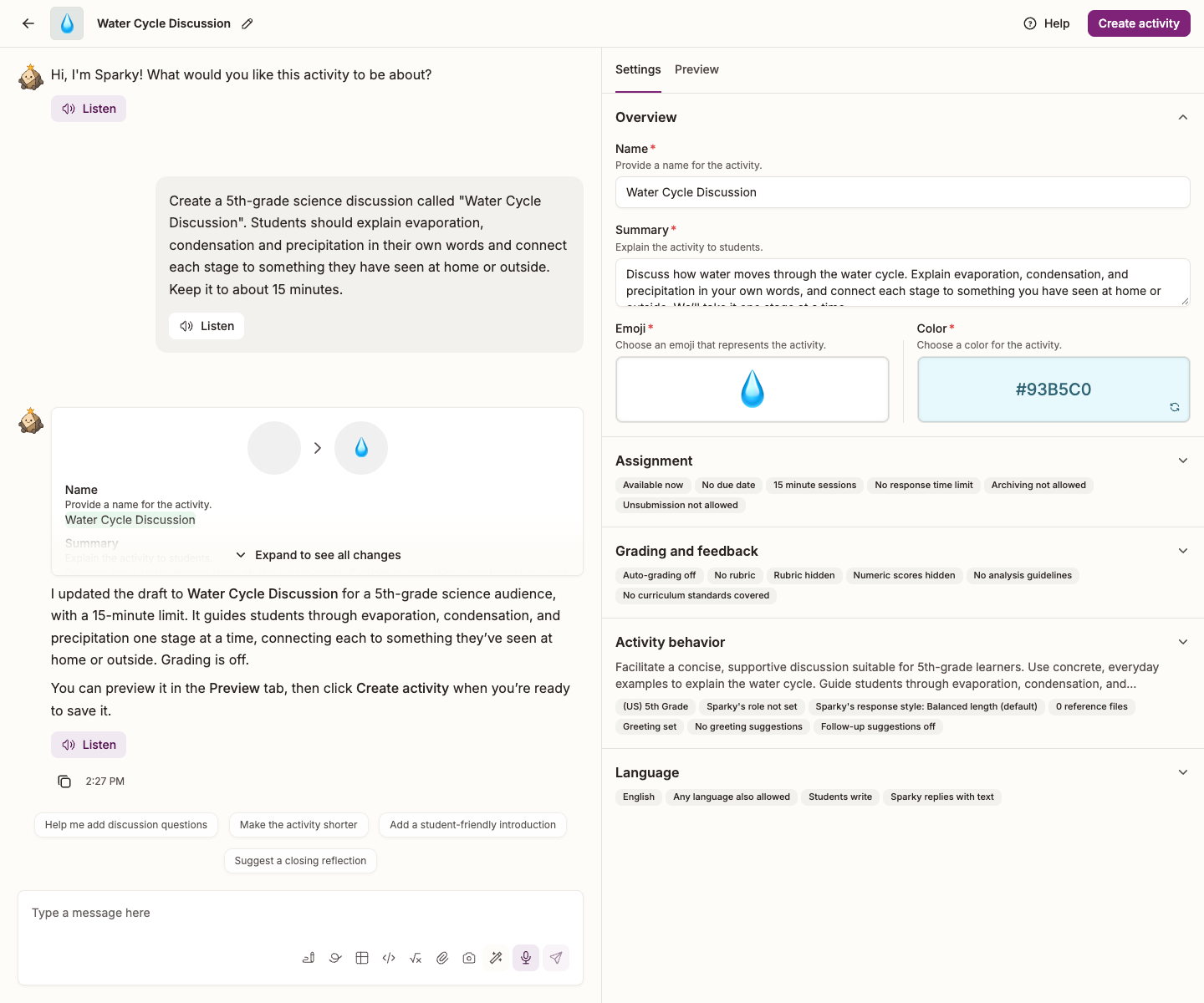
- In the builder conversation, describe what you want in a sentence or two. Sparky fills in the activity and shows you what it set.
- For a lesson, select the Preview tab beside Settings to try it. Ask for changes in the builder conversation. For a test or quiz, review the questions and assessment preview; for a file upload, check the upload instructions and rubric. Save with Create activity in the top right of the page for a lesson or file upload, or Create assessment for a test or quiz. For a test or quiz, review the optional Available from and Due date in Review assignment settings, then click Finish creating activity.
Settings is open beside the conversation from the moment the builder opens; expand a section to edit it yourself. Lessons have Overview, Assignment, Grading and feedback, Activity behavior and Language sections. File uploads have the first three. Assessments have Overview and Assignment, with Questions and Preview tabs in the same column. On a phone, the conversation and the settings are tabs in one strip: tap Settings or Preview to switch, and Chat to return.
Give Sparky a real learning objective
The single biggest difference between a flat activity and a good one is how specific you are. Tell Sparky:
- What students should be able to do by the end.
- Who they are — their grade, how much they already know, anything you'd warn a substitute teacher about.
- How you want them assessed, and what "good" looks like.
Set Grade level in the Activity behavior section too. Sparky adjusts its reading and difficulty level to it.
Hand over your own materials
If you want Sparky to teach the way you teach — or the topic is obscure, or newer than what the model knows — give it your sources. Under Guidelines for Sparky, use the paperclip (Add attachment(s)) to attach documents, slides and images, or pull them in from Google Drive or OneDrive. See Uploading content to Flint.
Say how much help Sparky should give
By default Sparky avoids doing a student's work for them, but "don't give the answer" means different things in a math drill and an essay conference. Spell it out in Guidelines for Sparky — see Changing helpfulness of an activity in Flint.
Test it before you assign it
- Select the Preview tab — watch Sparky play a whole session, then take one yourself with Try session myself. See Live previews when creating a Flint activity.
- Ask for fixes in the builder conversation rather than rewriting fields by hand. See Changing the behavior of an existing activity.
- Keep adjusting the Guidelines for Sparky and the Grading rubric until a preview session looks like the work you actually want.
Your first activity won't be your best
- Tell students what Sparky is for in this activity, and what you expect of them.
- Ask them afterwards what helped and what got in the way.
- Compare notes with colleagues — and browse the public library to see how other teachers built something similar before you start from scratch.