

Sparky can write formatted documents you can edit, print, hand out and share — study guides, lesson plans, worksheets, rubrics, essays and reports.
Ask Sparky for a document
Start a chat with Sparky and describe what you need. Be specific about the topic, the format and anything that has to be in it:
- "Create a study guide for my upcoming biology test on cell division"
- "Write a lesson plan for teaching fractions to 4th graders"
- "Generate a research report outline on renewable energy sources"
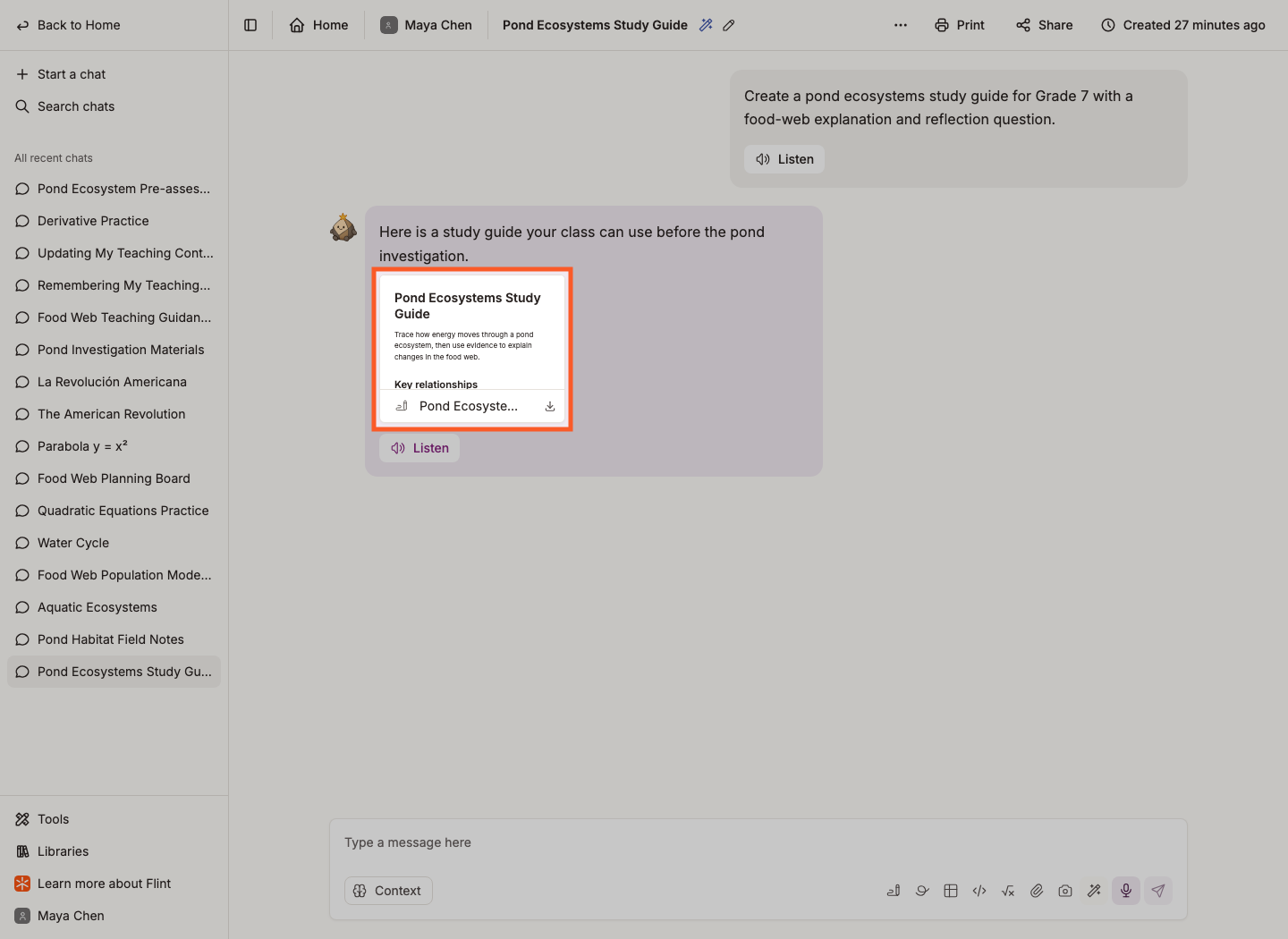
On wider screens, the document opens beside the chat. On smaller screens, tap the document card to open a panel over the chat, then close the panel to return. The document supports headings, bullets, numbered lists, tables and typeset mathematical equations.
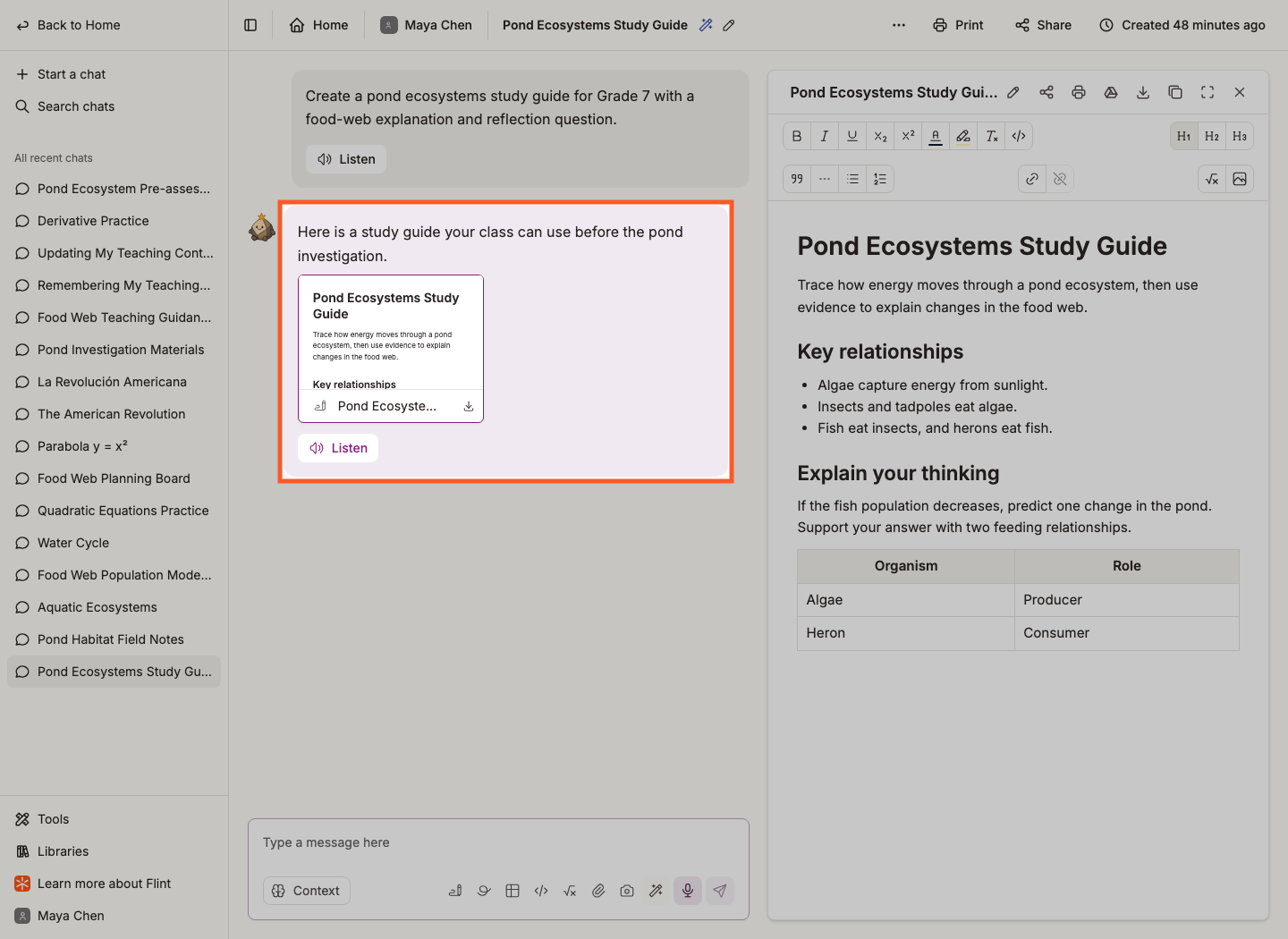
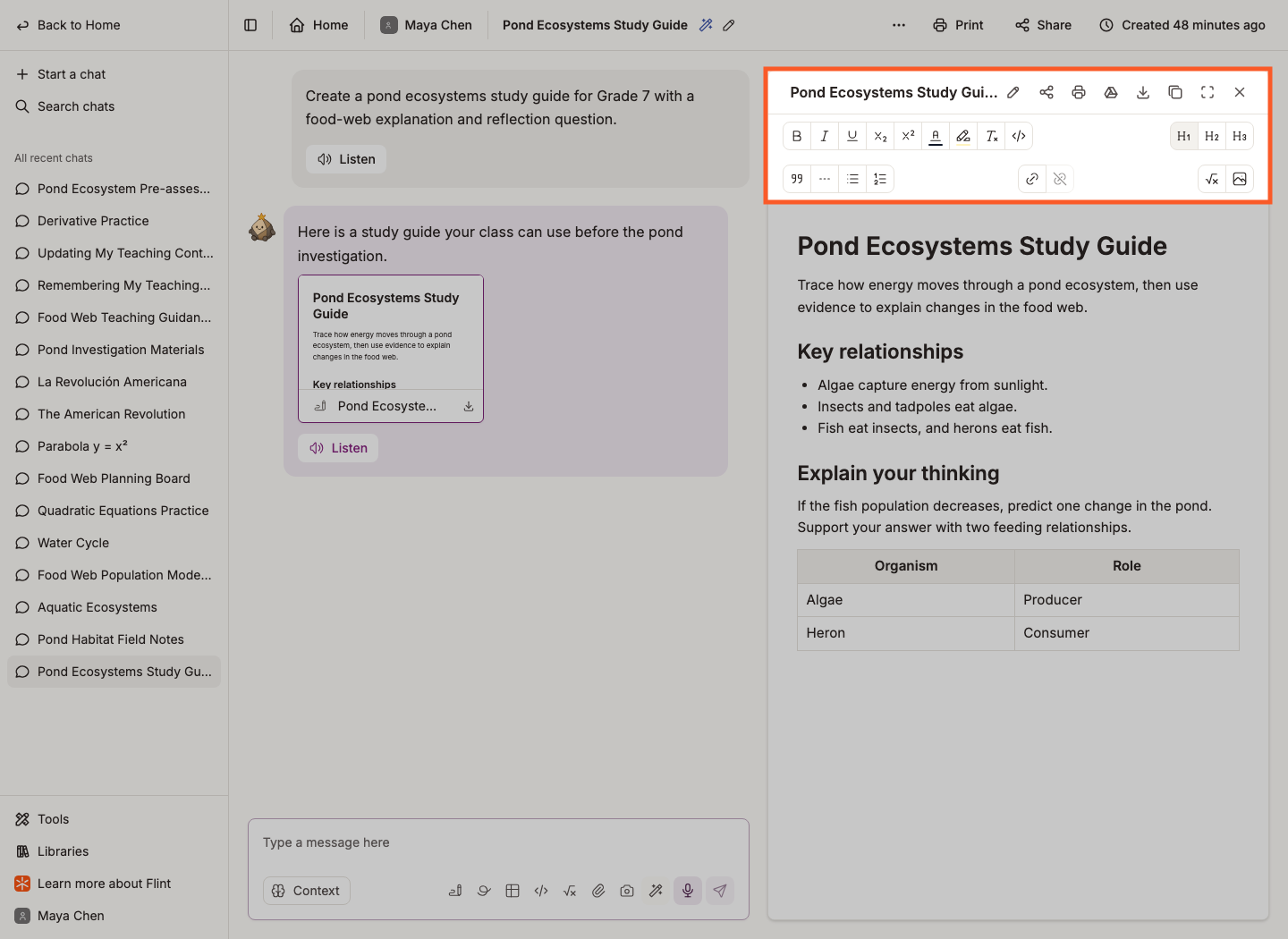
To change it, either ask Sparky ("make the review questions harder", "add a section on mitosis") or edit it yourself: click into the document and use the formatting toolbar at the top of the panel.
Manual editing is available in a chat you created, not the shared document view or an archived, submitted or simulated chat. A paused activity or a chat restriction can also prevent editing. If the toolbar is missing from a shared link, return to your original editable chat.
Hand edits become an autosaved draft version attached to your message. Send that version from the message box before expecting a shared document link to show the changes. Previous and next version arrows in the panel let you browse earlier edits; multiple later versions appear in Version history.
Add images to a document
Ask Sparky. You can do this either way round.
Watch: Include an illustration in a document
-
While a document is open, ask Sparky to add an illustration to it.
-
Or ask for the images when you ask for the document — "a lab worksheet on the water cycle with a diagram at the top".
📌 Tip: Be descriptive. Say what should be shown, roughly what style, and where it belongs in the document.
If an editable document says an image couldn't be added, Ask Sparky to try again requests another attempt; a retry is not guaranteed to succeed.
To add your own image instead:
-
Click the document in the chat to open the editor.
-
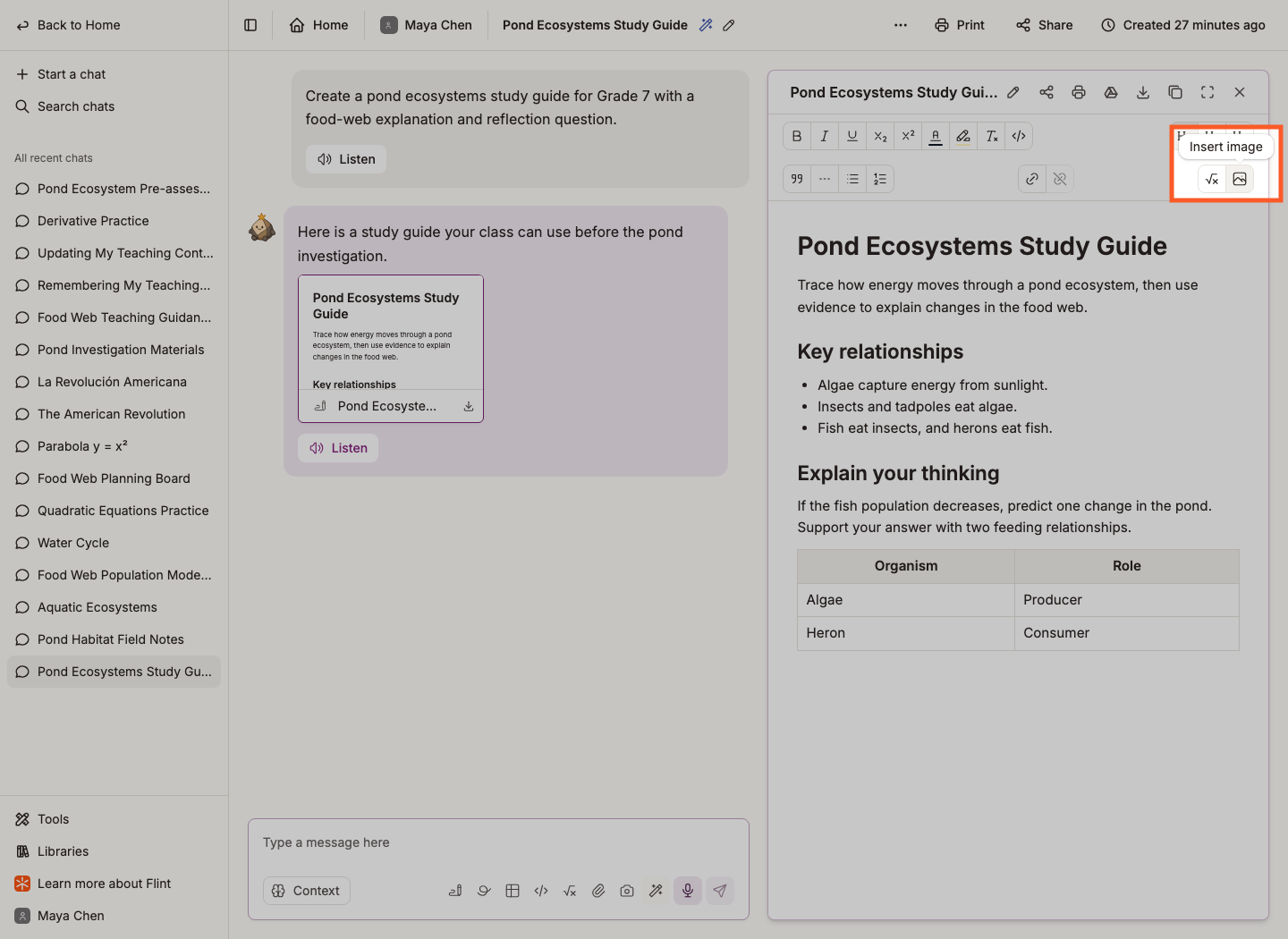
Click Insert image in the toolbar, or drag an image into the document, or paste one in.
-
Flint uploads the image and places it where your cursor is.
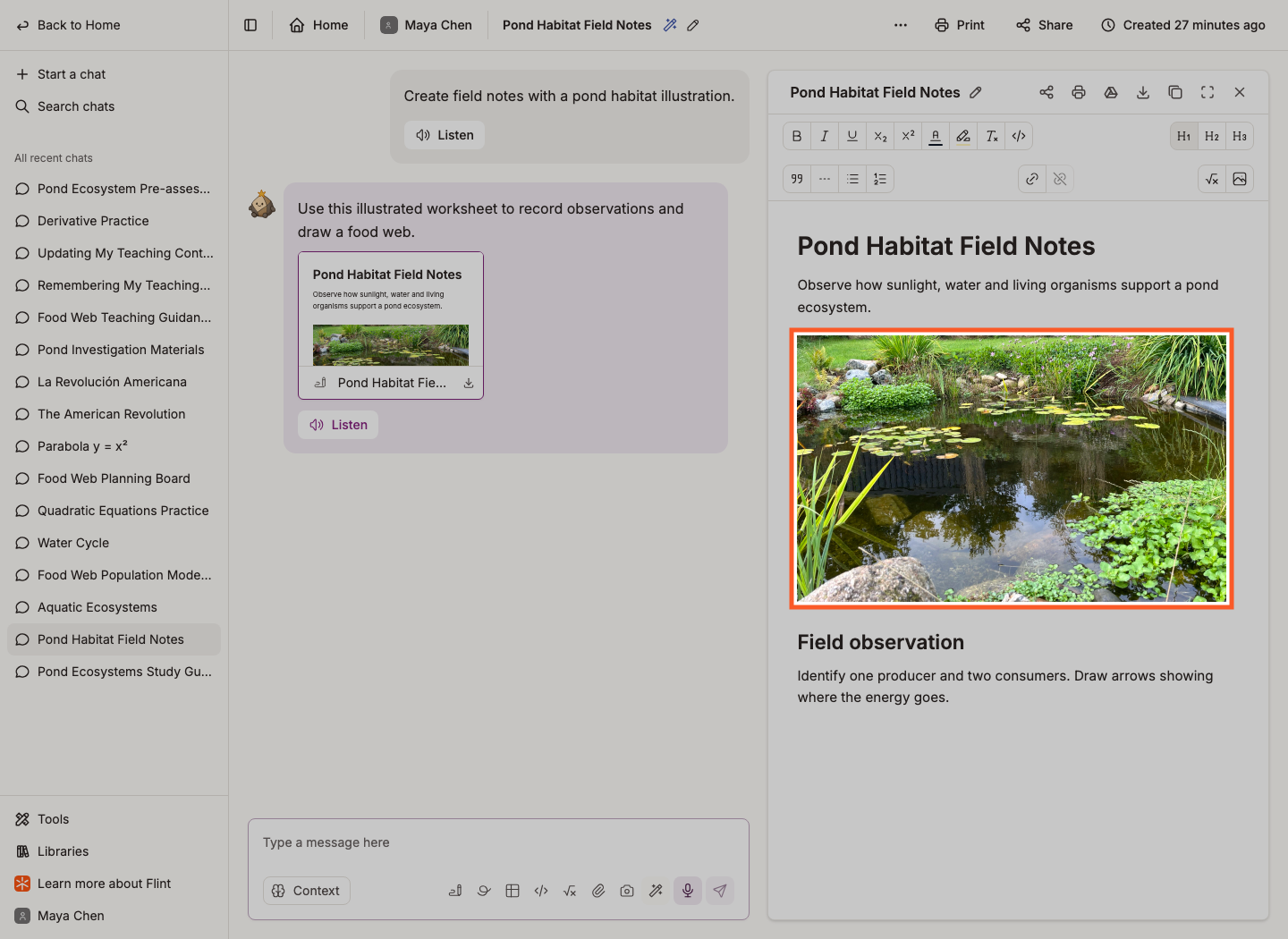
This screenshot shows an embedded image in a different example document, not the result of the preceding upload steps.
-
To resize an image, click it and drag one of the blue handles. The image keeps its proportions as you drag. Resizing is available when you can edit the document.
Share the document in Flint
In a saved chat you own and can share, open a document from a sent message and click Share on its card or panel. The chat must belong to a term and must not be archived or view-only. Under General access, choose Open to a class and select a class, Anyone with the link, or Private. The class option appears only when an eligible class in the same term is available. Read the audience description: link access still respects the nearest more restrictive school, class or activity boundary. Private removes general link/class access but retains direct and inherited owner access, including eligible moderator access. Click Copy link, then Done.
The link opens a read-only document, not the rest of the chat or editing access. The same link shows the latest sent version of that document in this chat, not unsent edits or version history. See sharing artifacts with Sparky.
Export the document
The icons at the top of the document panel do the rest:
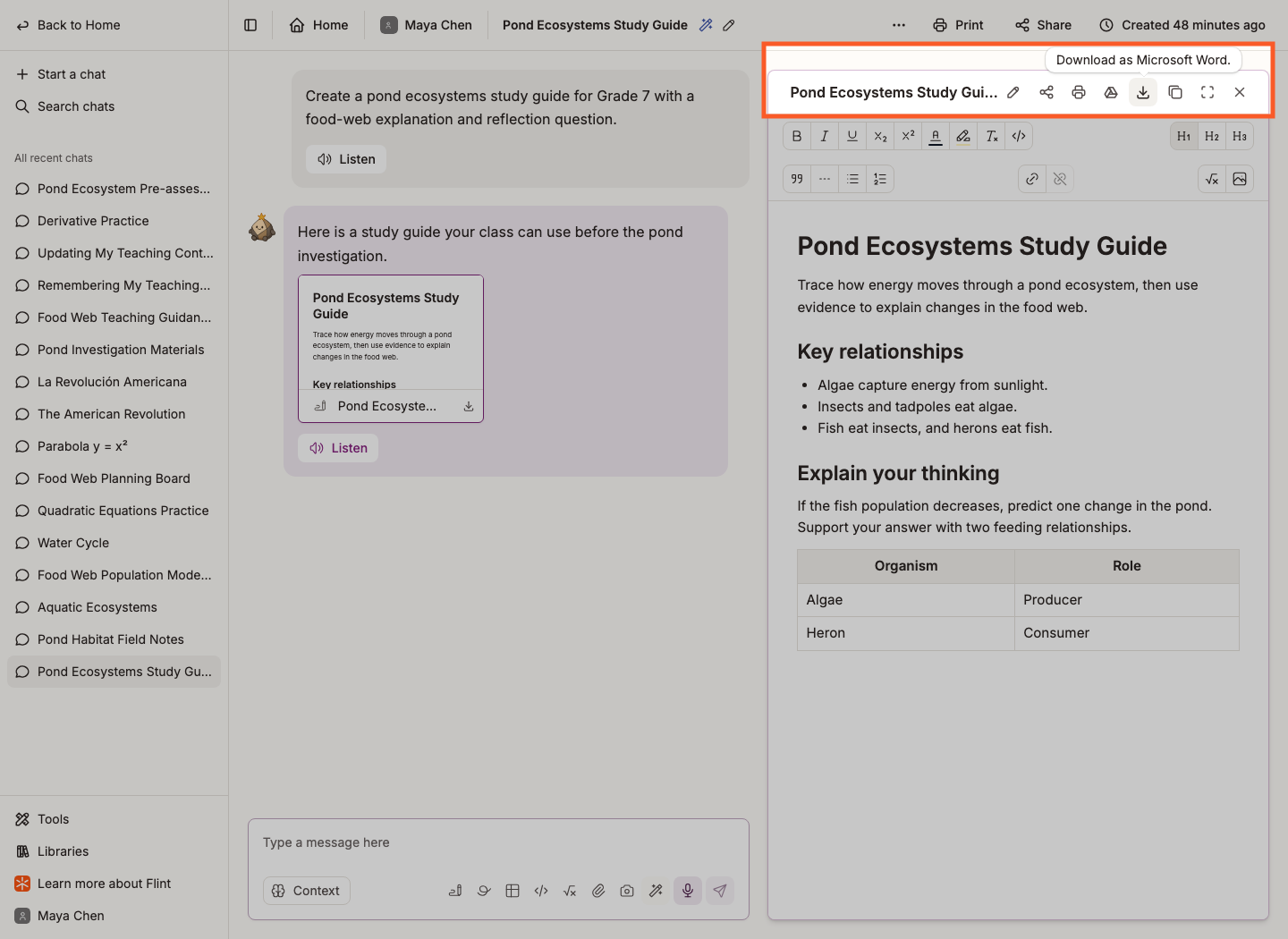
- Print opens your browser's print dialog. Choose a printer or Save as PDF, and set paper size, orientation and margins there. Save as PDF in the document card's Download menu opens the same dialog.
- Open in Google Docs saves a separate copy to your Google Drive as a Google Doc and opens it. You may first be asked to sign in to Google and authorize Drive access. Later Flint edits do not update that copy.
- Download as Microsoft Word downloads it as a
.docxfile. - Copy to clipboard copies the contents so you can paste them somewhere else.
Preview Word and Google Docs exports before sharing them, especially documents with tables or images.