

Welcome to Flint! This guide covers signing in, finding your way around, and getting help from Sparky.
In this article:
- How Sparky can help you learn
- How to sign in
- How to find your way around
- How to complete activities and chat with Sparky
How Sparky can help you learn
Sparky isn't just a chatbot — it has tools it can use to work through a problem with you. Here are some examples.
The captioned walkthroughs below have no audio. Use the written steps alongside them; available tools and chat access depend on your school's settings.
You're stuck on a bug in your computer science project:
"I'm trying to write a Python function that calculates the average of a list, but it's not working. Can you help?"
Watch: Run a code snippet and ask Sparky about its output
Sparky can write code, explain it, and run it so you can see exactly what it does.
You've got an algebra test coming up:
"Can you help me make a study guide for my algebra test on quadratic equations?"
Watch: Make a study guide you can check
Sparky can:
- Work through solutions step by step
- Draw graphs and other visualisations
- Write a document you can download and keep
Photosynthesis didn't click in class today:
"Can you make a video explaining photosynthesis? I didn't understand it in class."
Watch: Request a video and check muted playback
The walkthrough checks the generated video with playback muted. This help recording has no audio.
Sparky makes a short narrated video that breaks the idea into steps.
You're finishing a research paper on the Civil Rights Movement:
"Can you check if my source citations are formatted correctly for my history paper?"
Watch: Verify a cited source
Sparky can suggest citation-formatting fixes and search for sources. Check the original sources yourself before using a citation; the walkthrough shows how to open a source and compare it with Sparky's answer.
📌 Tip: Tools available when chatting with Sparky lists everything Sparky can do.
📌 Worth knowing: For student accounts, Sparky is instructed to guide you through a problem rather than produce work you could submit as your own. Check important answers and follow your teacher's rules for AI use.
How to sign in
Your teacher or school admin may have already set your account up, in which case you can just sign in.
- Go to app.flintk12.com.
- Choose how to sign in:
- Sign in with Google — use your school Google account
- Sign in with Microsoft — use your school Microsoft account
- Or type your school email address and click Next
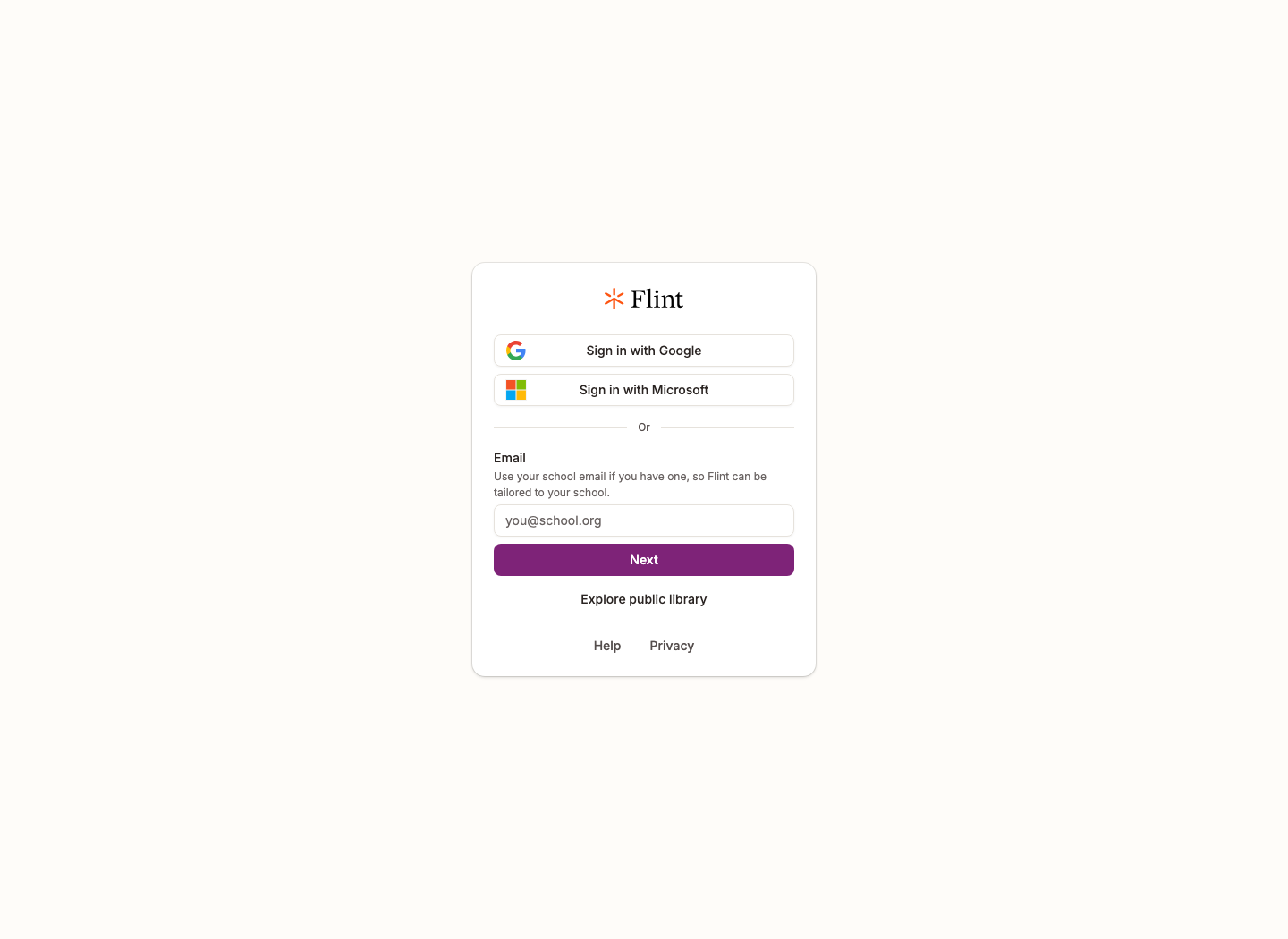
📌 Tip: If your school uses Google or Microsoft, use those buttons. You won't need a separate Flint password.
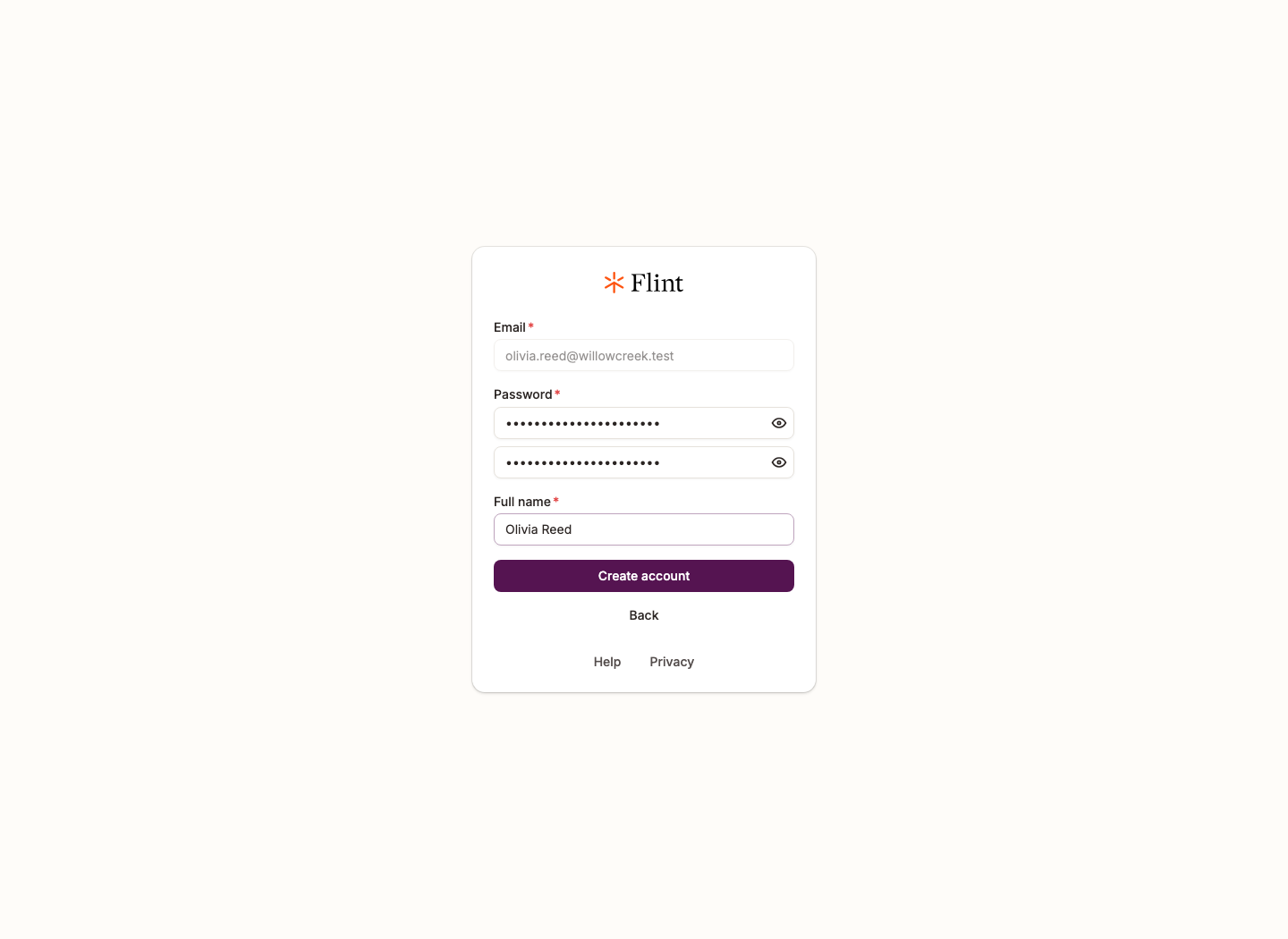
If you type your email address and don't have an account yet, you'll see a form to create one:
-
Enter a password, confirm it, and enter your full name.
-
Click Create account.
-
Flint now asks for a code. Check your inbox for an email from Flint with a six-digit code.
-
Type the code into Email verification code. Flint checks it as soon as you type the last digit, or you can click Verify. The button in the email only opens this code screen: it doesn't confirm your account on its own.
-
Follow any remaining setup prompts. If Flint lists schools, select yours. If it asks What best describes you?, choose Student. Flint then shows the rules for using Flint, in plain words: tick the box and click Accept and continue.
If the code email doesn't arrive, check your spam or junk folder, then click Resend code. Only the newest code works. If you leave before entering the code, sign in again with your email address and password, and Flint brings you back to the code screen.
If you have no school to join, or choose I don't see my school, you may be asked what you want to do next:
- I have a join code from my teacher — type the code your teacher shared, and Flint opens their class or activity. You don't get a separate school.
- I want to use Flint for learning — sets up a personal workspace for your own learning, where available. Flint asks Which school do you go to? first. This is not your school's shared Flint; ask your teacher for access to assigned work.
These setup prompts also apply if you sign in with Google or Microsoft. Your region may require an age check before setup continues.
- Go to app.flintk12.com.
- Choose how to sign in:
- Sign in with Google — use your school Google account
- Sign in with Microsoft — use your school Microsoft account
- Or type your school email address, click Next, then enter your password
Stuck? Trouble signing in to Flint covers the usual causes, or ask your teacher.
How to find your way around
After setup, everything is in the sidebar on the left. A teacher's link or join code may take you straight to a class or an activity instead of Home.
Your school may restrict personal chats for your grade level. Home or Start a chat may be unavailable, and Chats may open an existing class or tool chat instead. Assigned activities and class chats still work. Ask your teacher which entry point to use.
When personal chats are available, Home is your starting page once setup is complete, unless a link takes you straight to an activity. Sparky says hello and suggests a few things to get you started. It's a good place for a quick question.
If your teacher shows you a join code, click Enter join code at the top of Home, type the code and click Join. A class code opens the class's Overview page, and an activity code opens the activity.
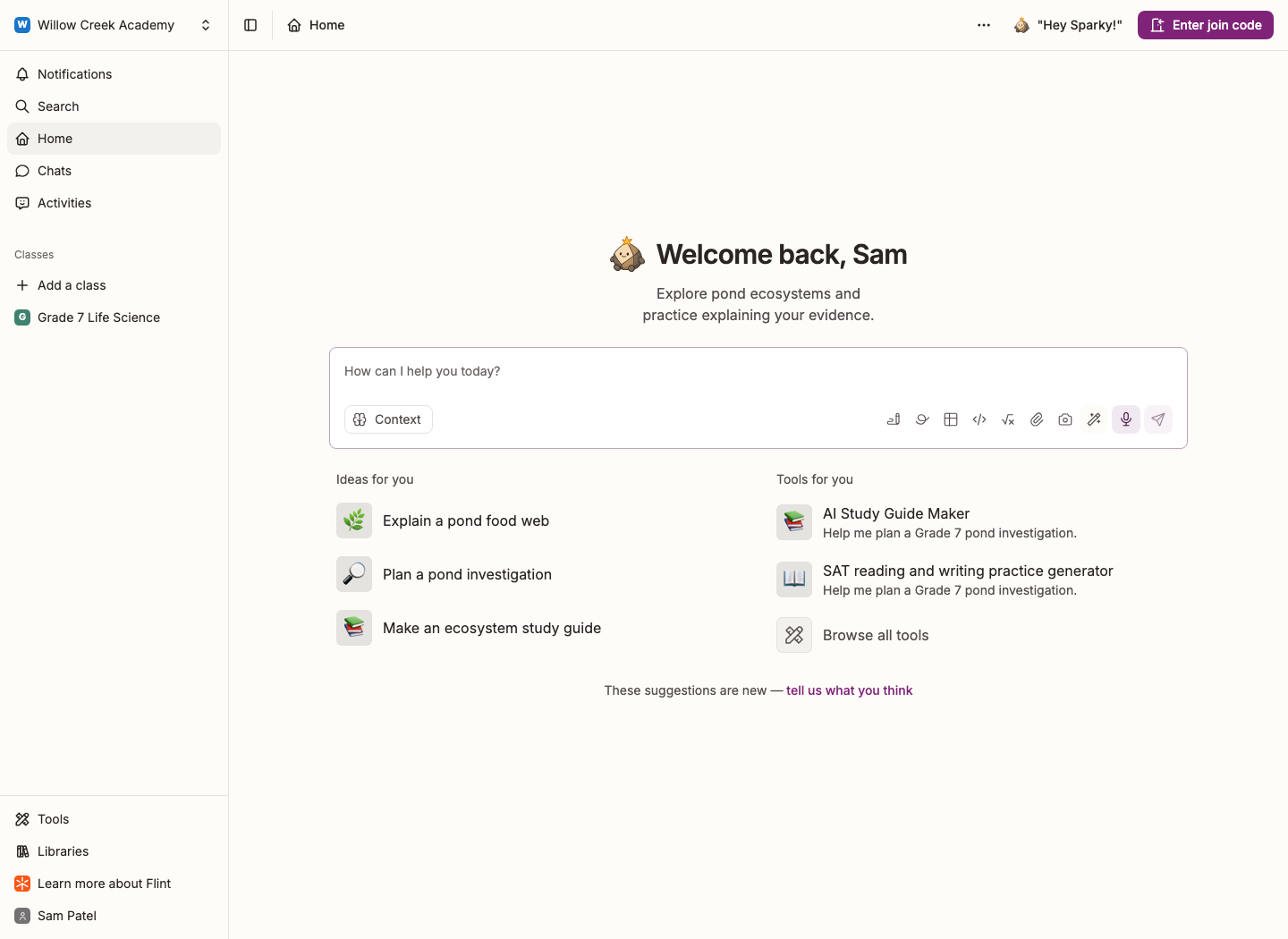
Chats in the sidebar is where your own conversations with Sparky live. When personal chats are available, clicking it opens a fresh chat, and your earlier ones are listed under All recent chats. Start one to:
- Get help with homework
- Research a topic
- Practise a world language
- Make study guides
- And plenty more
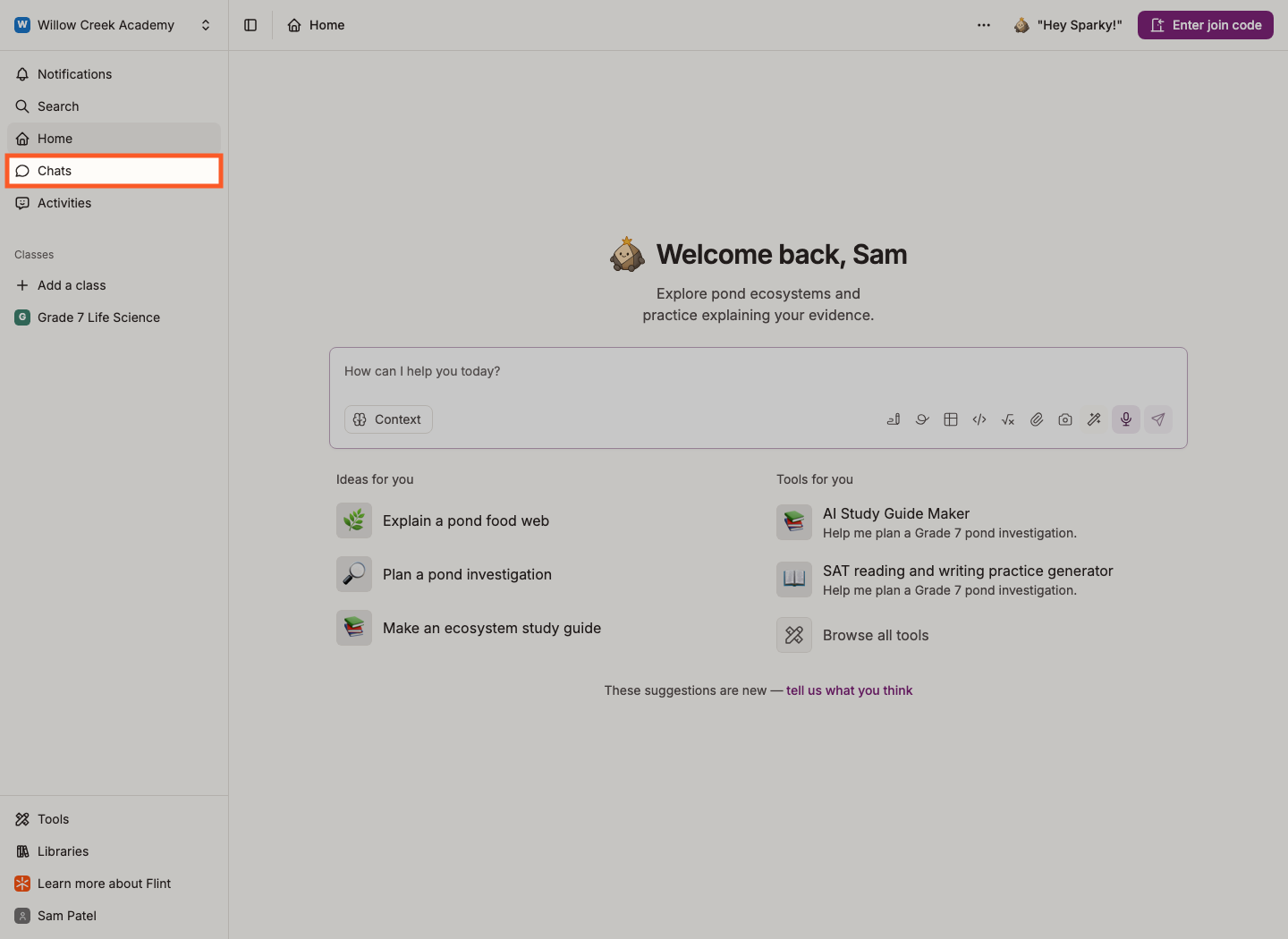
Every chat is saved, so you can come back to it later.
Activities in the sidebar holds the learning activities your teachers have made for you: lessons with Sparky, tests or quizzes, and file-upload assignments. Open one to see how to start it.
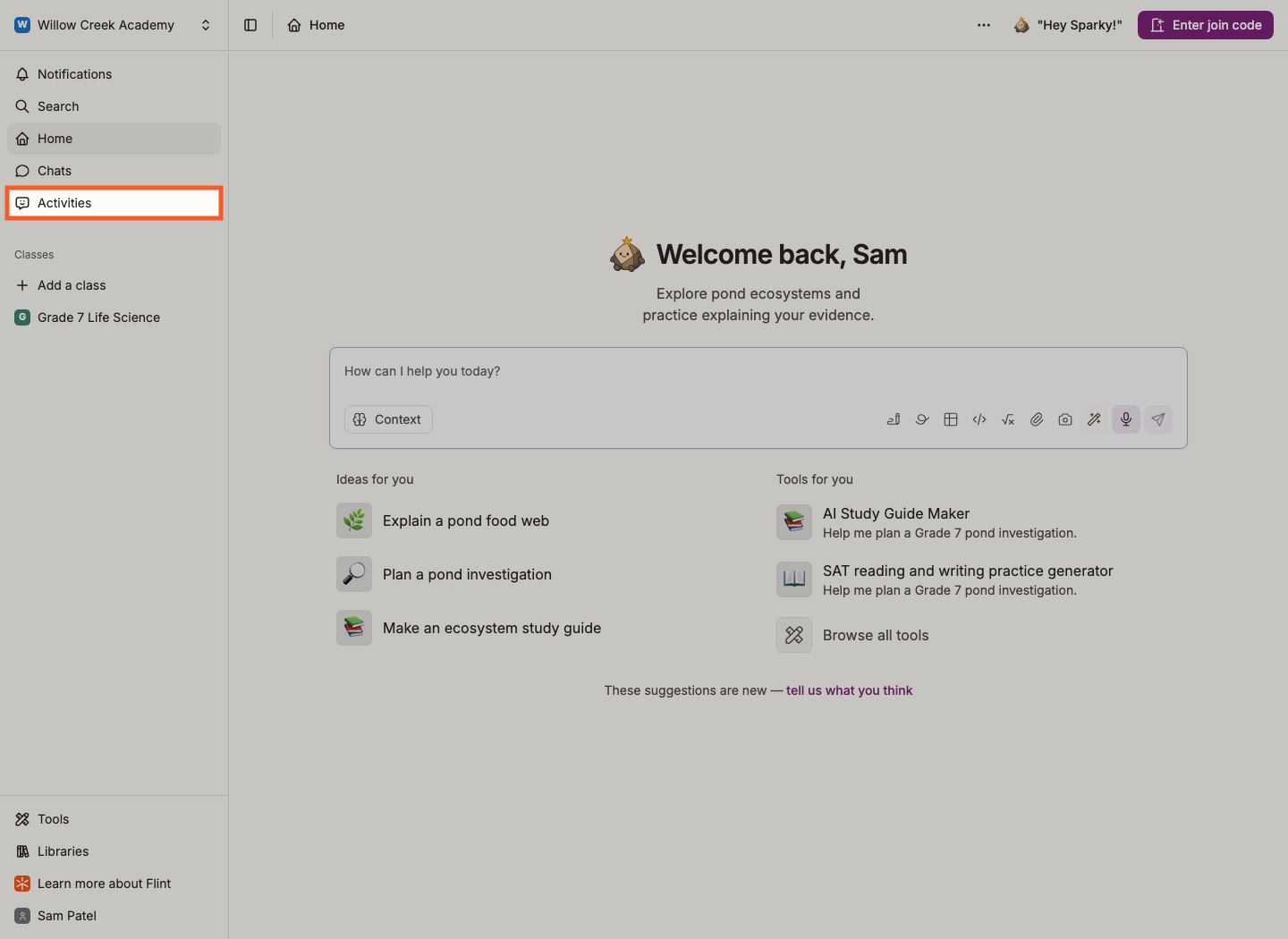
Resources in the sidebar lists the documents, slides and simulations you make with Sparky, and the resources other people share with you. Filter by All resources, My resources or Shared with me.
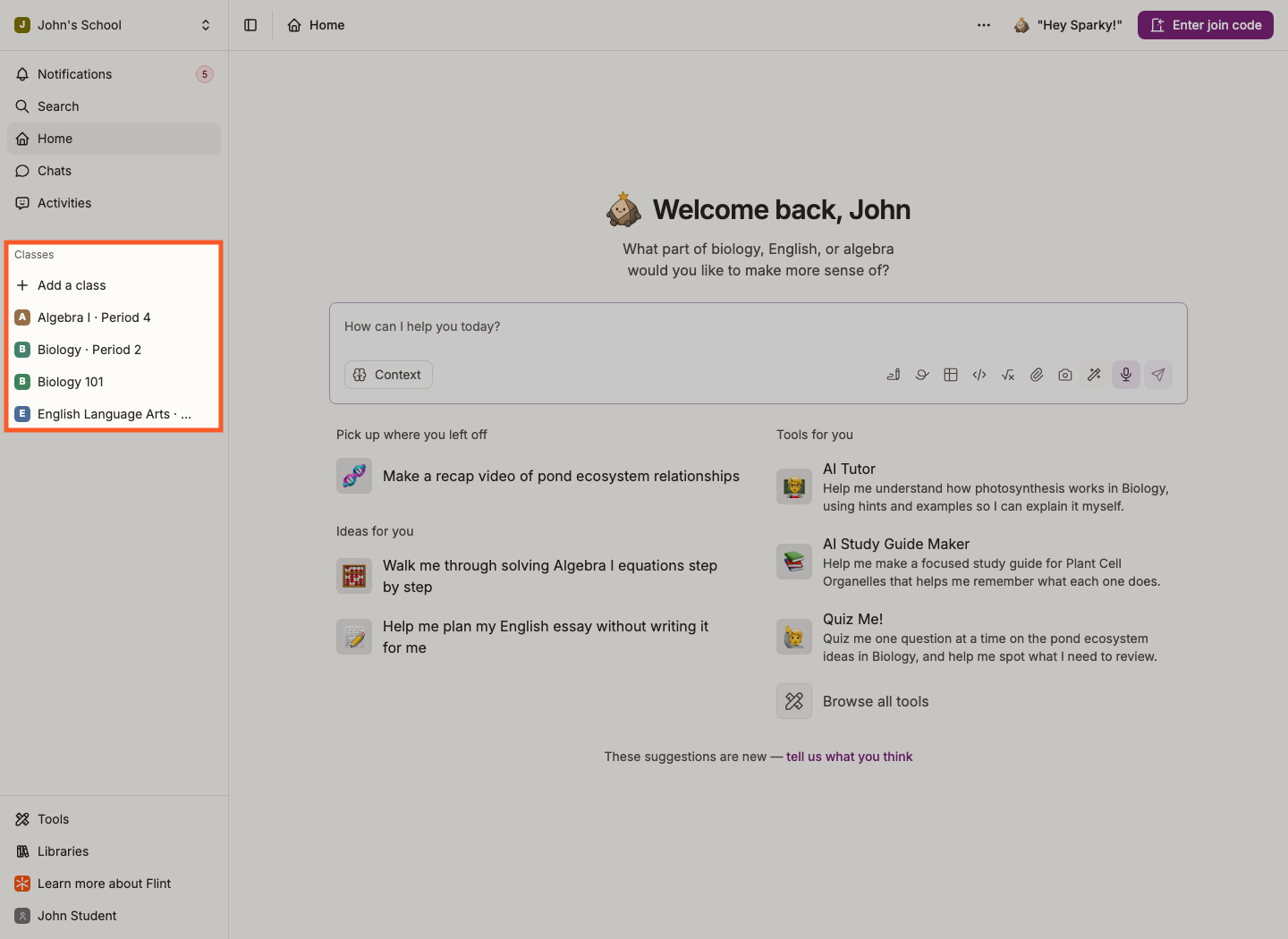
Your classes are listed under Classes in the sidebar. A class is a digital version of a class you're in — your teacher adds you to it, or you join with a code. If you have no classes yet, the sidebar says No classes yet. Use Enter join code on Home to join one.
A class opens on its Overview page:
- Upcoming activities lists work that is past due and not handed in, then anything due in the next 7 days. Each one shows Not started, In progress or Submitted.
- Pinned resources shows the files and links your teacher pinned for the class.
- Announcements shows your teacher's newest announcements, with new ones marked New. Click one to read it, or See all announcements for older ones. Your teacher can schedule an announcement for later: you see it, and get its notification, only once it posts. An announcement marked Expires and a date disappears from the class after that day.
- Needs attention shows work that is past due, or You're all caught up.
- Your progress counts the activities you've completed out of those assigned, and your chats with Sparky in the class.
- Chat with Sparky at the top starts a new chat in the class.
To see everything in a class, use the class sidebar: Activities lists all of the class's activities, and Resources lists all of its files and links. You can open resources, but only your teacher can add them.
When your teacher posts an announcement, you get a notification under Notifications in the sidebar. Your teacher can also email you an announcement: the email has its title and a link to read it in Flint. To stop getting these emails, use the unsubscribe link at the bottom of the email.
Complete activities and chat with Sparky
An assigned activity may be a conversation, a file upload, or a structured assessment. Your own chats are separate from all three.
Open an activity from Activities or from your class, then:
For a Lesson with Sparky, click Start a session, then type your answers in the message box. Sparky follows your teacher's instructions, and your session saves as you work. When you finish, click Submit session to hand it in for feedback and grading if enabled. Saving the conversation is not the same as submitting it. See Introduction to AI activity sessions.
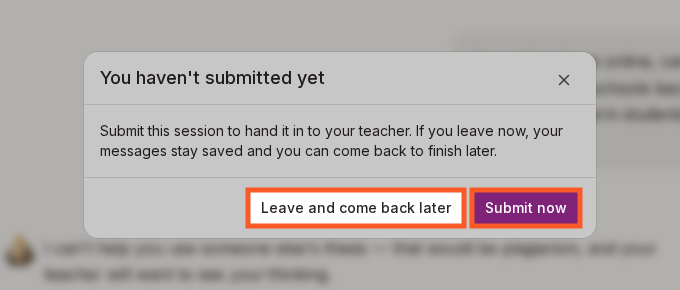
If you've sent a message and then click a link that leaves the session before you submit, Flint asks You haven't submitted yet:
- Submit now hands the session in to your teacher, then takes you where you were going.
- Leave and come back later takes you there without submitting. Your messages stay saved, and you can submit when you come back.
- Close the box to stay in the session.
Closing or reloading the browser tab shows your browser's own leave warning instead.
For a File Upload assignment, click Submit work and upload the work your teacher requested.
For a Test or Quiz, click Start assessment. Answer the structured questions, then click Submit assessment to hand it in. Answers save as you work; follow any availability, due-date or time-limit notices. A started assessment may be submitted automatically when its deadline passes.
After submission, your teacher controls what you can see. Share results releases your scores and teacher feedback; answer-key release separately makes correct answers, grading guides and available AI analysis visible. You may need to wait for one or both before reviewing your work.
Watch: Start and submit a Lesson with Sparky
Watch: Submit work for a File Upload activity
Watch: Complete a Test or Quiz as a student
Your teacher can see your work in their activities, including lesson conversations and assessment answers.
- When your school allows personal chats, click Chats in the sidebar. A fresh chat opens, and your earlier ones are listed under All recent chats.
- Type your question, or pick one of the suggestions.
- Sparky answers and offers to keep going. Start a chat begins another one when personal chats are available.
Watch: Start a chat and come back to it
Your own chats are good for:
- Homework help outside an assigned activity
- Exploring something you're curious about
- Practising a skill in your own time
Using chats in Flint goes into more detail.