

Most of Flint is built around activities, which have a specific learning objective in mind. When you just want to ask something, think out loud, or make a worksheet before lunch, you can chat with Sparky directly instead.
Why chat with Sparky rather than a free AI tool
- Sparky can make things, not just talk. Documents, slides, videos, images, charts, code and more come back in the chat with controls suited to each item. See Tools available when chatting with Sparky.
- Sparky already knows your school. Your school's mission and background, your class's context and curriculum, and your grade levels all shape the answer, so you spend less time explaining the situation.
- Students get a tutor, not a ghostwriter. Sparky responds differently to students than to teachers, guiding them through a problem rather than handing over the answer.
- Admins keep oversight. School admins can find every chat in the school, and concerning messages are flagged for review. See Moderation in Flint.
For a walkthrough of what chats are good for, watch Flint's recorded Campfire Session — Using Chats 101.
Start a chat
There are three places to start one.
From your home page
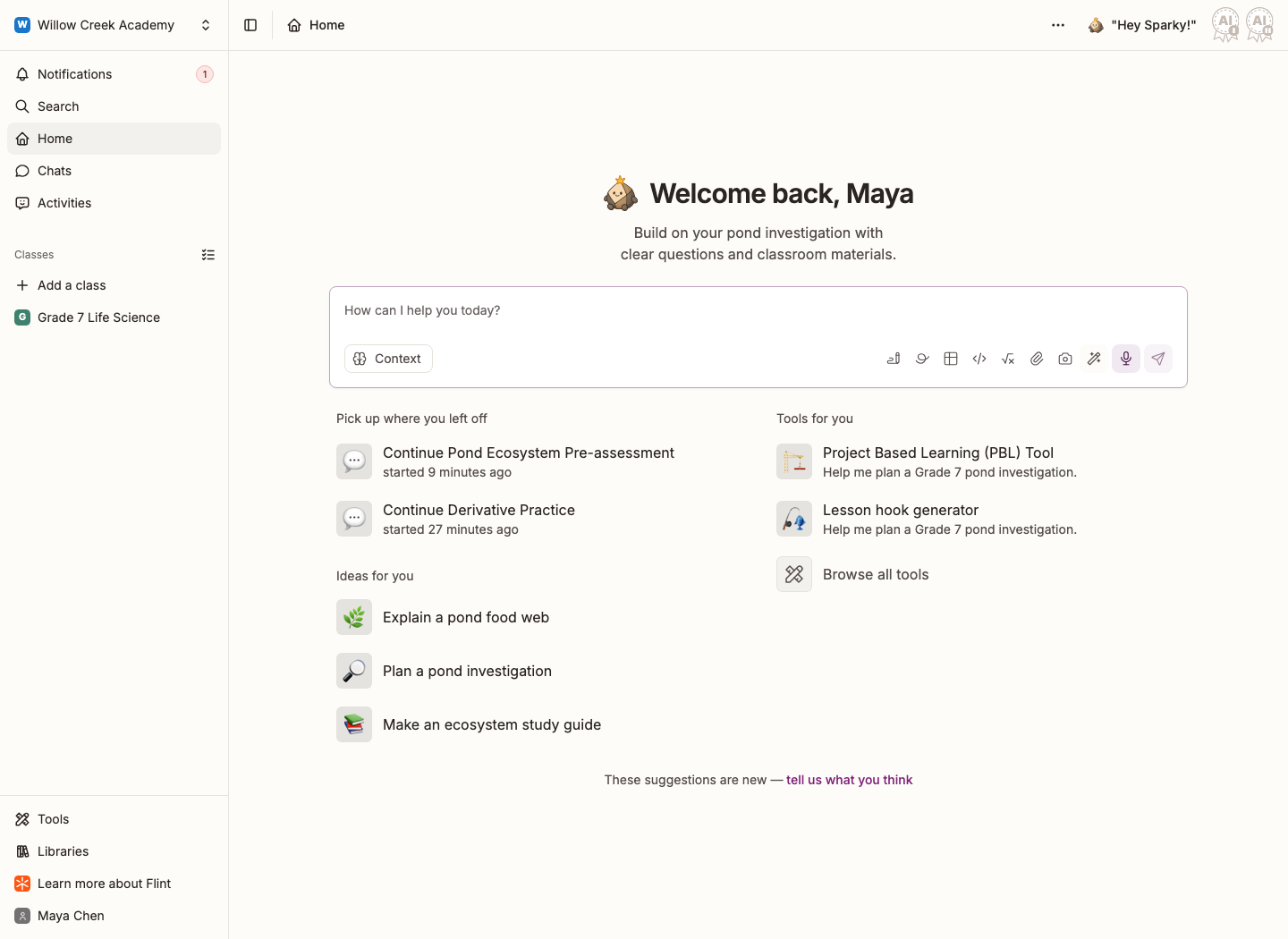
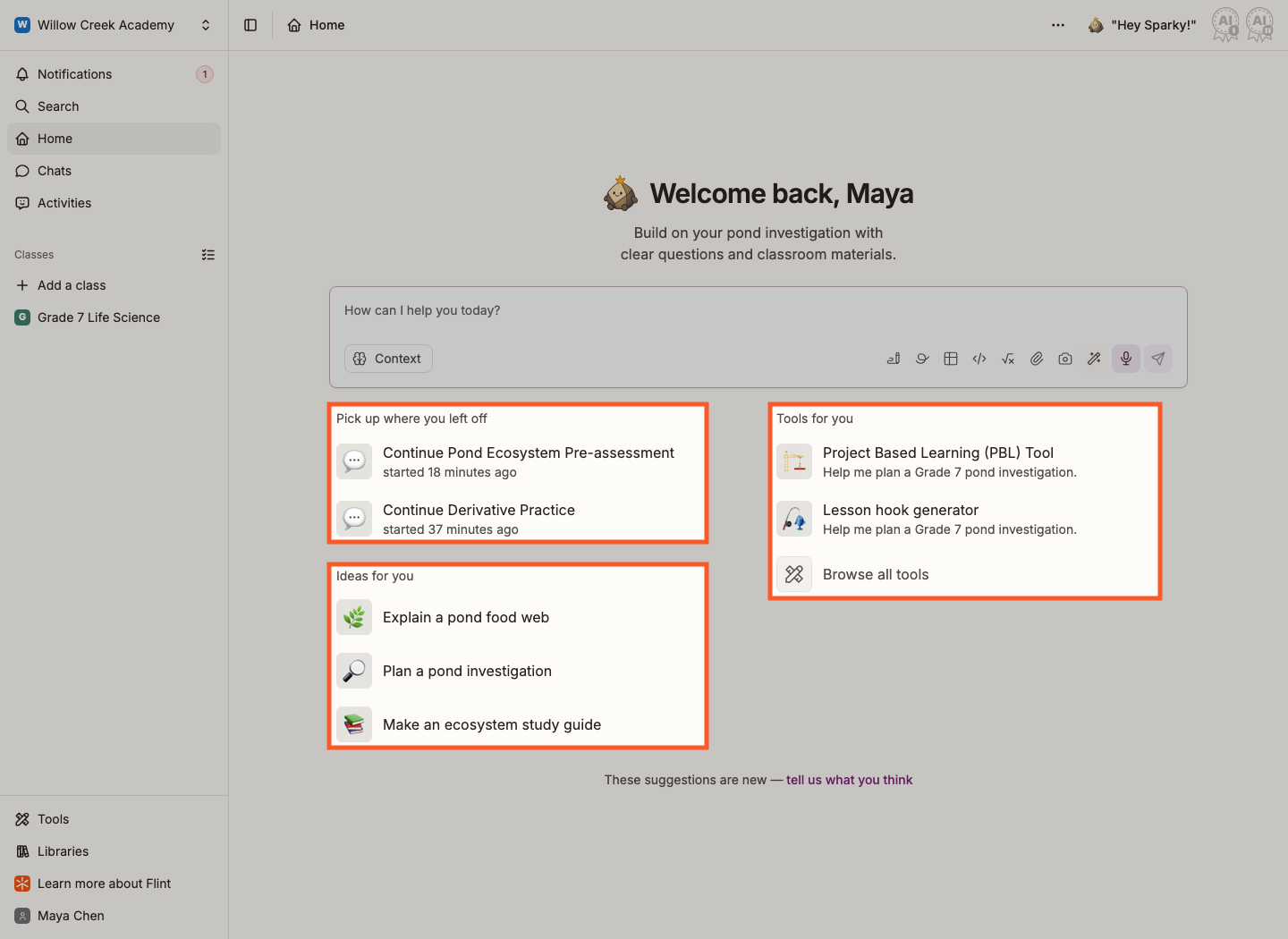
Type straight into the message box, or choose a chat suggestion under Ideas for you or Tools for you. Some suggestions open another page, such as an activity builder or course. Pick up where you left off resumes existing work rather than always starting a new chat.
From the sidebar
Click Chats, then Start a chat. Your earlier chats are listed under All recent chats.
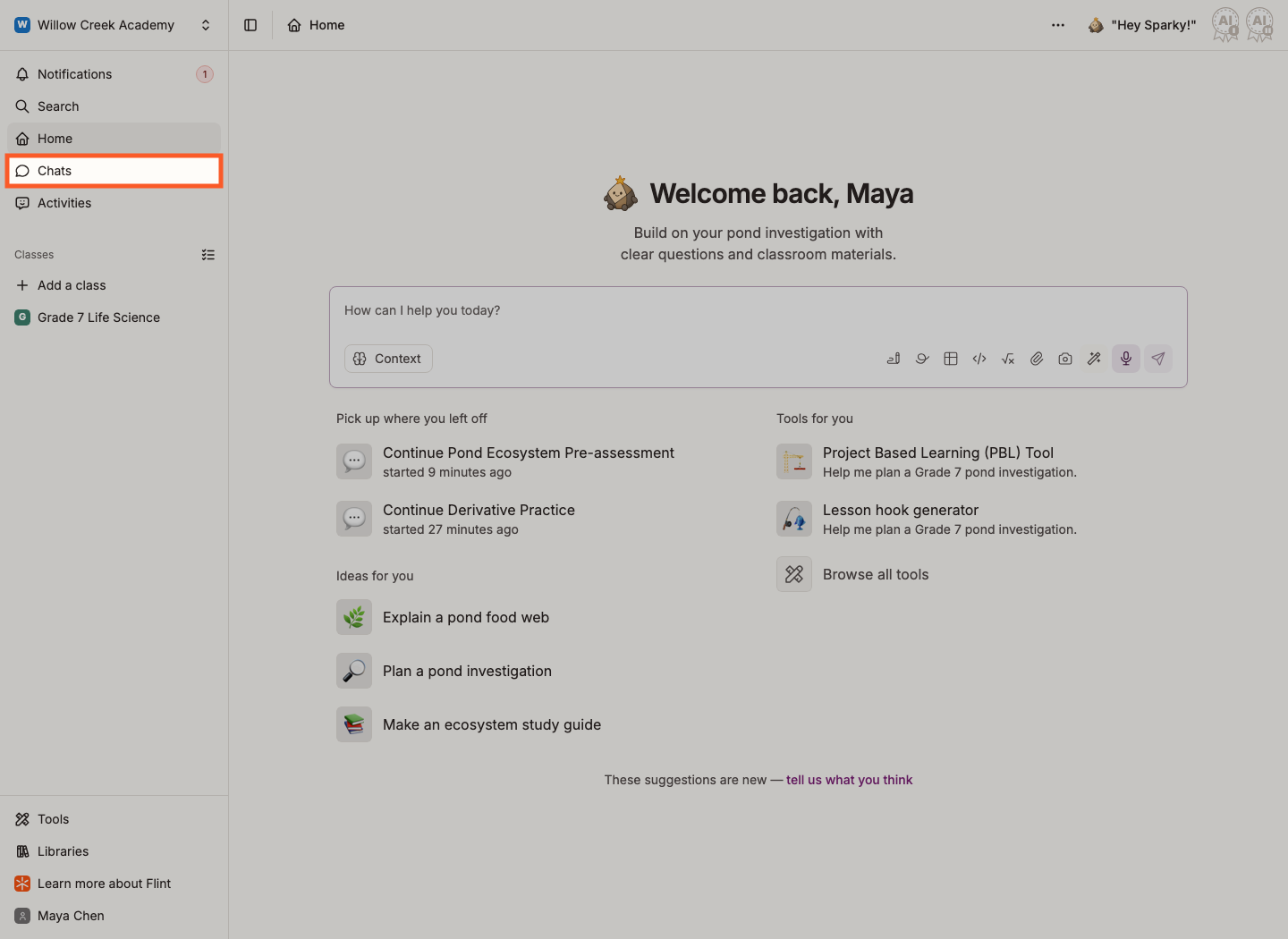
The screenshot shows where to open Chats from Home, not the recent-chat list itself.
Inside a class
Open the class, click Chats, then Start a chat. A chat started inside a class carries that class's context and curriculum, so you can ask for a review sheet on the current unit without explaining the unit first.
Watch: Start a class chat and find it again
If your school restricts chats for your grade level, you won't see Start a chat. Activities and class chats still work as normal.
Ask for more than an answer
Type what you want in plain language: "Create a study guide for my unit on the American Revolution, a matching worksheet, and a rubric to grade it." Sparky can make several things in one reply. Each item opens in a panel with controls appropriate to that item: documents can be edited, copied, printed or opened in Google Docs; slides can be opened in Google Slides; spreadsheets can be exported as Excel or CSV or opened in Google Sheets; videos can be downloaded.
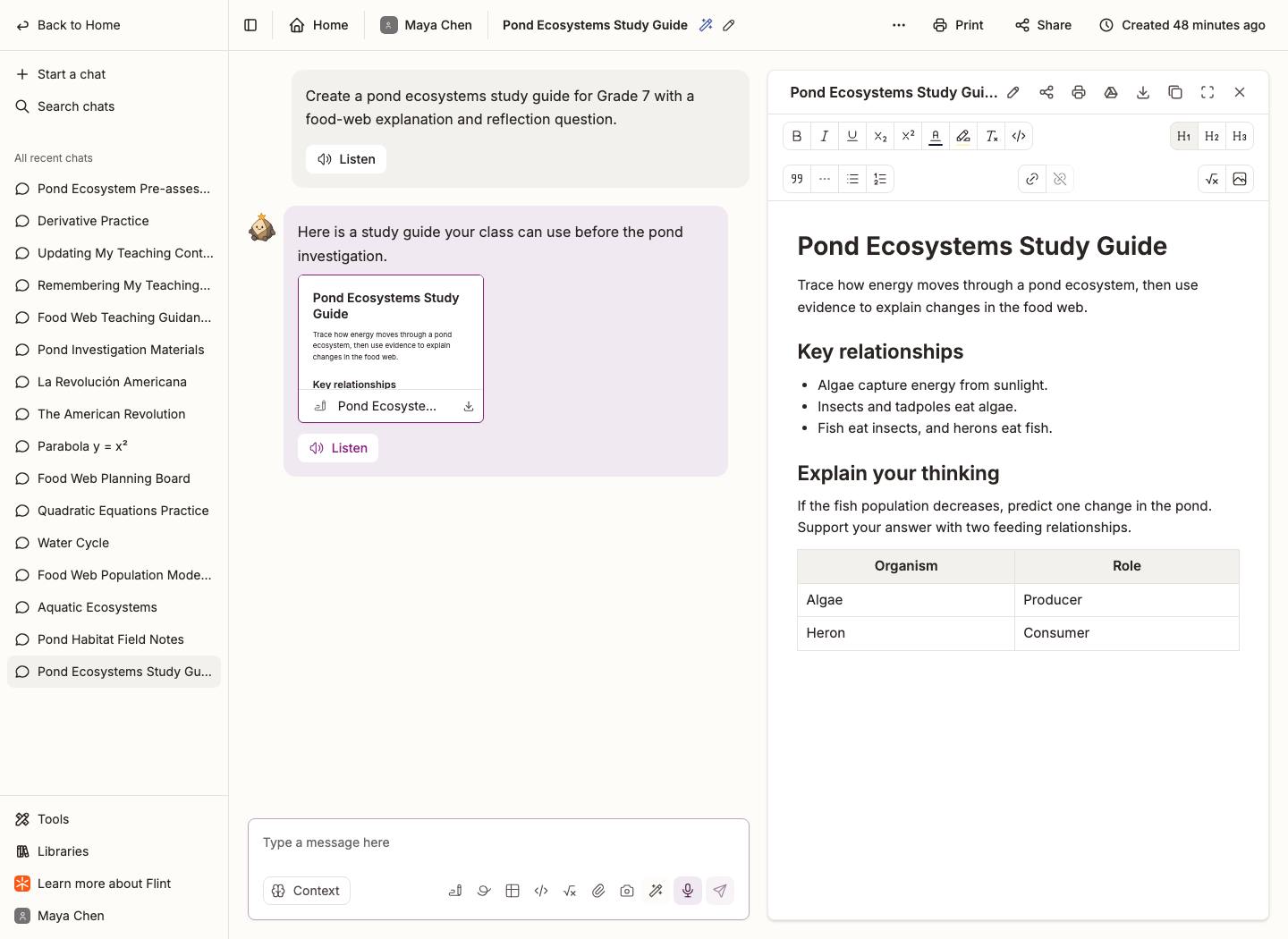
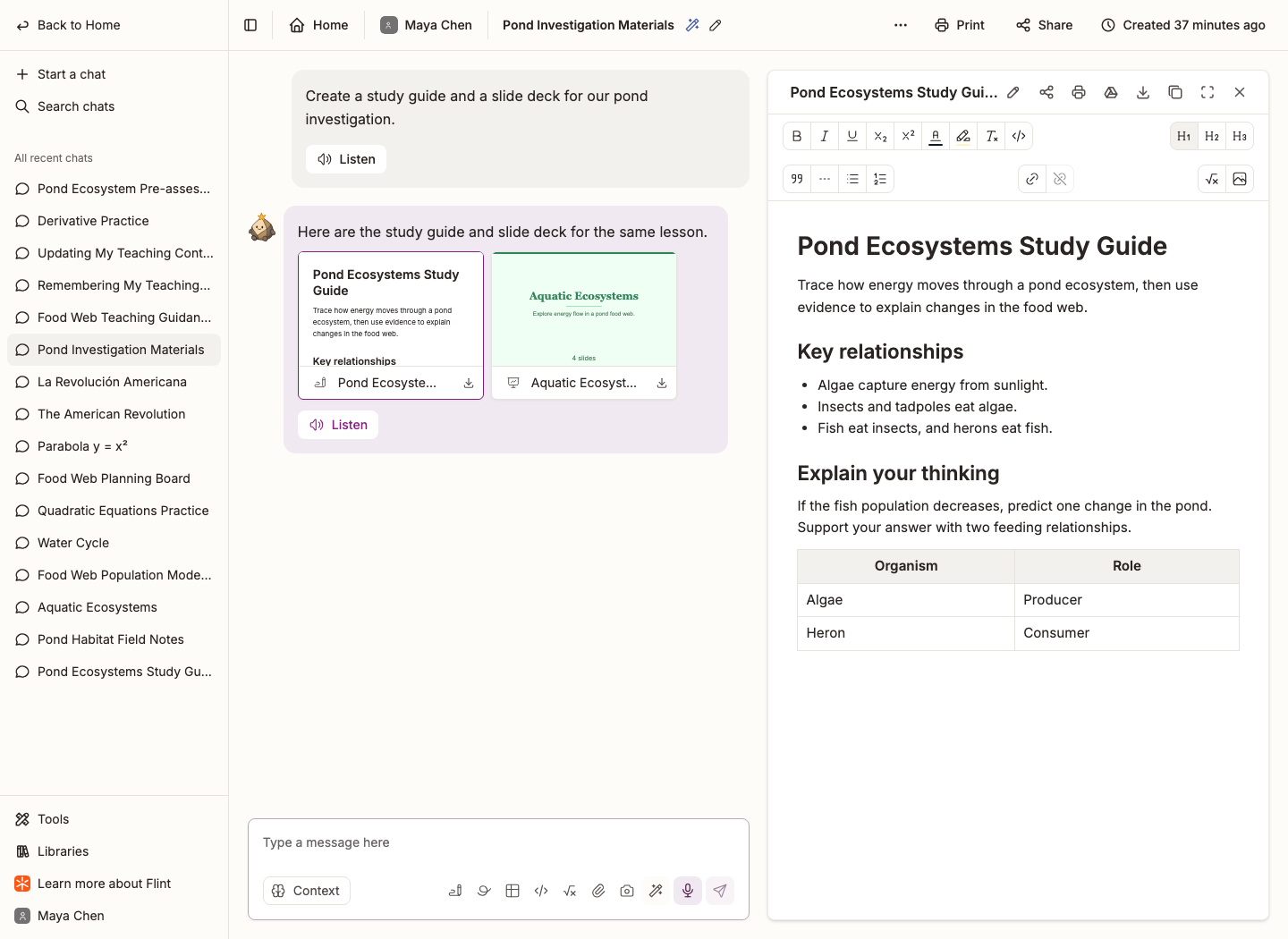
The row of icons under the message box gives you a head start:
- Create a document, Create a whiteboard, Create a spreadsheet, Write code and Insert an equation add something to your message for Sparky to work from.
- Add attachment(s) attaches files from Flint, your computer, Google Drive or Microsoft OneDrive, and Take a photo uses your camera.
- The wand (Generate content) lets you select Video, Image, Slides, Graph, 3D model, Live simulation, Flashcards or Practice problems. It selects the format and changes the box's placeholder; it does not insert a prompt into your message. Describe what you want, then send it. Choose Clear selection in the same menu to return to a regular message.
- Context shows sources available in the conversation. The sources and tabs you can view depend on the conversation and your permissions.
Work with a spreadsheet
Click Create a spreadsheet for a blank workbook, or ask Sparky to create one with the data and formulas you need. You can also attach an Excel (.xlsx) or CSV file and ask Sparky to open it as an editable spreadsheet; an Excel file keeps its cell formatting, such as bold text, colors and borders. Edit cells directly in the panel, or ask Sparky to change values, formulas, rows, columns or sheets. Sparky's edits create a new version and keep the original.
Use the Format menu above the cells for bold, italic, underline, strikethrough, text and fill color, borders, alignment and text wrapping. To add a chart, select the cells with labels in the first column and headings in the first row, open Insert chart, and choose Bar chart, Line chart or Pie chart. You can also ask Sparky to format cells or add a chart.
Use the spreadsheet's export menu for Excel (.xlsx) or CSV (.csv). The Excel file keeps your formatting and charts; the CSV file has only the cell values. Click Open in Google Sheets at the top of the panel to save a separate copy to your Google Drive and open it.
Share a generated item without sharing the chat
When a generated item offers Share in its panel, you can share that item separately from the conversation. Choose Private, Anyone with the link, or Open to a class (when available), then Copy link. For a class, choose which class should have access. When you open an item to a class you teach, the item also appears under that class's Resources. Check the audience description in the sharing dialog: "Anyone with the link" still follows the school or class access scope shown there. Sharing an item does not share the rest of your chat.
Talk instead of typing
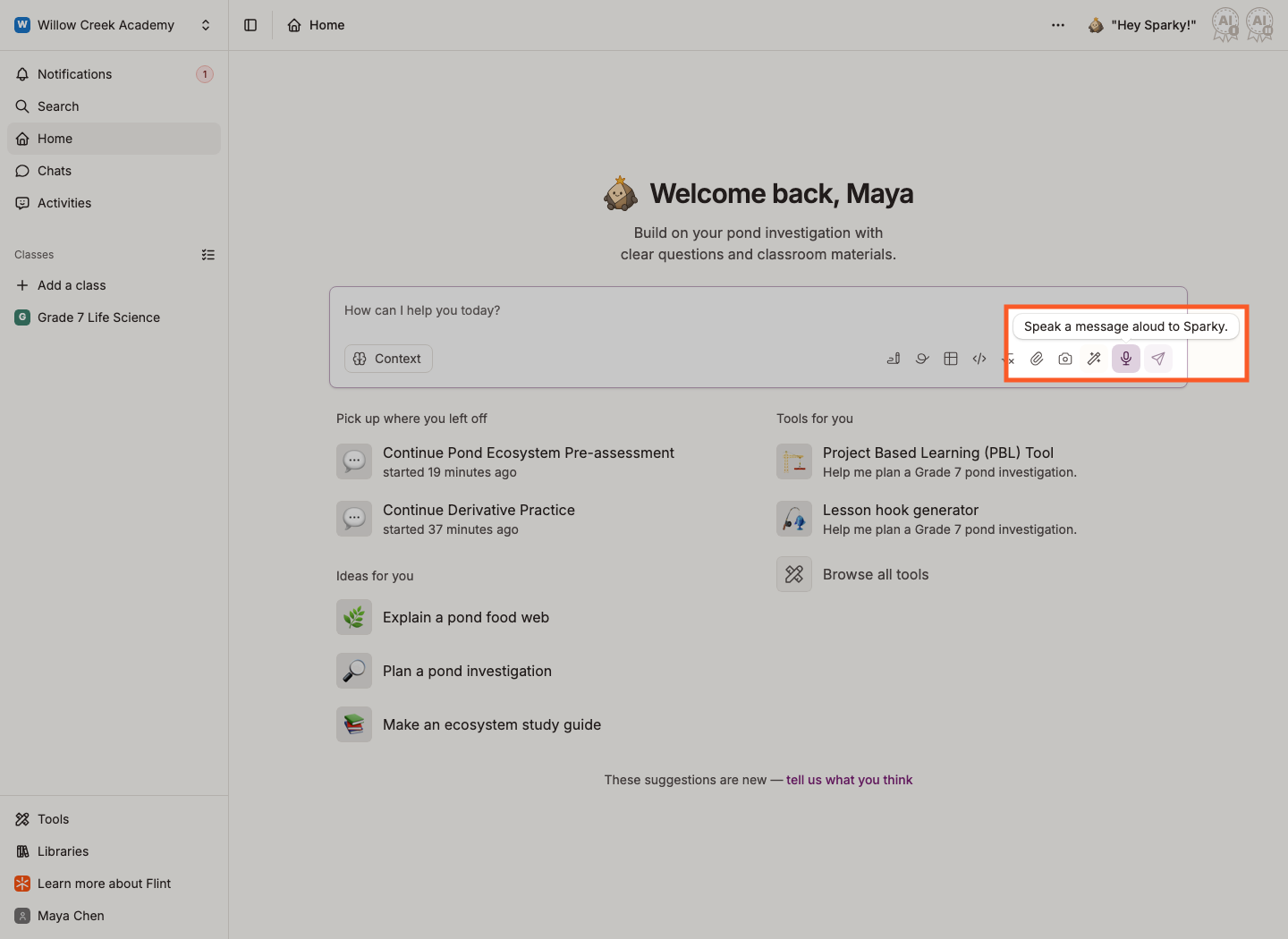
With an empty message box, click the microphone and allow microphone access if your browser asks. The microphone disappears after you type and returns when you clear the text. Speak your message, then select Done speaking — review the transcript, edit the transcript if needed, and send it. If the control reads Send recording instead, use it to send the recording.
Click Listen under a reply to hear Sparky read it back. In activity sessions, writing-only input has no microphone and speaking-only input uses Send recording. See How to enable speech to text and text to speech.
Find a chat again
Your own chats
Click Chats in the sidebar: recent personal and class chats are listed under All recent chats, and Search chats looks through your chats. Your profile's Chats tab lists personal chats in the selected term; switch its filter to My archived chats to find archived personal chats. Class chats are not included in that profile tab. Use Search in the sidebar to find an archived class chat.
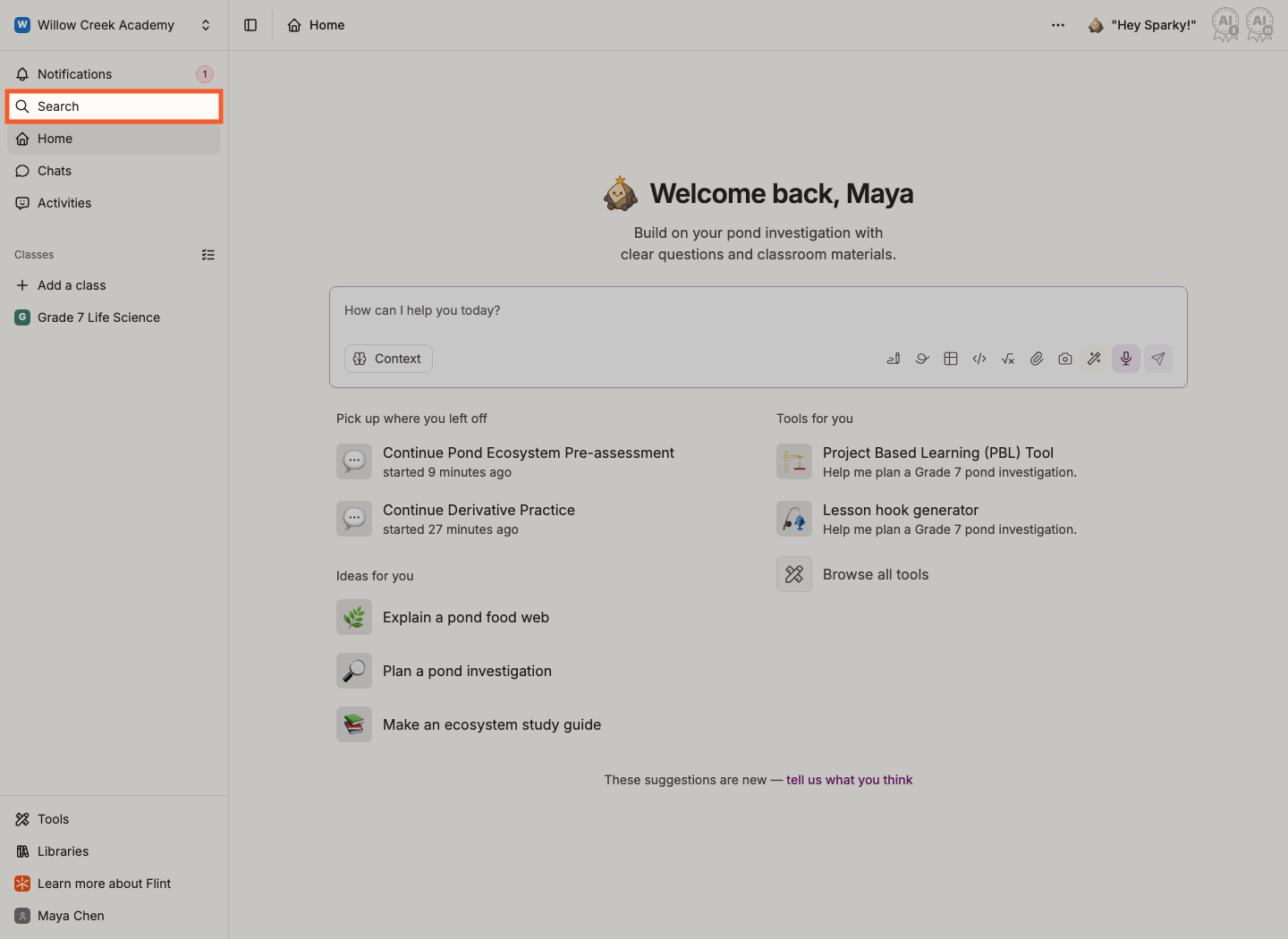
The screenshot highlights the navigation item; the recent-chat list appears after you open Chats.
Chats in your class
Open the class and click Chats. If you can edit the class, the filter above the list switches between All chats, All other people and My chats, or you can pick one person.
Chats across the school
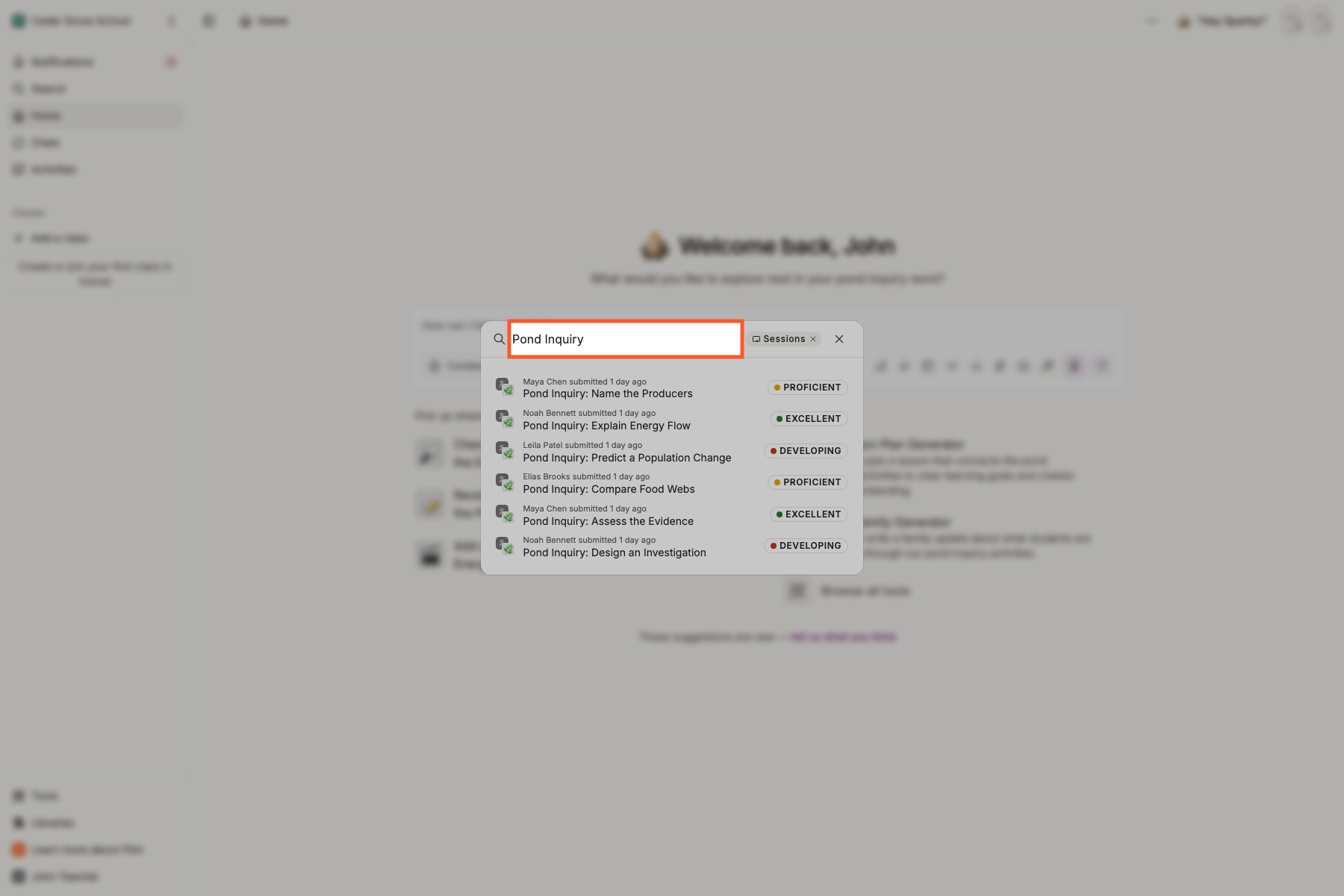
School admins can reach every chat and session in the school through Search. To find where a student's chats show up, see Seeing your students' chats.
-
Click Search in the sidebar.
-
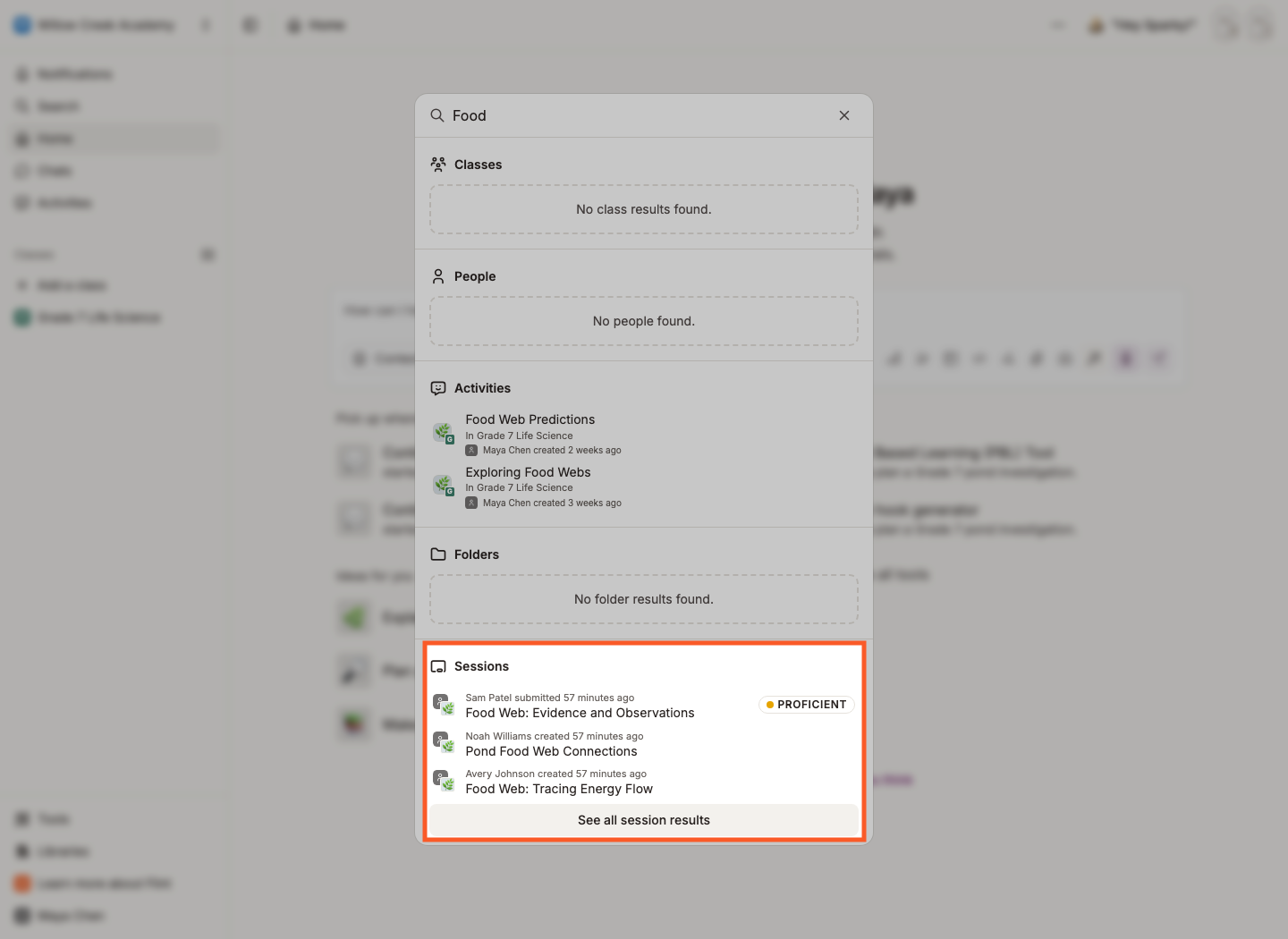
Chats and sessions have their own sections near the bottom of the results. Click See all chat results or See all session results to expand one.
-
Type in the search box at the top to narrow the list by name or keyword.
See Viewing all classes, users, activities and sessions through search.
To share a chat, see How do I share a chat on Flint?. To tidy one away or remove it, see Can I delete my chats in Flint?.