

Sparky can make a short narrated explainer video — about 90 seconds — with illustrated scenes. Ask for one in a chat or inside an activity.
Ask Sparky for a video
-
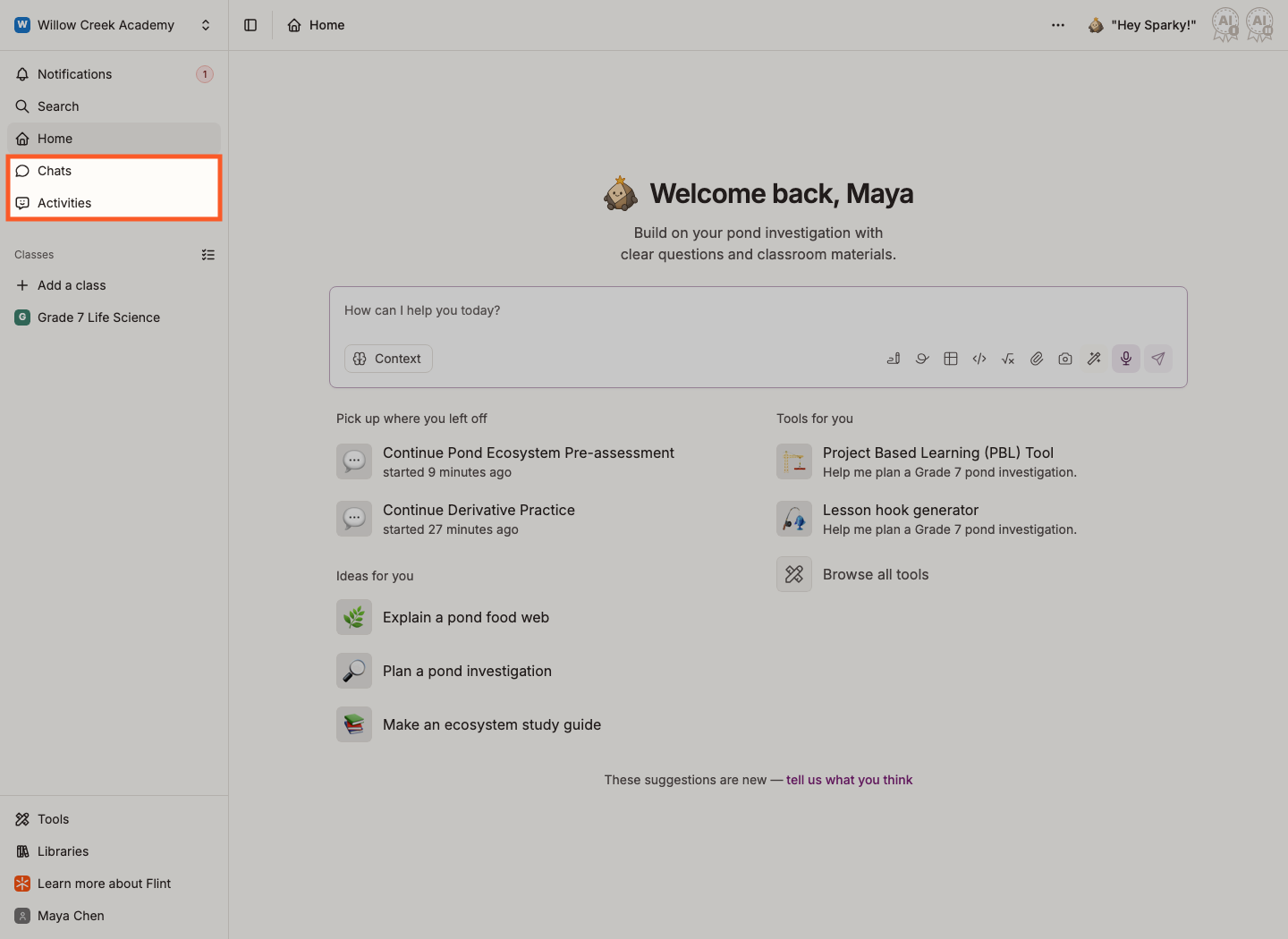
Start a chat — click Chats in the sidebar, then Start a chat — or open an activity and work with Sparky there.
-
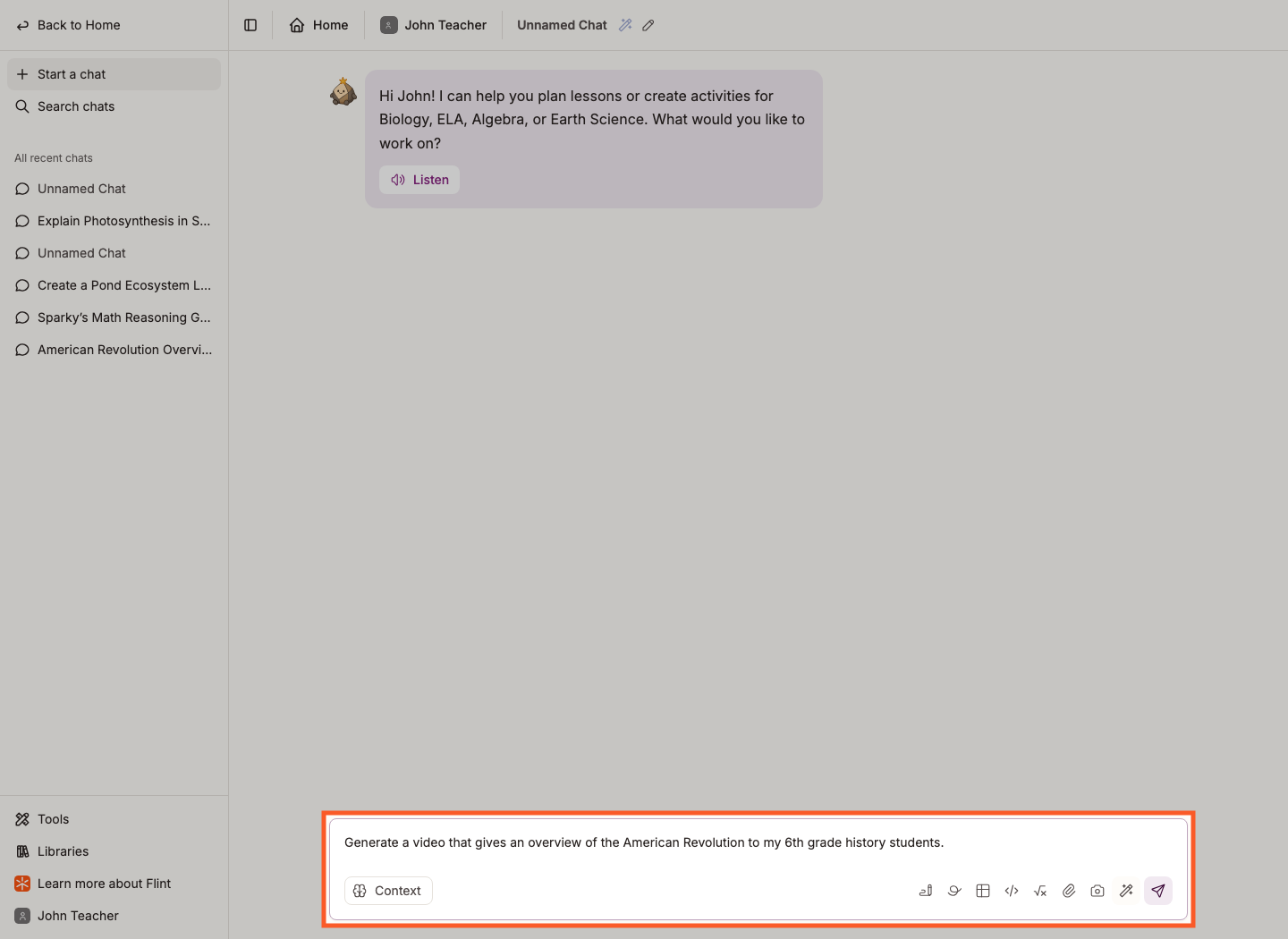
Say clearly that you want a video: "Create a video on…", "Generate a video about…", "Make a video that explains…". Add the grade level and what the video should cover: "Generate a video on the American Revolution for my 6th grade class."
-
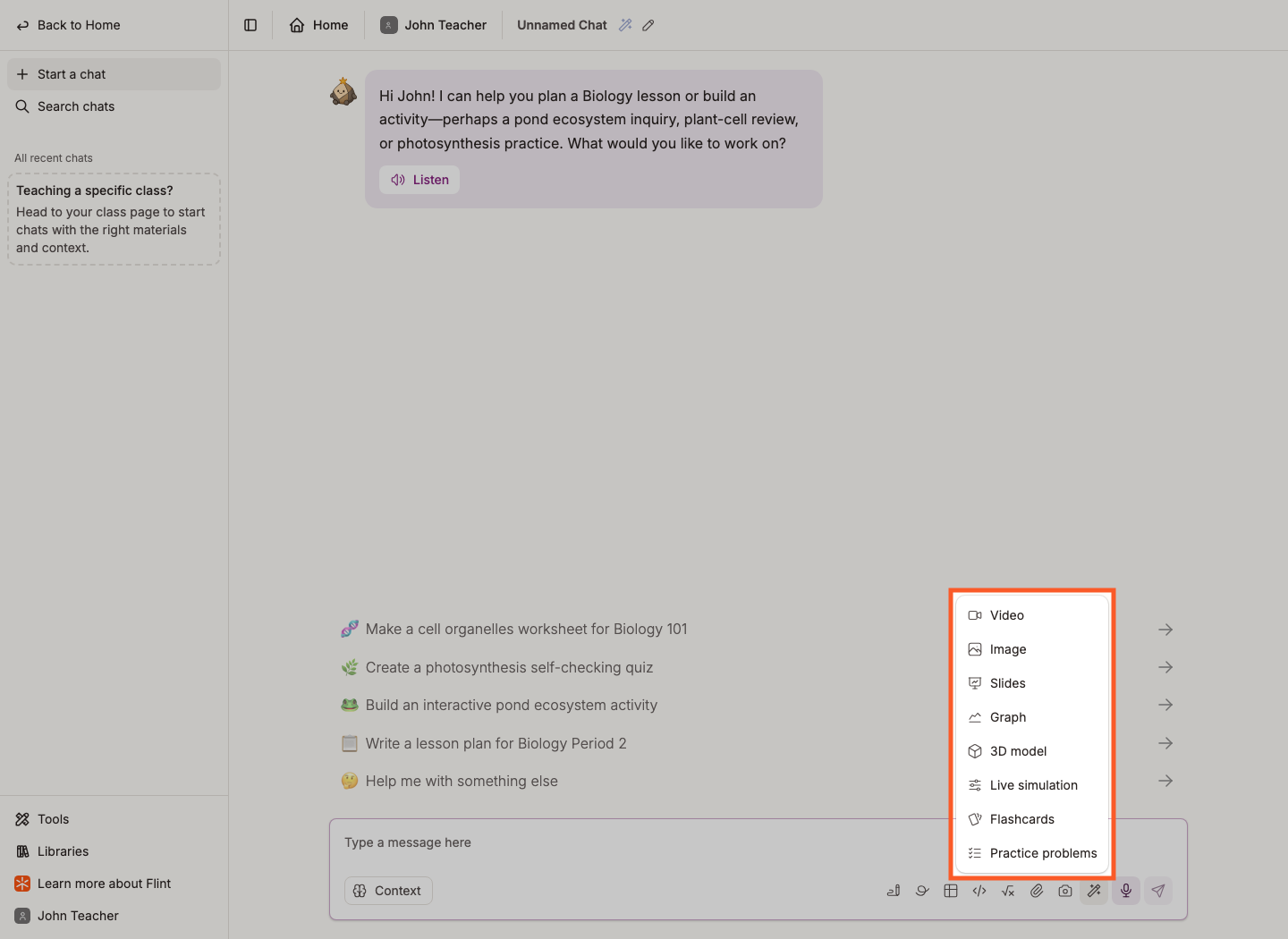
Give Sparky context if you have it. Under the message box, Add attachment(s) attaches files from Flint, your computer, Google Drive or Microsoft OneDrive, and pasting a link attaches the page. If the wand (Generate content) is available, choose Video, then describe your topic. This selects the video format and changes the placeholder to Describe your topic…; it does not insert a prompt into your message. Use Clear selection in the same menu to return to a regular message.
-
Give it a minute or two. Video takes longer than a normal reply — leave the tab open while Sparky works.
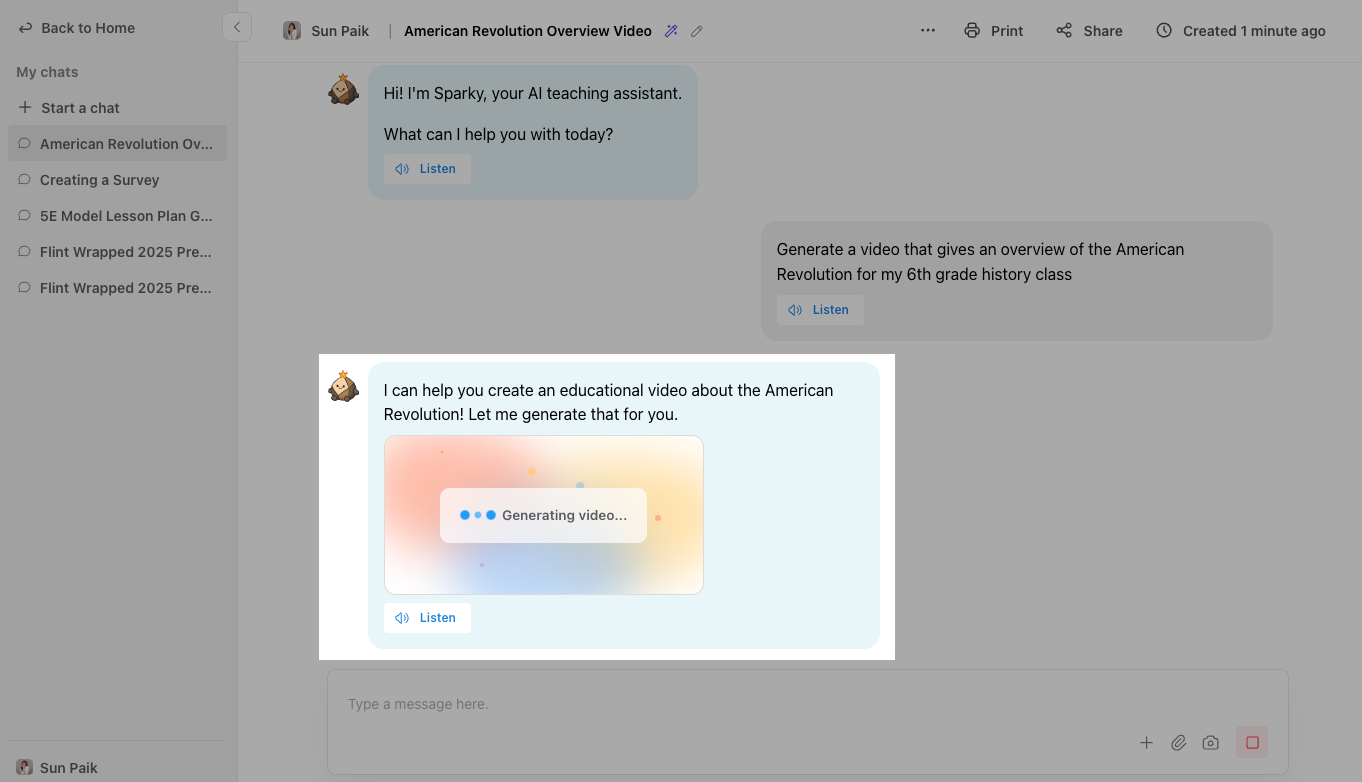
This loading-card picture uses the earlier My chats interface and old composer. The other pictures show the current interface.
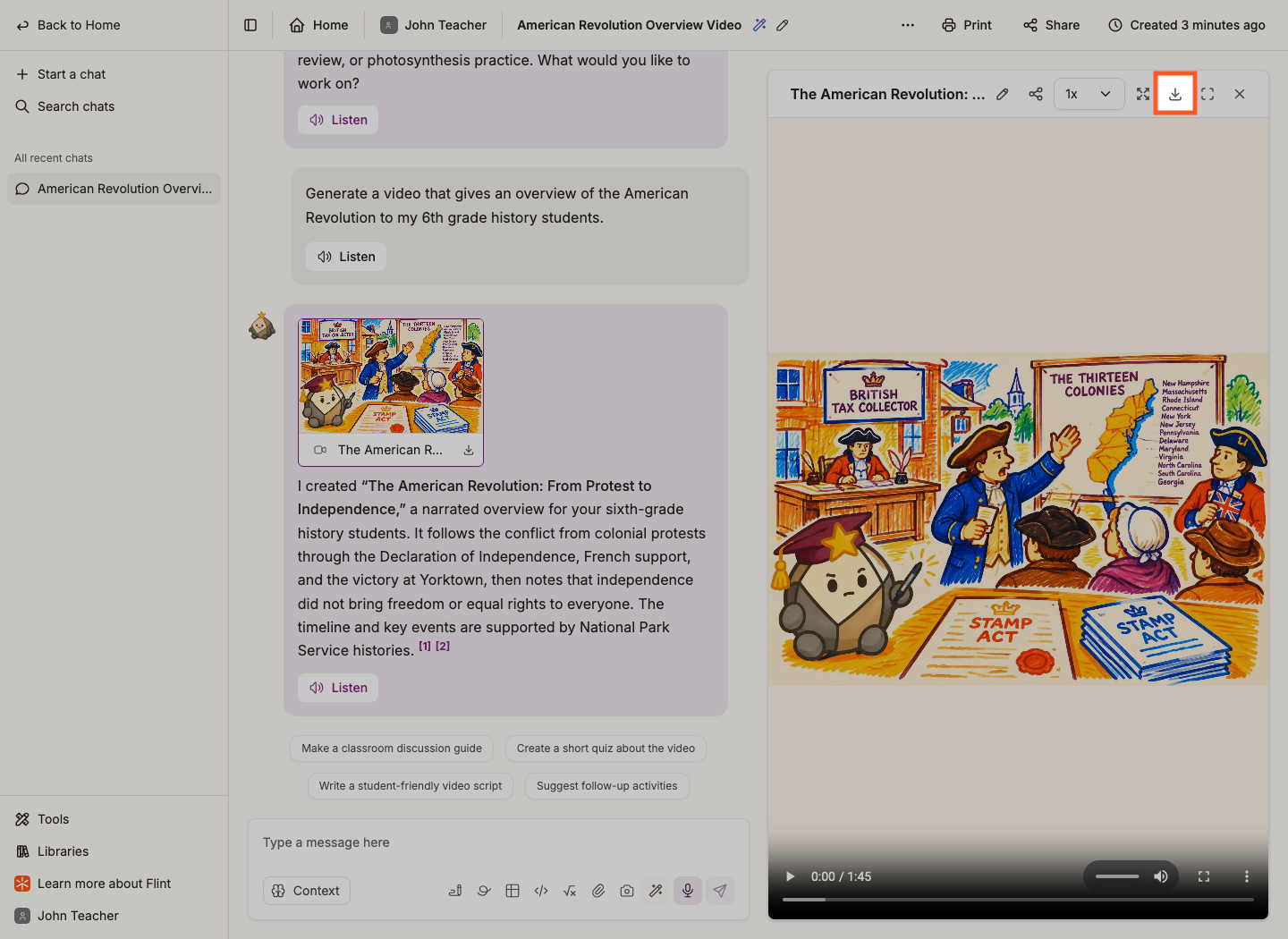
The video opens in a panel on the right of the chat, with a playback-speed selector, Fullscreen, and a download icon at the top of the panel that saves it as an MP4.
When the video panel offers Share, you can share just the video instead of the entire chat. Choose Private, Anyone with the link, or Open to a class (when available), then Copy link. For a class, select which class should have access. Check the audience description in the dialog: link access still follows the school or class scope shown there.
Change the video
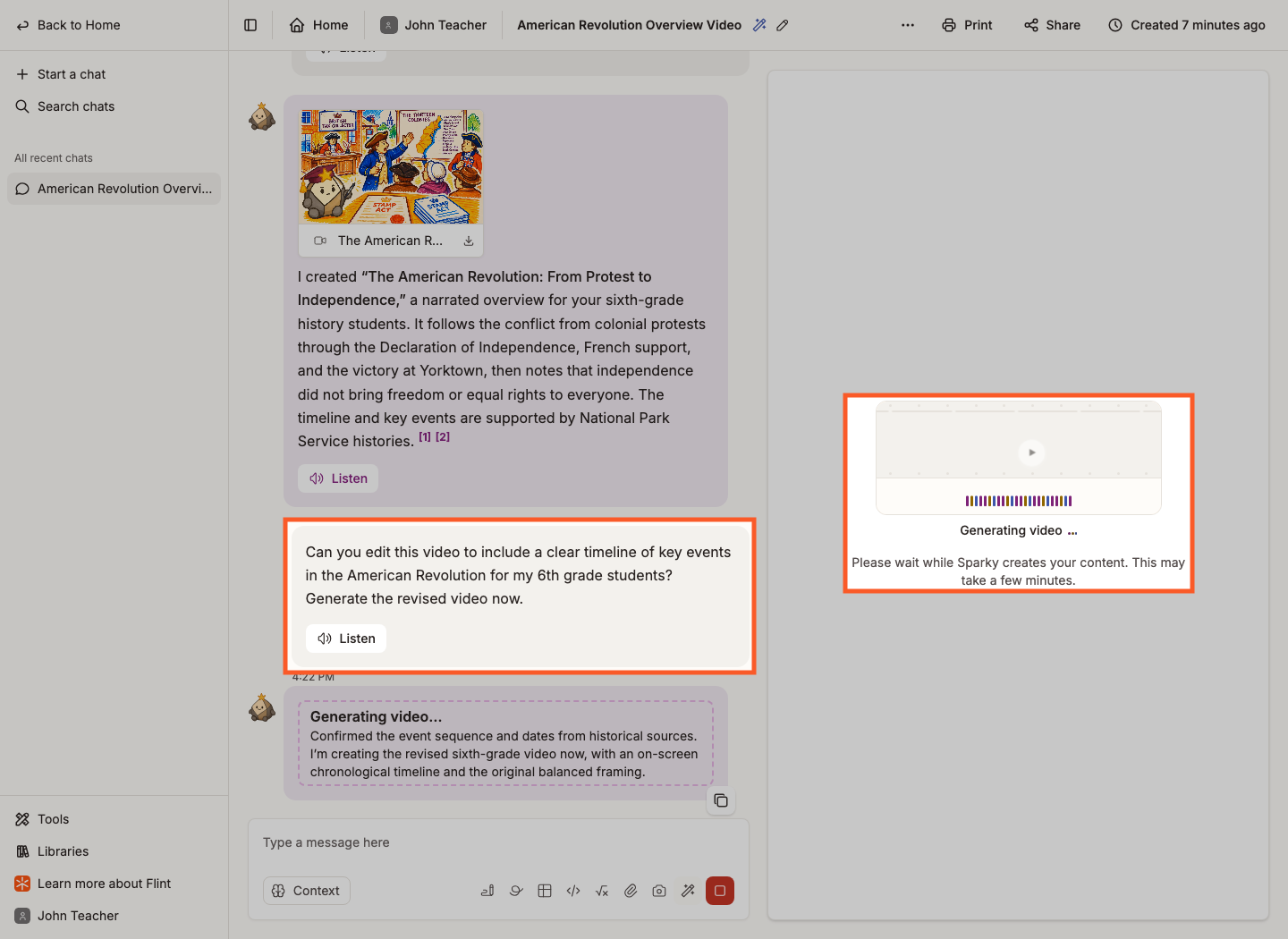
Videos are not edited in place: ask for what you want different and Sparky makes a new one. "Make it more of a timeline of key events", "aim it at 3rd graders", "spend longer on the causes". Your original stays in the chat.
Voice, language and speaking rate
Sparky narrates with one of nine voices. You can request another language or choose one from the activity's language settings; Sparky is instructed to use that language for the script and on-screen text. The language picker does not guarantee narration support or quality for every option. There are two ways to set the voice, language and speaking rate.
Ask Sparky
This works in chats and in the builder conversation inside an activity:
- "Generate a video in Spanish about photosynthesis"
- "Create a video with a slower speaking rate for my ELL students"
- "Make a video using the Blake voice"
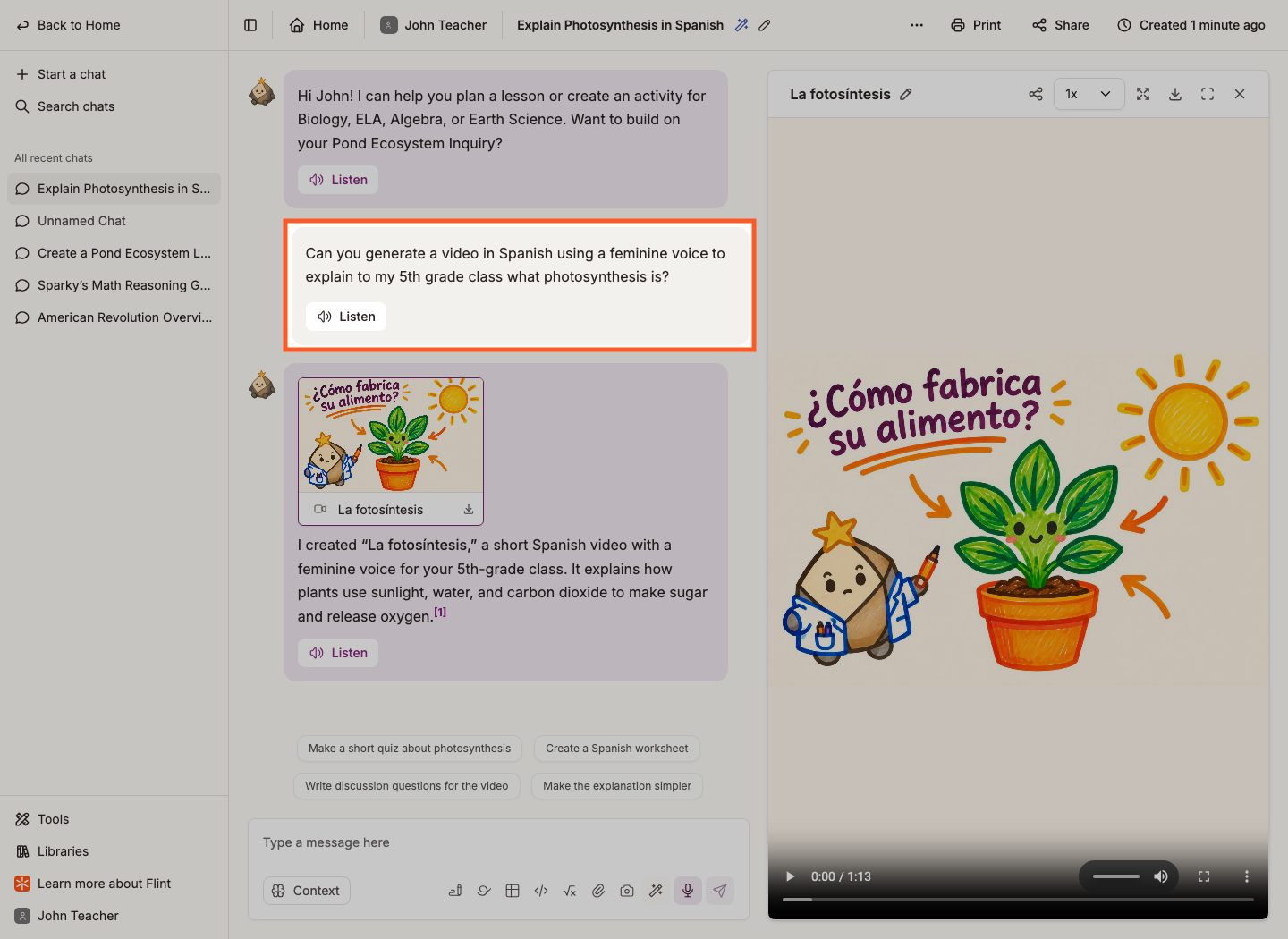
The still picture shows the request and poster, not the narration's voice or audio quality.
Set the activity's defaults
Videos generated inside a Lesson with Sparky activity use that activity's settings unless you say otherwise. The Language panel described below is not available on File Upload or Test or Quiz activities.
-
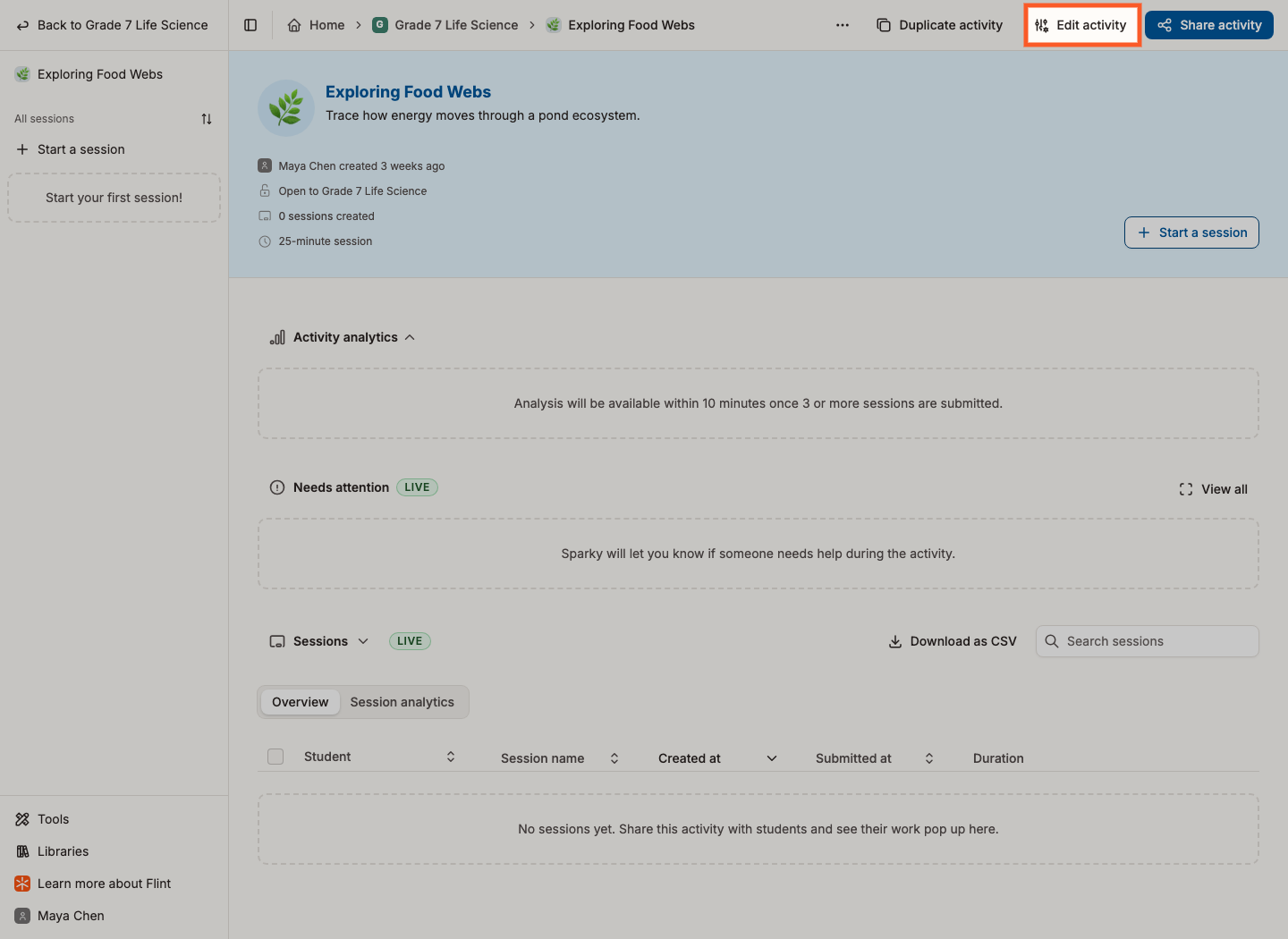
Open the activity and click Edit activity.
-
In Settings, beside the conversation, expand Language.
-
Set Primary language. To reveal Sparky’s voice and Speaking rate, change Sparky’s communication from Writing only to a speaking option, then set the voice and rate. This also enables spoken chat replies.
-
Click Update activity in the top right of the page.
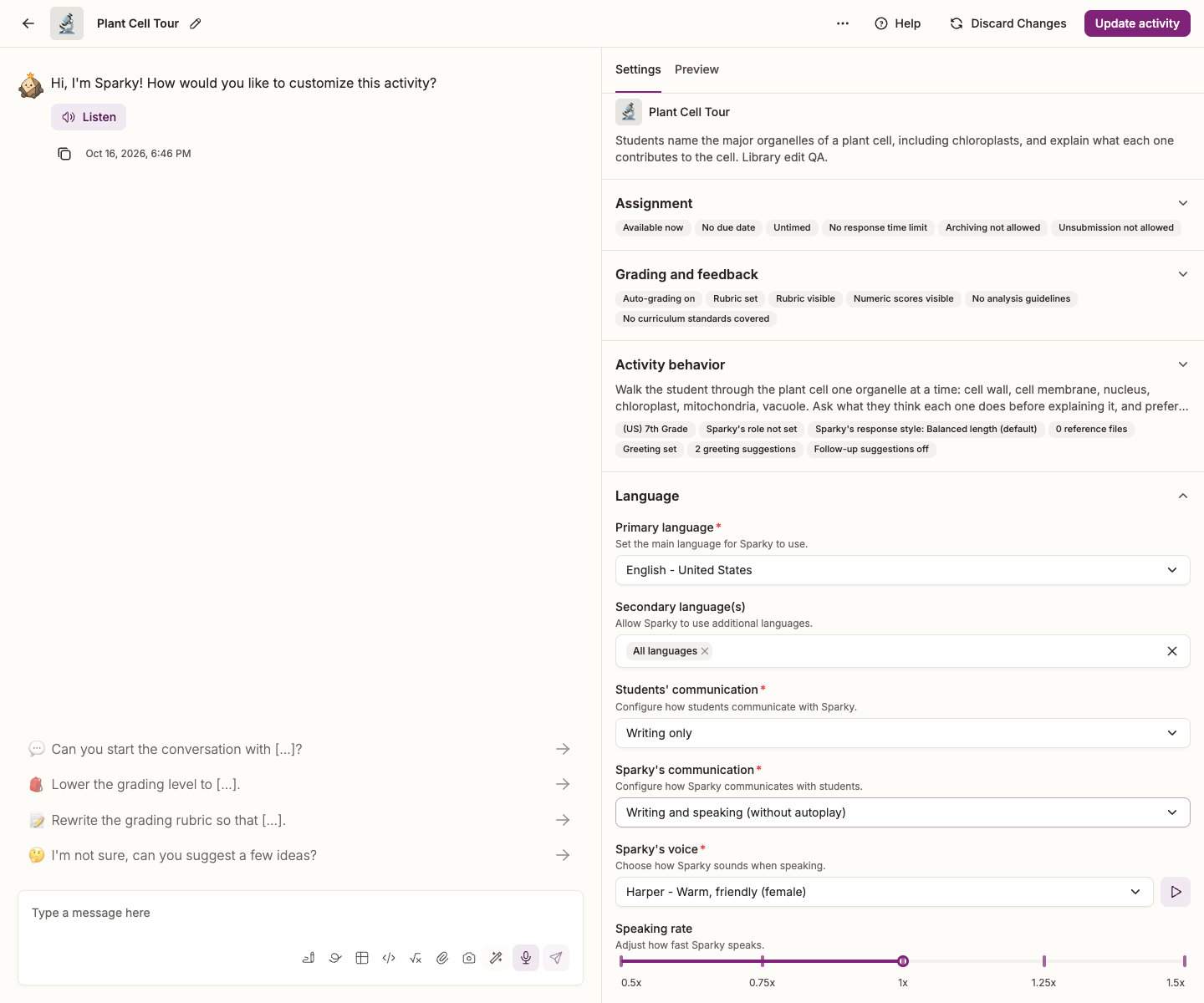
To keep chat replies writing-only, ask Sparky for the video's voice and rate explicitly instead. Video narration does not require spoken chat replies. See How to customize Sparky's voice for the speech settings and voice previews.
Getting a better video
- Say who it's for. Grade level, what they already know, and what they should take away.
- Give Sparky the source material. Paste your notes or curriculum text, attach a syllabus or a lesson plan, or link a reading.
- Ask for the teaching moves you want. Examples, analogies, a step-by-step explanation.
- Ask for the rest in the same message. "Create a video on photosynthesis and slides that go into more detail on each step" gets you both.
Things to know
- Videos run about 90 seconds.
- They download as MP4.
- Videos do not carry the AI-generated content watermark that images and slides can.
We're still expanding what video generation can do — the what's new page keeps track.