

These are the habits that turn Flint from an AI tool into something closer to a teaching assistant. Every one of them came from a teacher who found it the hard way, so you don't have to.
Brainstorm in a chat, then turn it into an activity
A chat with Sparky is a good place to think out loud about a lesson. When the shape of it is there, you don't have to copy anything across by hand — tell Sparky you want to build a Flint activity out of the conversation, then click the suggested activity card marked Build to open the builder with your ideas already in it.
How to convert chats to activities
Describe the activity to Sparky
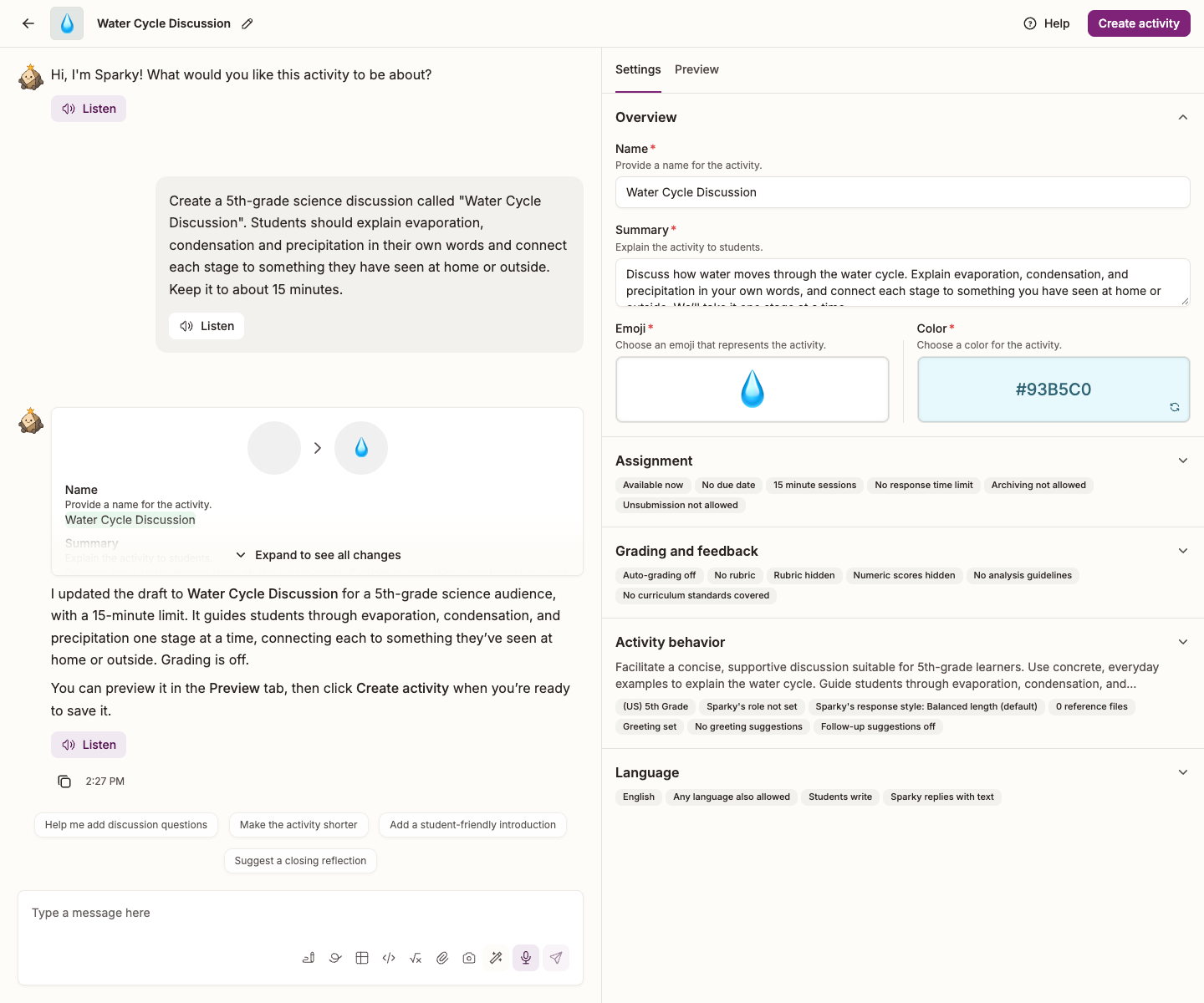
The builder opens with the conversation. Tell Sparky what you want students to do, then review its draft. Settings is open beside the conversation; expand a section to fine-tune a field.
Start simple, then add
Begin with a basic activity and add complexity as you get comfortable. This is true for teachers rolling Flint out to students and for admins rolling it out to teachers.
💡 Find something close to what you want in Public library, duplicate it, and adjust it to your class before building from scratch.
Be specific
Include the grade level, the subject context and the learning objective. Say what format you want back — bullets, paragraphs, a table. If you want something to happen in the activity and you don't say so, Sparky won't know.
Set the class context once
Class context on a class's Curriculum tab holds up to 5,000 characters about your students, your teaching style and any ground rules for AI. Everything in that class inherits it, so you never have to repeat "this is a ninth-grade algebra class, two students have dyslexia, always make them attempt the problem twice first" in each activity you build.

Using class context to improve activity prompting
Ask Sparky what it has so far
While you are building, ask Sparky to summarize the activity as it stands. It is a fast way to see what is working and what is missing. If the activity isn't turning out how you want, ask Sparky directly why it isn't following an instruction — it will usually diagnose its own prompt and suggest a fix.
Preview before you share
You proofread an email before sending it; do the same with an activity. For a Lesson with Sparky, select the Preview tab beside Settings. The tab offers two ways to check it:
- The play button runs a simulated session — pick a grade from your activity's rubric to see how it lands at that standard of work, not a school year or age level. Without a rubric, there is no grade to select.
- Try session myself puts you in the student's seat so you can push on it yourself.
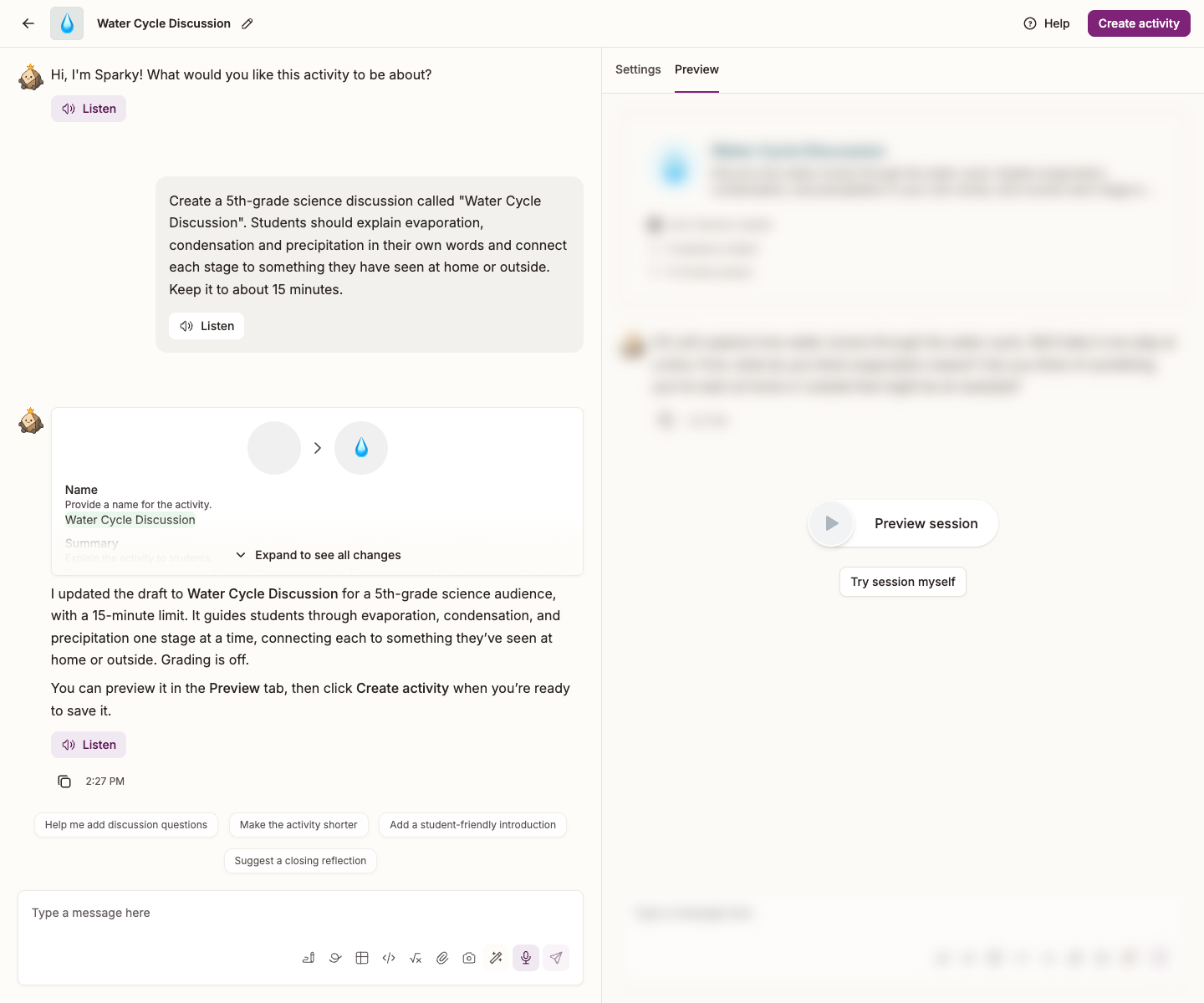
Do both. Simulation is quick; going through it yourself finds the awkward moments.
For a Test or Quiz, review Questions and use Preview instead. Check the answer keys and points before assigning it.
How to see a live preview of your assignment
Use more than text
For lessons with Sparky, try images, spoken conversation and the whiteboard rather than relying on another wall of text.
Put the rubric in the activity
For lessons and file-upload activities, build your criteria into the activity's Grading rubric rather than describing them in prose. With Auto-grading on, Sparky grades submitted work against the rubric, and you can review the grade afterwards. If you already have a rubric — your own, or something like the IB criteria — attach it in the builder conversation and ask for it as the activity's rubric.
For assessments, review question-level scores and teacher feedback before Share results publishes them. Share answer key is separate: it controls students' access to correct answers, grading guides and available AI analysis after submission, not the release of teacher scores and feedback.
Check in regularly
Read through student sessions periodically to spot patterns. Ask students which activities they found most useful — their answers are usually more direct than the analytics.
Keep Sparky's answers short
Long replies are how an AI accidentally does the work. Two ways to shorten them:
- Set Response style to Concise in the activity's Activity behavior section.
- Say it in the instructions too: "Keep responses to math problems under 75 words."
How to change Sparky's response style
Be explicit about what not to do
If there is something you don't want Sparky to do, say so plainly and give it an alternative. Prohibitions on their own leave it guessing.
IMPORTANT: Never rewrite any part of a student's writing — not conclusions, not any other section. Instead: explain the concept, and point at specific issues using examples from their own work (for instance, identify the actual sentences written in the passive voice).
Read the class analytics
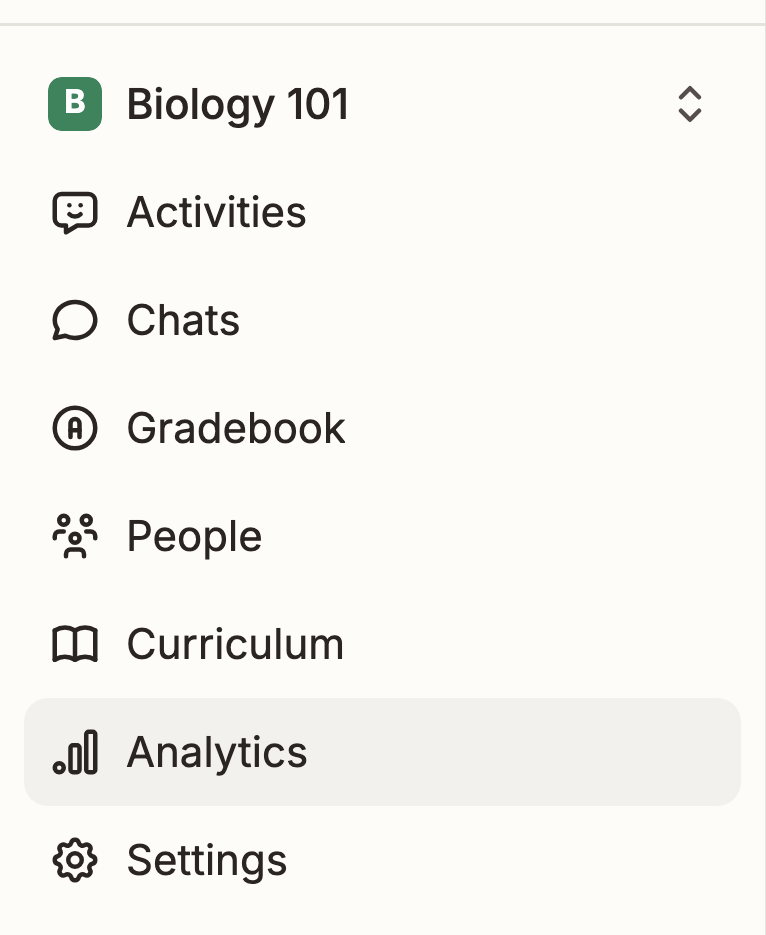
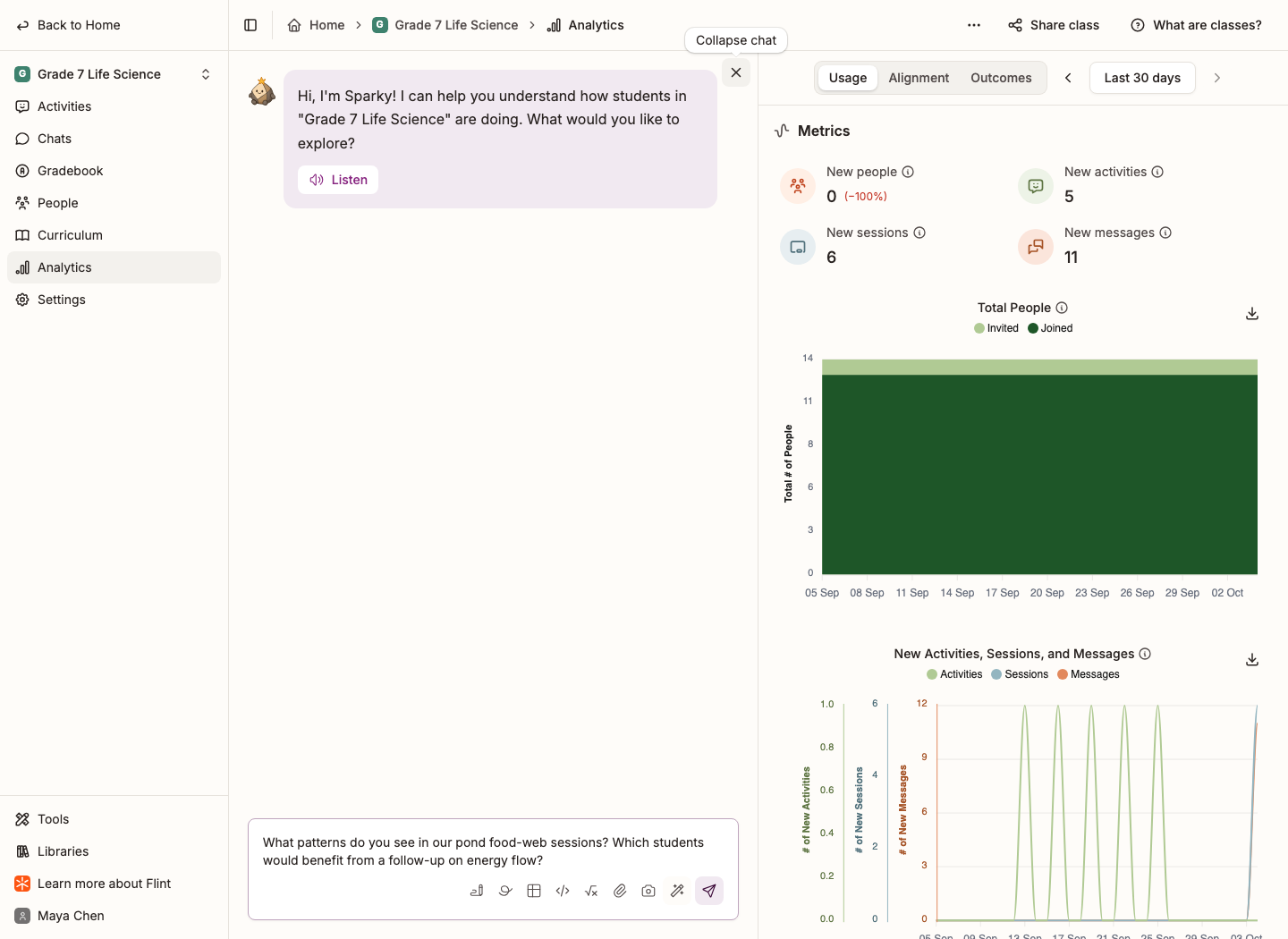
With Can edit access to a class, select Analytics in its sidebar to see how the class is doing. Select the speech-bubble button Ask Sparky about your analytics to open a chat about class performance, engagement and where students are getting stuck.
With the chat open, Sparky is on the left and the class's metrics are on the right. The screenshot below shows the chat expanded.
Scaffold across several activities
The most common mistake is packing everything into one activity. Split it instead: for an essay, one activity to brainstorm, one to outline, one to draft the introduction. Students get the process in manageable pieces, and you get to see the whole arc of their thinking — which also makes it obvious if work appeared from somewhere else.
Differentiate
Make variations of an activity for different needs, and ask Sparky to help write the differentiated prompts. Accommodations that apply to the whole class belong in Class context instead, so every activity picks them up.
Have a technique that belongs here? Select Learn more about Flint in the sidebar, then Feedback, and tell us about it.